Dashboard
NOTE: The below article details this feature for our customers utilizing Privv and excludes custom workflow or configuration. Specific customer configuration, customers utilizing other versions of these applications, or custom application features may differ in functionality or processes to those outlined below.
Explanation
The Dashboard within Privv is where you can go to review an executive-level summary of all key points of the project and/or portfolio of projects. This includes photos of the site, budget summary, task status within the schedule and key phases as well as updates on key milestones. Each widget on the dashboard can drill down further. All insights are pulled from the various modules and data entered within the system.
Access
There is one way to access the dashboard in Privv software. When you log in to Privv, you will see a navigation bar to the right of the screen. As you can see, “Dashboard” is listed on the uncollapsed navigation bar. You will only be able to access the dashboard through this access point.
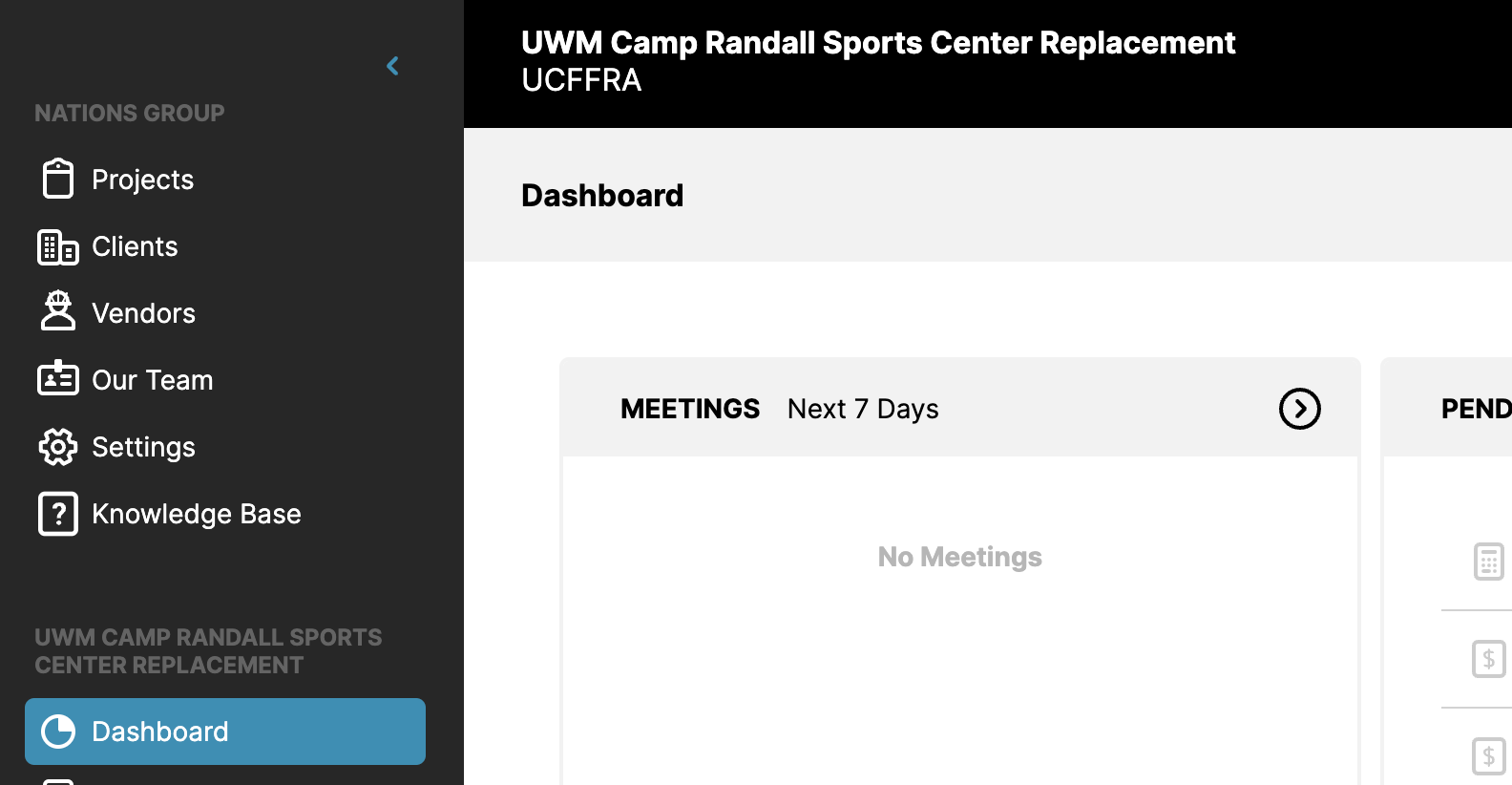
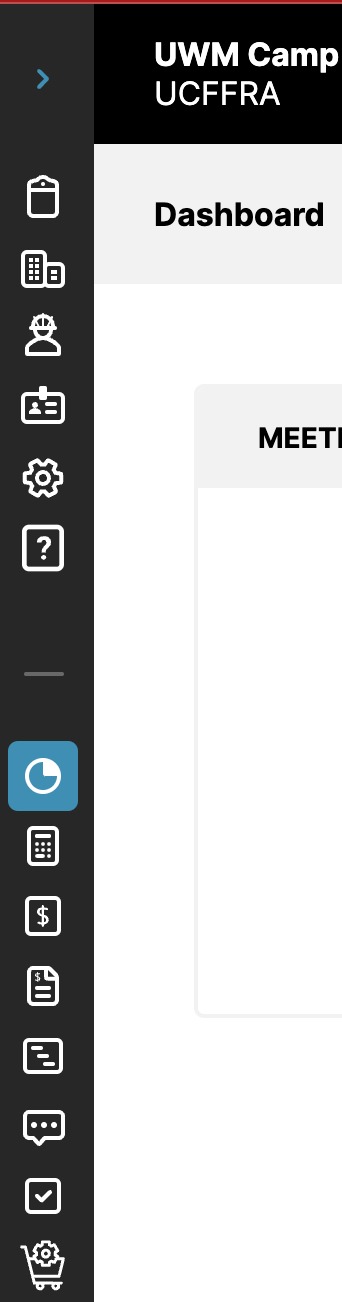
At the top right of the navigation bar, you will see a blue arrow. This allows you to collapse the navigation bar. You are still able to access the dashboard with a minimized navigation bar.
Access to the dashboard will be available at any time while working with the software.
Main Sections Outlined
Your Dashboard module typically has the below widgets/insights. Please note, that if additional widgets or standard widgets need to be replaced, you can reach out to your account manager or put in a tech support ticket. During implementation, this should be discussed as well.
Photos: A project that was well-documented with photos will show what really happened. This is a great collaboration tool as the project continues to move along.
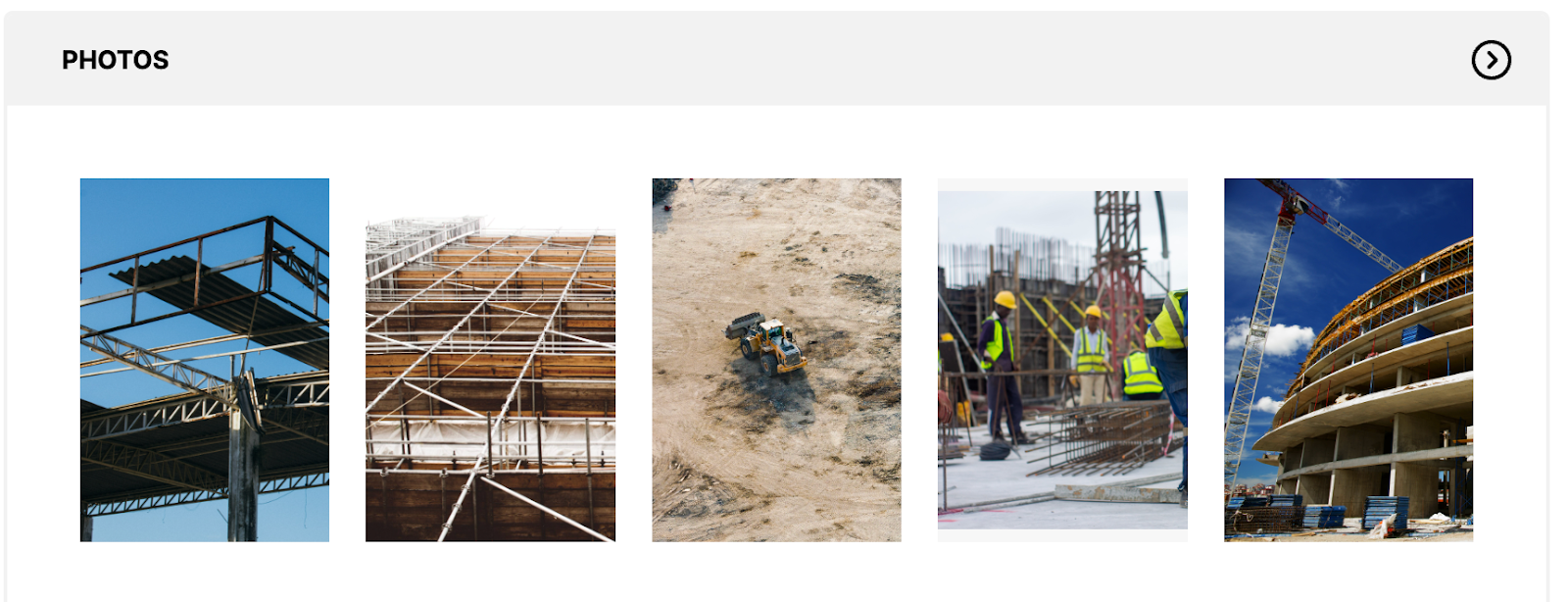
You can click on the top right arrow to access your photo library (another module in Privv) and select which photos you want to highlight on the dashboard. This module is explained in another user guide article located here.
Schedule: All schedules associated with the user will be present on the dashboard. You can tell which project the schedule is associated with by looking at the name. This is a high-level view of where you are at each phase of the schedule. The % of attainment is based on your first and last date when you build your schedule.
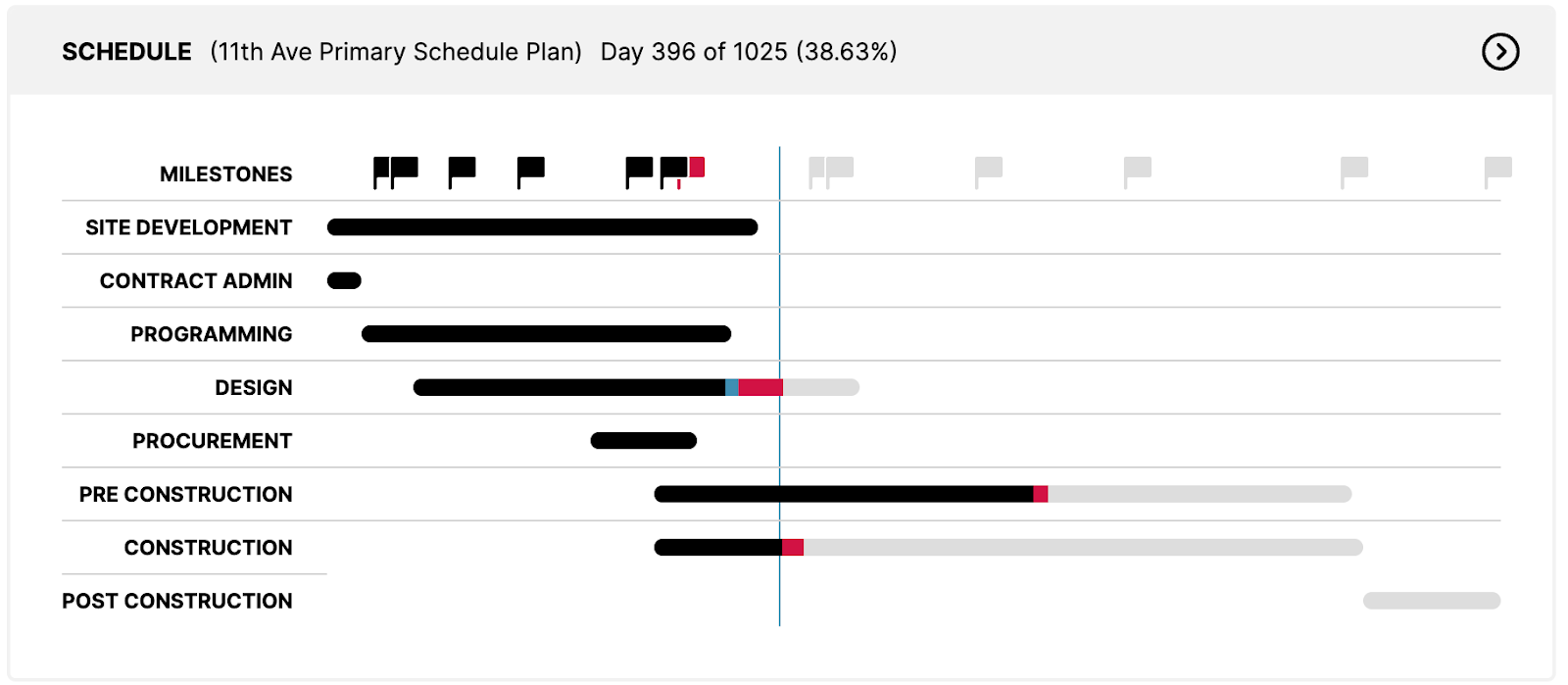
There are a few additional callouts available when hovering over the schedule for quick callouts.
The flags shown in the schedule are milestones you want to manage. They are initially set when building out the schedule. By hovering over the flag, you can see what the scheduled completion date is and what task/milestone the flag indicates.
There is a blue line placed in your schedule; this represents today's date. It allows you to see when each phase should start/end based on the current date.


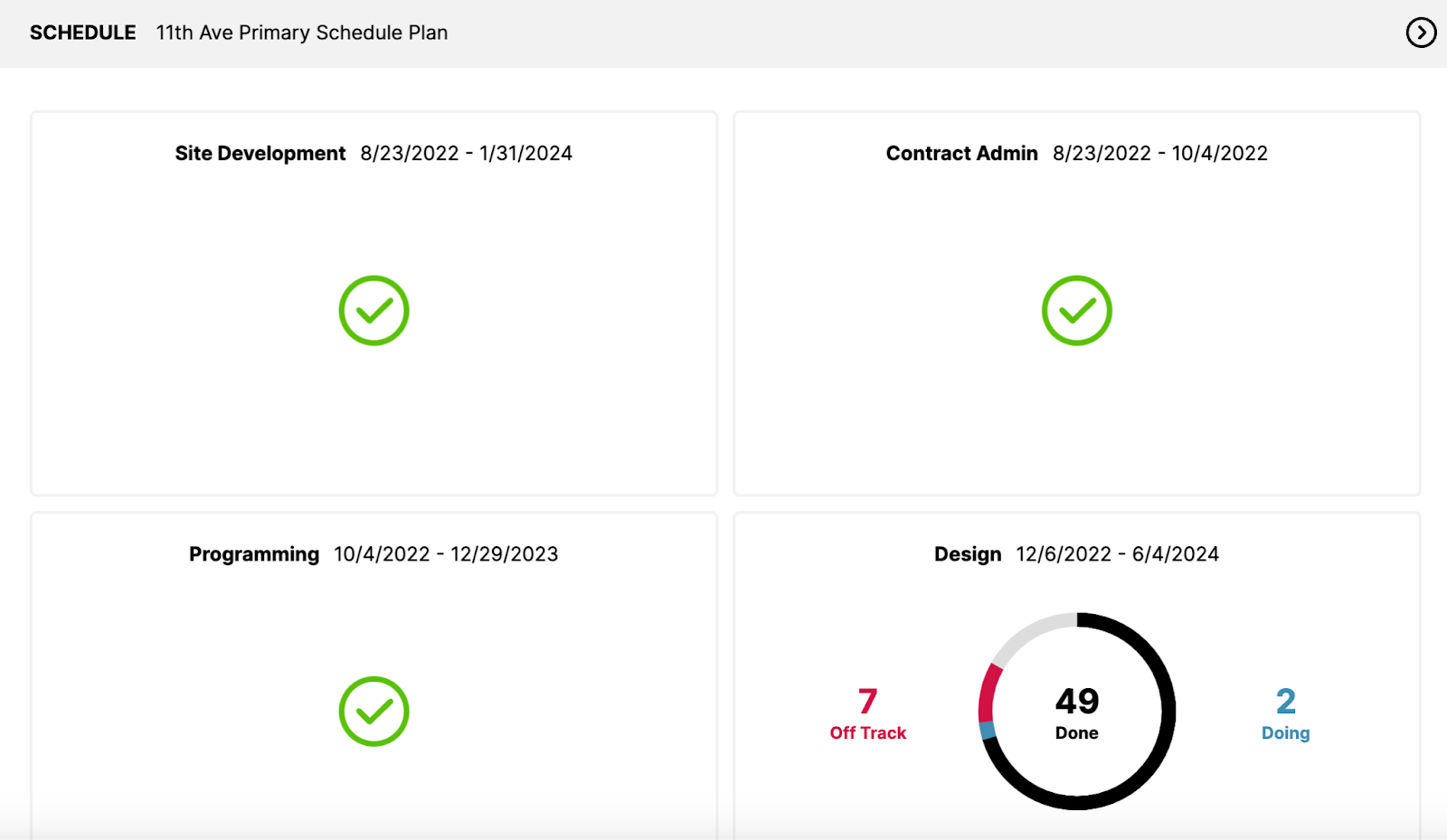
When clicking on the arrow at the top left of the schedules widget, a more detailed view of your schedule summary will populate. This highlights by phase within your schedule, where you are in terms of tasks (there are a predetermined number of tasks associated with each phase of your schedule).
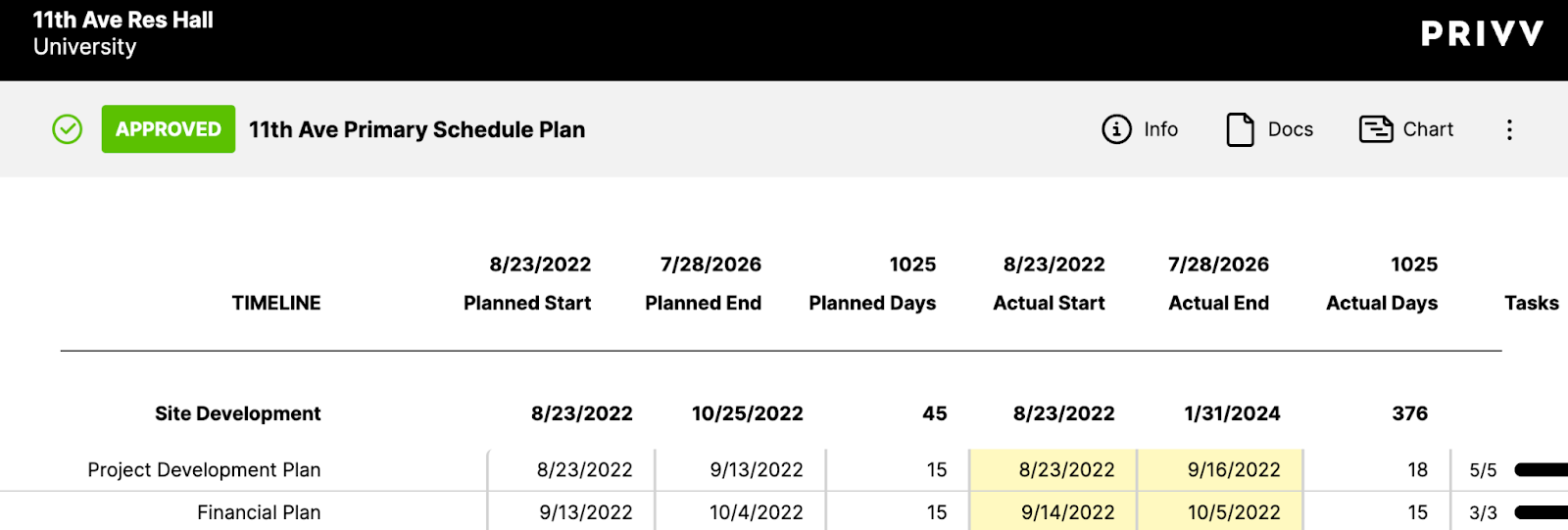
For an even further review of your schedule, you can click on the arrow at the top right of your schedule summary and it will route you to the actual live schedule which is also available on the navigation bar.
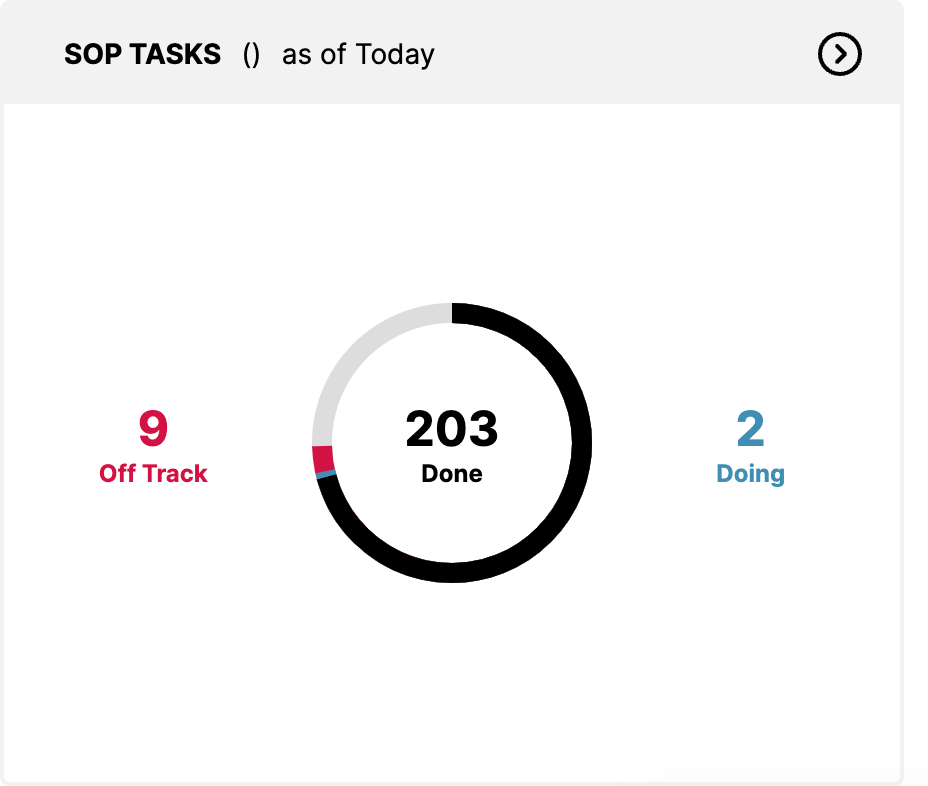
SOP(Standard Operating Procedure) Tasks: When a schedule is created based on the project type, predetermined standard operating tasks will be associated with that schedule. The dashboard allows you to quickly see if any tasks within the schedule are off track, done, or in the process of being done.
By clicking on the arrow at the top right, you can drill down further and see exactly what tasks are overdue for quick follow-up and immediate action.
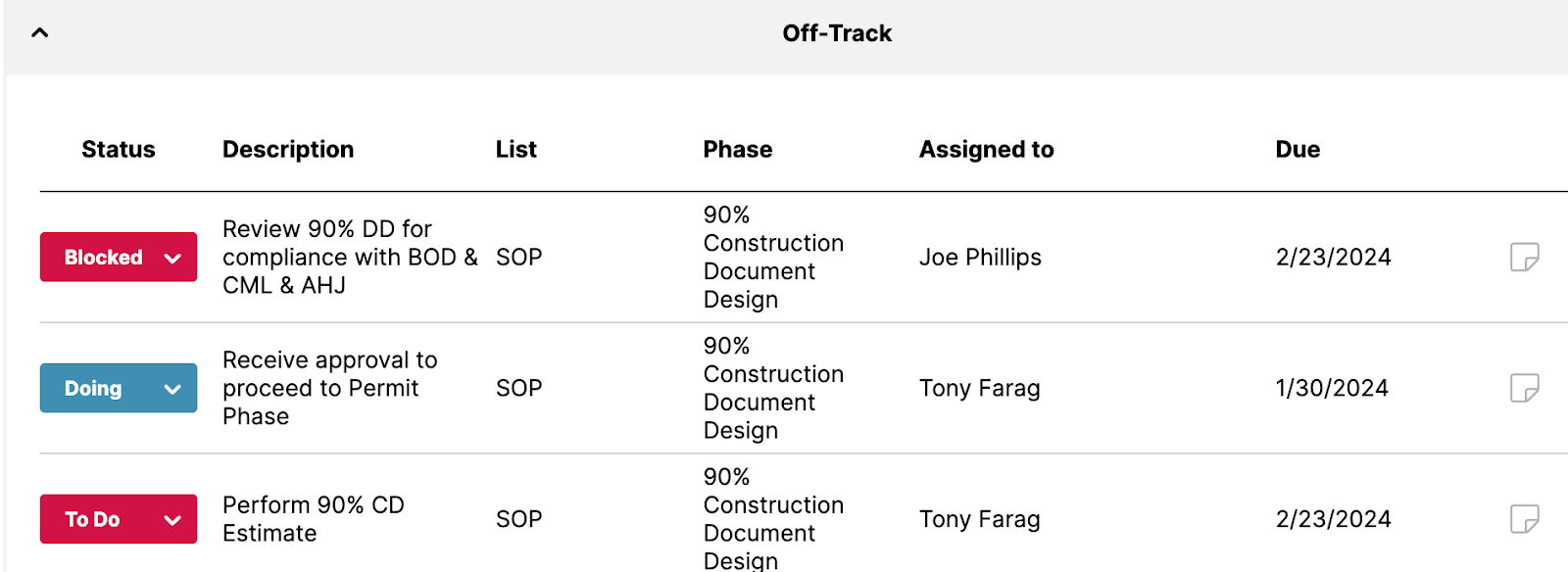
As you can see, the tasks are categorized for you by their “status”. We know that all of the tasks associated with being “off track” have a due date that is past due. You can see who the owner of that task is, what phase of your schedule that task is associated with, and a description.
You can choose to add a quick note on that task by navigating to the

notepad icon next to each task.
Cashflow: This is an aggregated view of your total, soft, and hard costs by month and year for a specific project. You can see which project the chart and insights represent by looking at the name next to cash flow. The data is being pulled from the projects budget which is also available to look at by accessing the budget module.
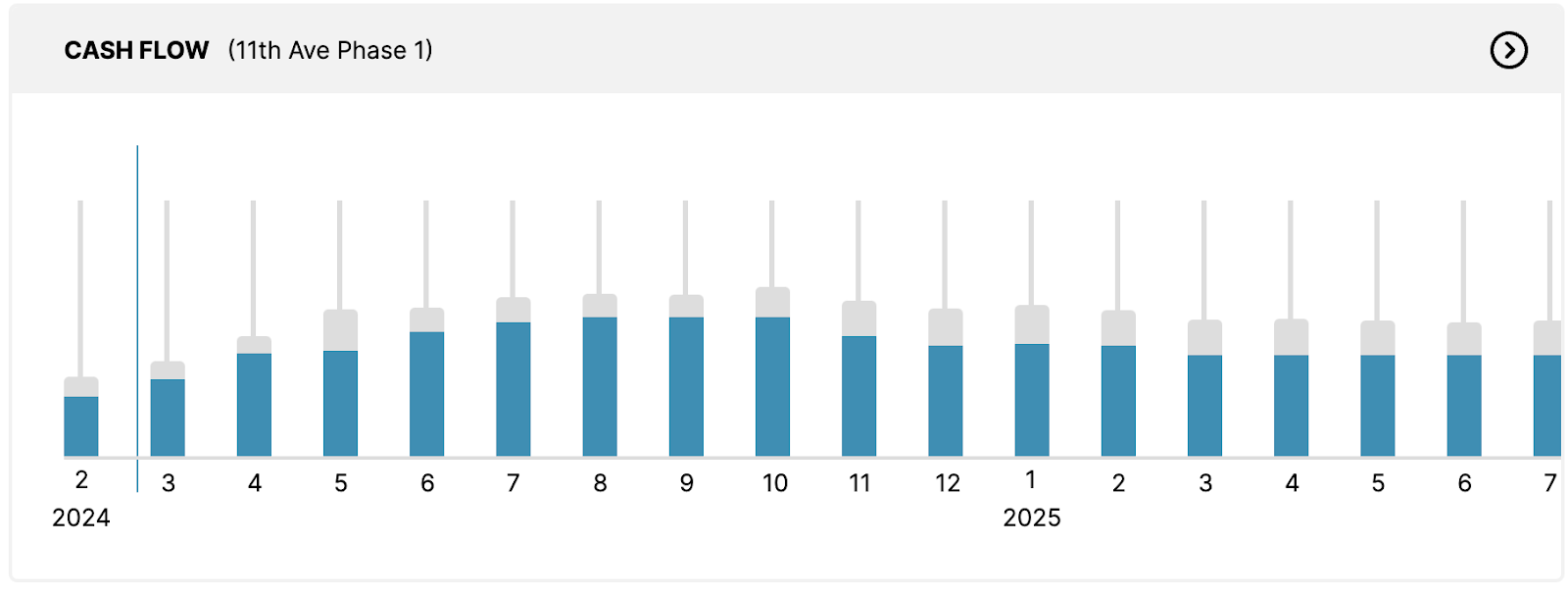
There is a blue line placed in the chart; this represents today's date. It allows you to see where you are currently for the entirety of the project timeline.
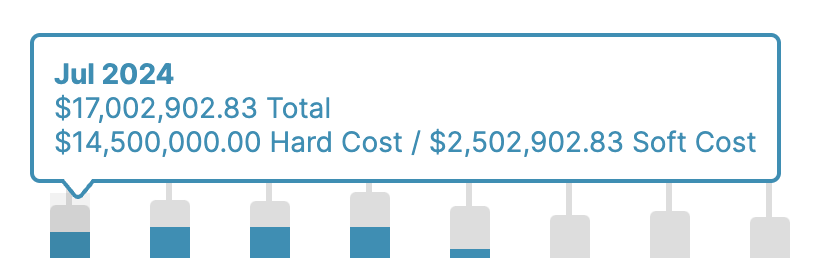
When hovering over a specific month (the numbers are a numerical representation of the month), actual insights about total, hard, and soft costs are shown.
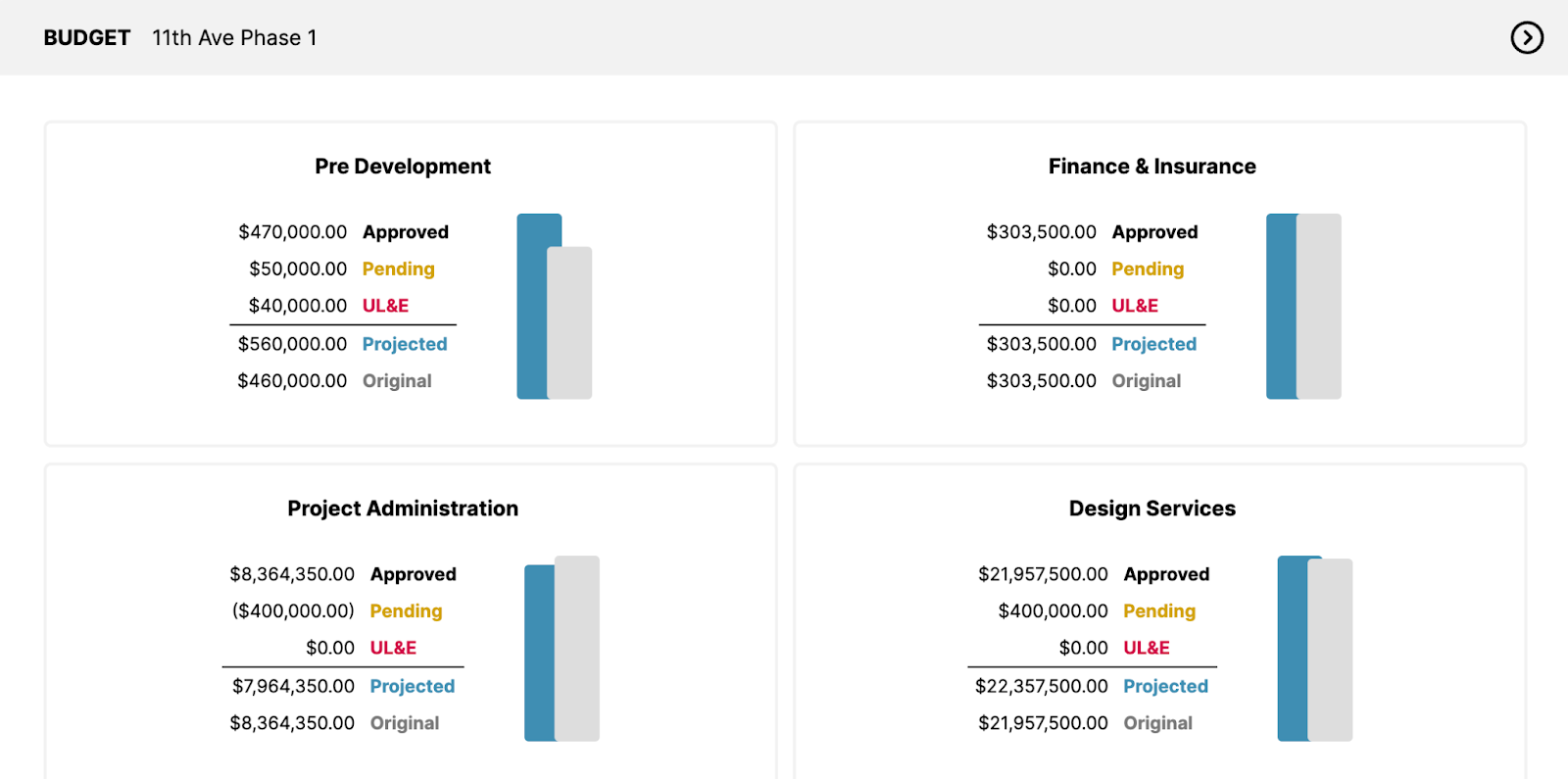
When clicking on the arrow at the top left of the cashflow widget, a more detailed view of your budget summary will populate. This highlights by phase within your budget where you are for approved, pending, UL&E, projected, and original cost.
For an even further review of your cash flow and budget, you can click on the arrow at the top right of your cashflow summary and it will route you to the actual approved budget which is also available on the navigation bar.
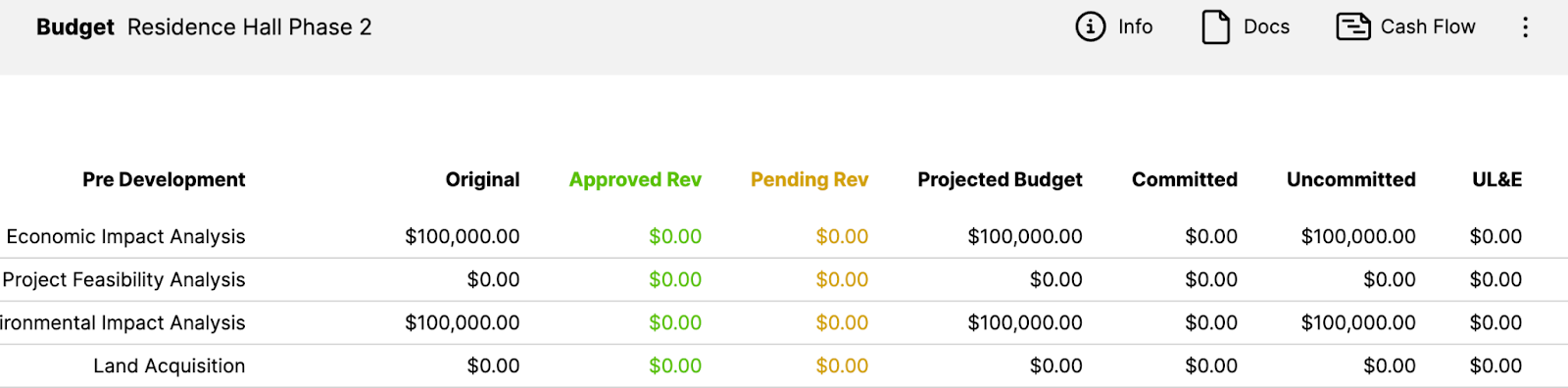
Budget Analysis: Privv’s Dashboard provides an all-up view of your project's Budget summary. The Budget analysis is specific to a single project which is called out at the top of the widget. All data points are pulled from the project's budget data which is managed and input by the project manager.
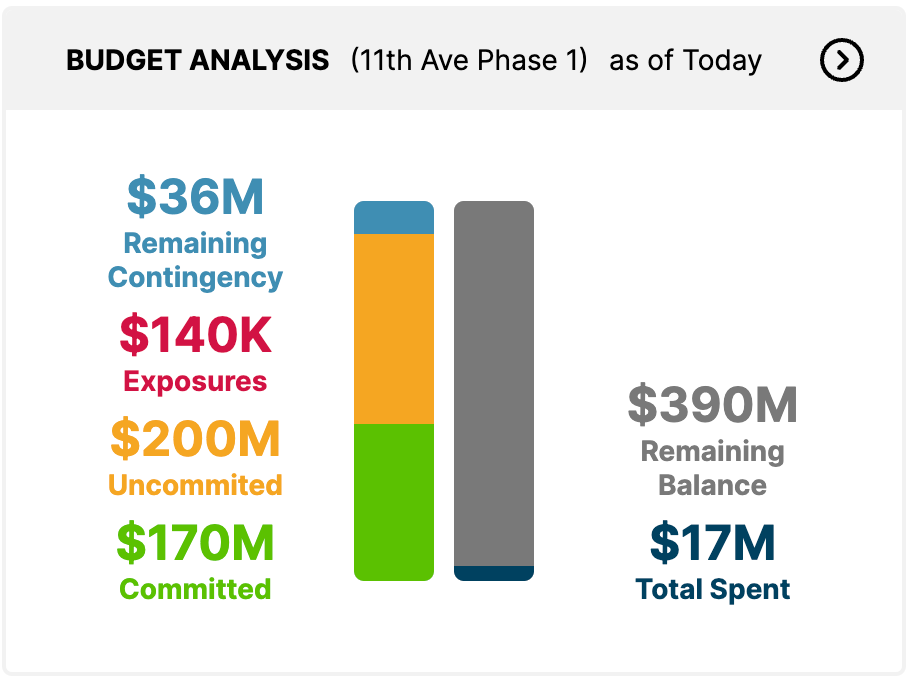
When clicking on the arrow at the top left of the budget widget, like the cashflow widget, a more detailed view of your budget summary will populate. This highlights by phase within your budget where you are for approved, pending, UL&E, projected, and original cost.
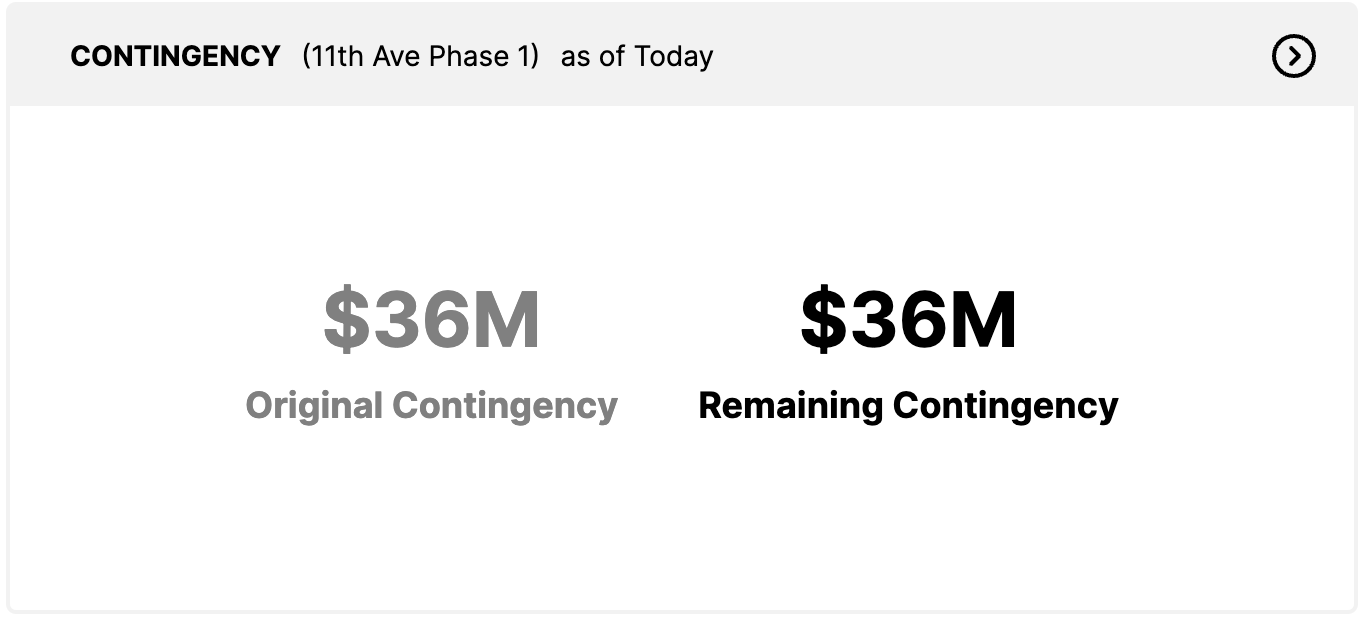
Contingency: A project contingency is a part of a project's budget put aside to cover any unforeseen costs, risks, events, or changes in scope that may affect the project's cost over the course of its life. Contingency cost is put into the budget XXX. The Dashboard allows you to quickly view how much contingency is left from the original amount.
When clicking on the arrow at the top right of the widget, it will direct you to the budget summary screen as shown in the cash flow and budget widgets documented above.
Contingency Usage: Privv tracks when the contingency is used in the project lifecycle. Like all widgets on the dashboard, the data represents a specific project. The data is pulled and represented on this chart from your budget inputs.
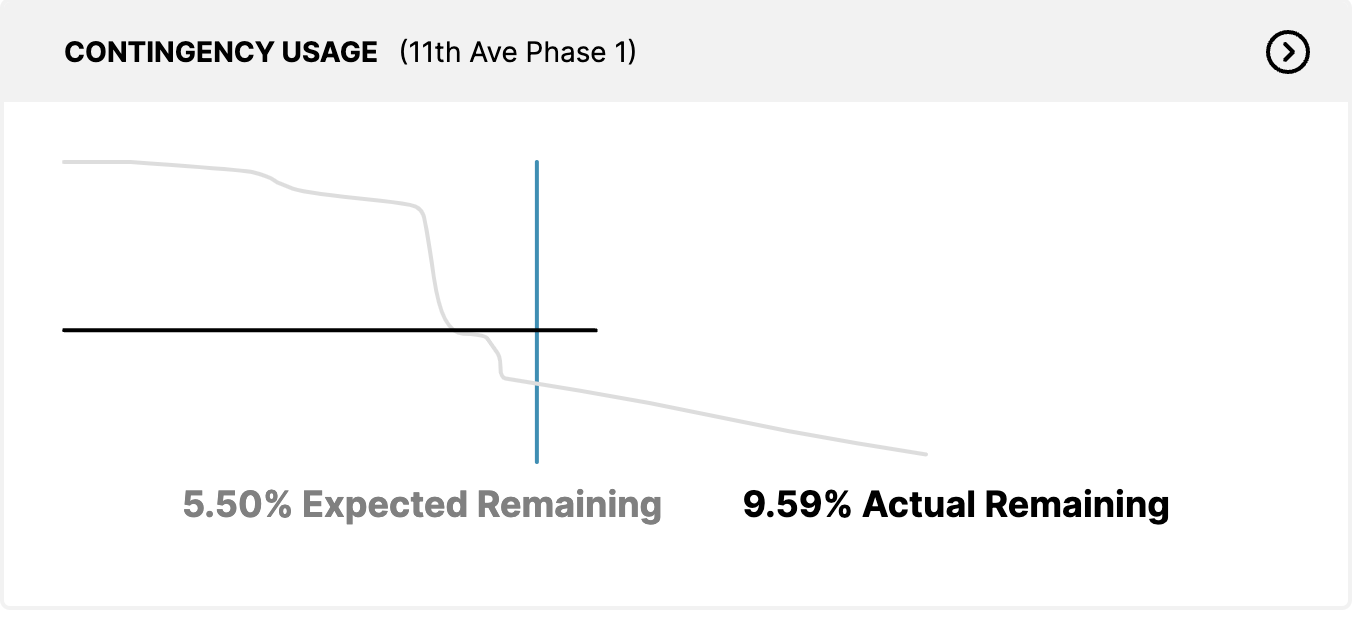
The blue line indicates where you are in terms of the project timeline.
The grey line represents usage.
Anything after the blue line represents how contingency should be used as the project progresses.
The %’s shown represent how much of the contingency remains, and based on built-in risks, represent how much you should anticipate having left over.
When clicking on the arrow at the top right of the widget, it will direct you to the budget summary screen as shown in the cash flow and budget widgets documented above.
Meetings:
Pending Approvals: Privv consolidates any process/workflow that is pending approval.
Estimates: When creating an estimate, part of the process is to lock for review. The estimate will remain in a pending status until the reviewer approves.
Revisions: They are associated with finalized budgets. When a debit and/or credit is applied to an approved budget, revisions are documented and sent for review before a budget is updated. The revision will remain in a pending status until approval.
Pay Applications: Privv provides project managers to monitor and review all pay applications before approval. You can easily stay aware of any pay applications that are pending approval from the Dashboard!
Schedules: Upon creation of a new project a schedule is assigned to each project. Before finalizing, a schedule is locked for review and will remain in a pending status until approved.
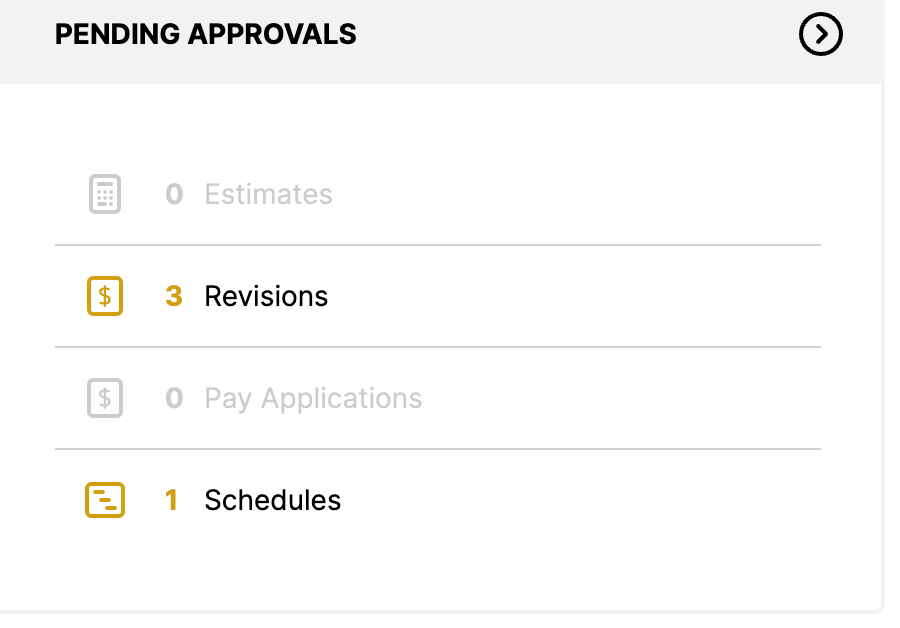
You can easily dive into each by clicking on the arrow at the top right of the widget. The next screen will provide more details on each of the above. You can see what is pending, a brief description, and when it was last modified.
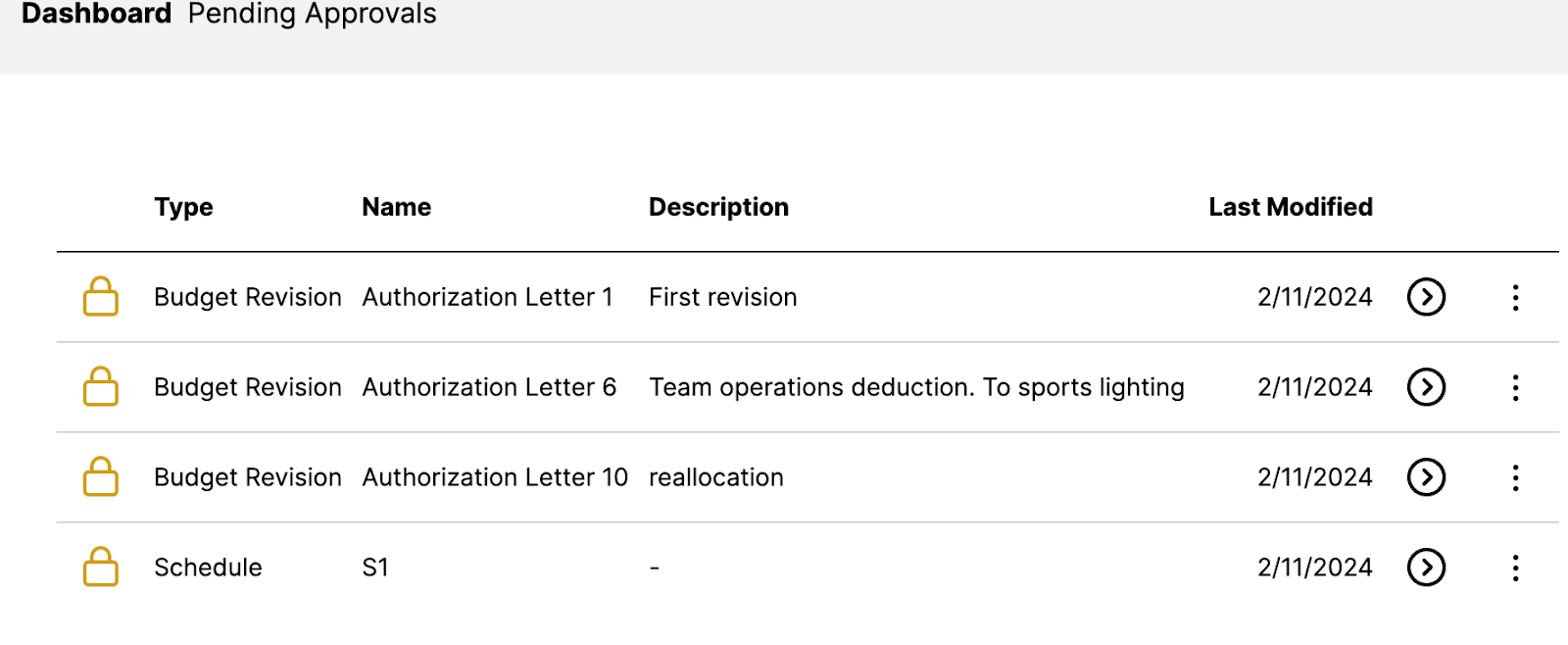
For further review of each pending process/workflow, click on the arrow!
The revision will be highlighted for you to easily identify what is under review.

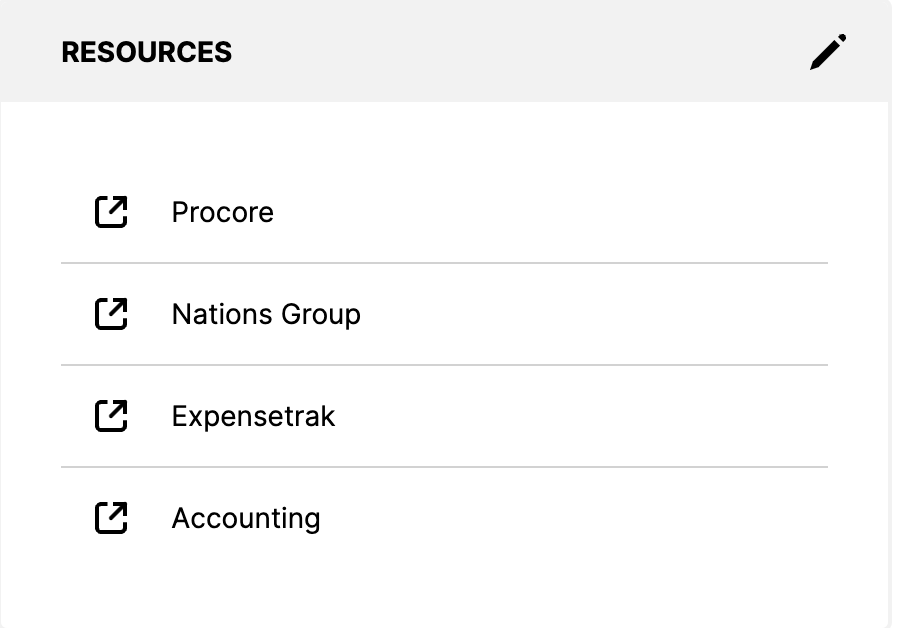
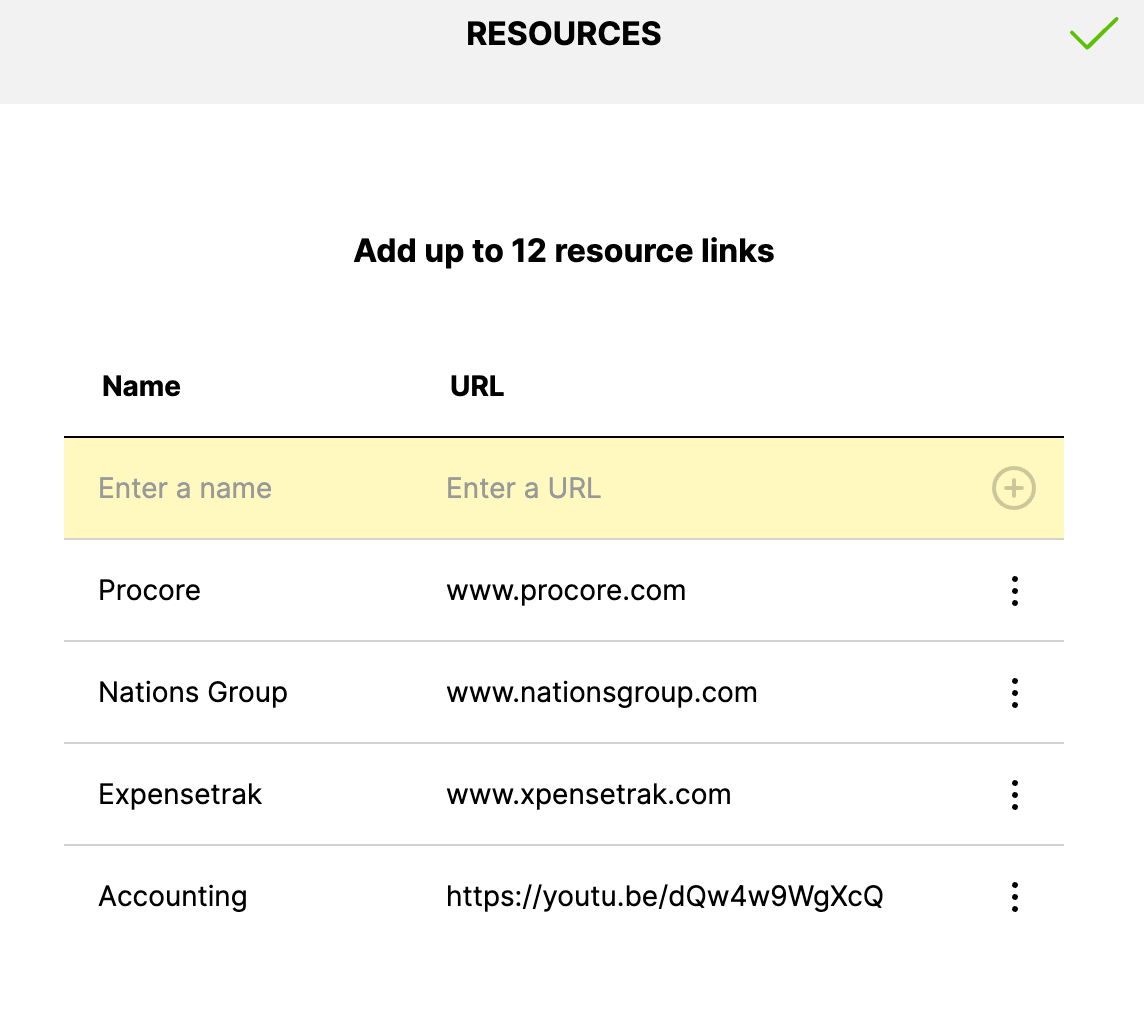
Resources: As you work on a project, there are other resources and systems you may need to interface with. Privv helps project managers stay organized by keeping all resources in one, easily accessible place.
To add resources/links, click on the pencil icon at the top right corner of the widget. You can easily dive into each by clicking on the arrow at the top right of the widget.
Was this article helpful?
That’s Great!
Thank you for your feedback
Sorry! We couldn't be helpful
Thank you for your feedback
Feedback sent
We appreciate your effort and will try to fix the article