Project Dashboard
Author: Joe Phillips
Steps: 61
Source: Supademo
1. Click here to expand or collapse the sidebar.
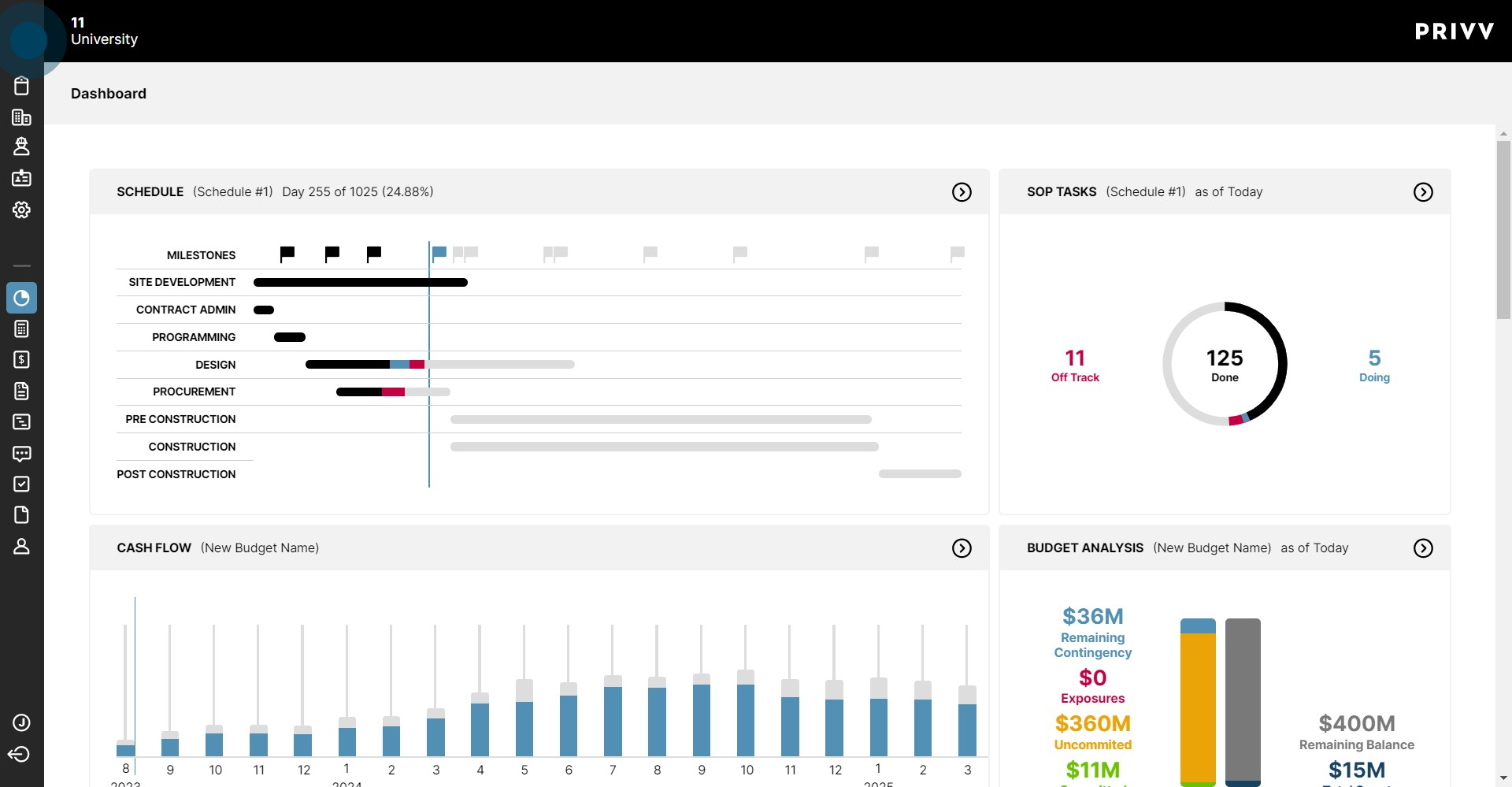
2. Click on Dashboard.
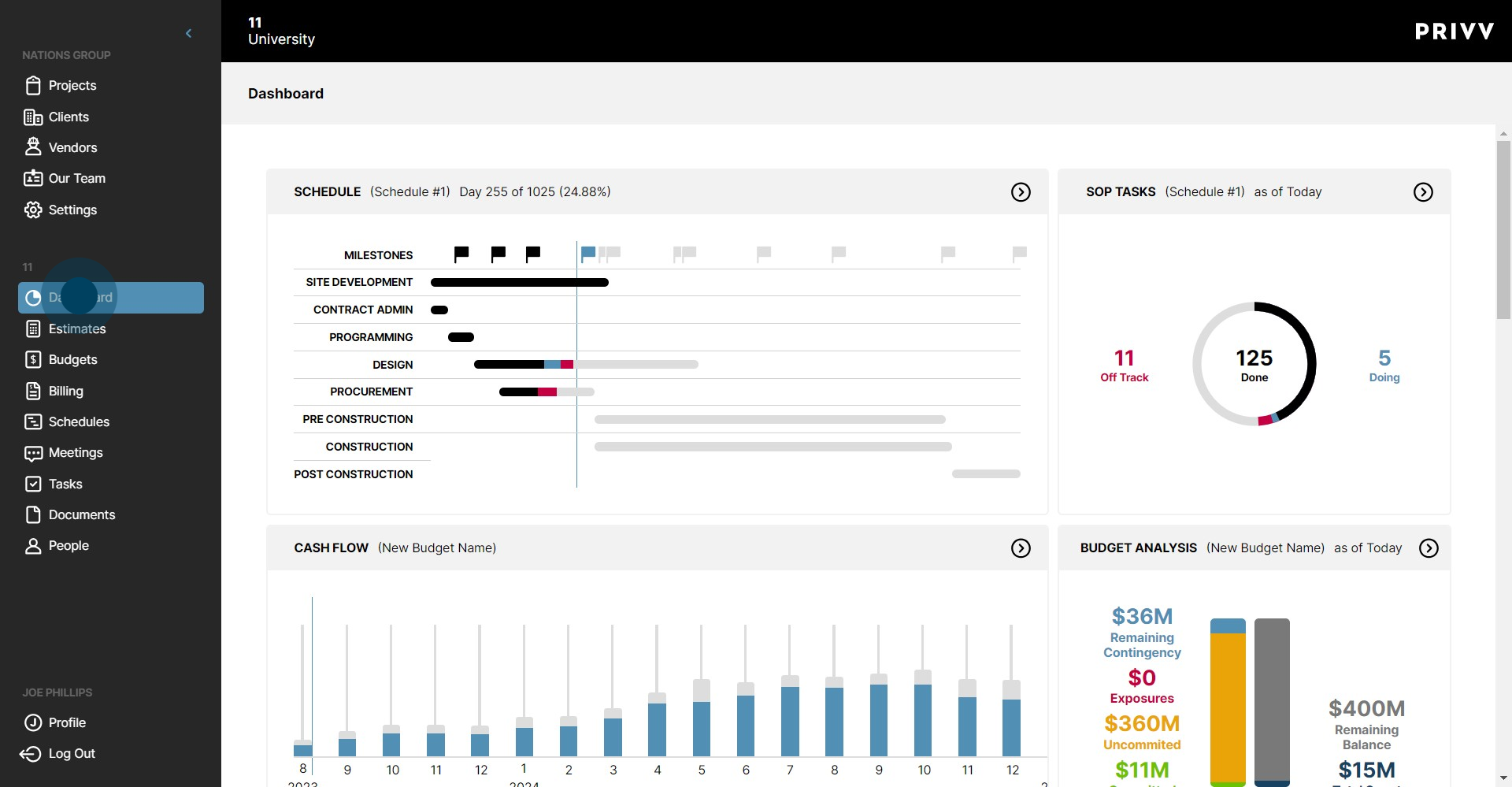
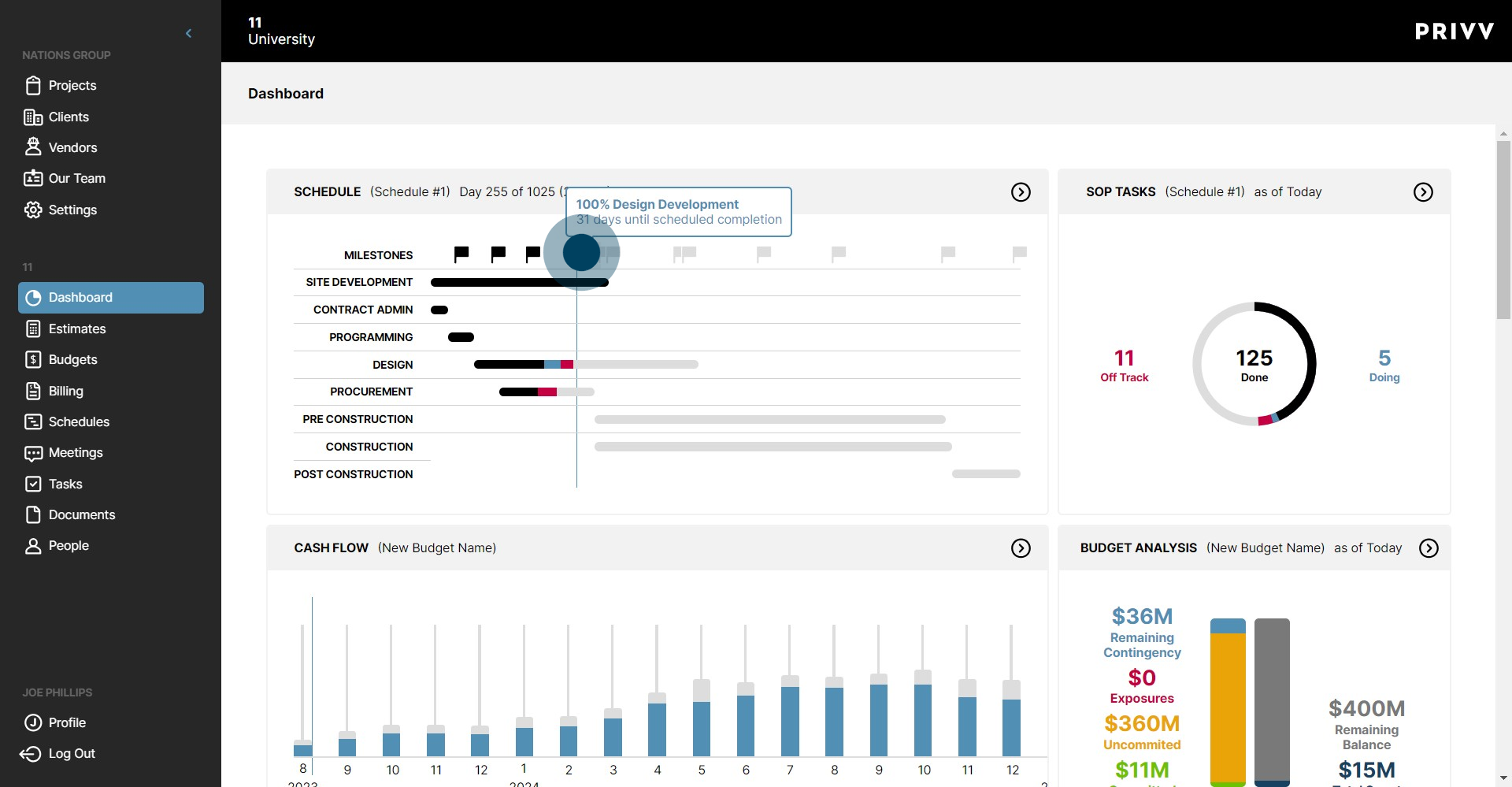
3. On the first widget, you can hover the mouse over the milestone flags to see specific details.
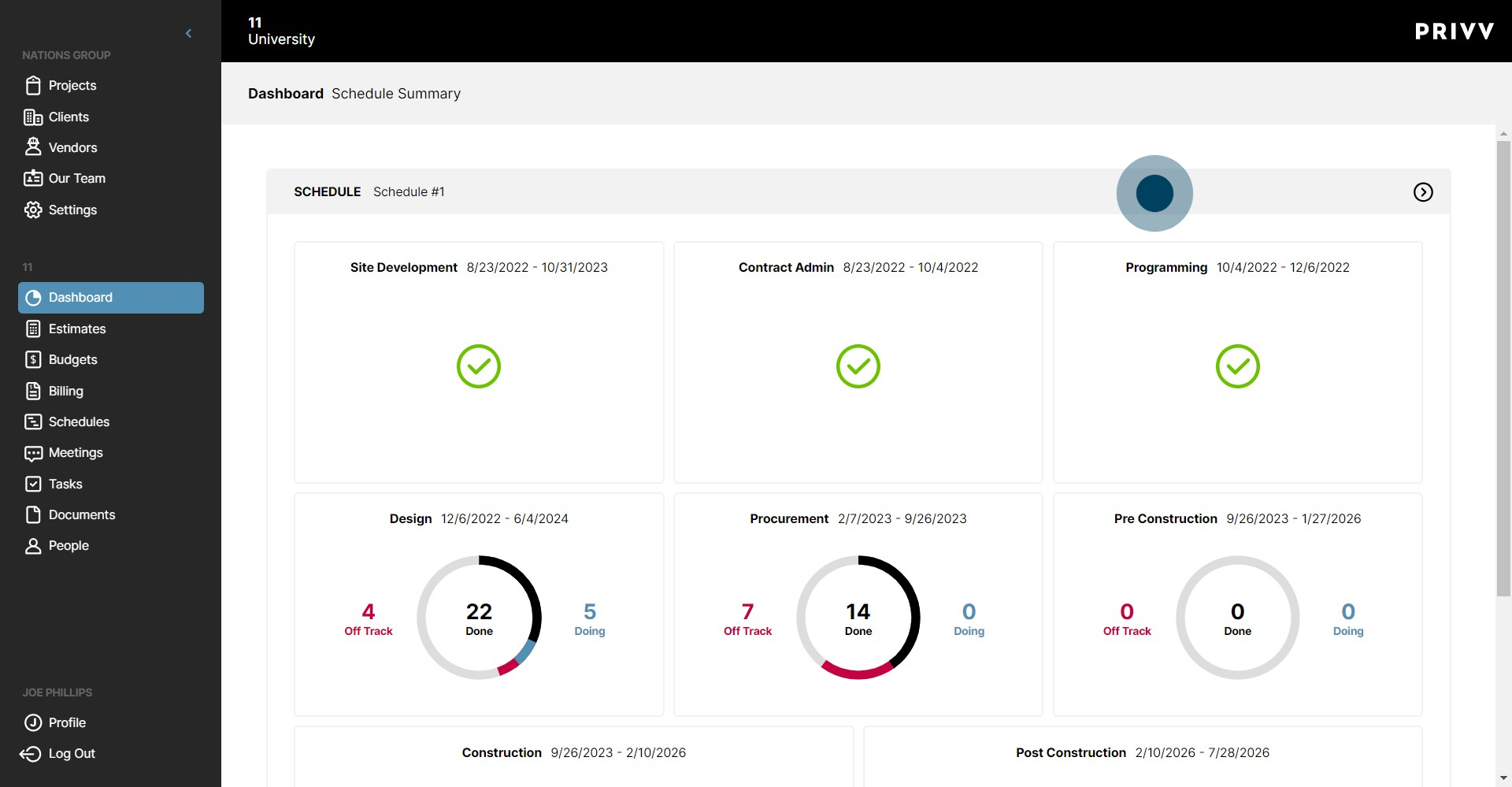
4. Clicking anywhere on the Schedule banner shows another schedule view for your project.
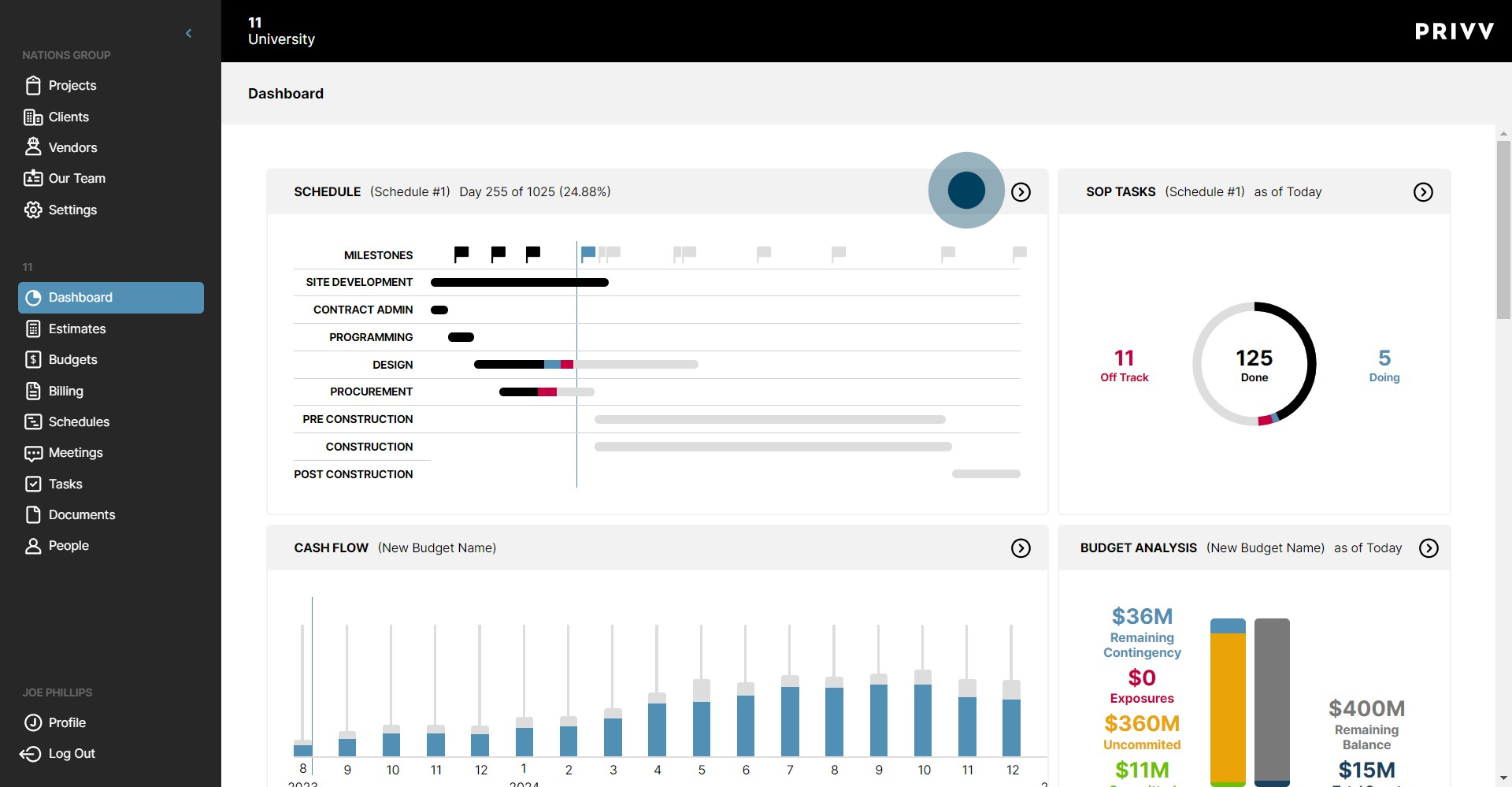
5. Click on the Schedule banner to view the entire schedule page.
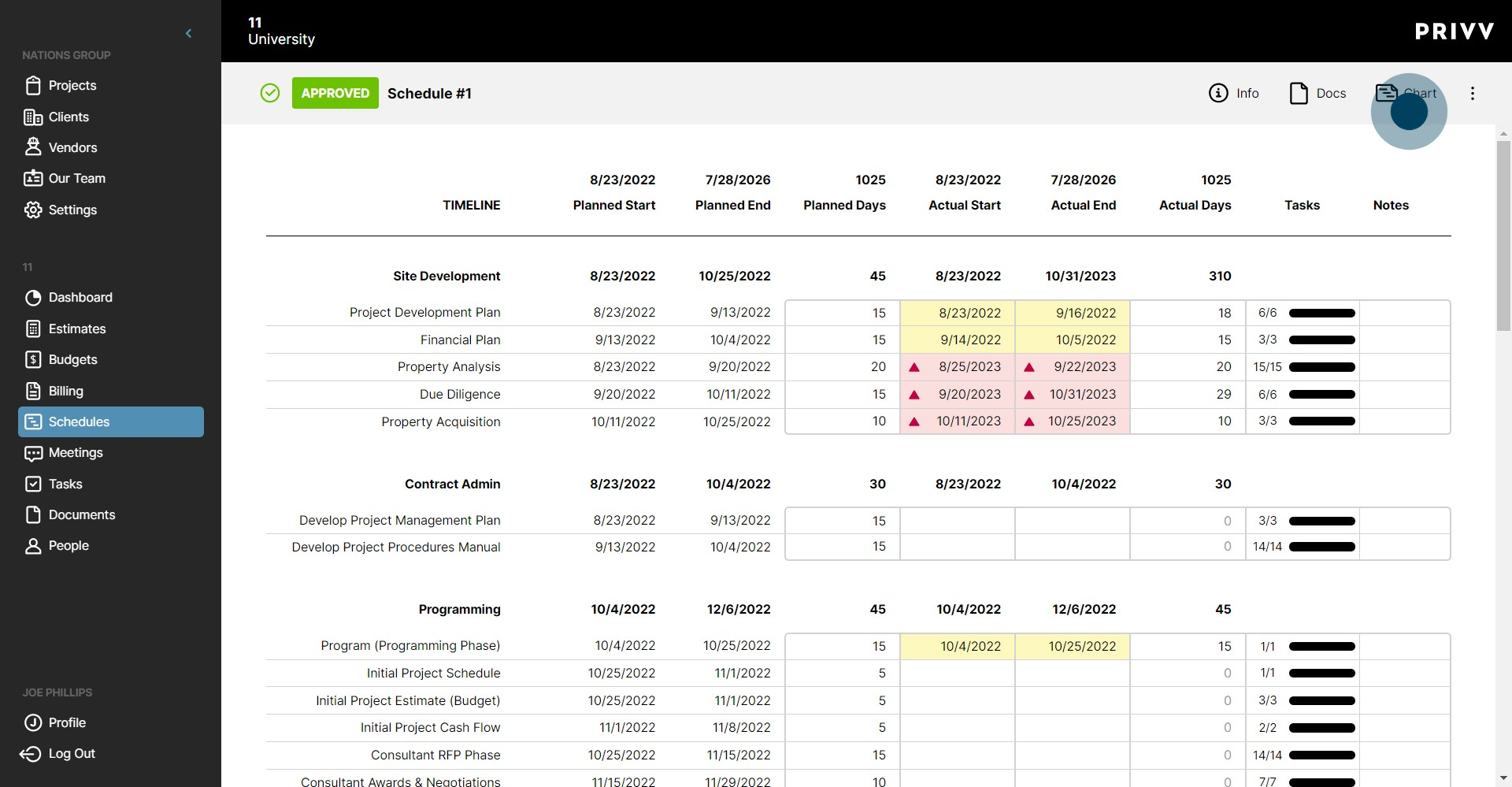
6. To see the schedule in a Gantt chart, click the Chart icon.
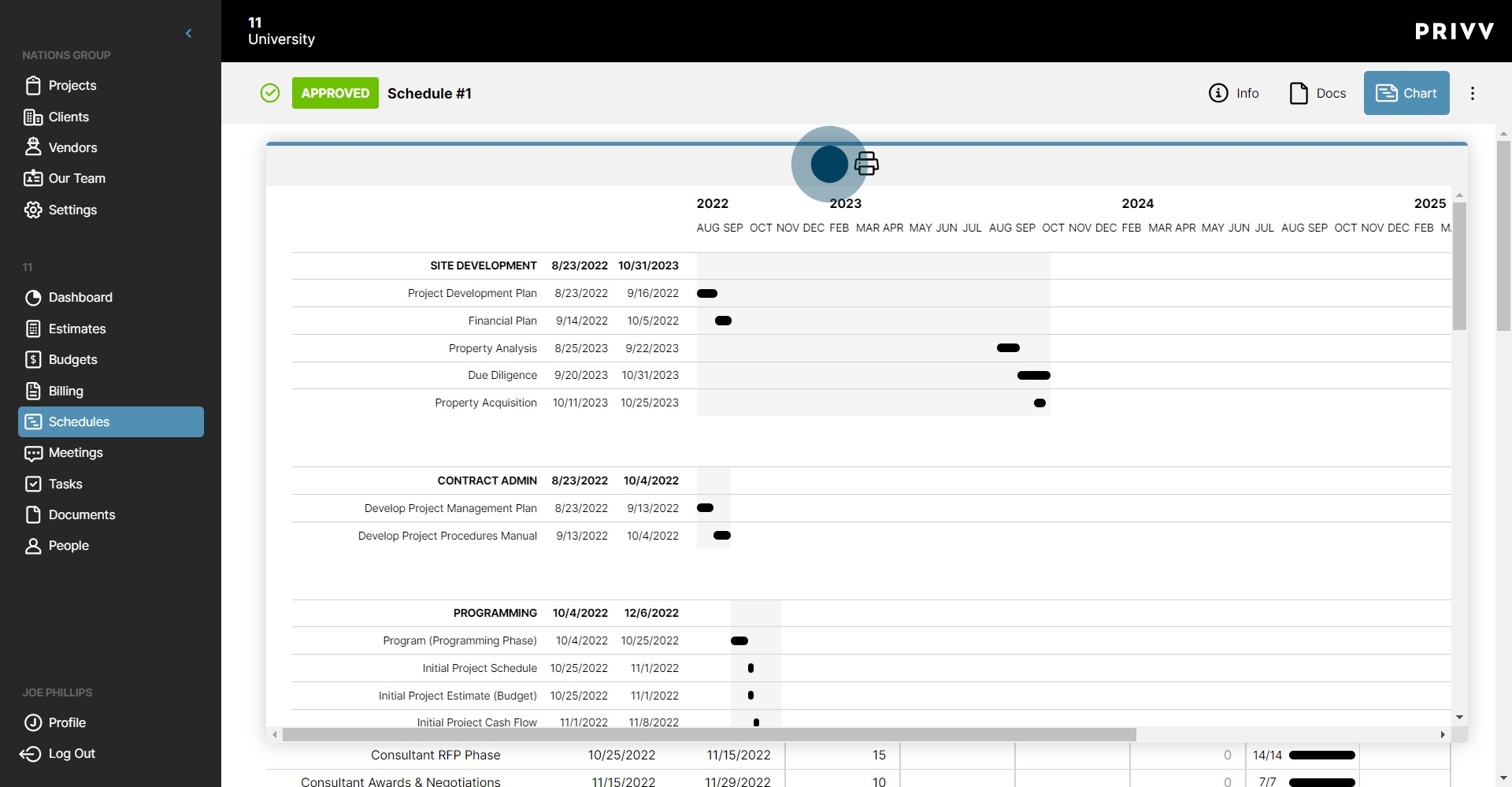
7. To print the Gantt Chart, click the printer icon
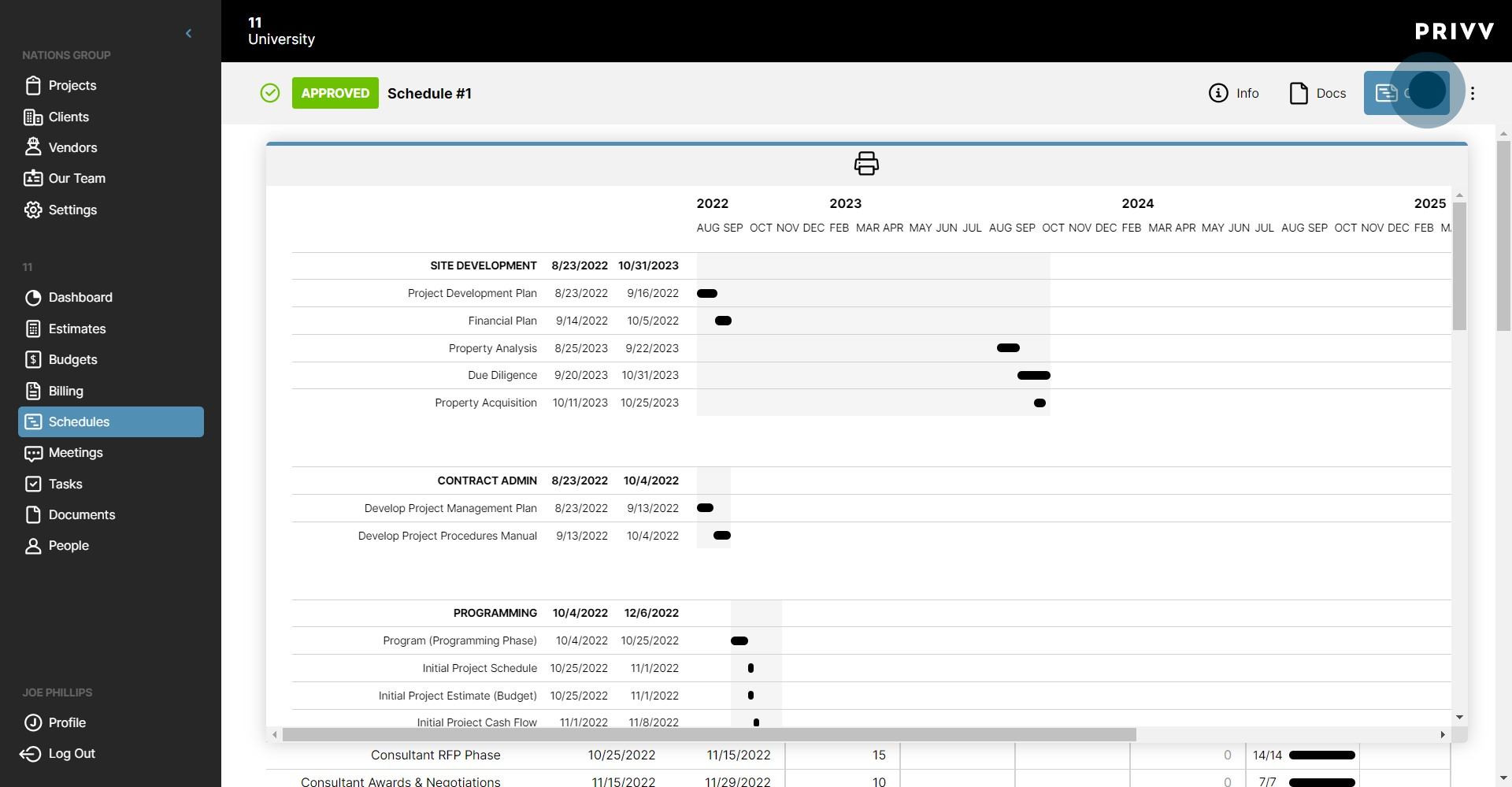
8. Click on the Chart icon to close the chart.
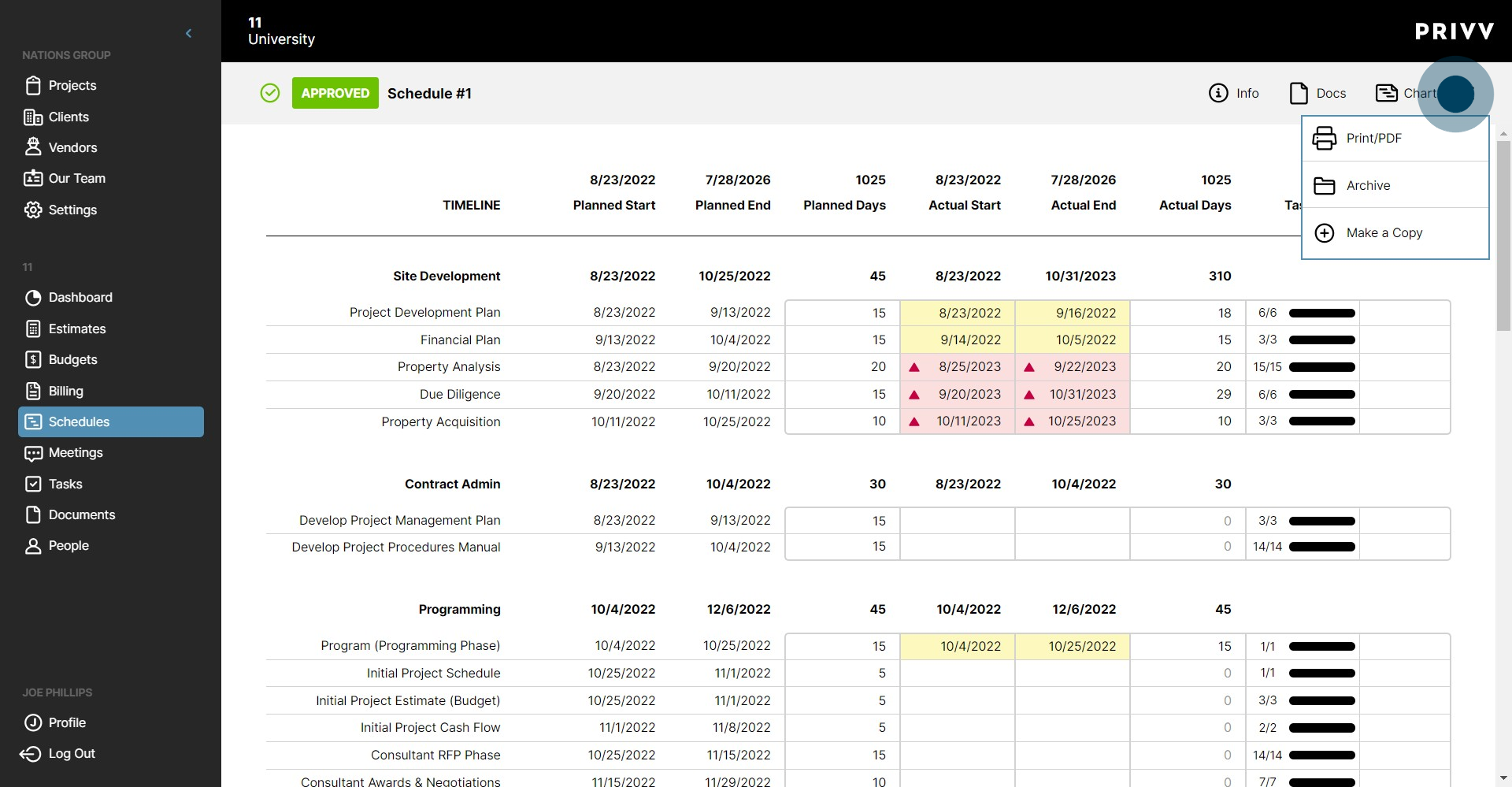
9. Click the ellipsis in the corner to see more options.
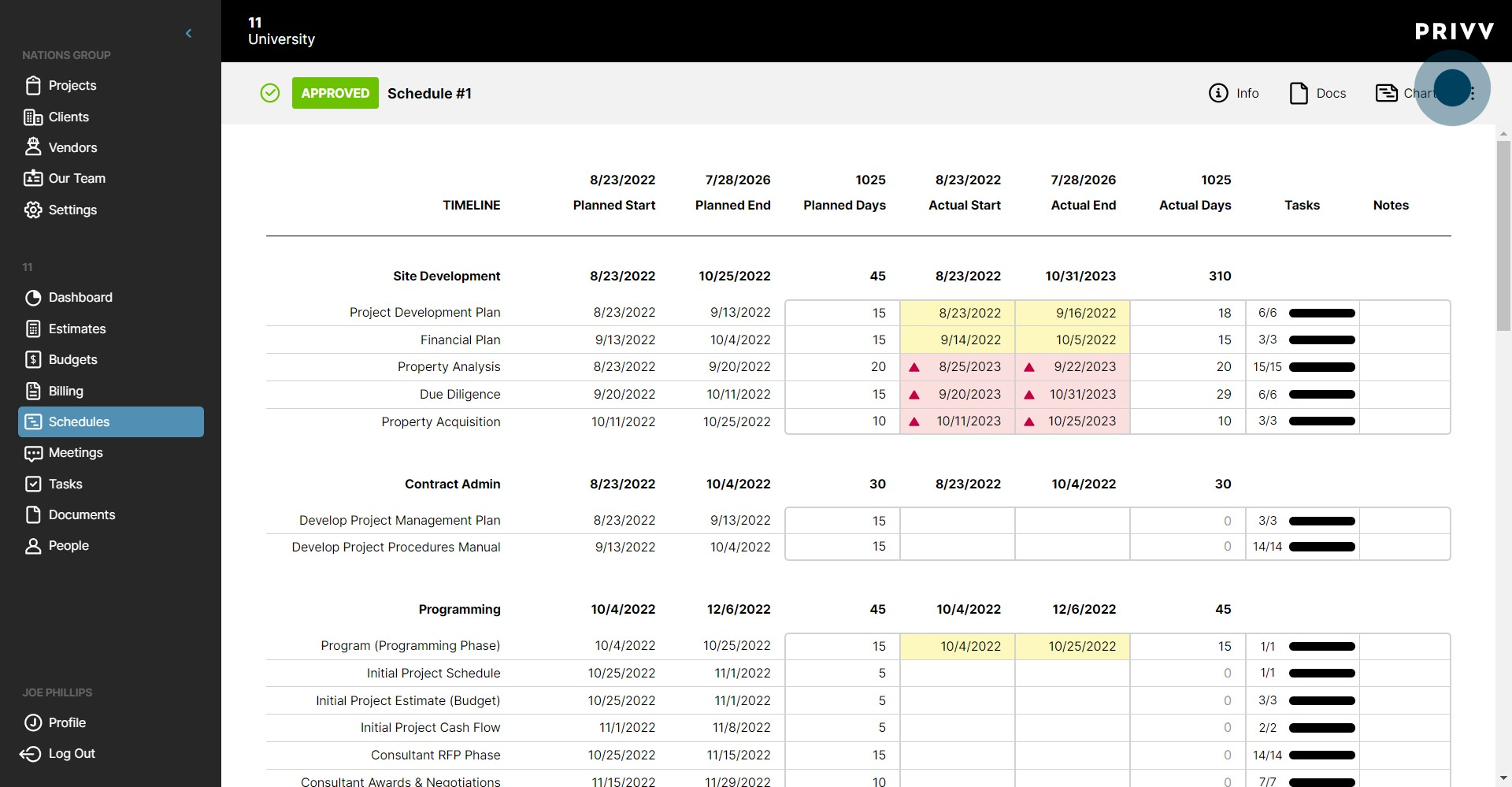
10. Click the ellipsis to close the options menu.
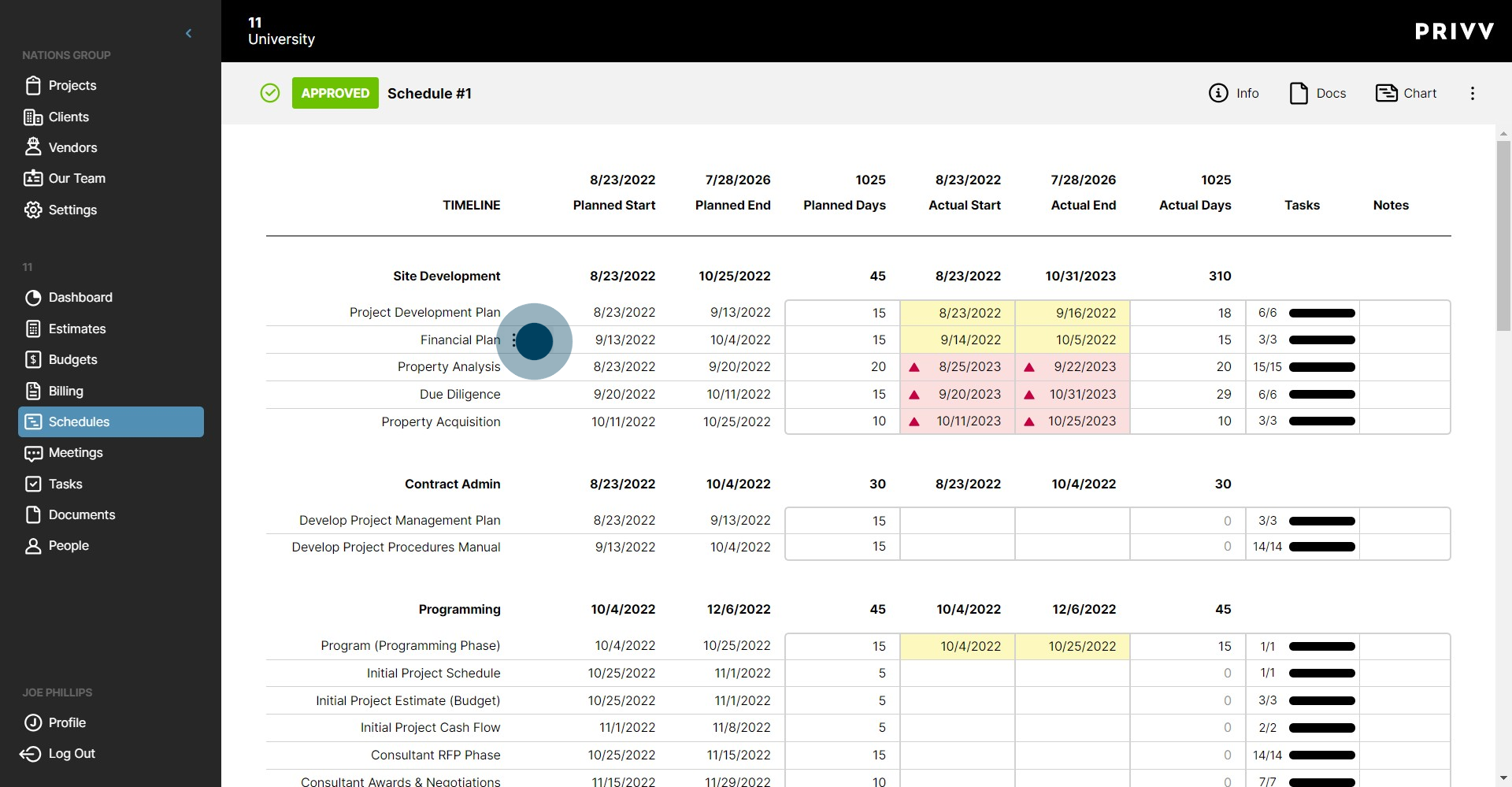
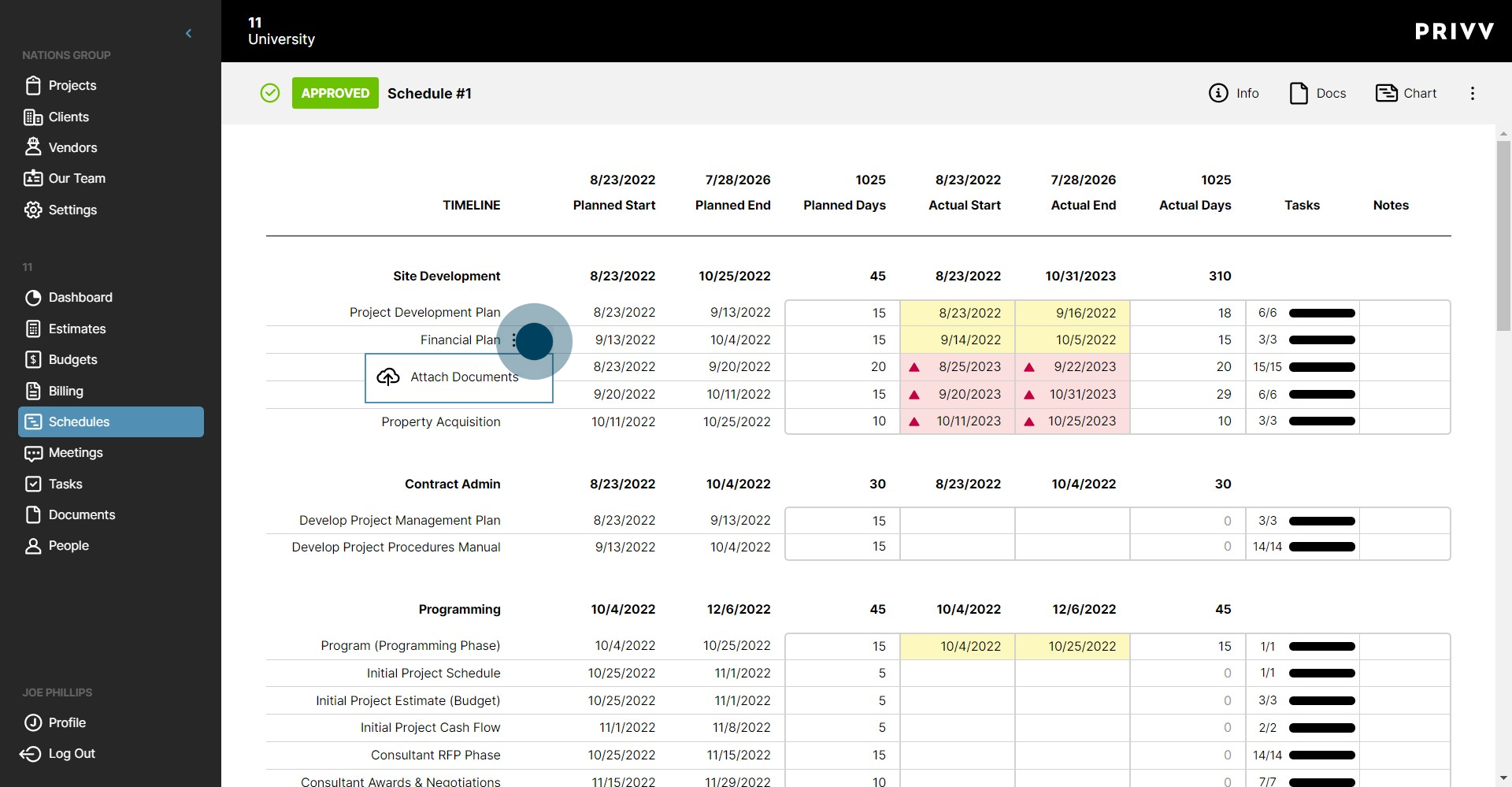
11. Click the document icon to attach a document to the line item
12. Click it again to close the option
13. Click on Dashboard.
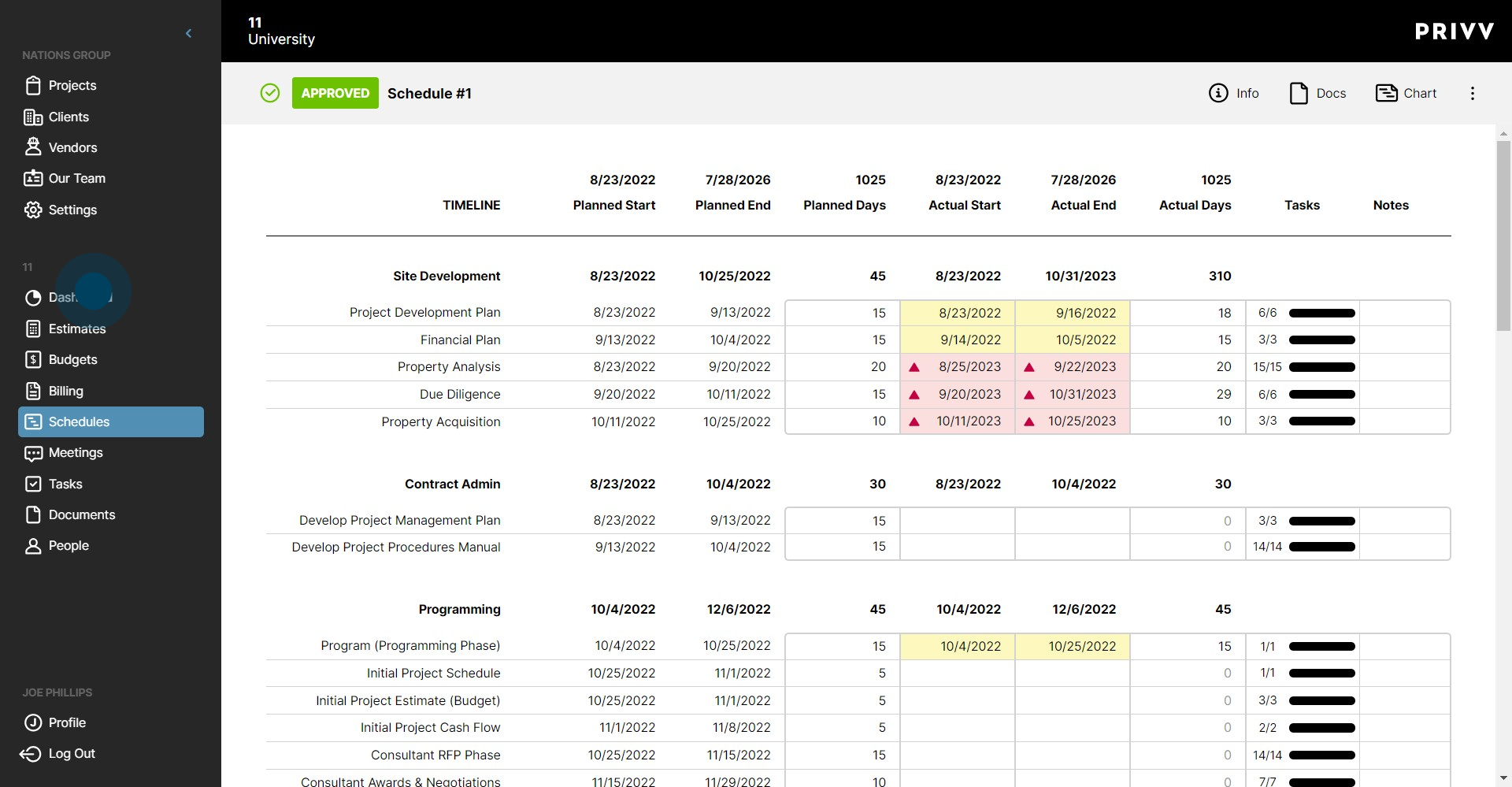
14. To view all tasks, click on the Tasks banner.
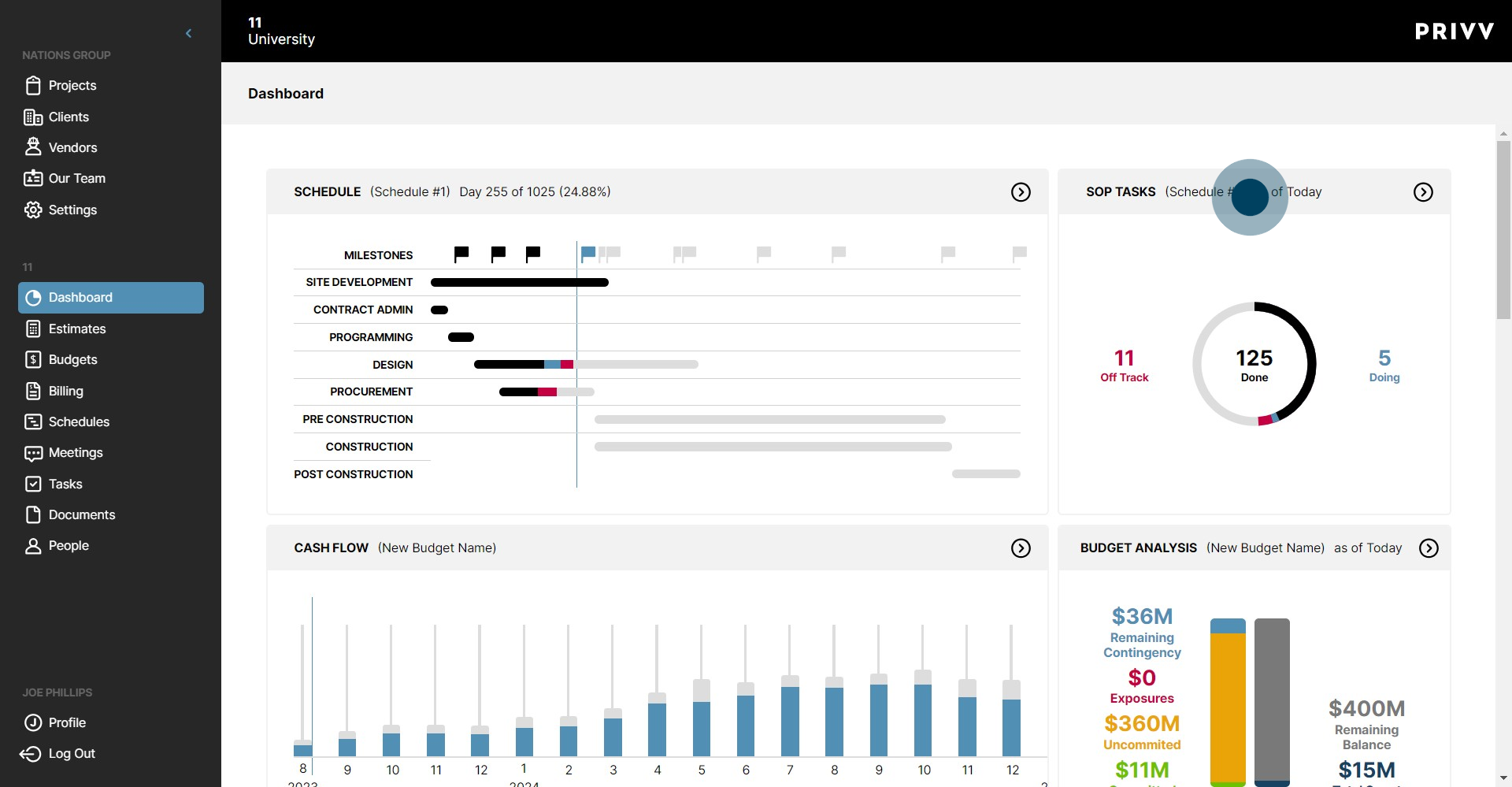
15. Click on Off-Track to see the late and off-track tasks.
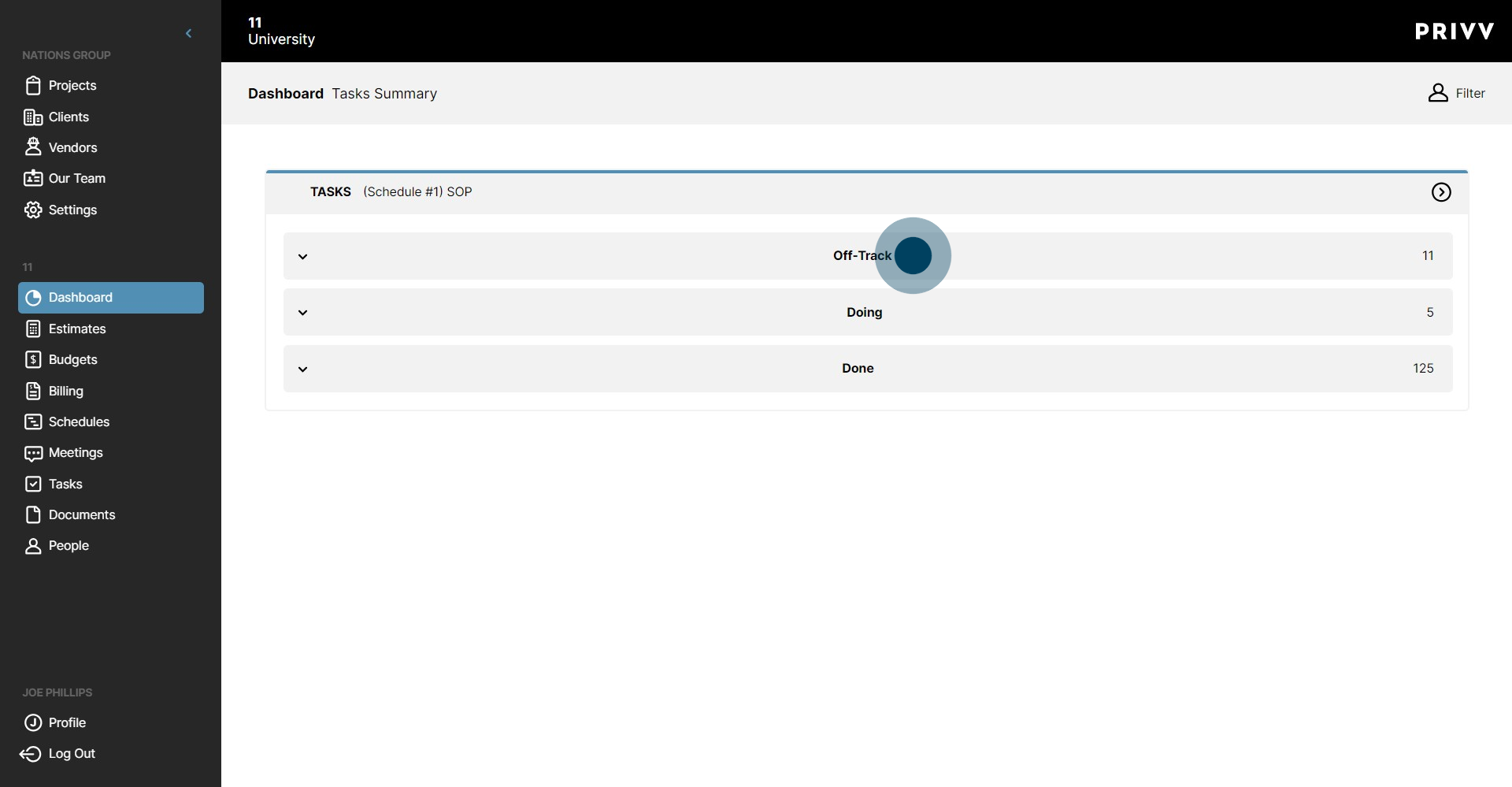
16. Click on the status of a task to make changes
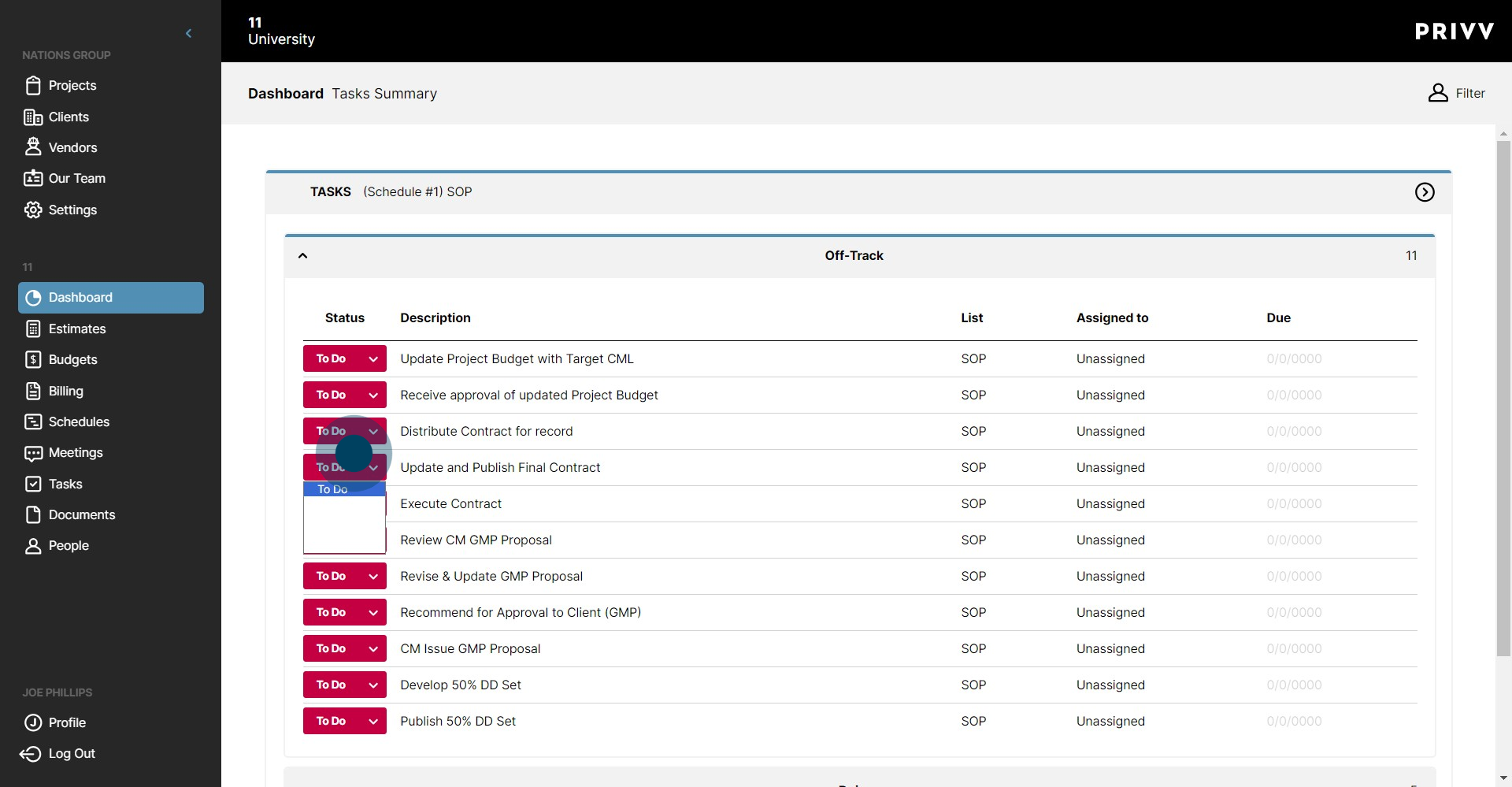
17. The status options are: To Do, Doing, Blocked, Done, and N/A.
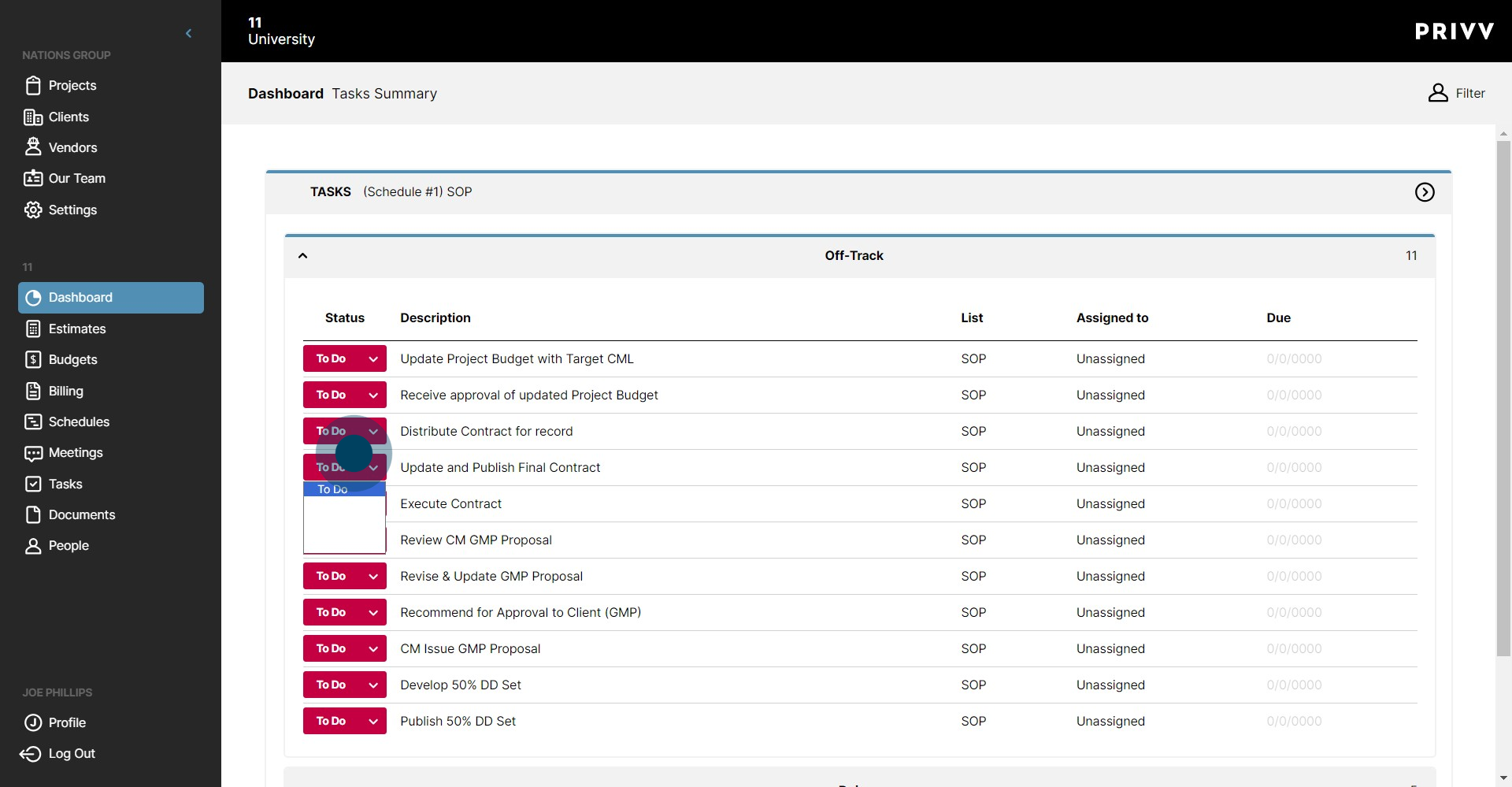
18. Click on Off-Track to collapse the list.
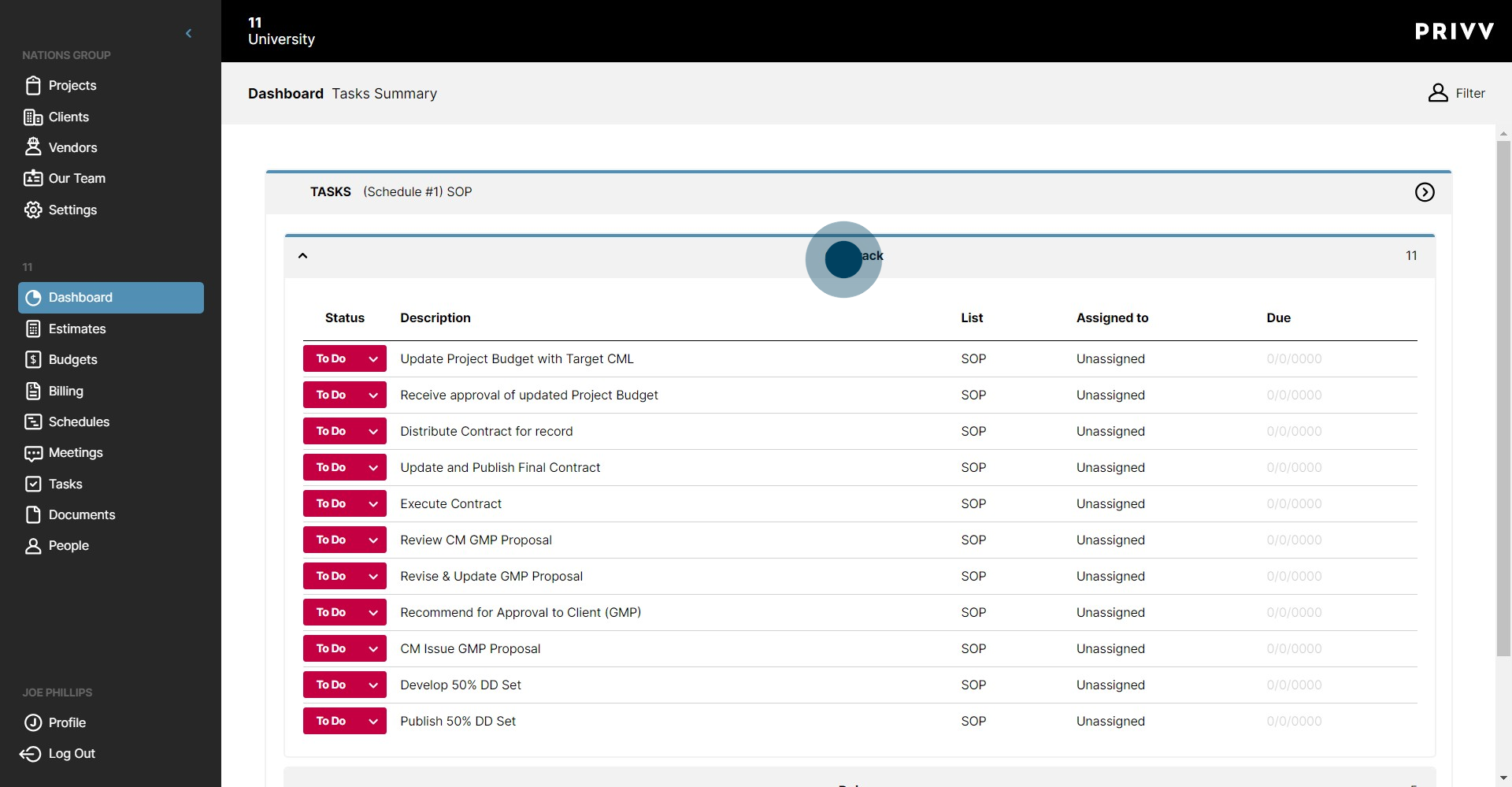
19. Click on Doing to expand the list.
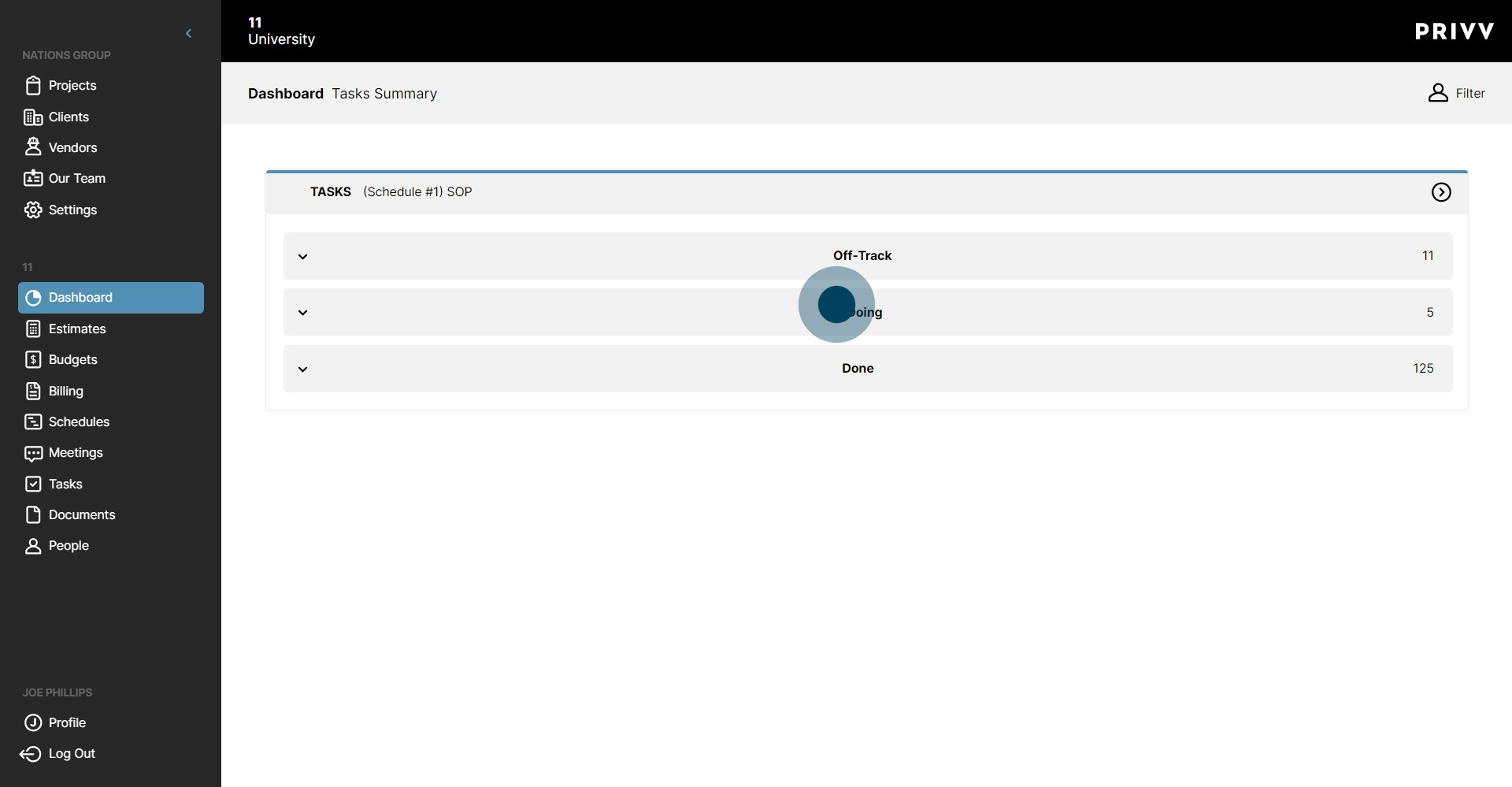
20. In the Assigned to column, click on any task's drop-down to see a list of team members to assign.
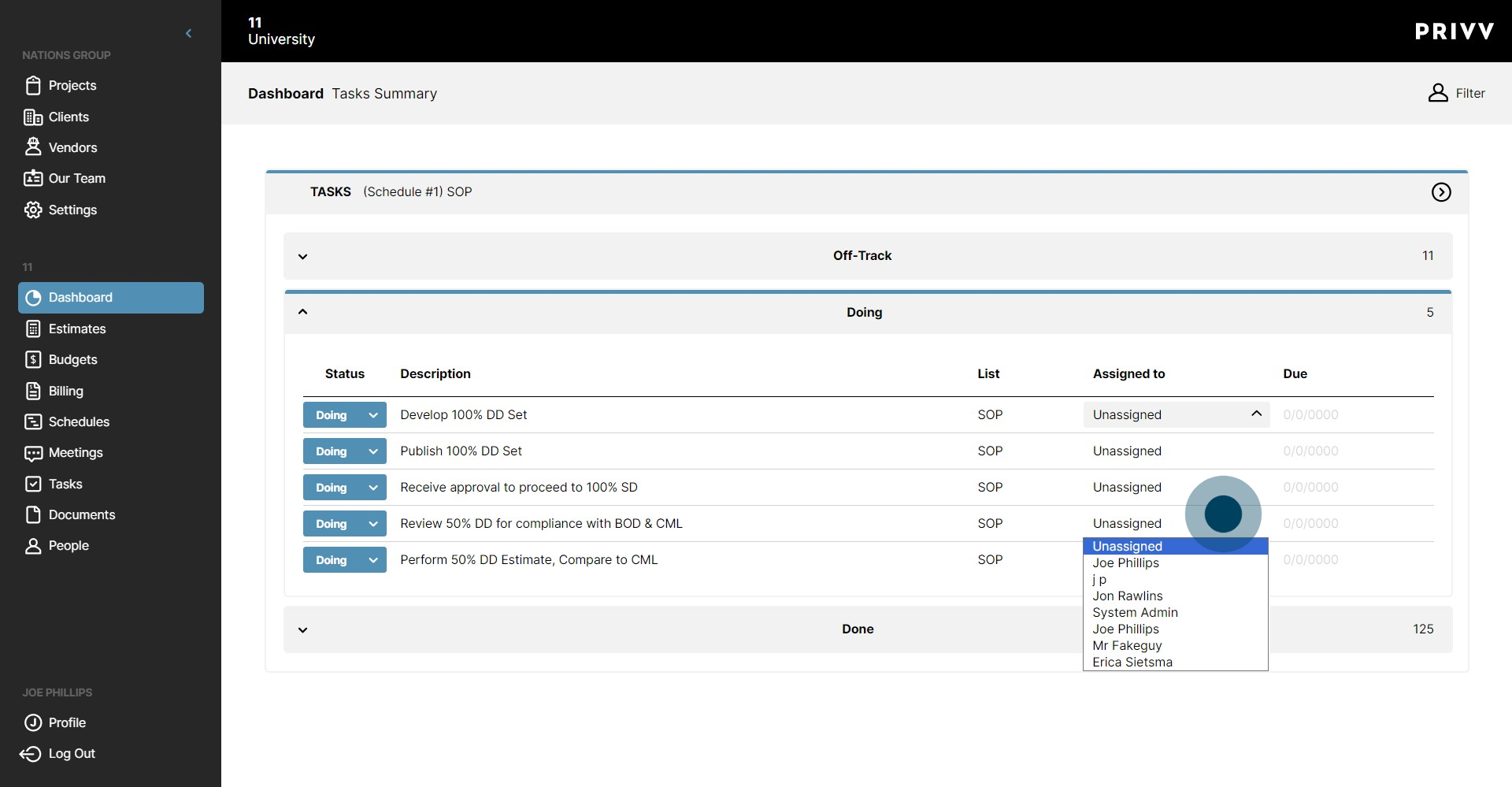
21. Click here to select the due date.
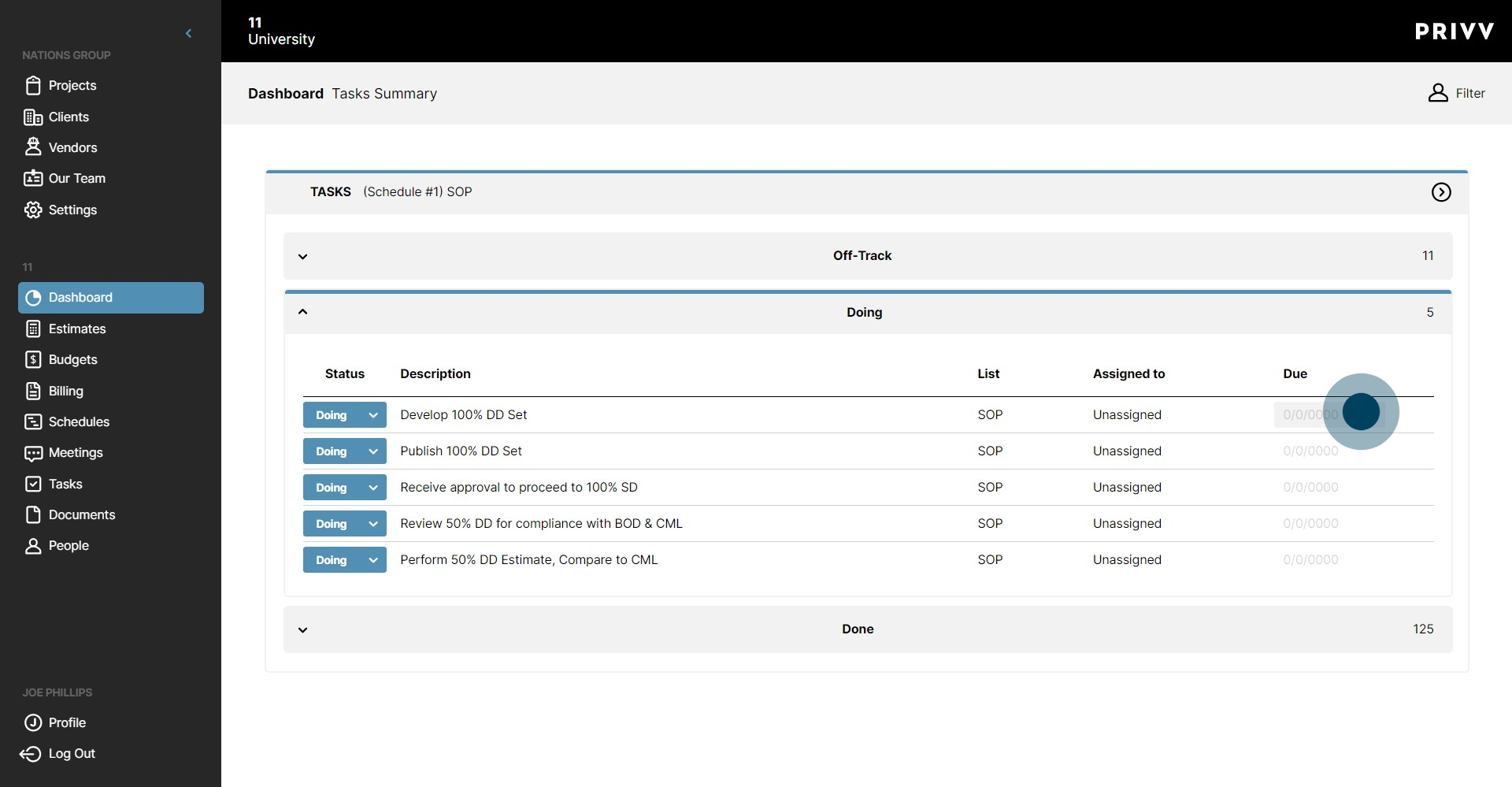
22. The calendar will appear for your selection.
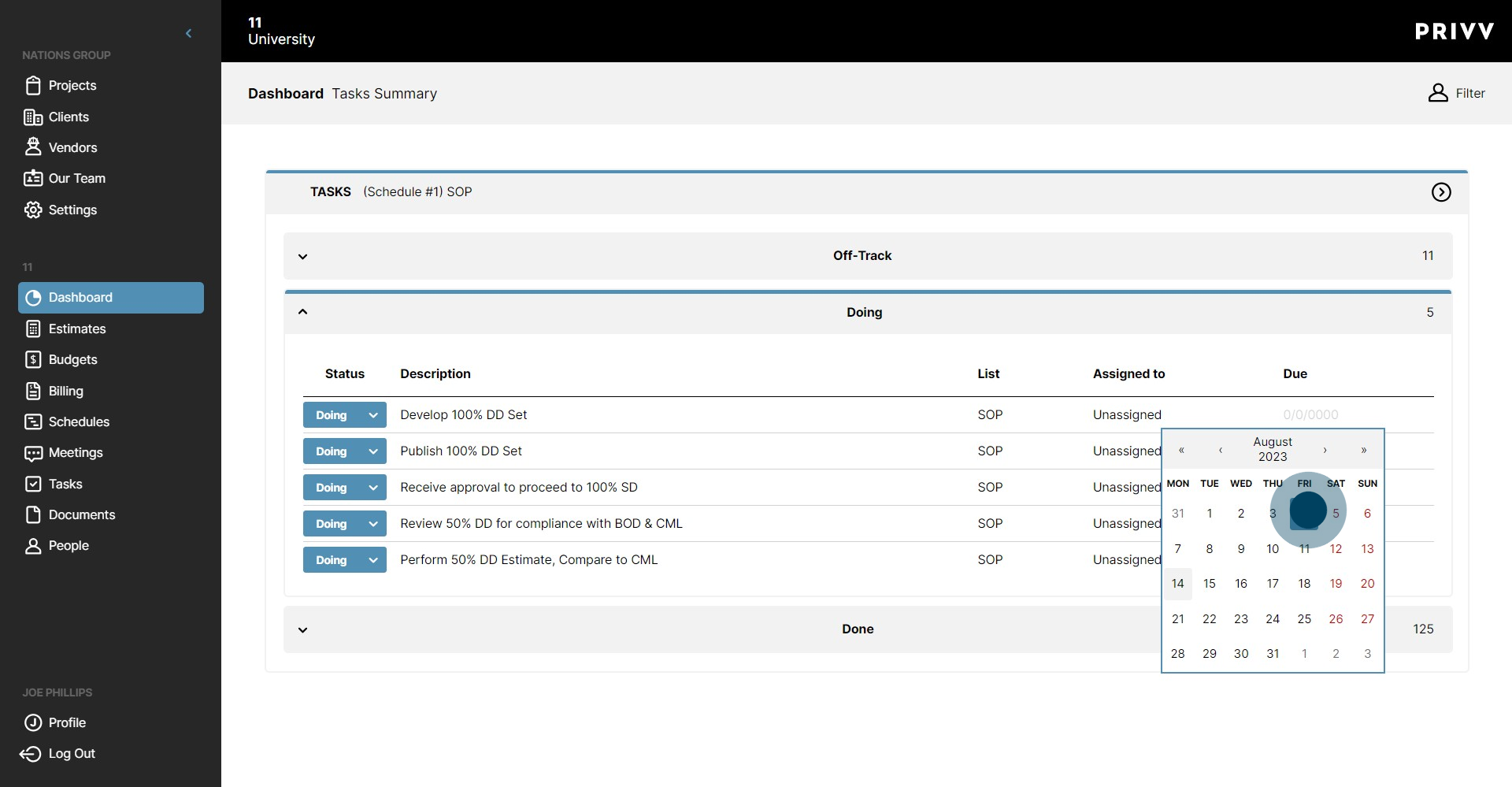
23. Click on Doing to collapse the list.
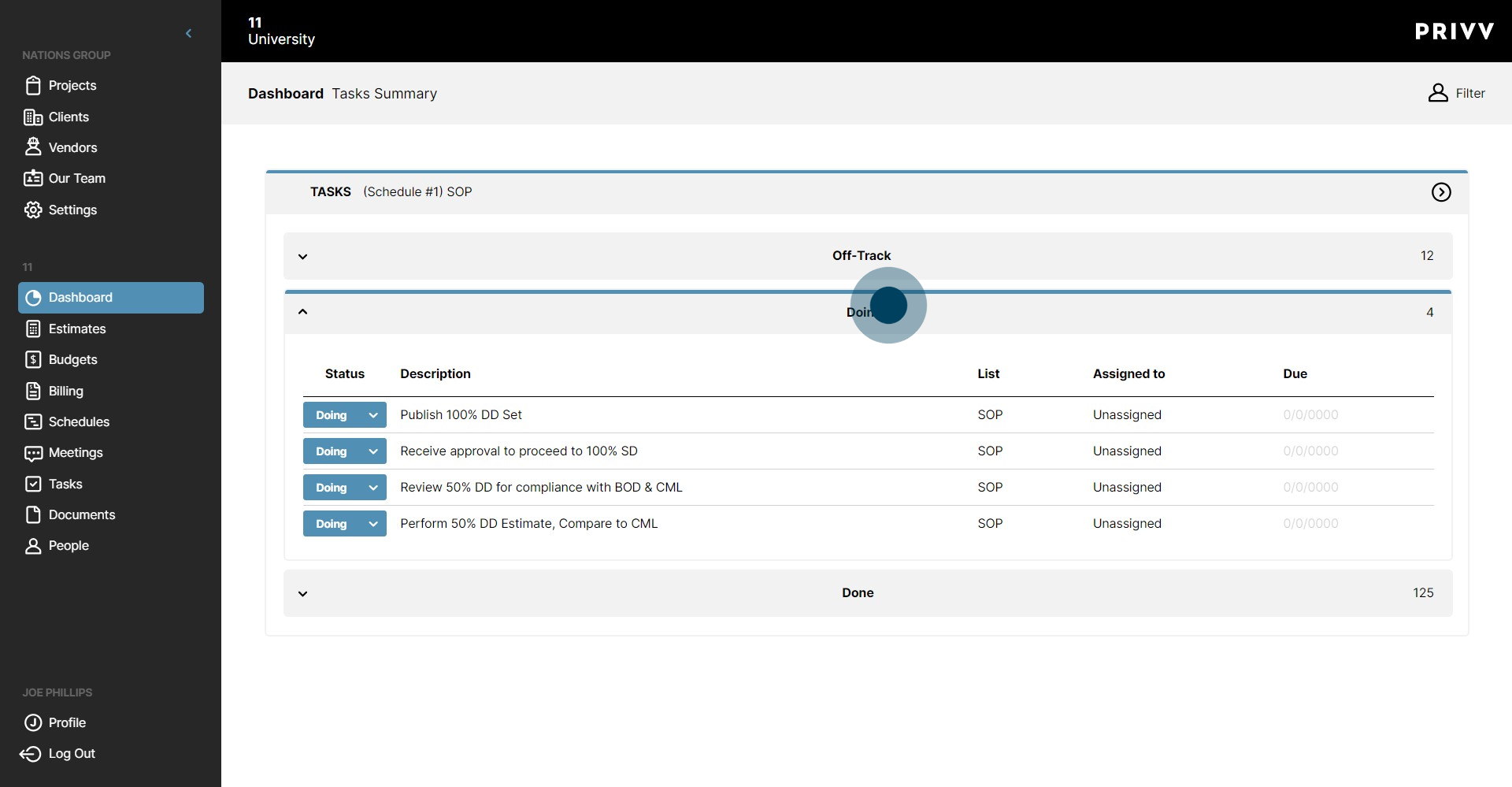
24. Click on Done to expand the list
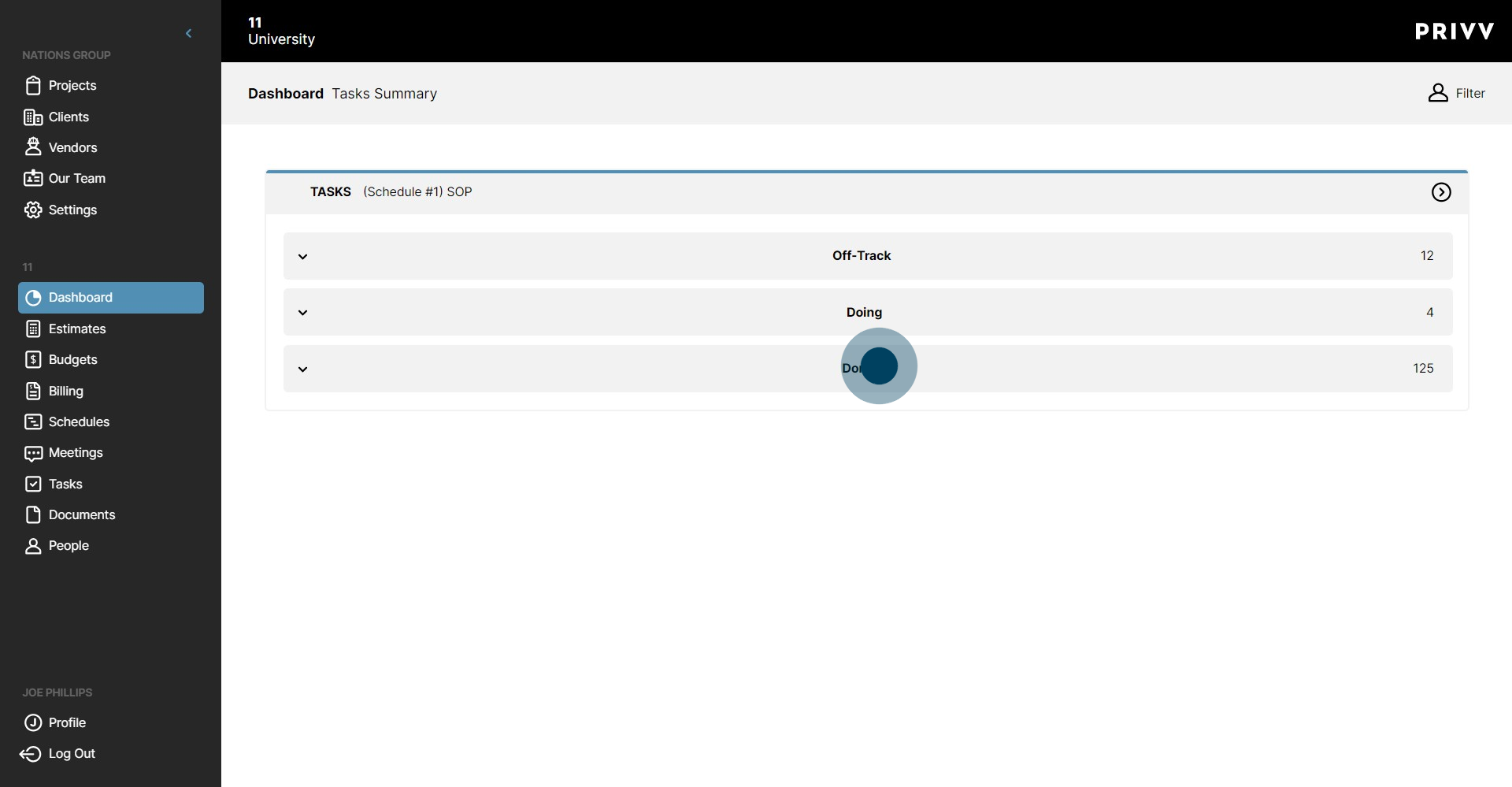
25. When you are finished reviewing, click on Done to collapse the list.
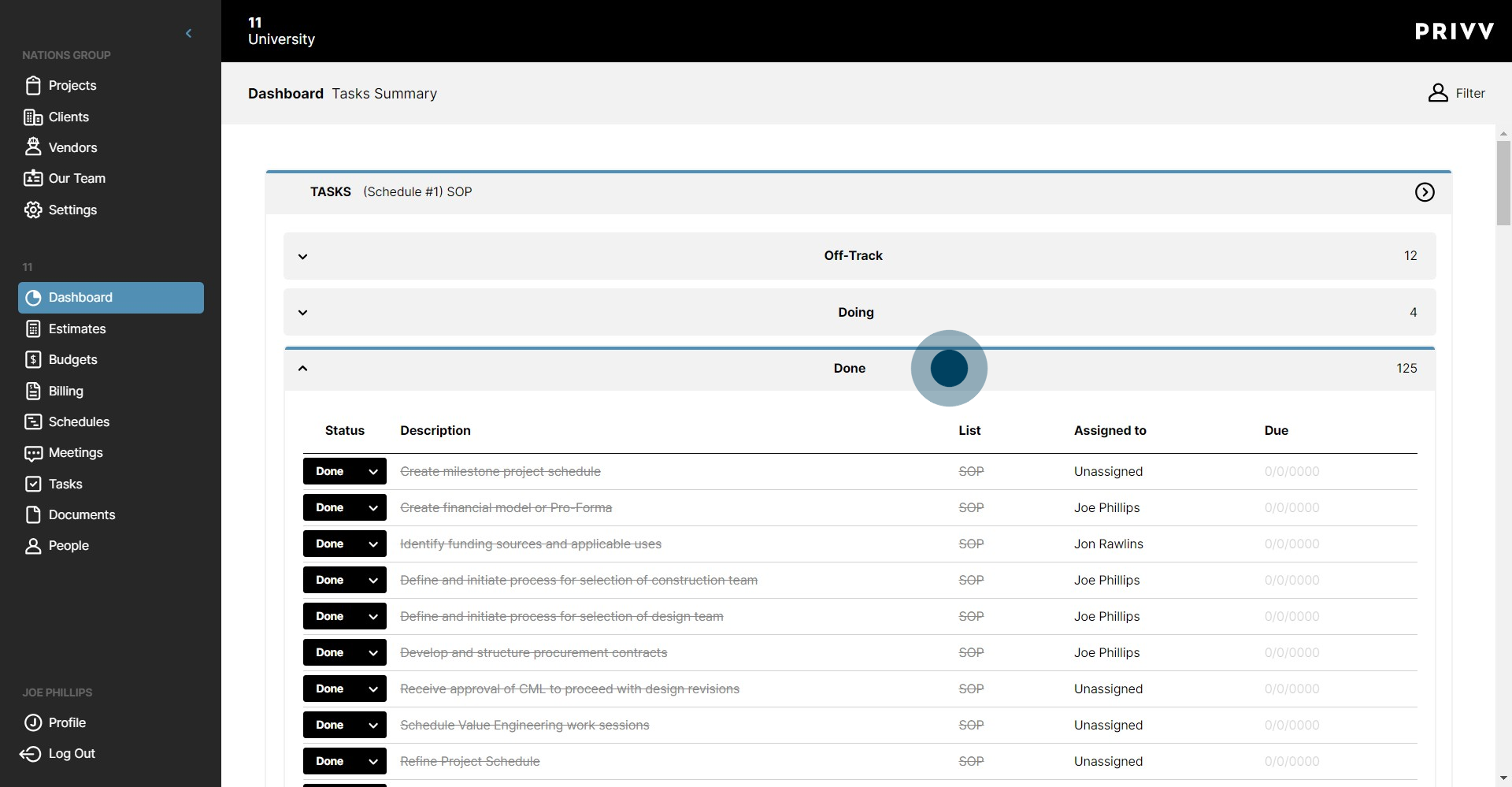
26. Click on Filter to change your view based on the user or Team.
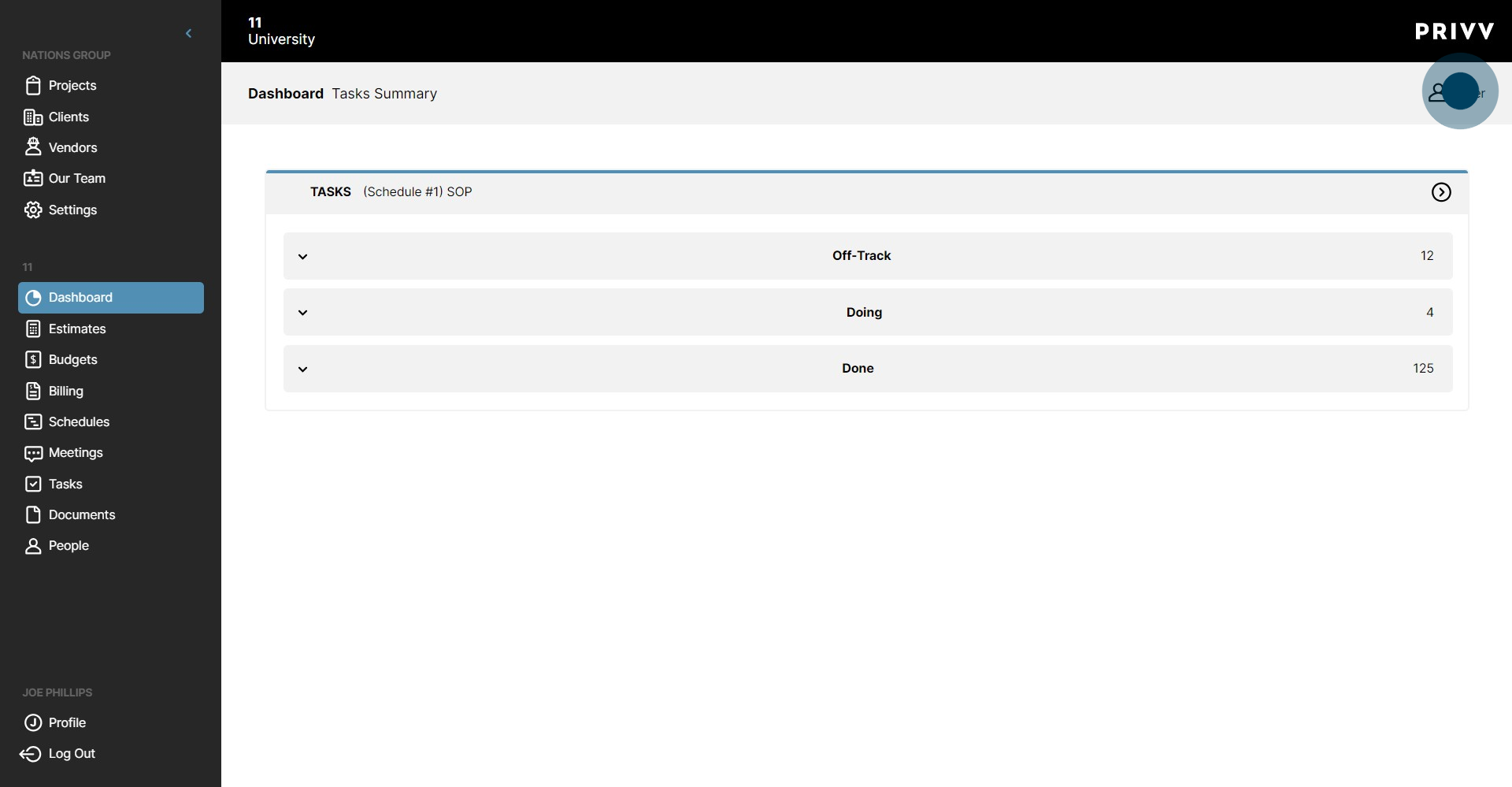
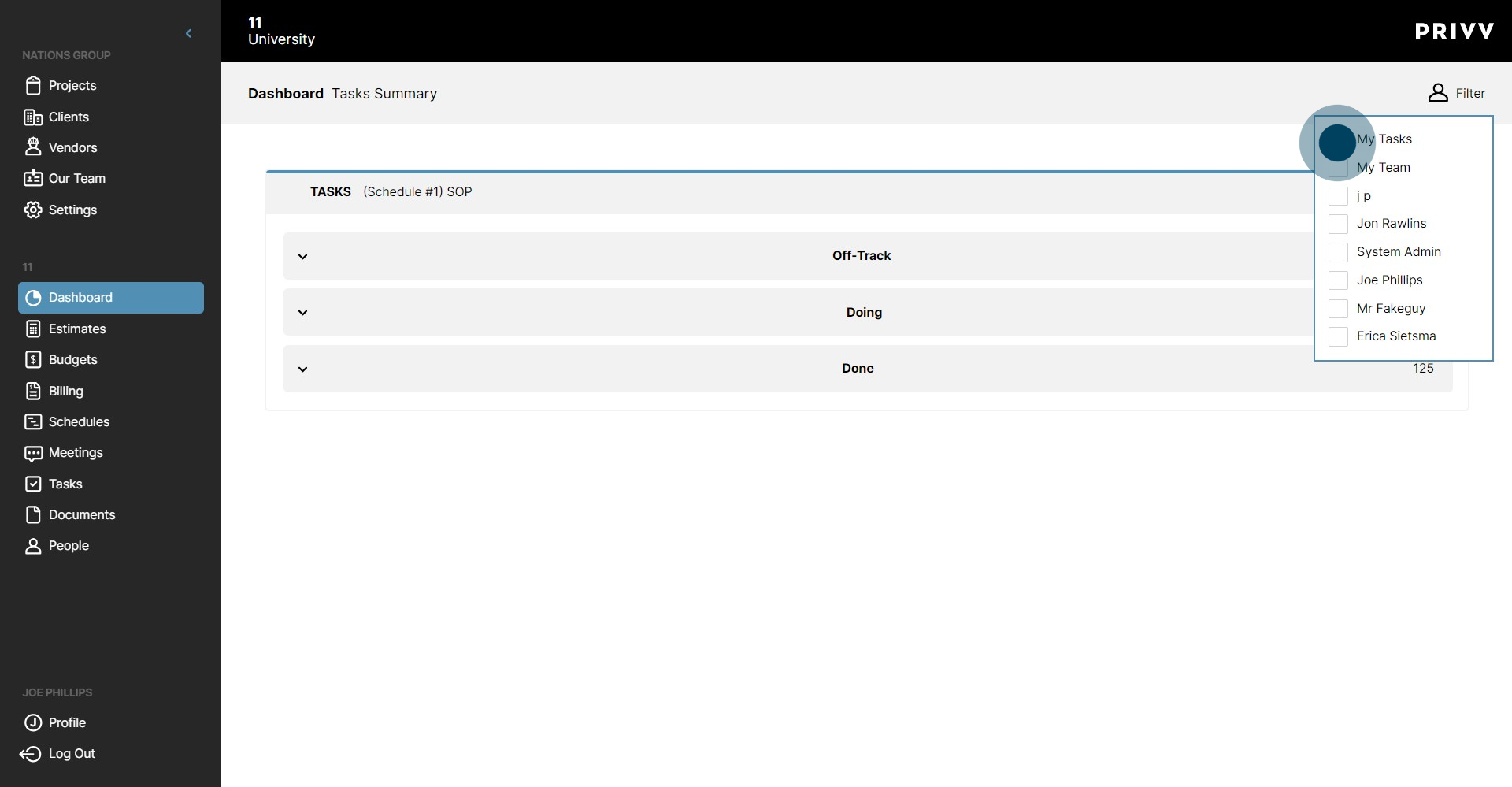
27. You can select My Tasks to see only the tasks that have been assigned to you.
28. Click on Filter to close the filter window.
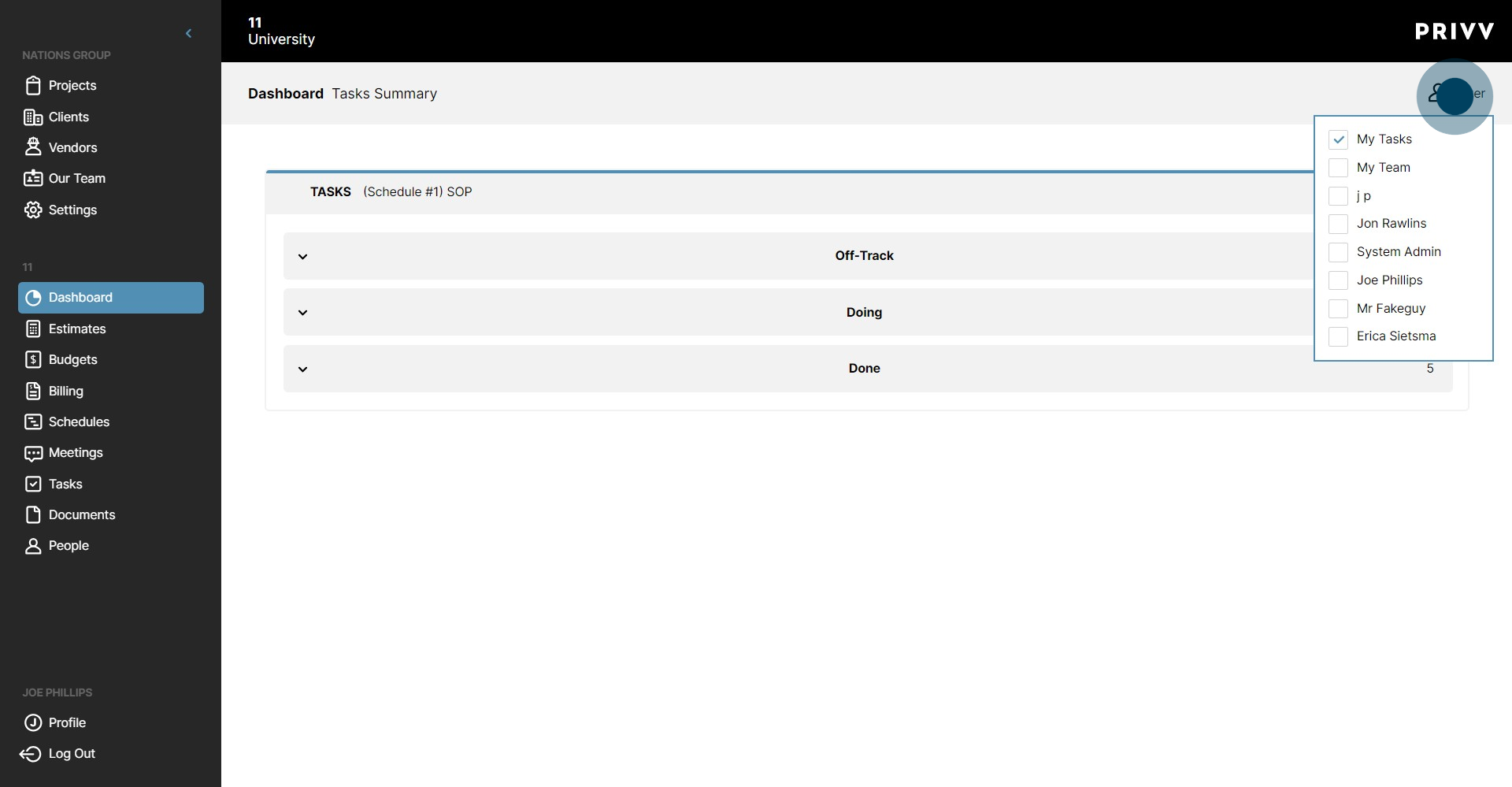
29. Now that your tasks are filtered, click on one of the lists.
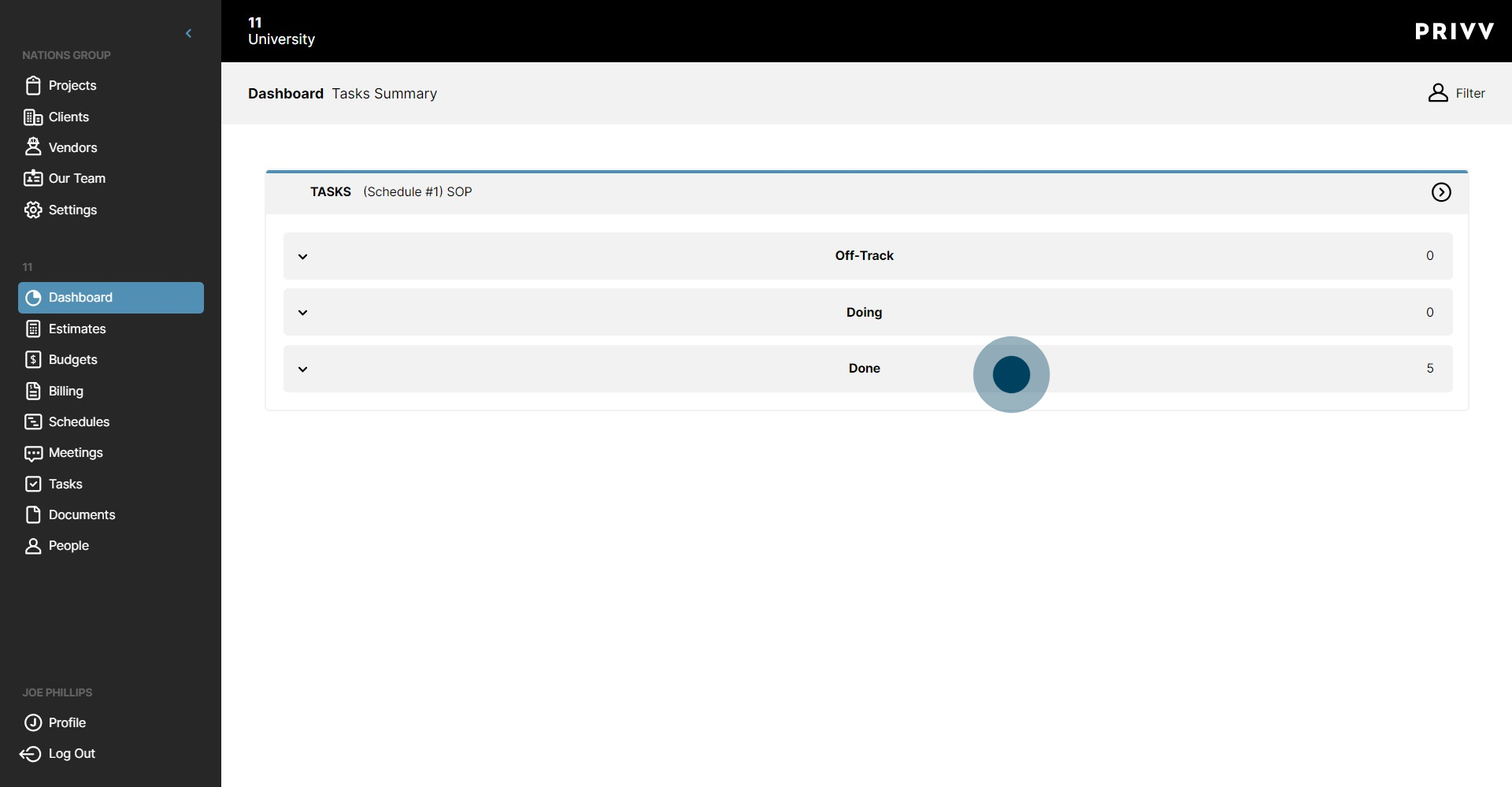
30. Now you will only see the tasks assigned based on the filter you chose.
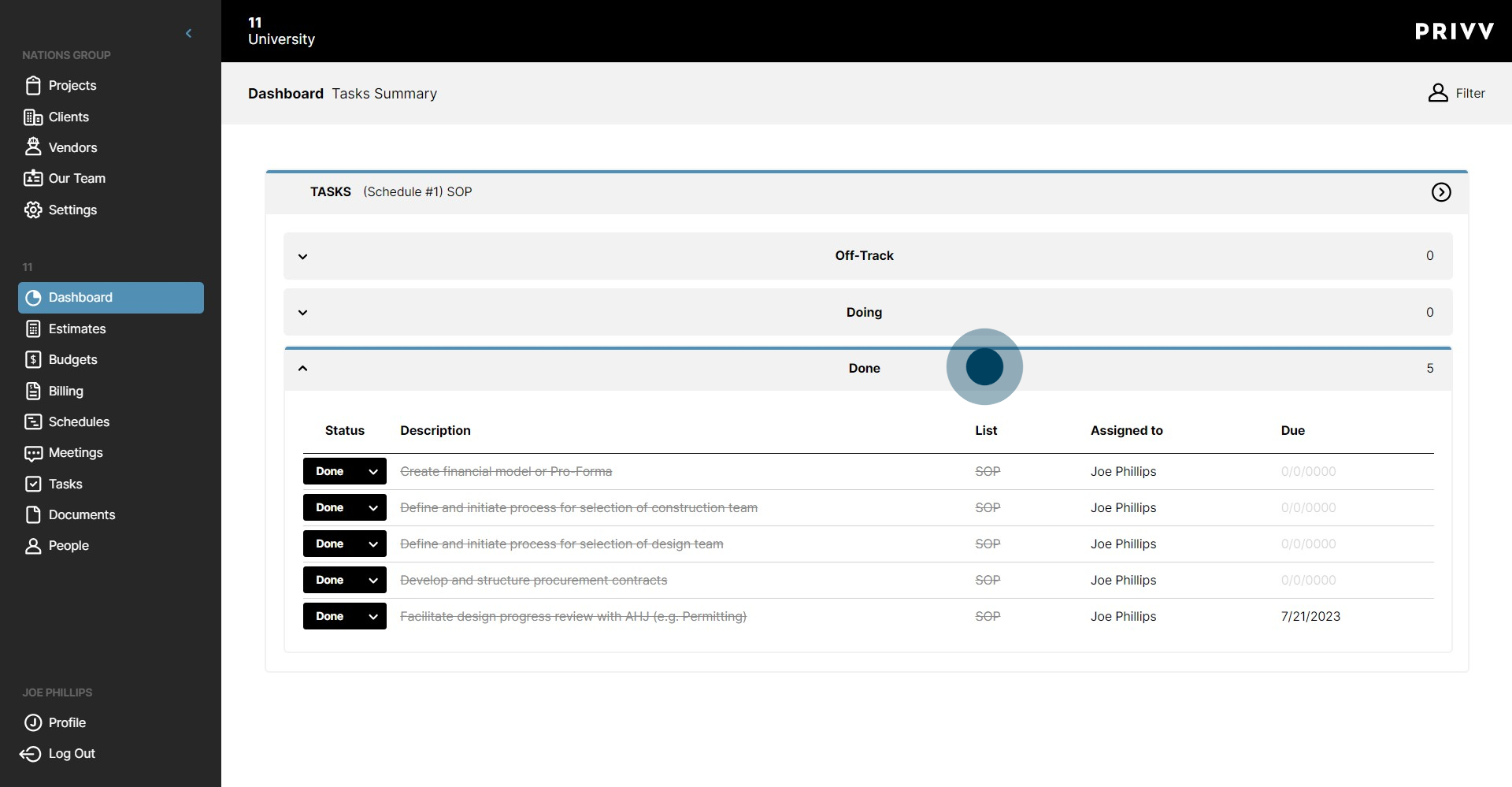
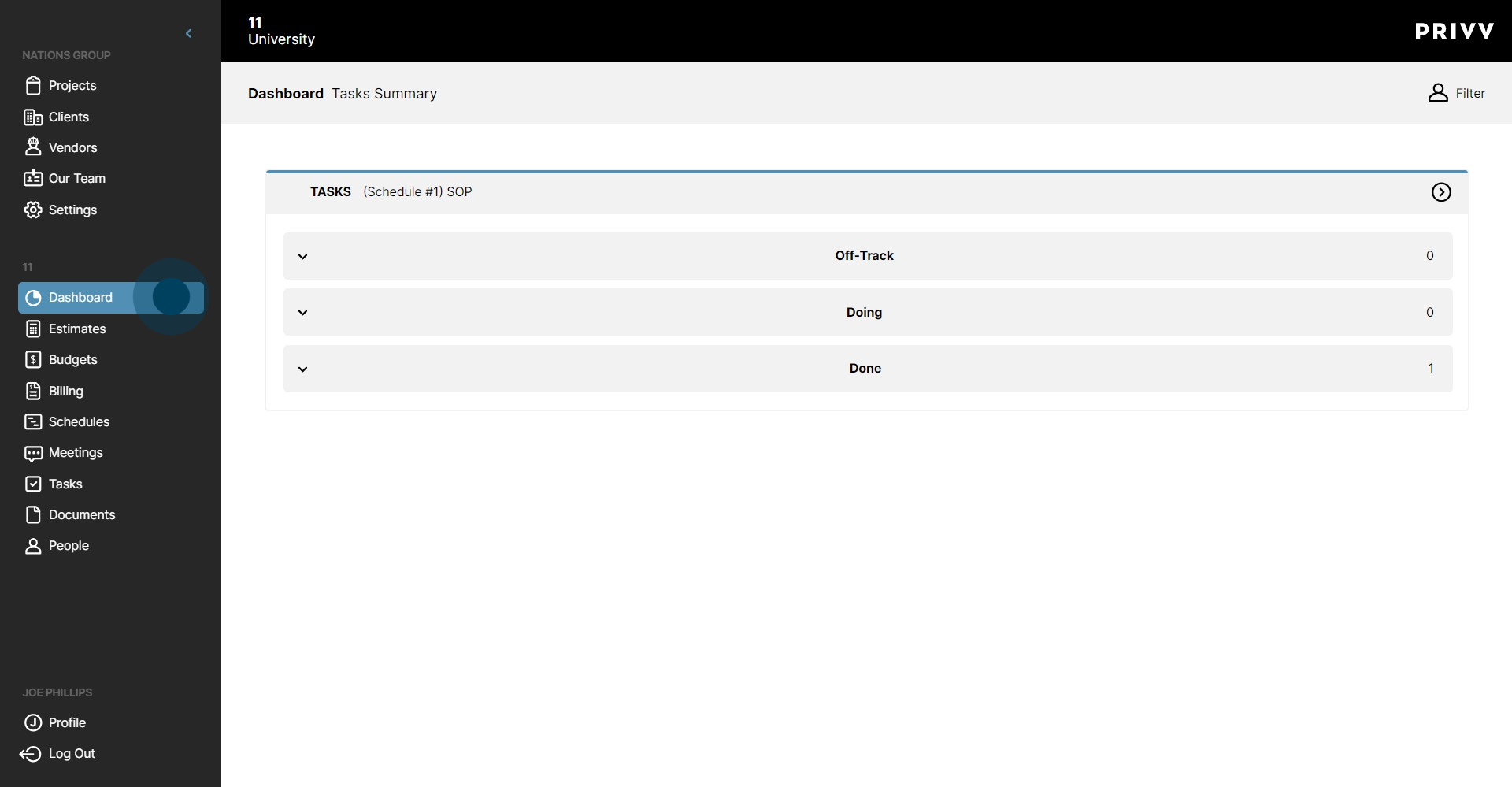
31. Let's go back to the Dashboard!
32. The Cash Flow widget provides a detailed view of the budget.
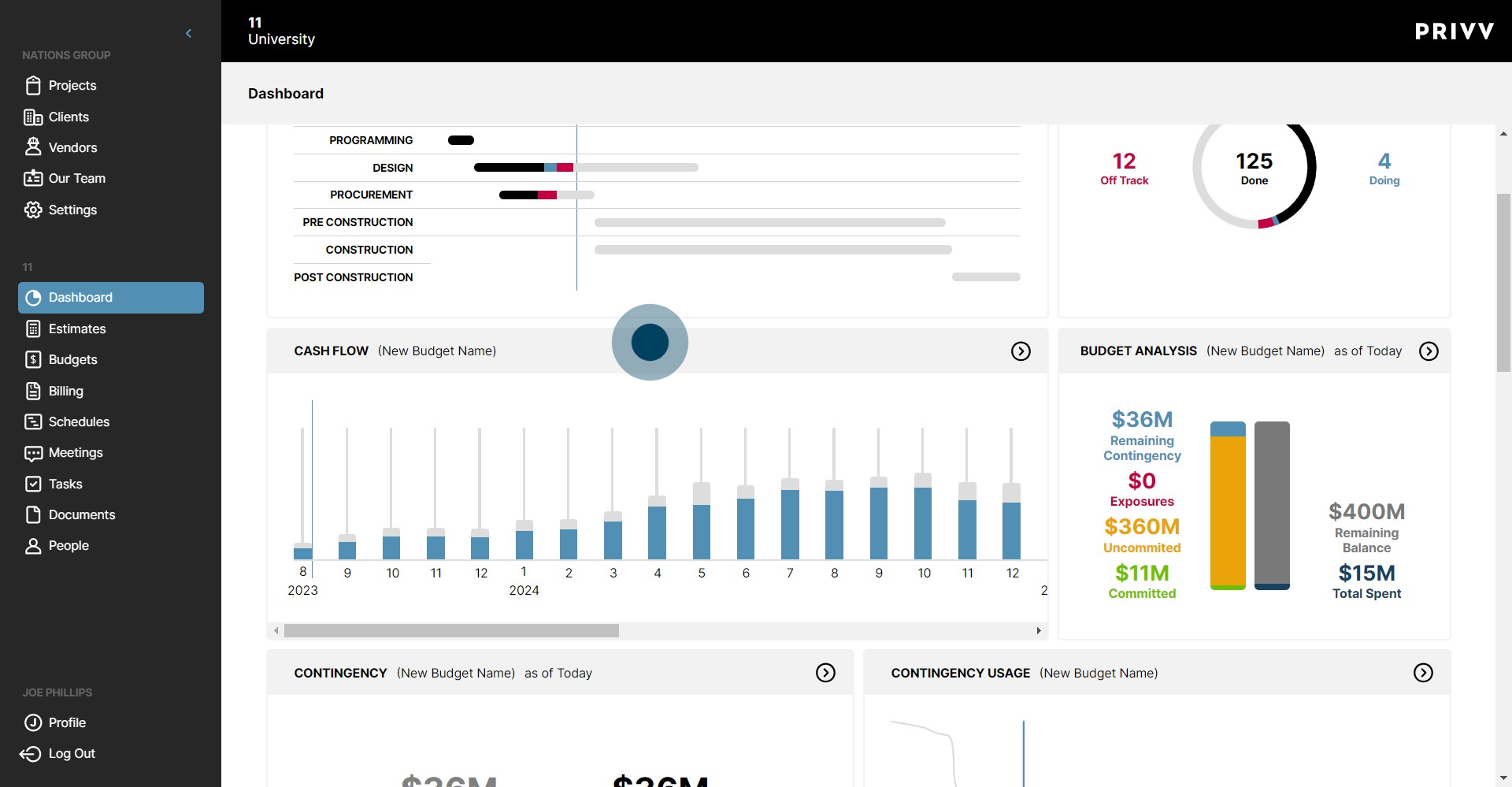
33. Click on the Budget Analysis banner to see a more detailed breakdown.

34. Click on Cash Flow to see the entire Cash Flow graph.
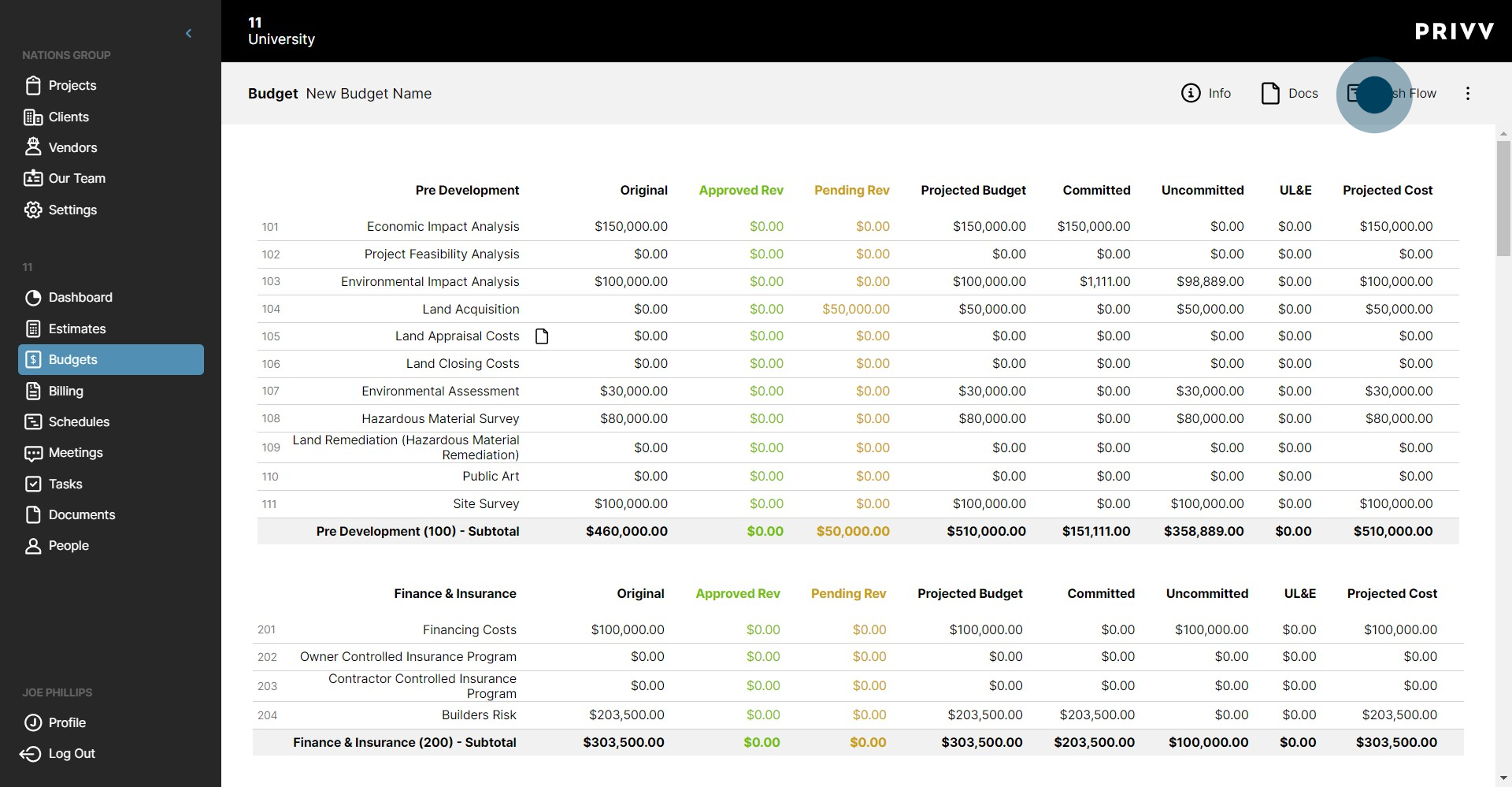
35. Click here to print or save as a PDF.
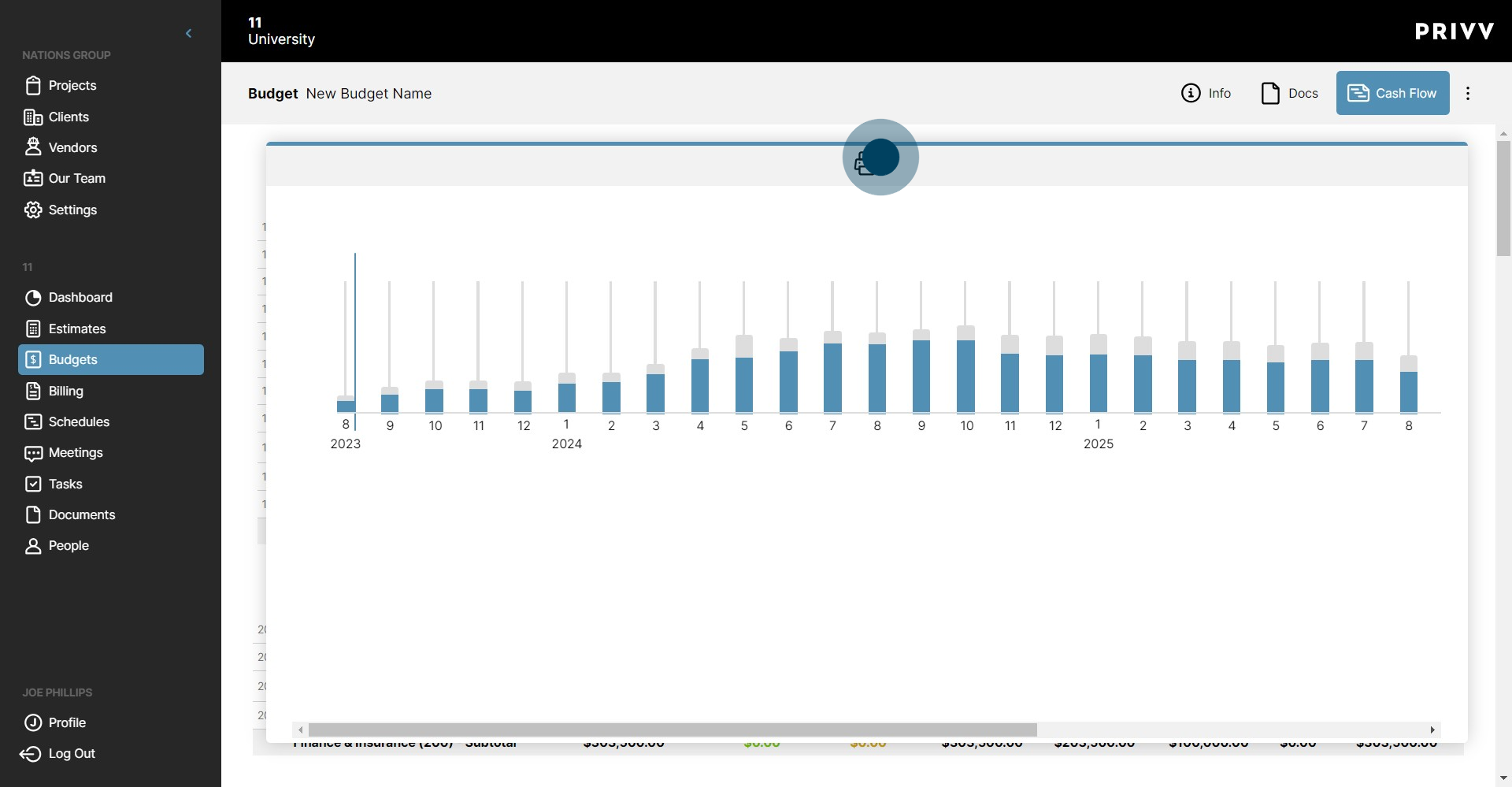
36. Click on Cash Flow to close the Cash Flow window.
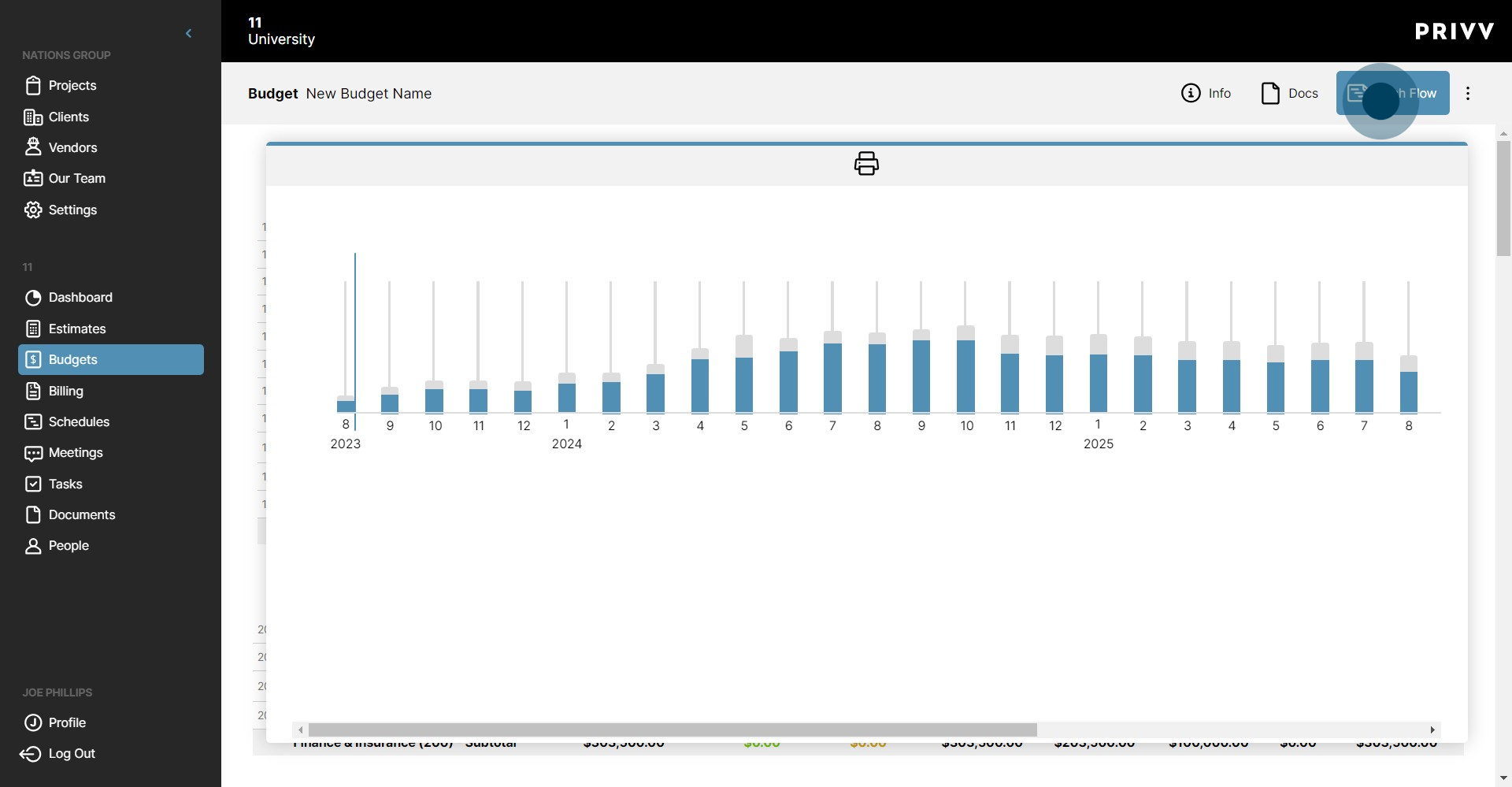
37. Click the ellipsis to see more options on the budget.
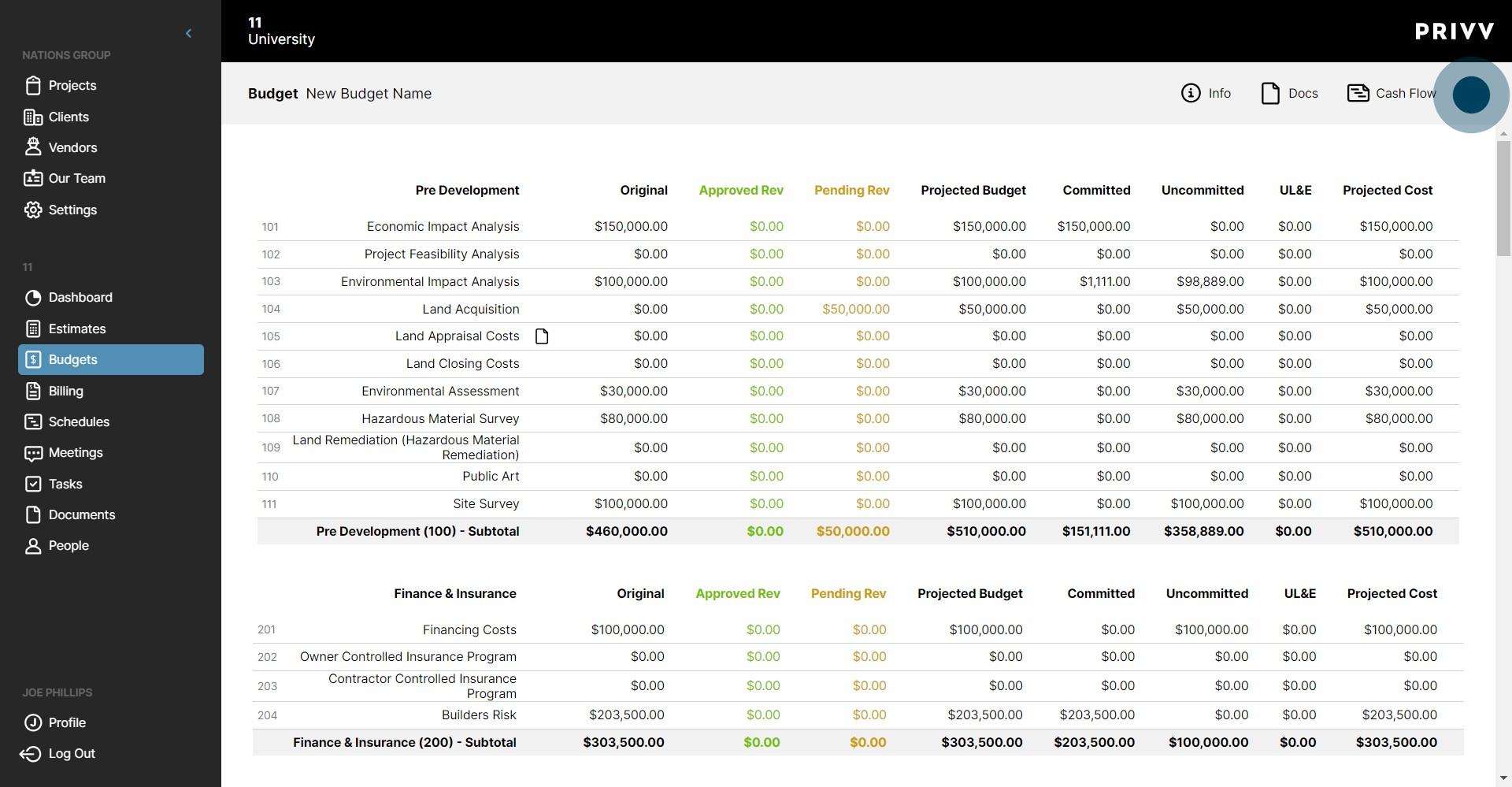
38. Click on Print/PDF to see a list of the reports available for the budget.
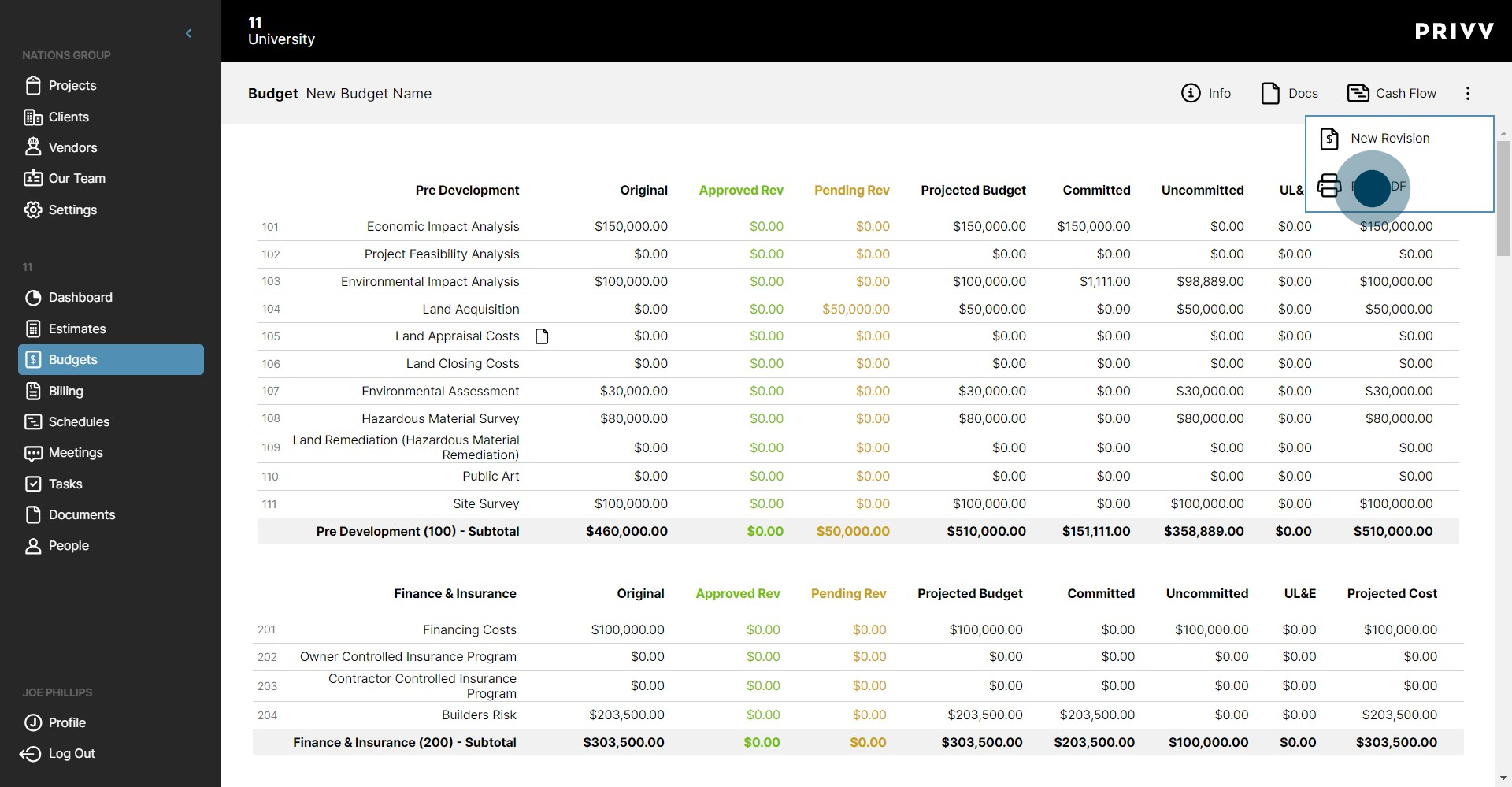
39. Check the boxes for any of the reports you wish to print or select all at the top of the list.
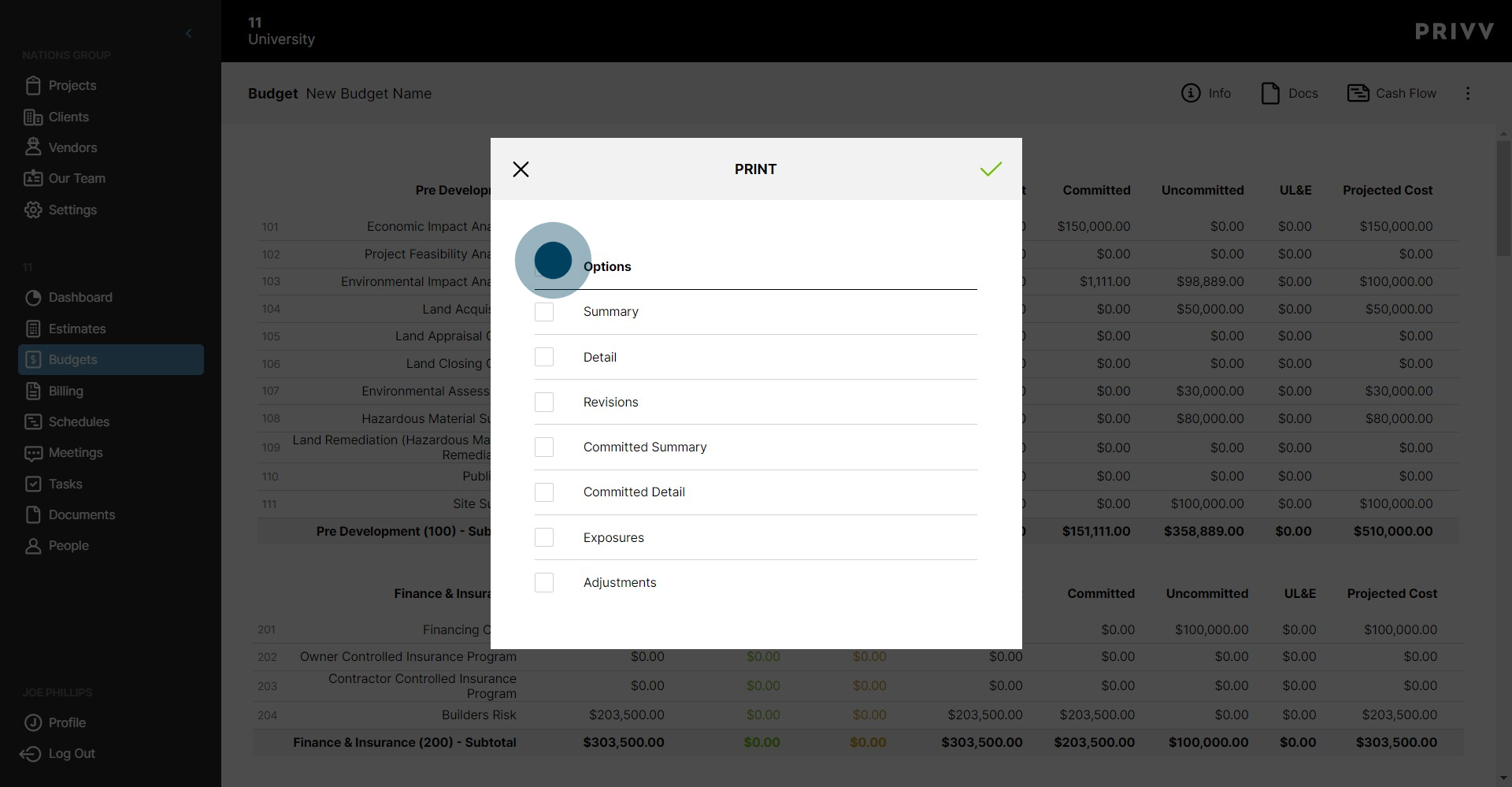
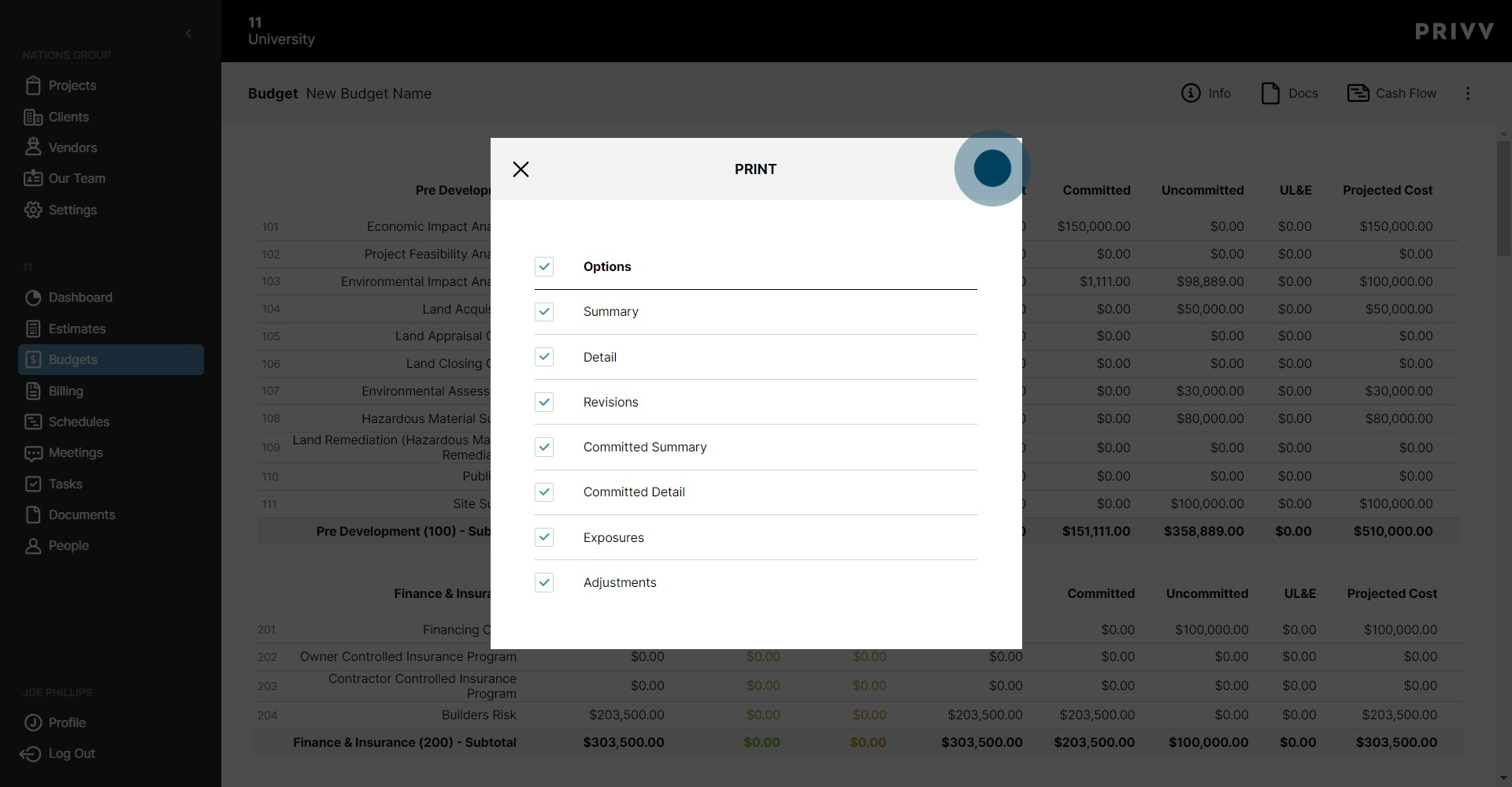
40. Click the green check mark when you have finished your selection.
41. Let's go back to the Dashboard!
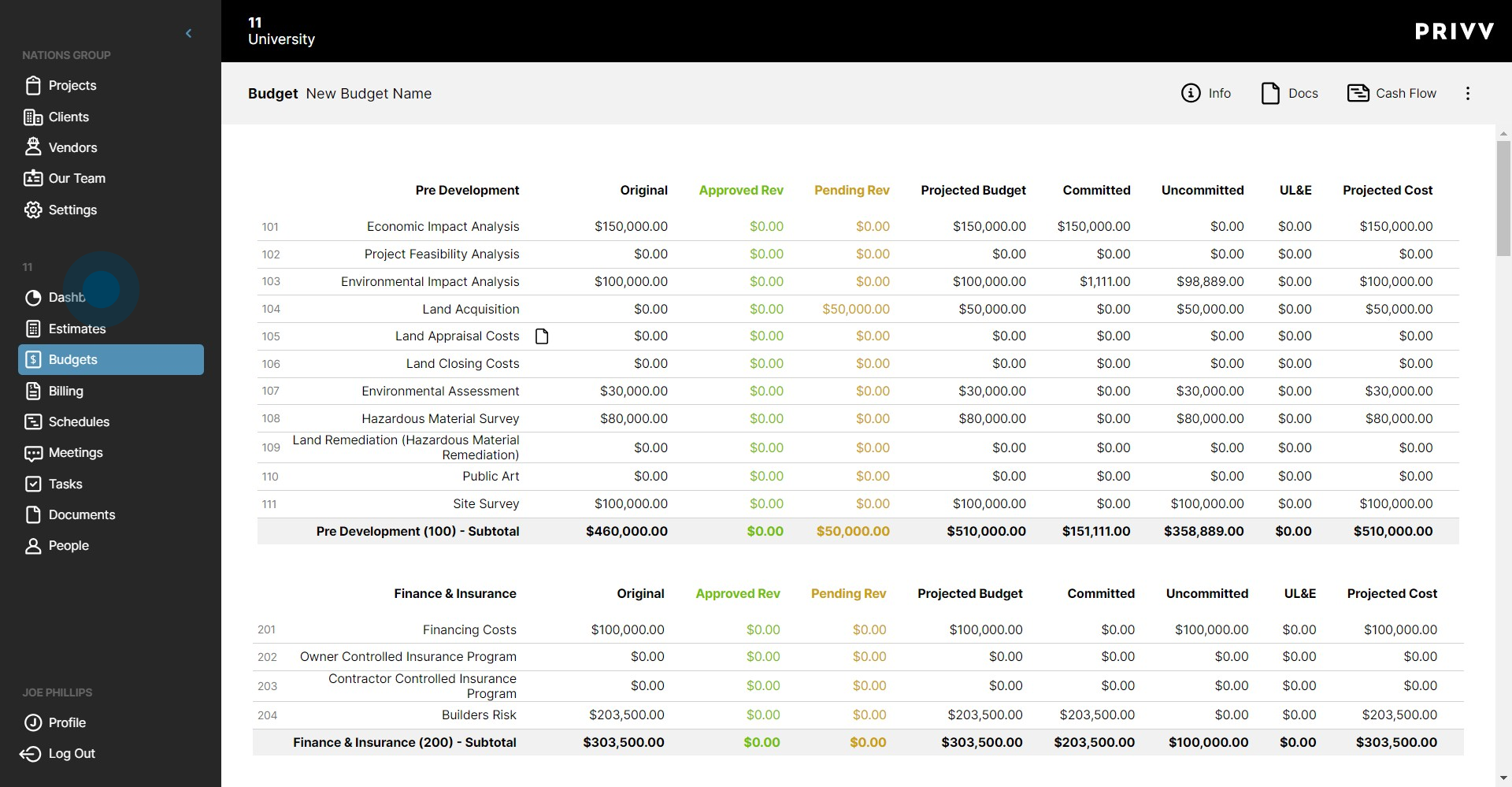
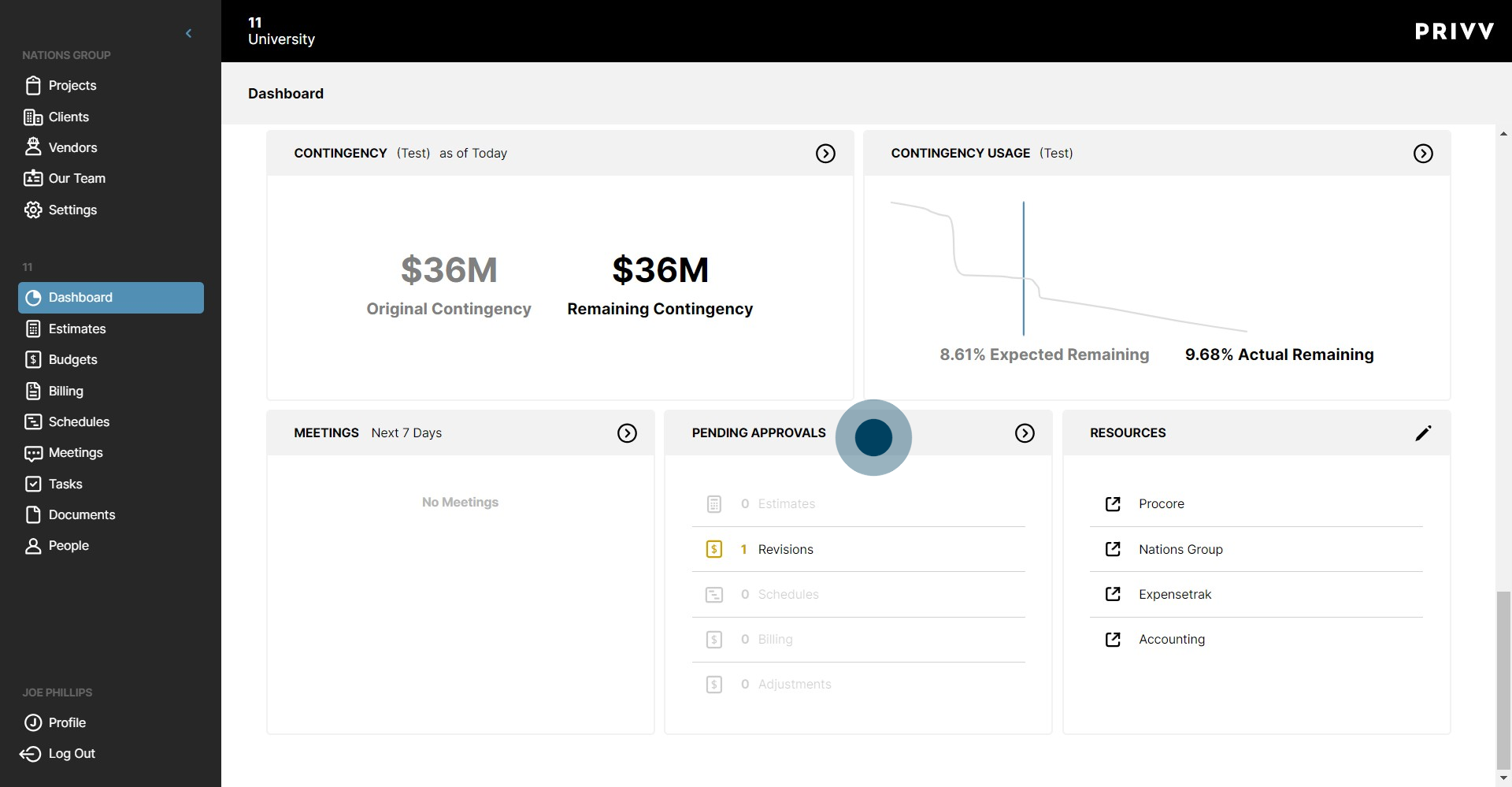
42. Click on Pending Approvals.
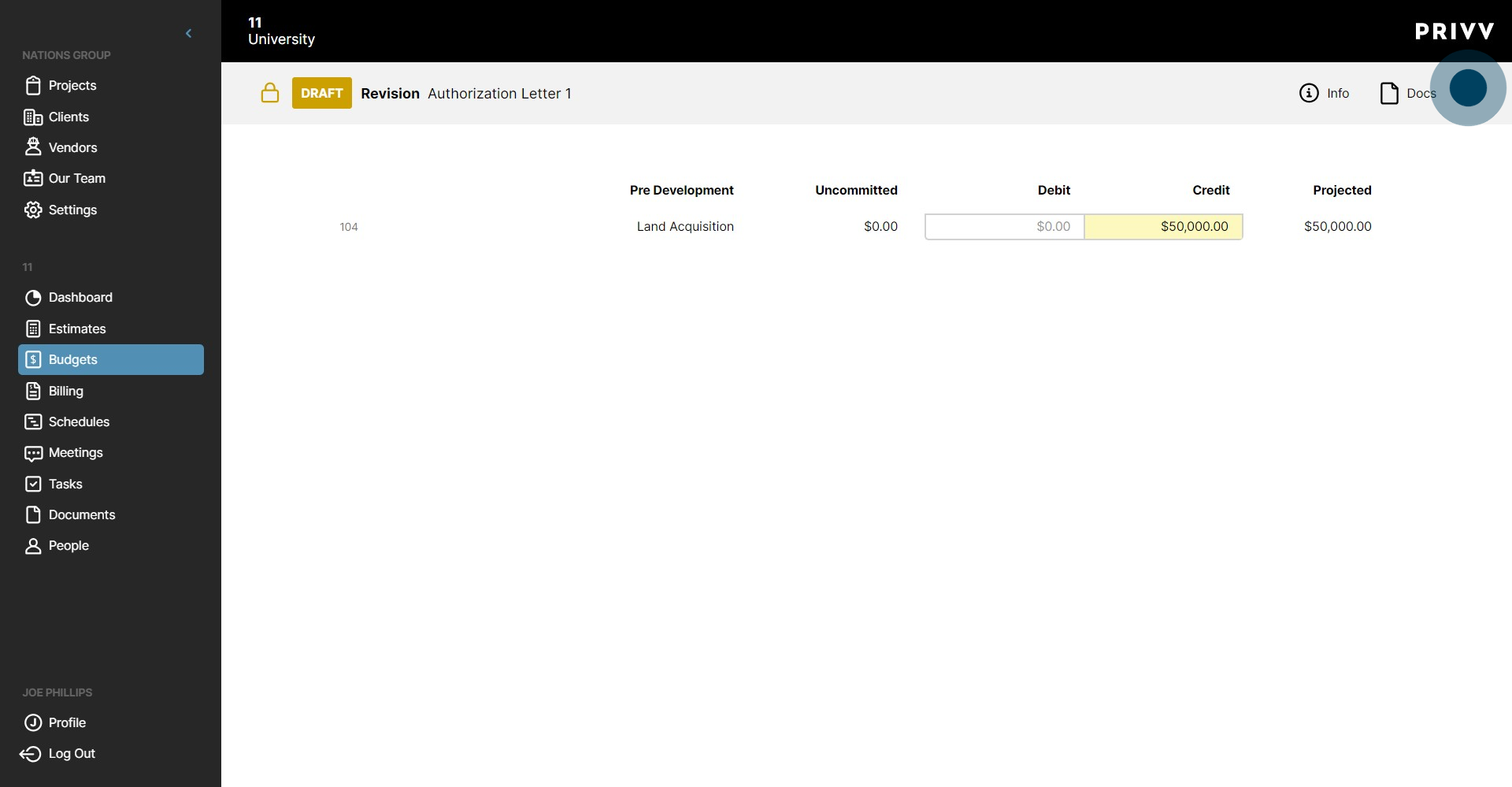
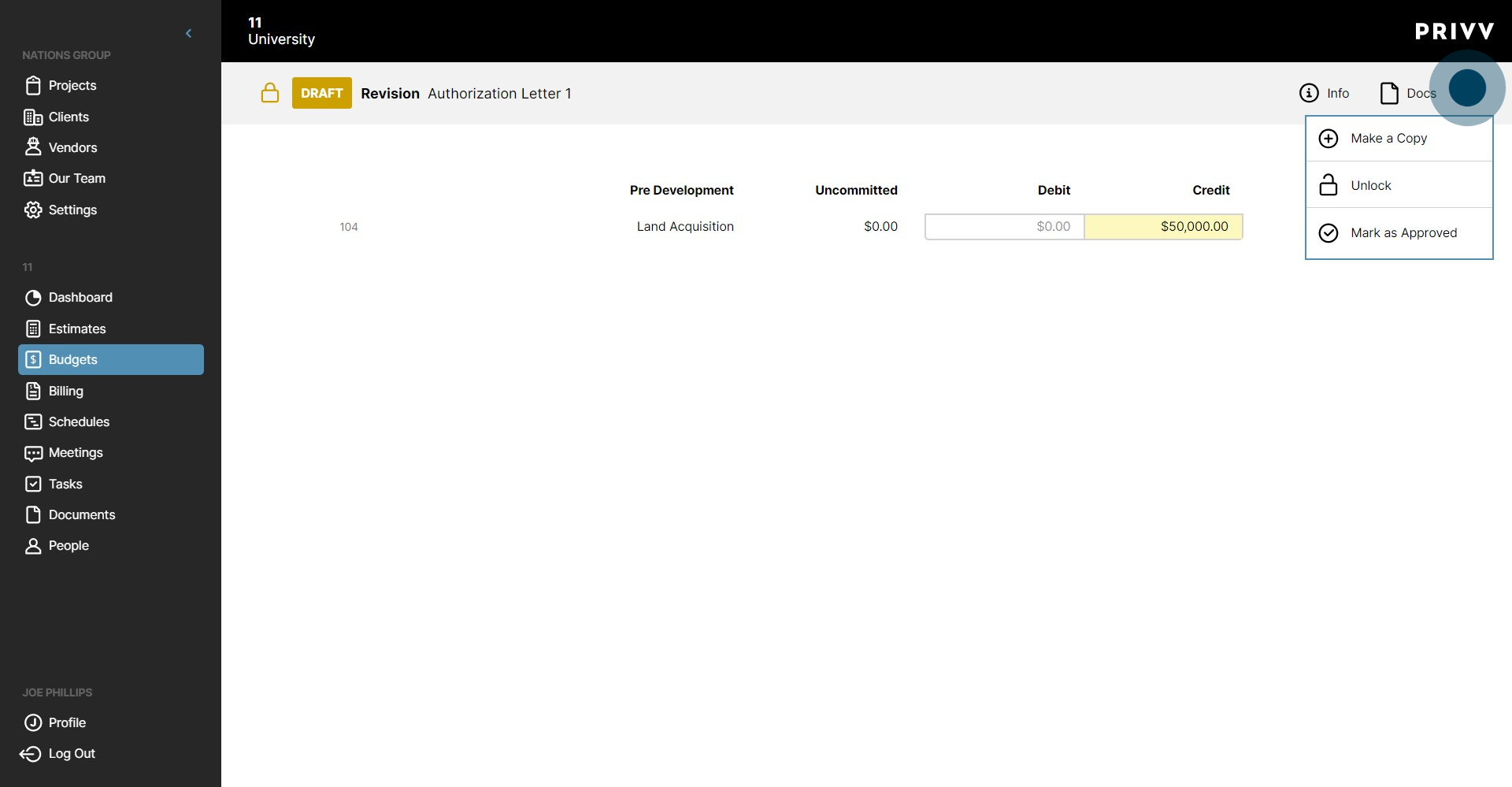
43. Click the ellipsis. Here you can Mark as Approved, Unlock the item, or click Print/PDF.
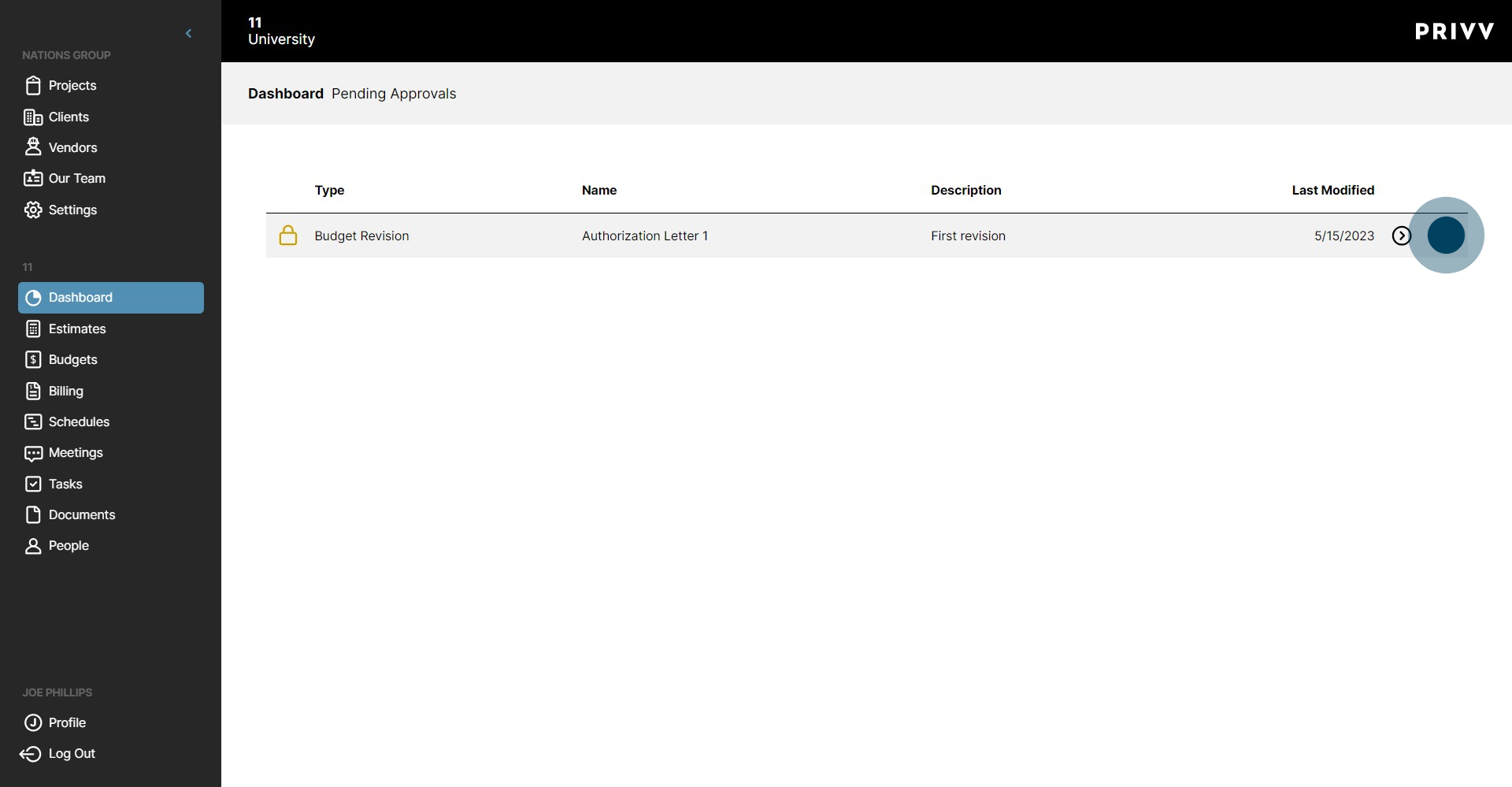
44. Click to see more details.
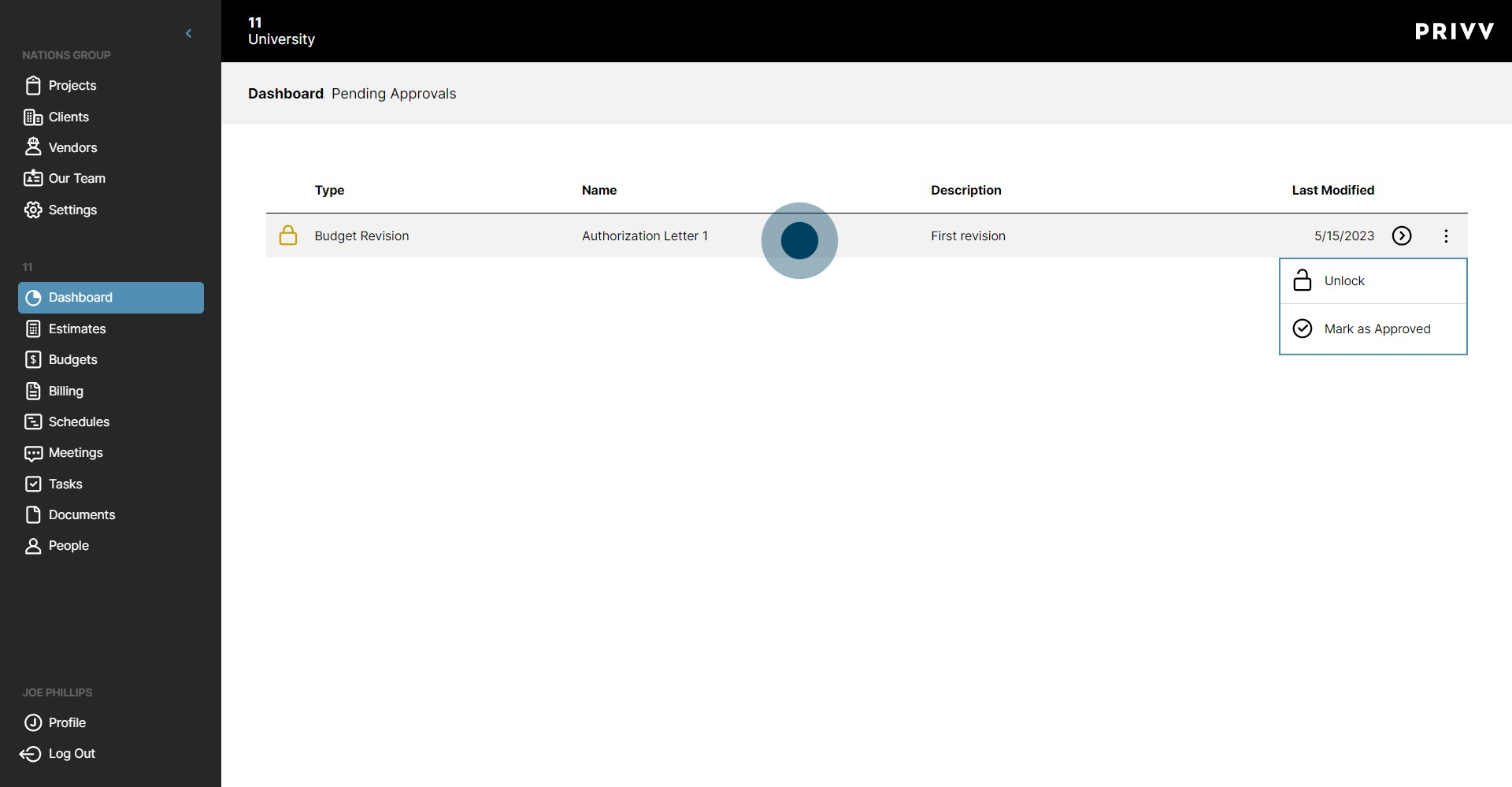
45. Click Info to see the necessary details for the item.
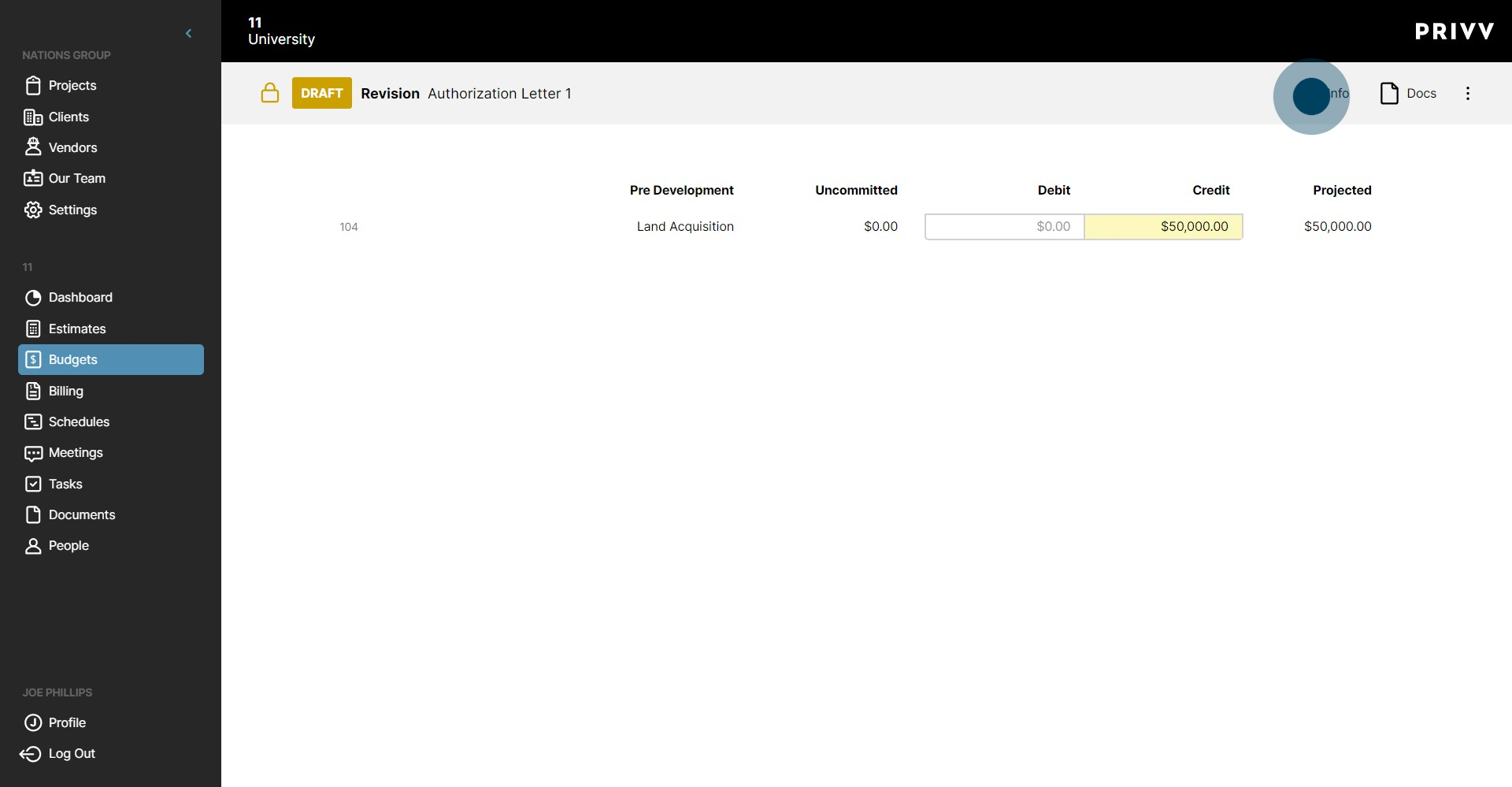
46. Click it again to close the window.
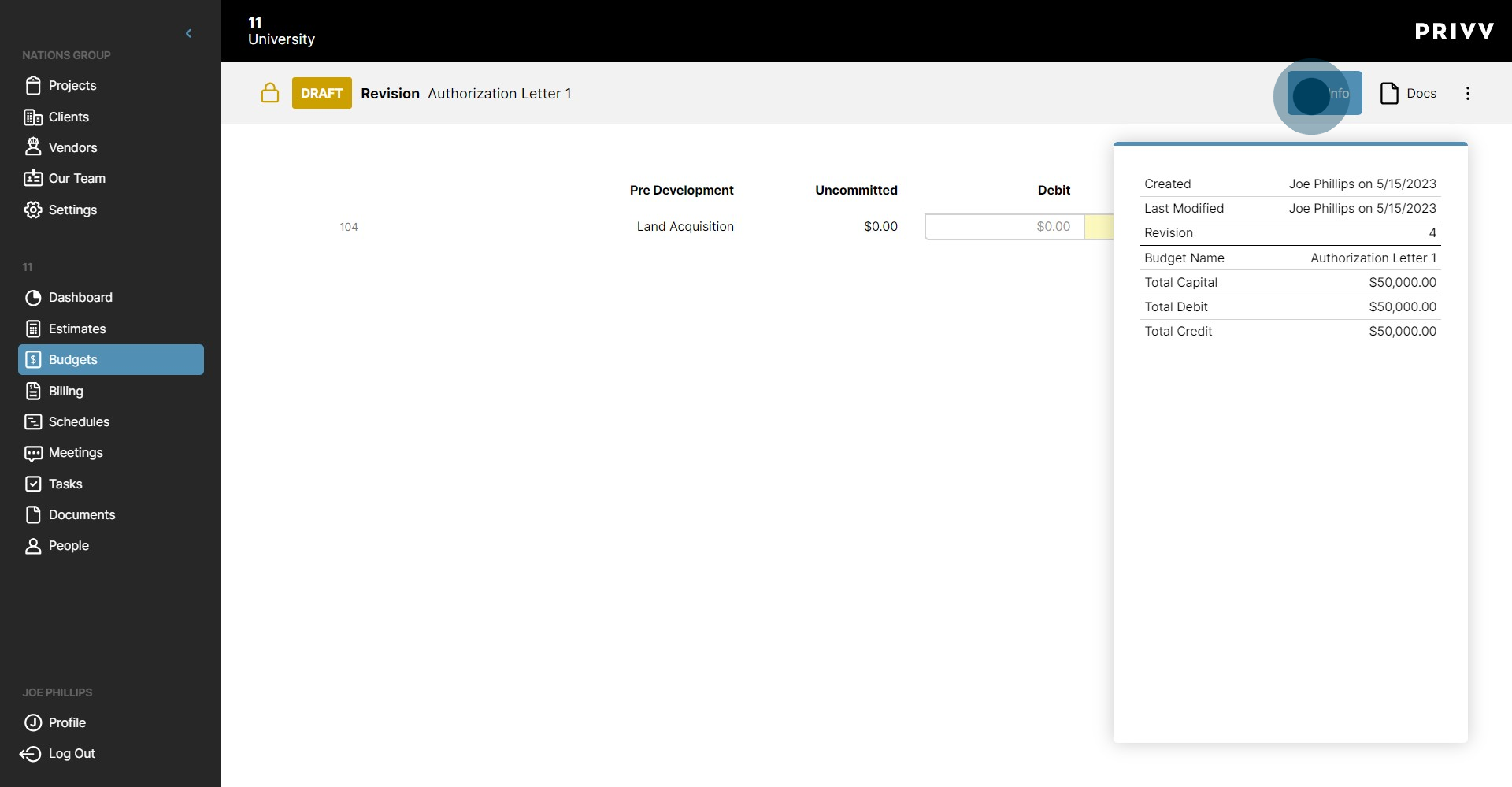
47. Here you can mark it approved or unlock it for editing.
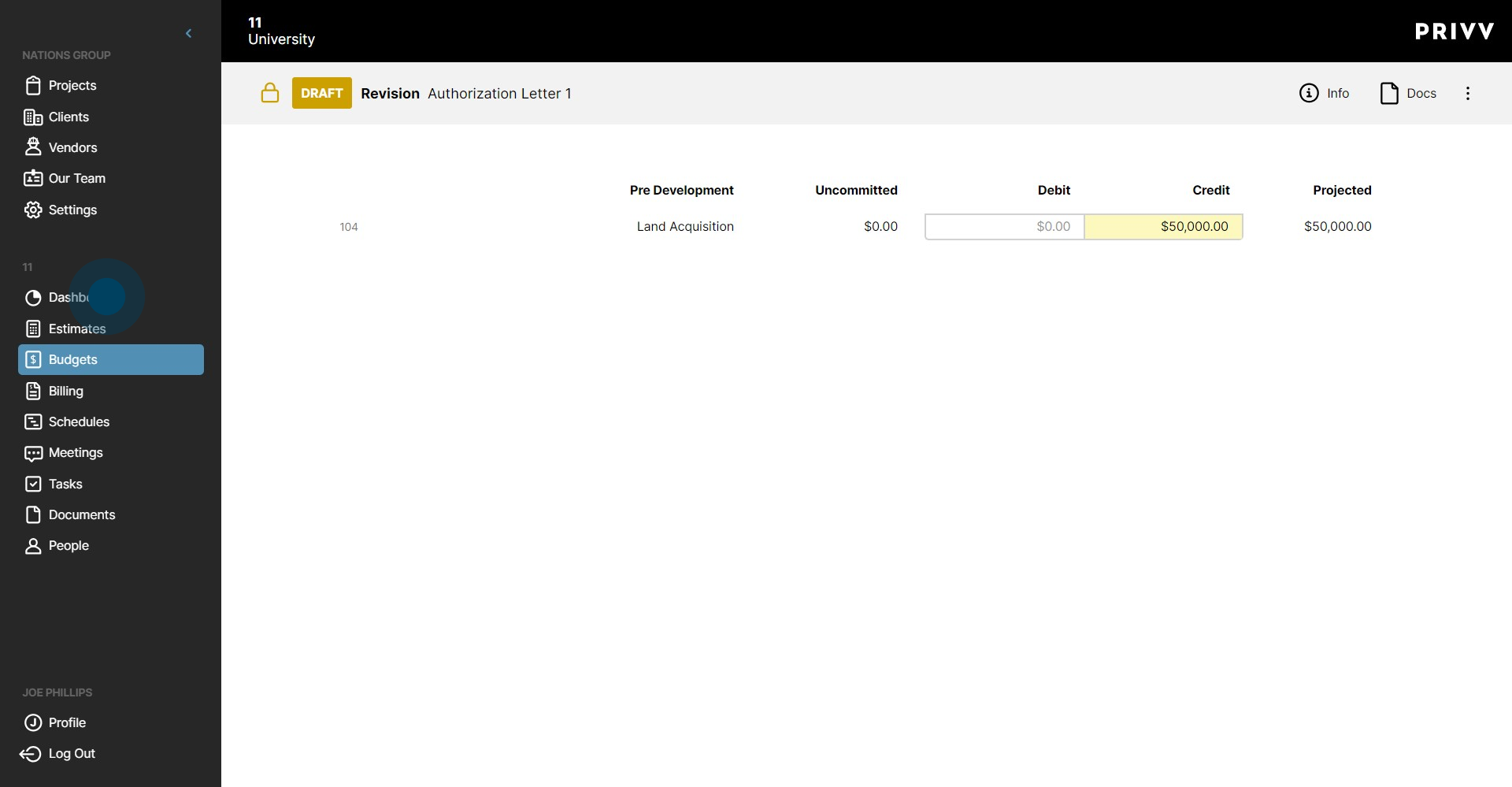
48. Click the ellipsis again to close it.
49. Let's go back to the Dashboard!
50. The Resources widget allows the user to store any outside links for quick access.
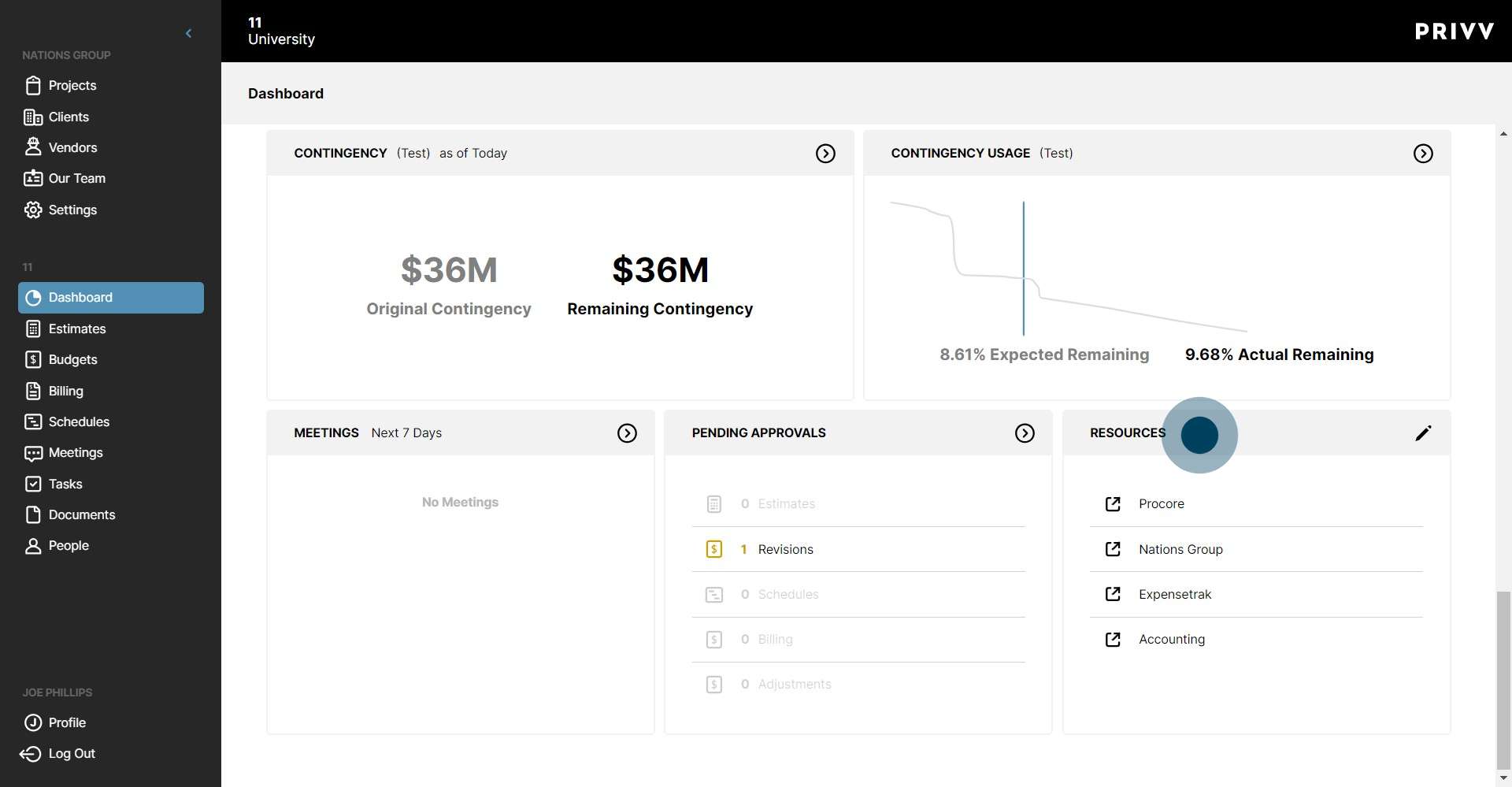
51. To add a resource, enter the name and URL.
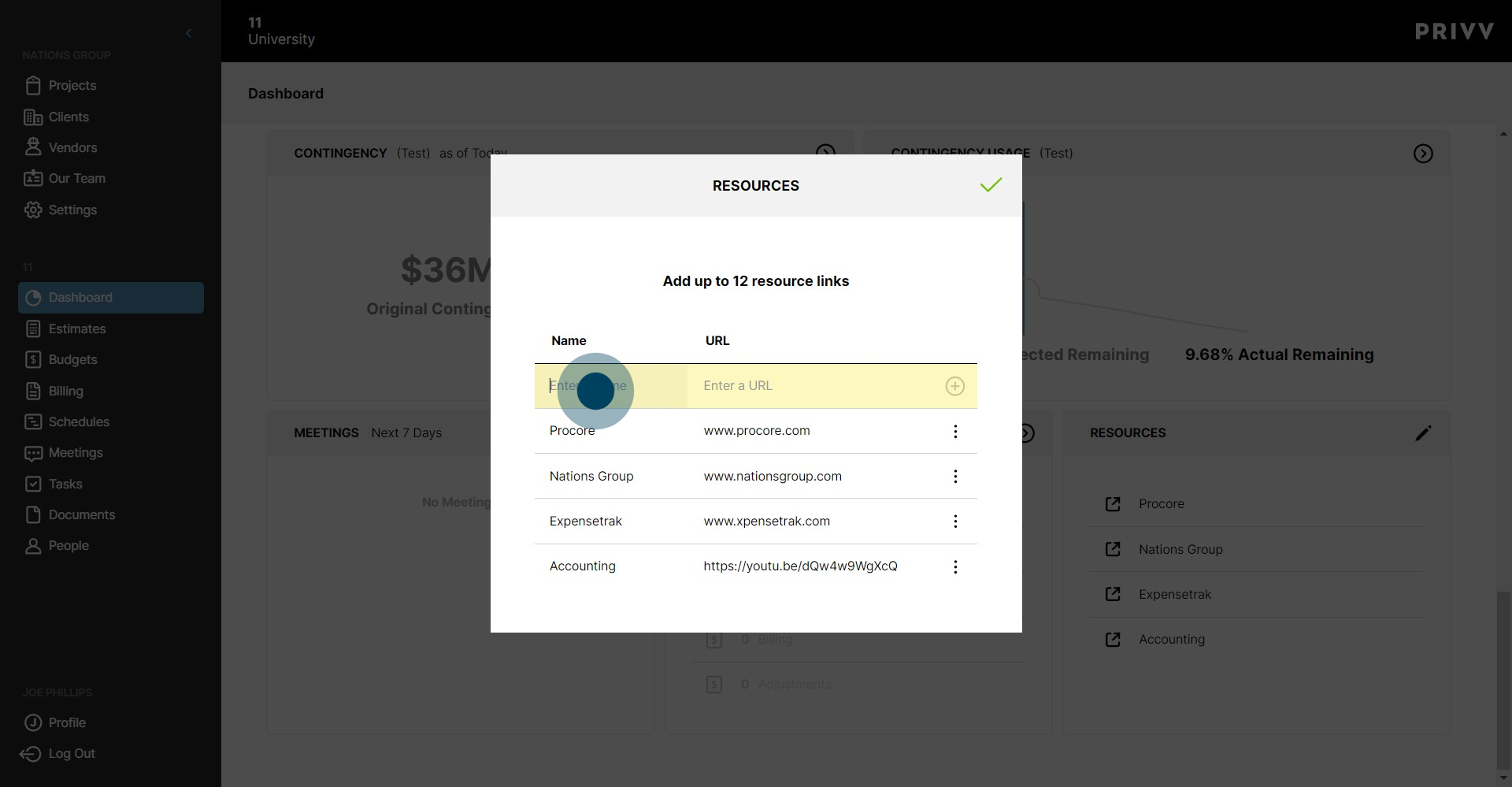
52. Click the + symbol to add it to the list.
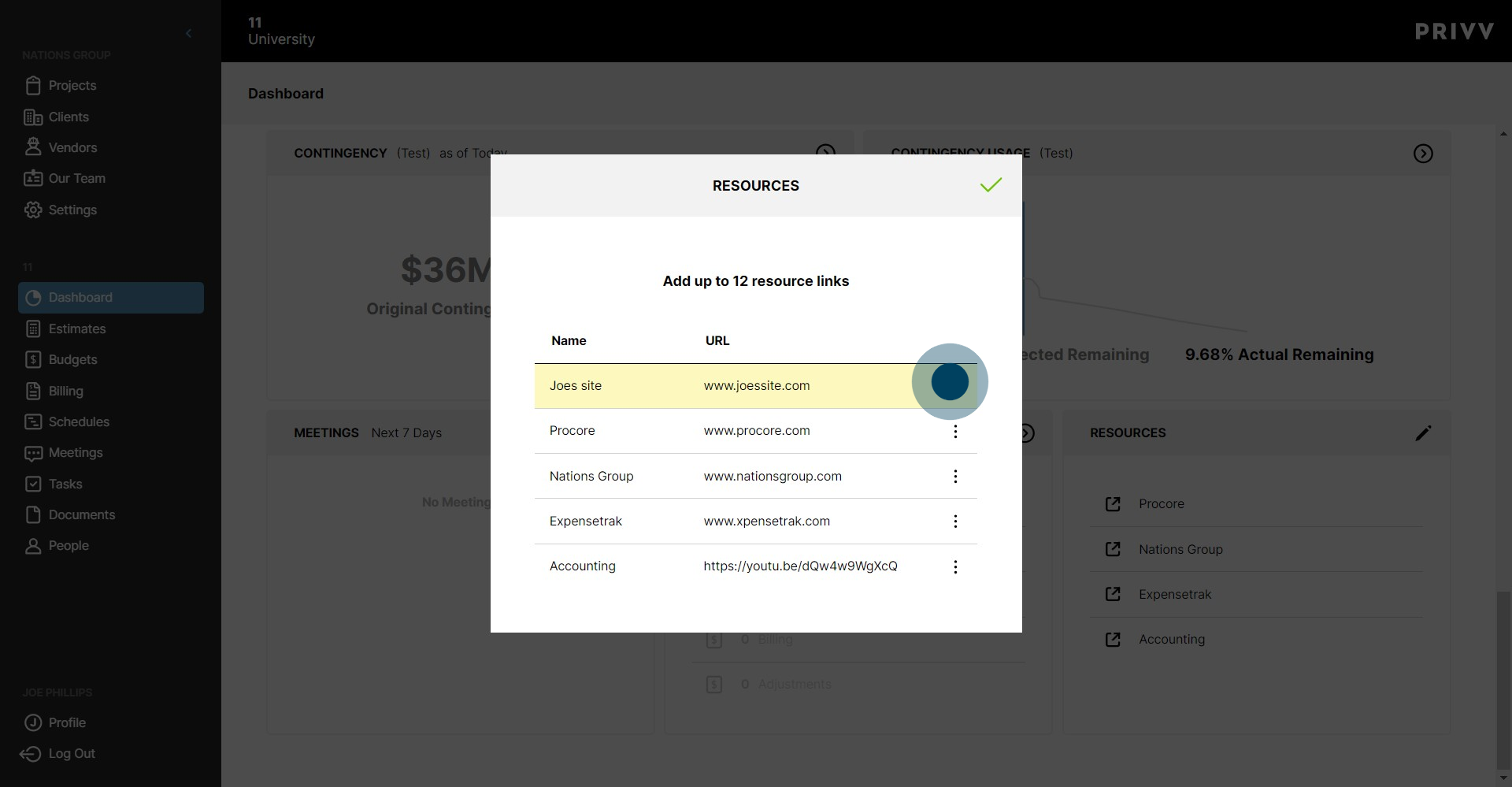
53. Click the green check mark to save.
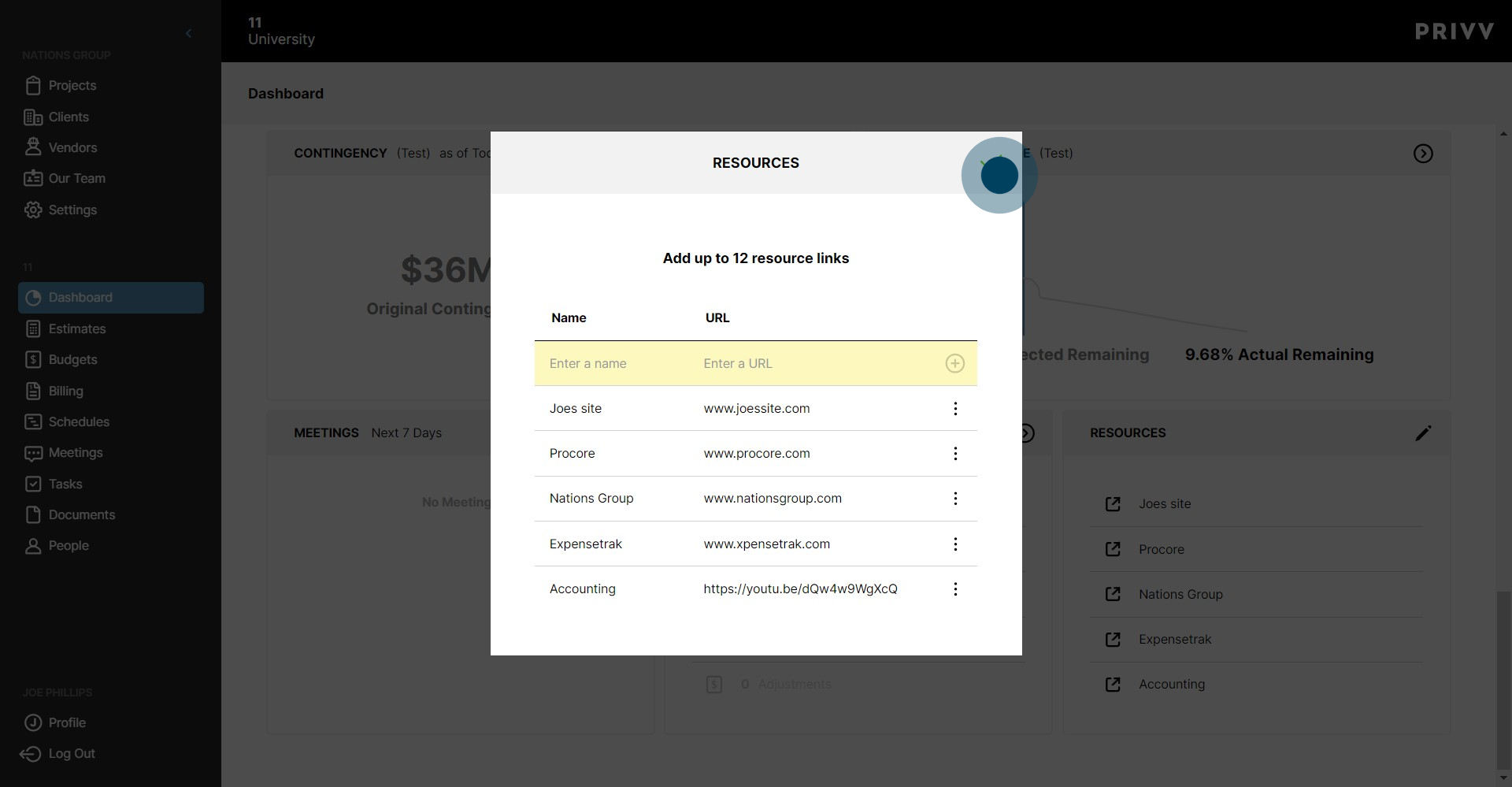
54. Click the icon next to the resource to open that resource in a new tab in your browser.
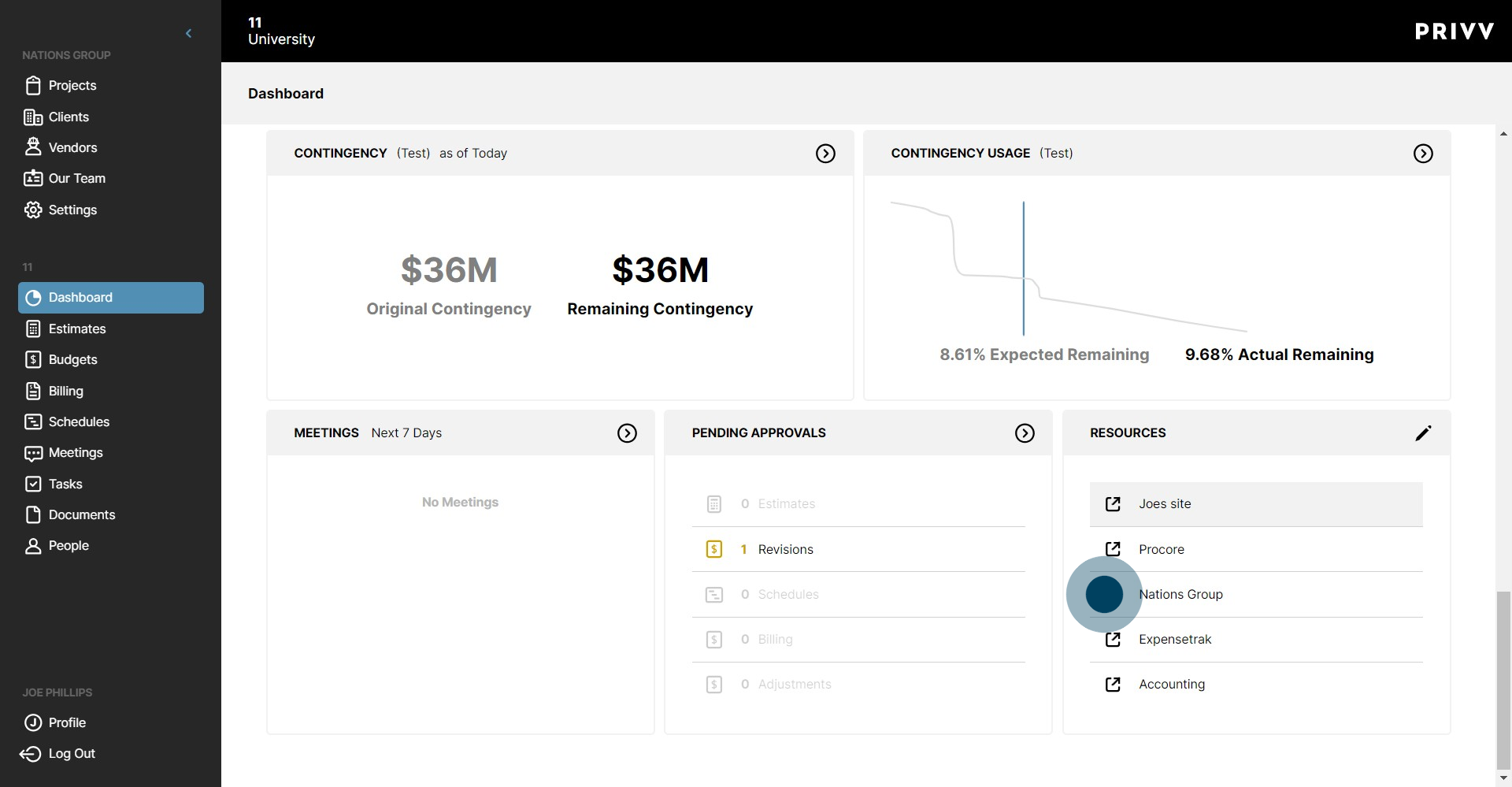
55. Click here to edit the resources.
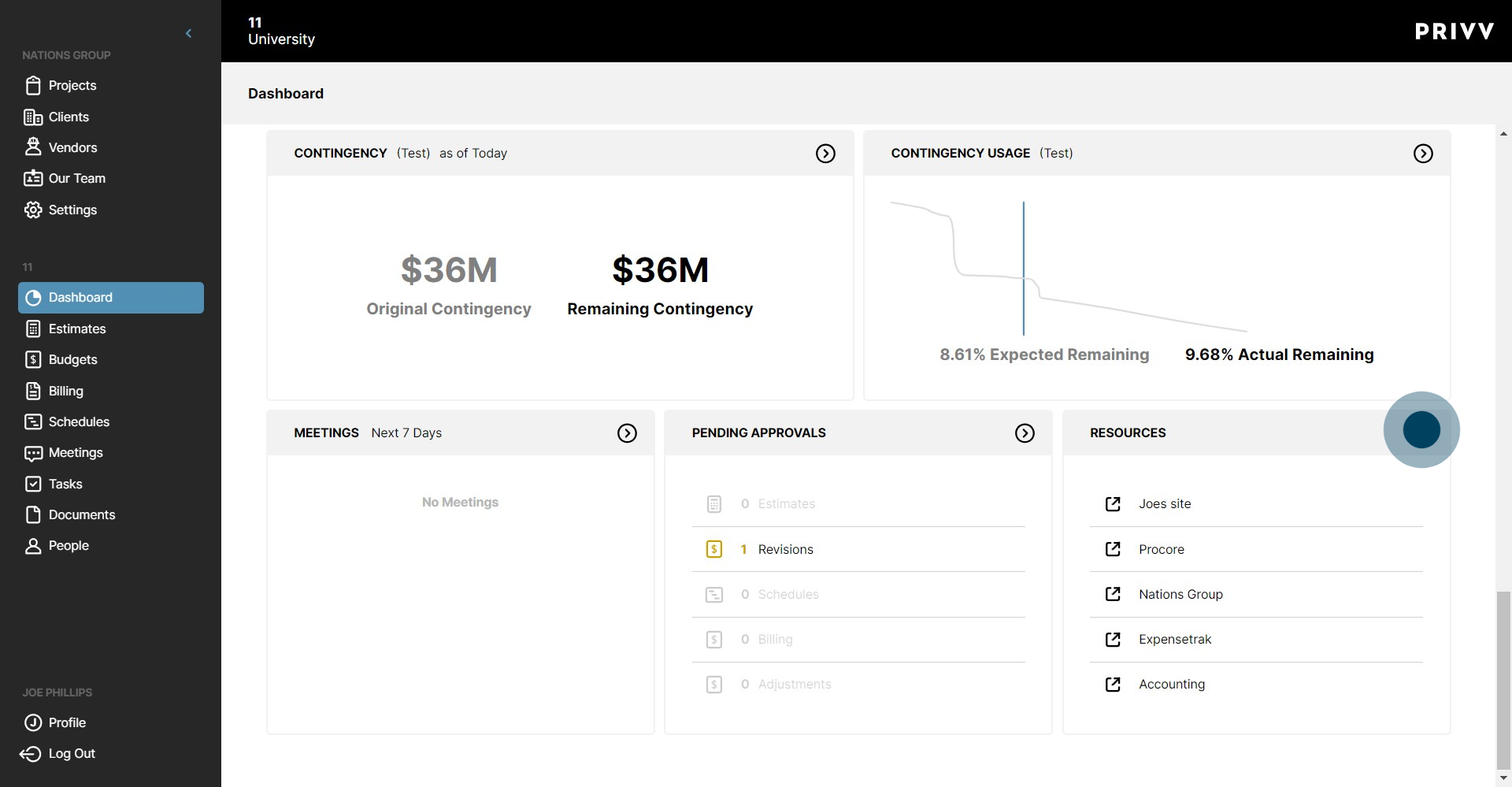
56. Click the ellipsis next to the resource.
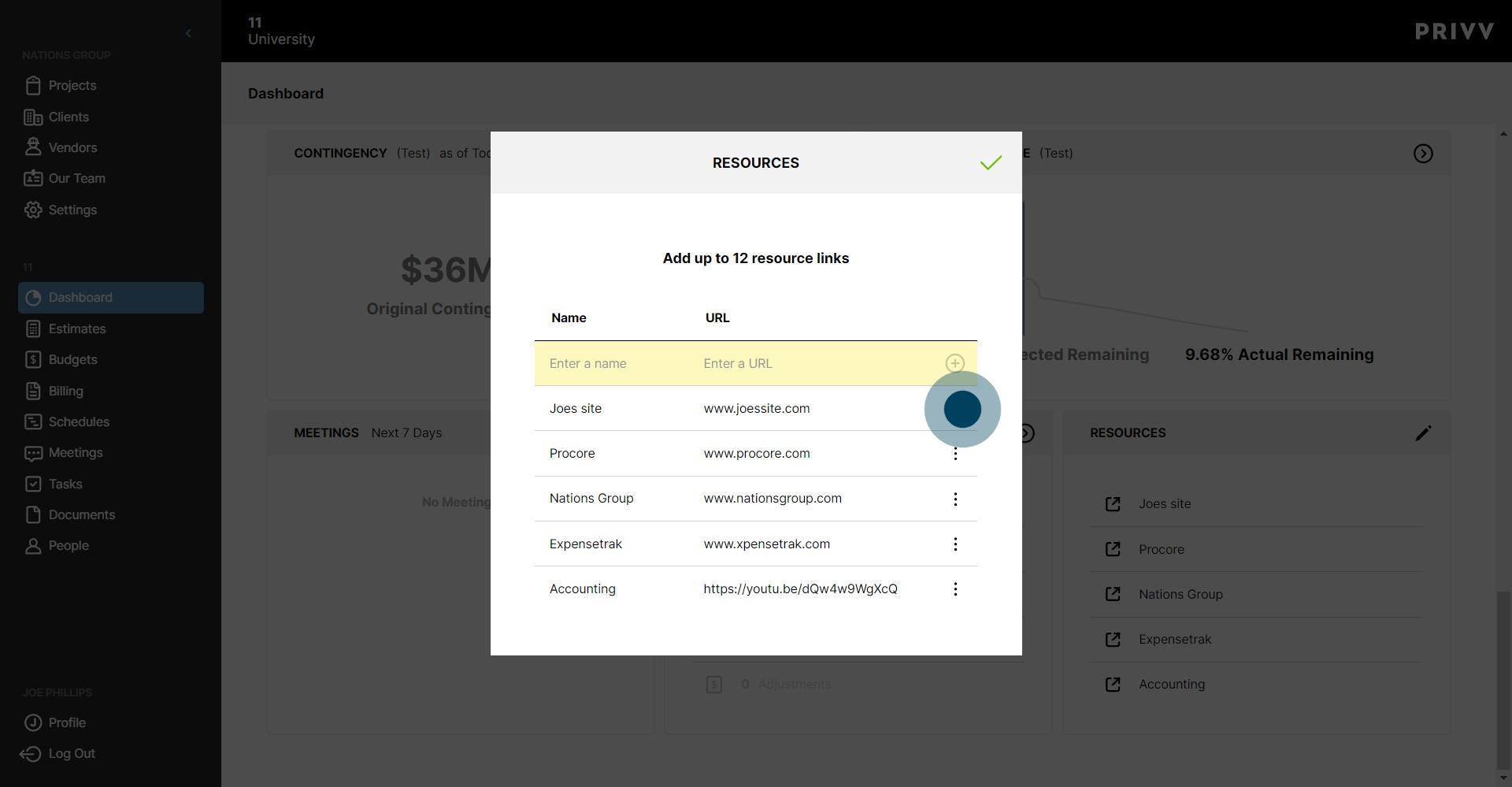
57. Now you can delete the resource URL
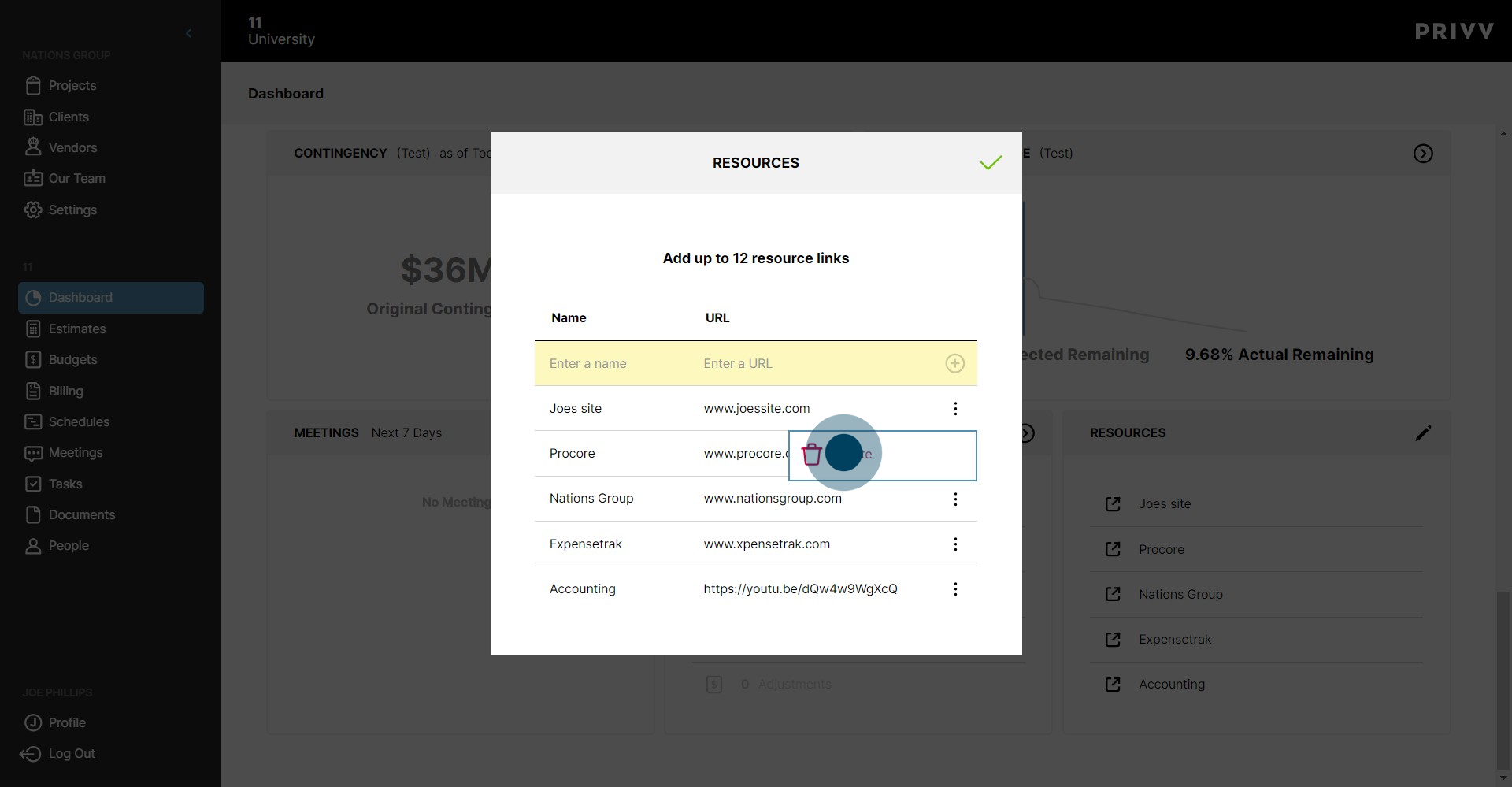
58. To confirm deletion you will need to type "DELETE" in all caps.
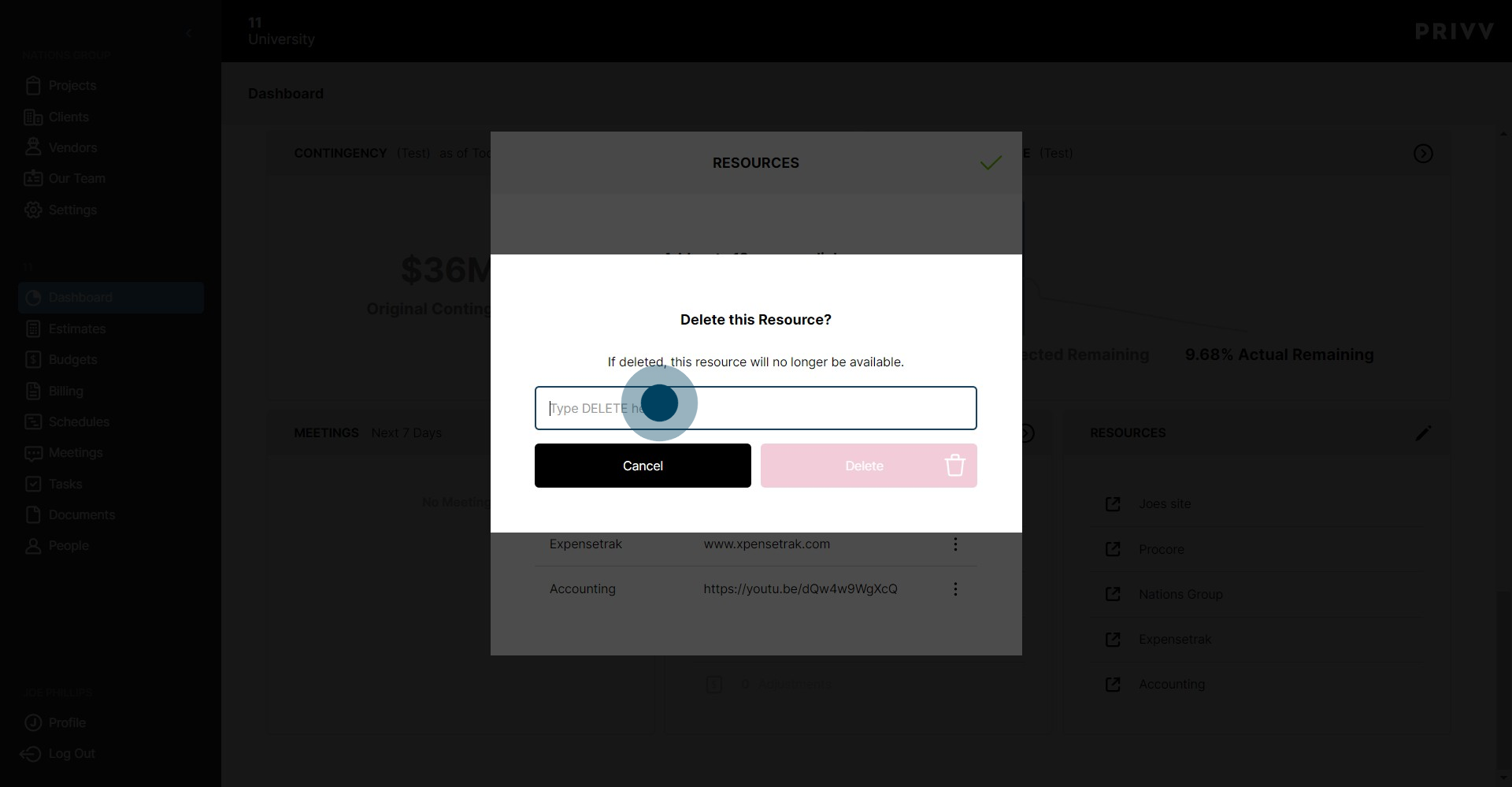
59. Click on "Delete"
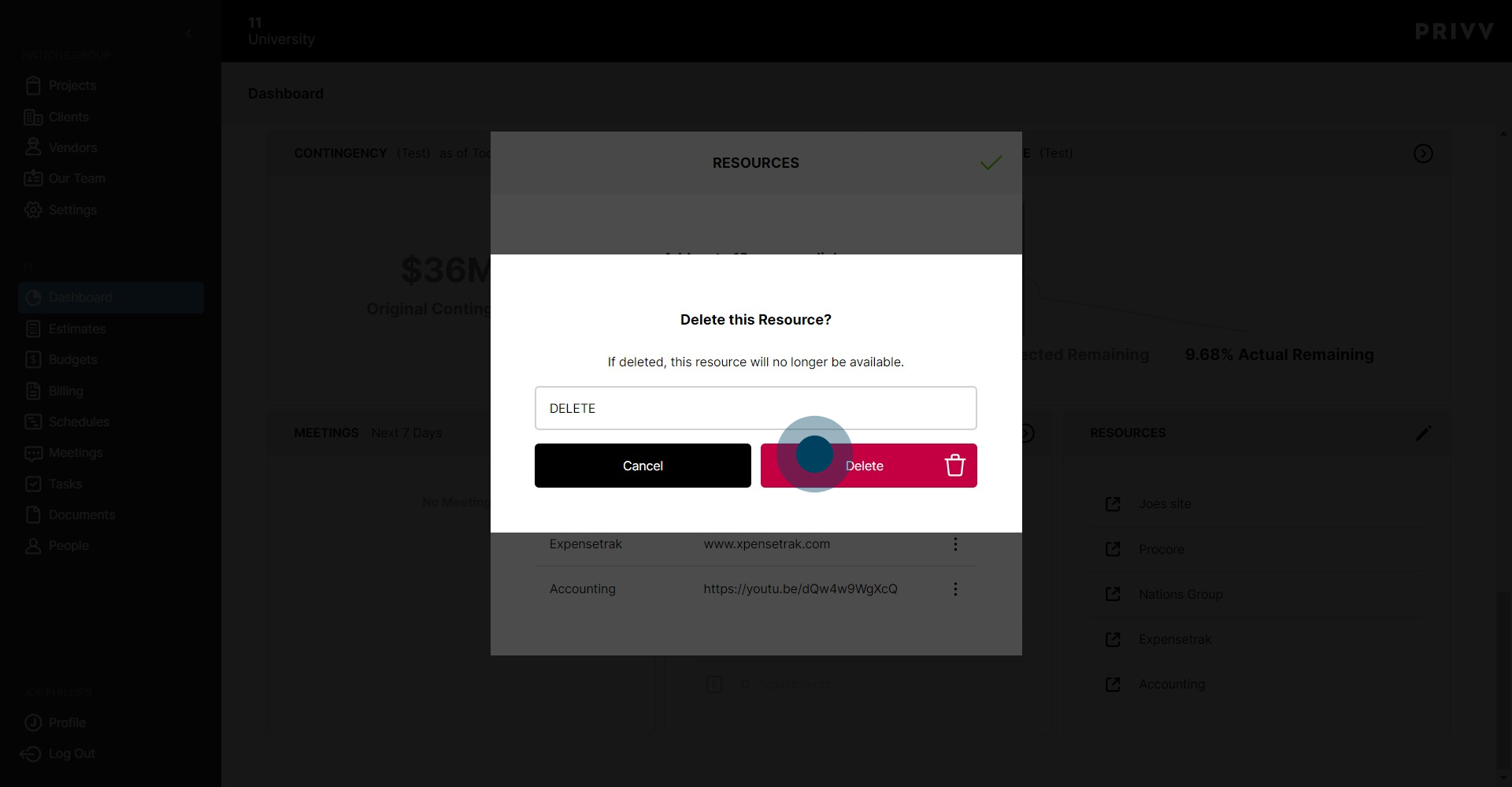
60. Click the green check mark to save.
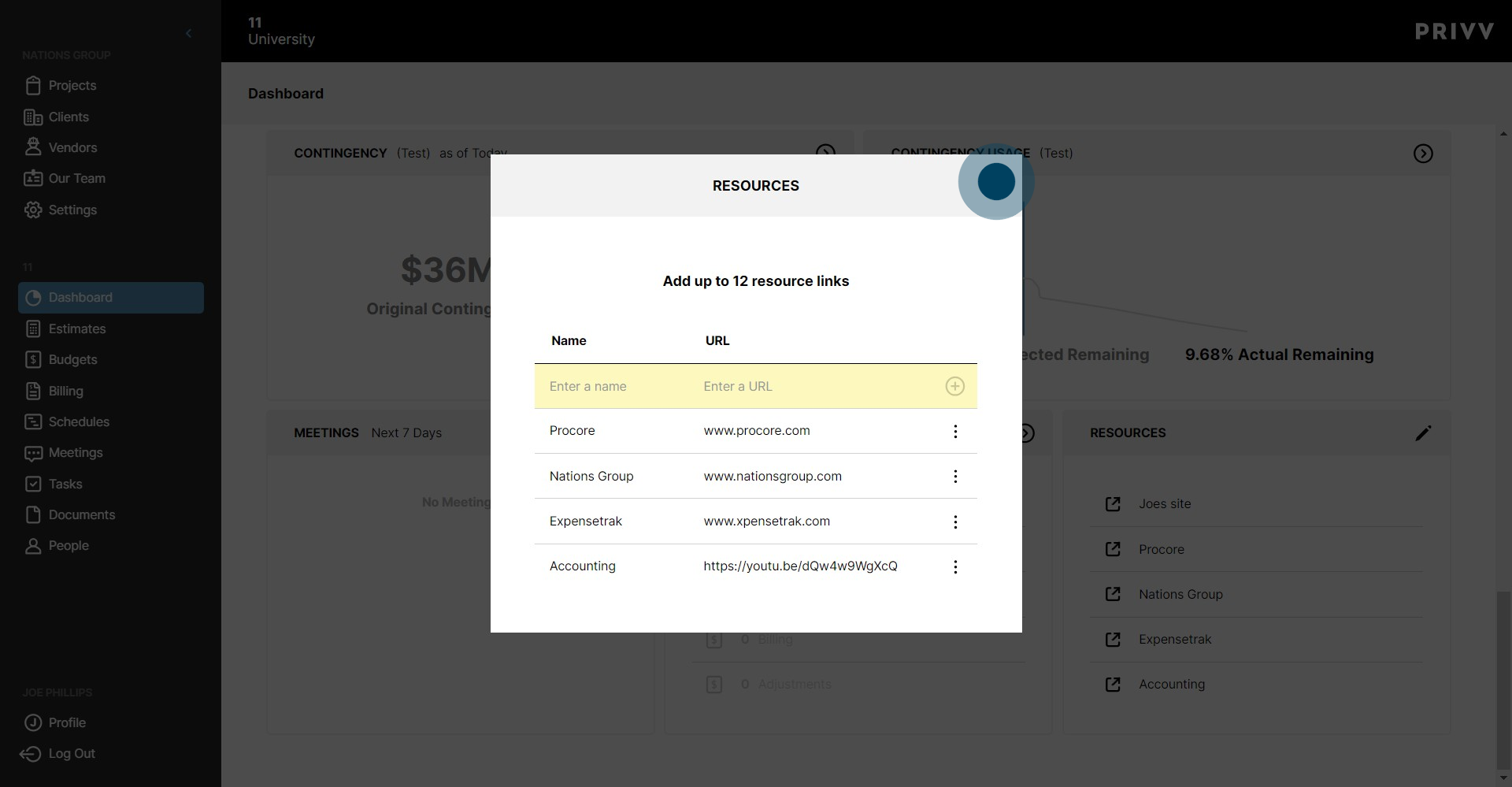
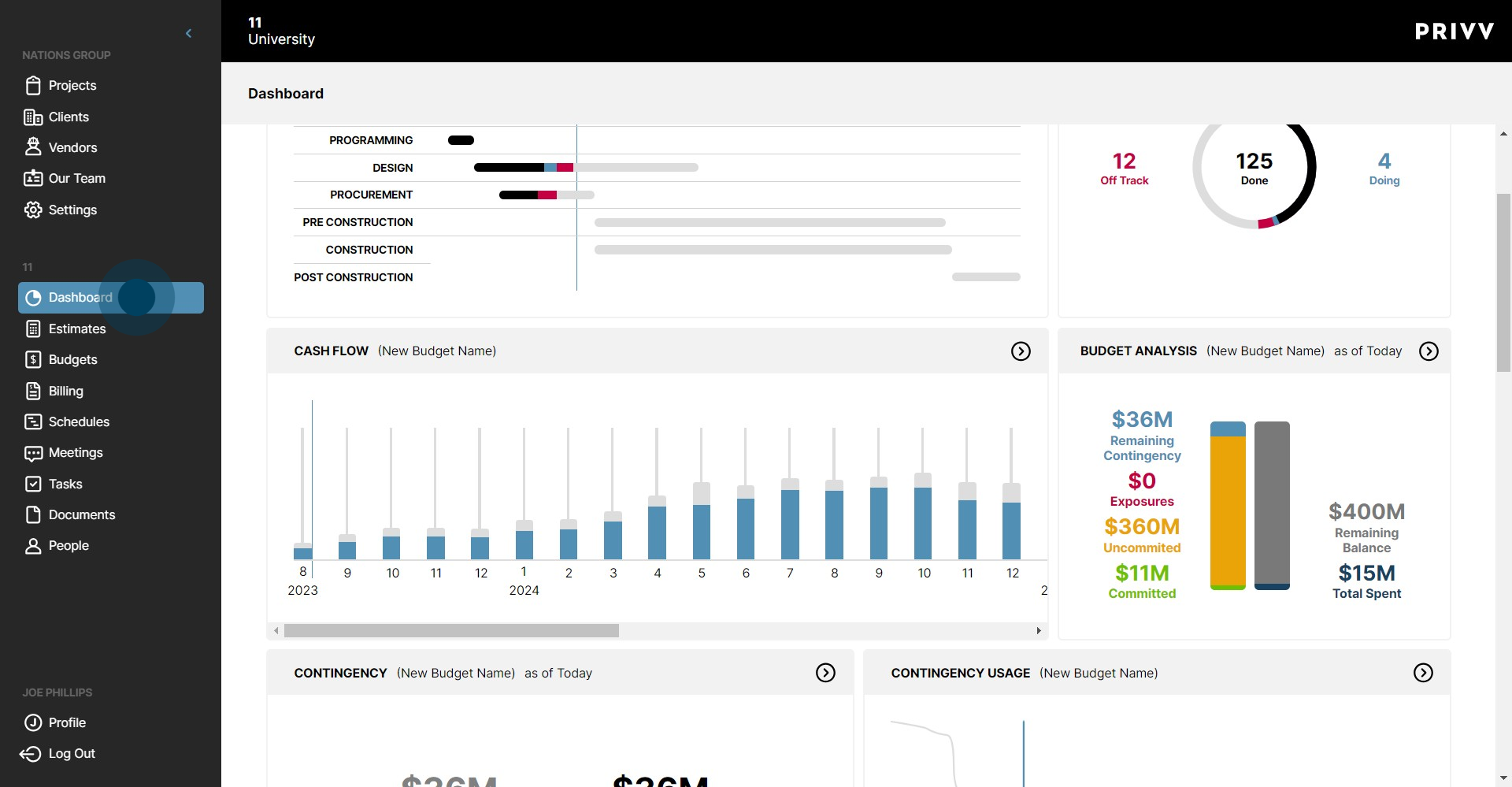
61. CONGRATS, YOU'RE DONE!!
Was this article helpful?
That’s Great!
Thank you for your feedback
Sorry! We couldn't be helpful
Thank you for your feedback
Feedback sent
We appreciate your effort and will try to fix the article