New Budget Adjustment Feature
The budget value adjustment feature has now been released and available to Project Admins to adjust the Original amount of a budget code once a project has a Budget without going through the process of creating a Revision. This feature is only allowed for the Project Admin. This feature is intended to be used as an emergency action for the internal team to make an adjustment, and is not intended to be used as a replacement for the revisions function. The project Admin must also document the reason behind the adjustment for project audit purposes.
Below are the validation rules regarding the Budget Adjustment Feature:
Contingency Budget Codes:
- The original amount of a contingency budget code cannot be set to less than the amount of the net revisions changes on that budget code. As an example, if a project has two revisions, one with a $100,000 credit to a budget code and another with a $125,000 debit, the project admin will not be able to adjust the original amount to less than $25,000 to prevent any overdraw on that budget code.
Non-Contingency Budget Codes:
- Same rule applies as above
- Additional rule to prevent original amount to be set to less than the total current committed transaction amount
- Additional rule to prevent original amount to be set to less than the total current invoiced amount
Budget Adjustments
1. First, Navigate to your project
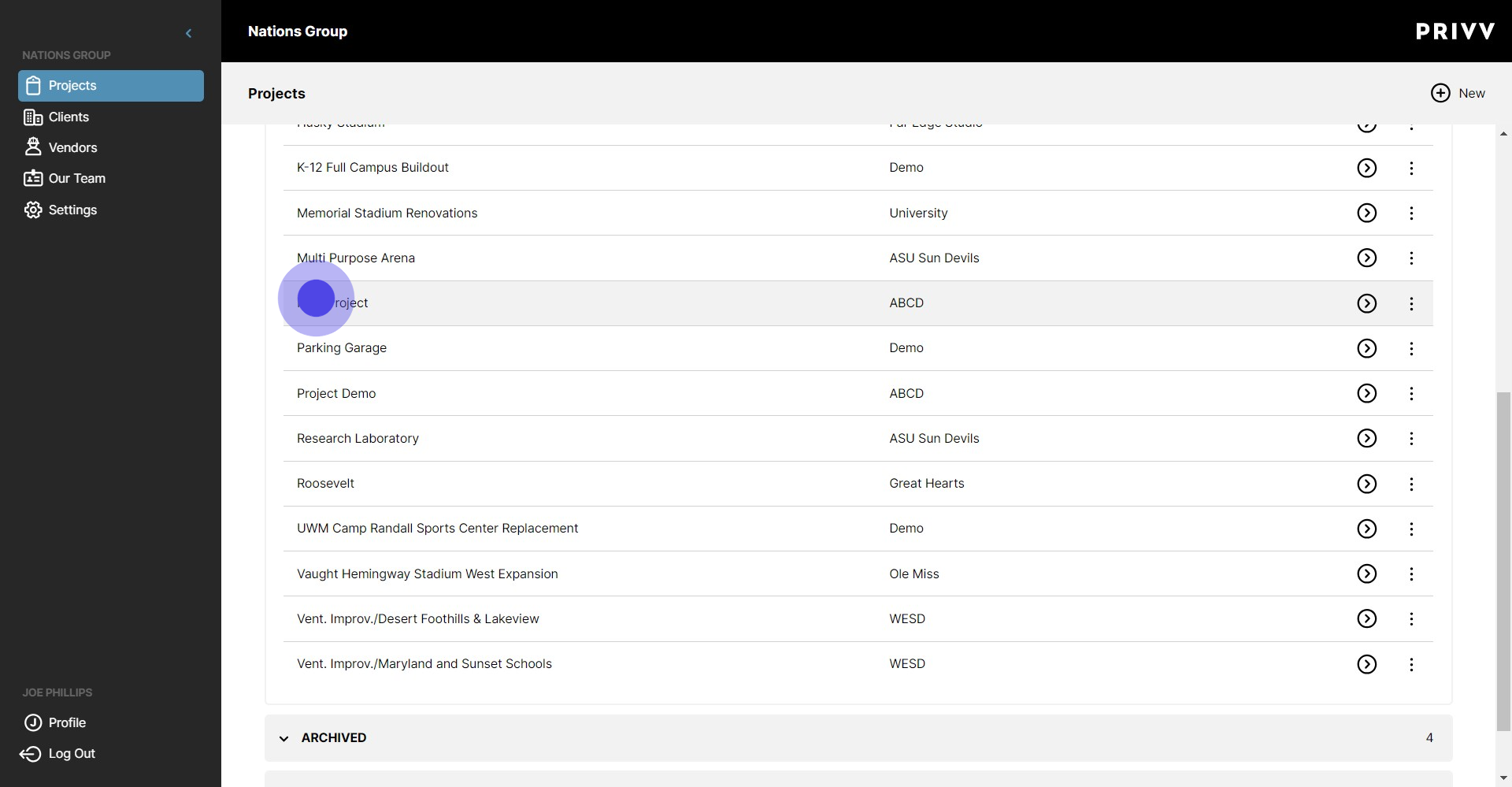
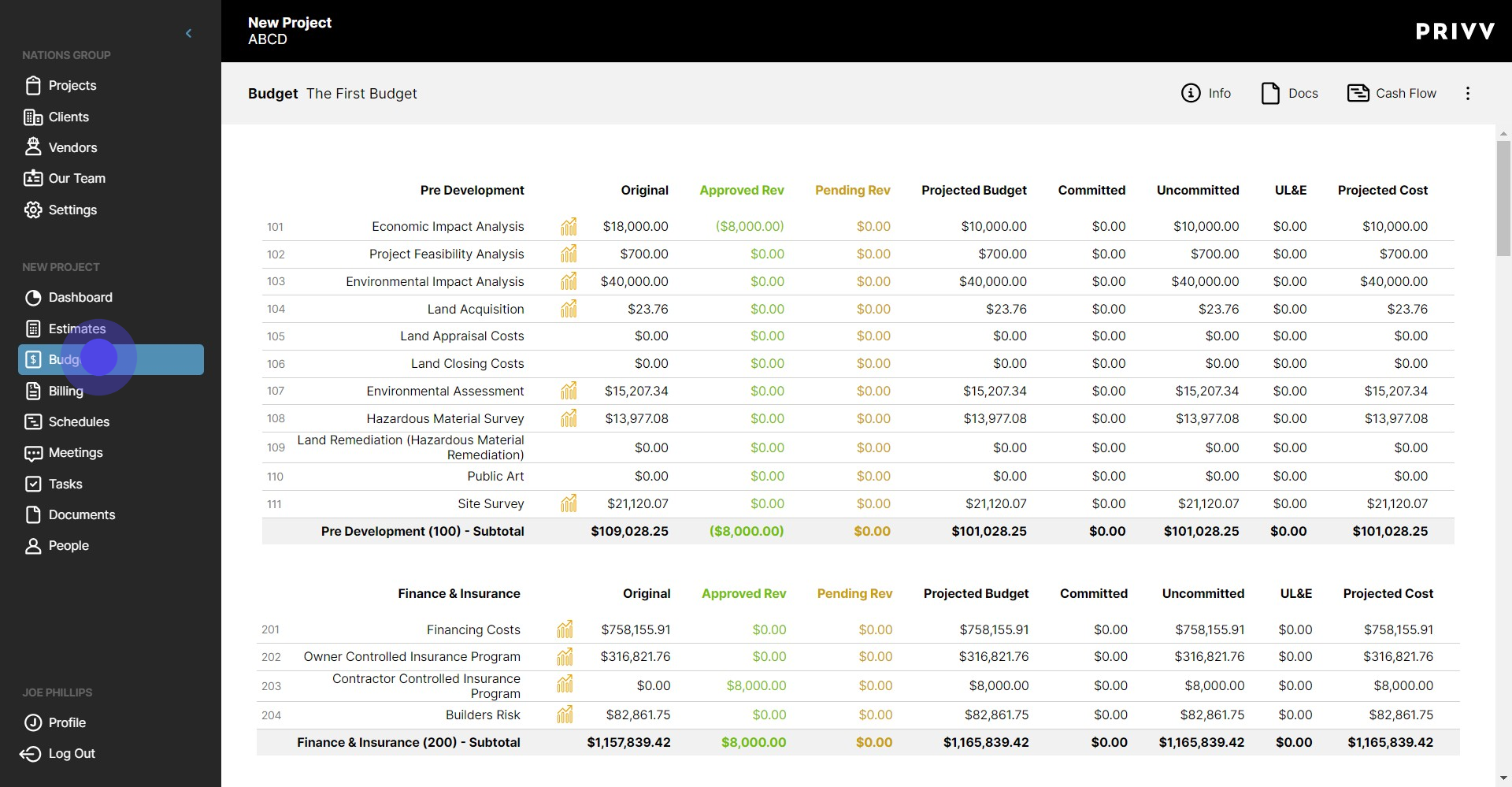
2. Click on the 'Budgets' Module
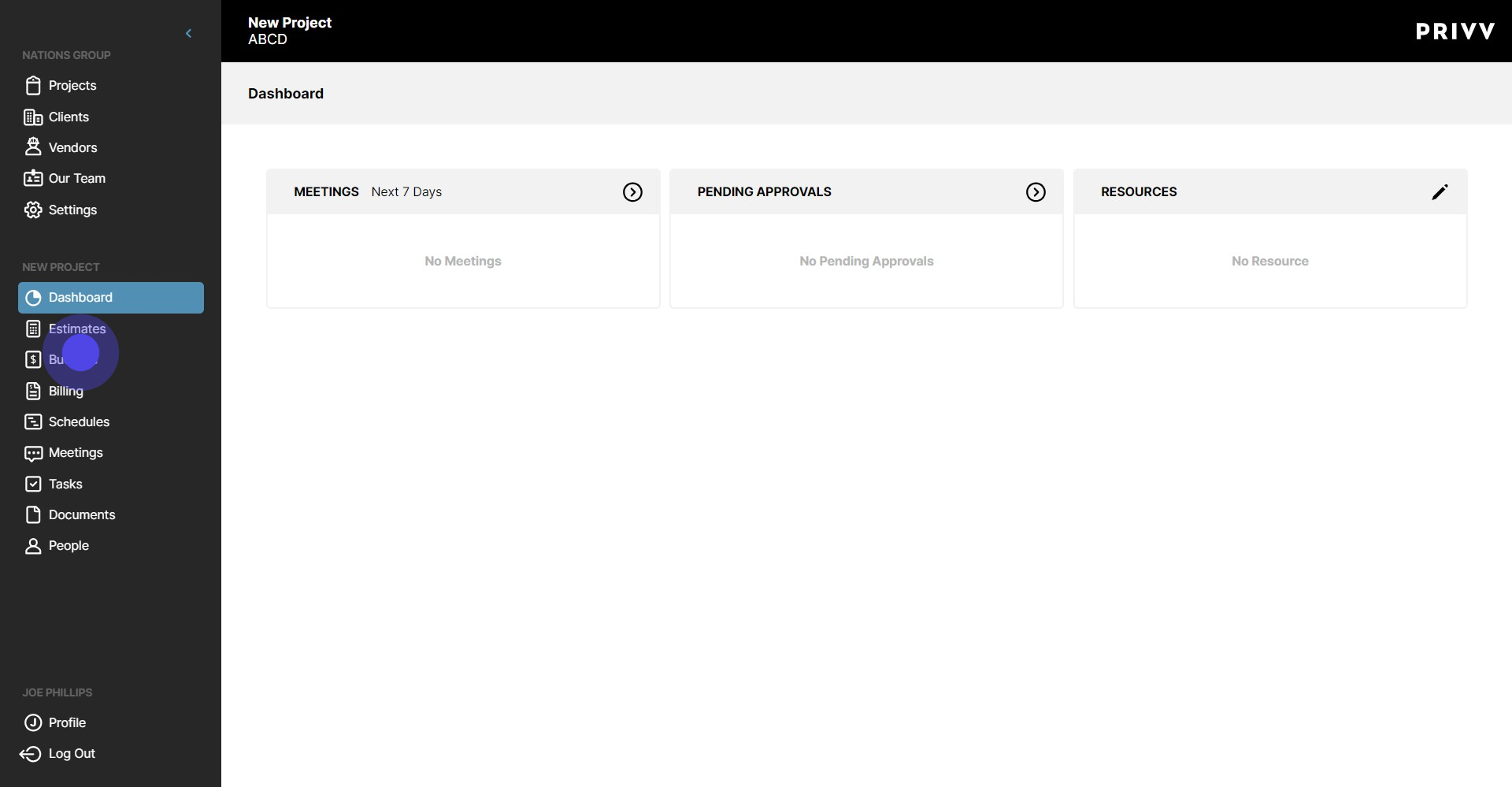
3. These are the existing Adjustments that have been made to your budget
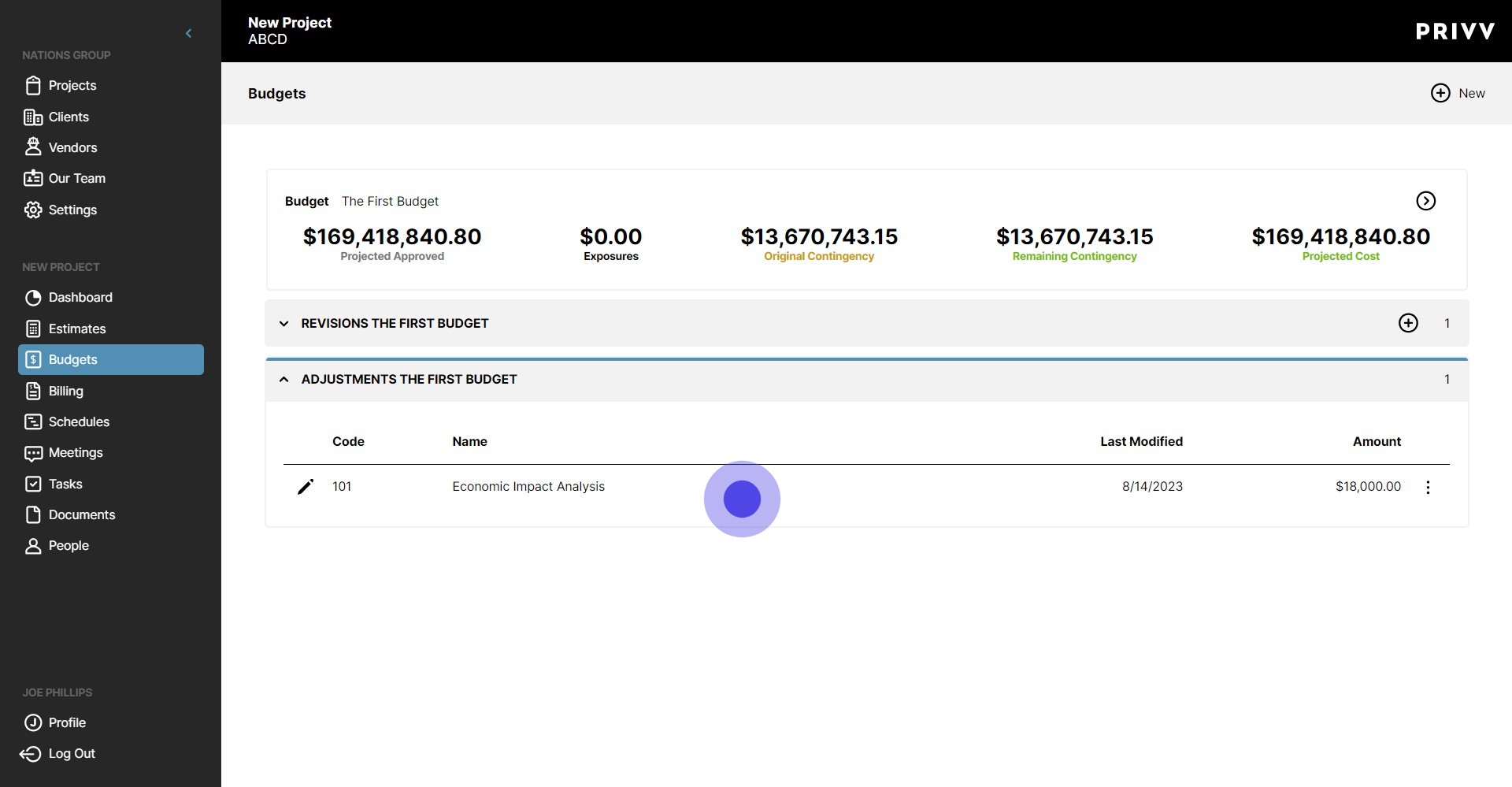
4. Click anywhere on the Budget
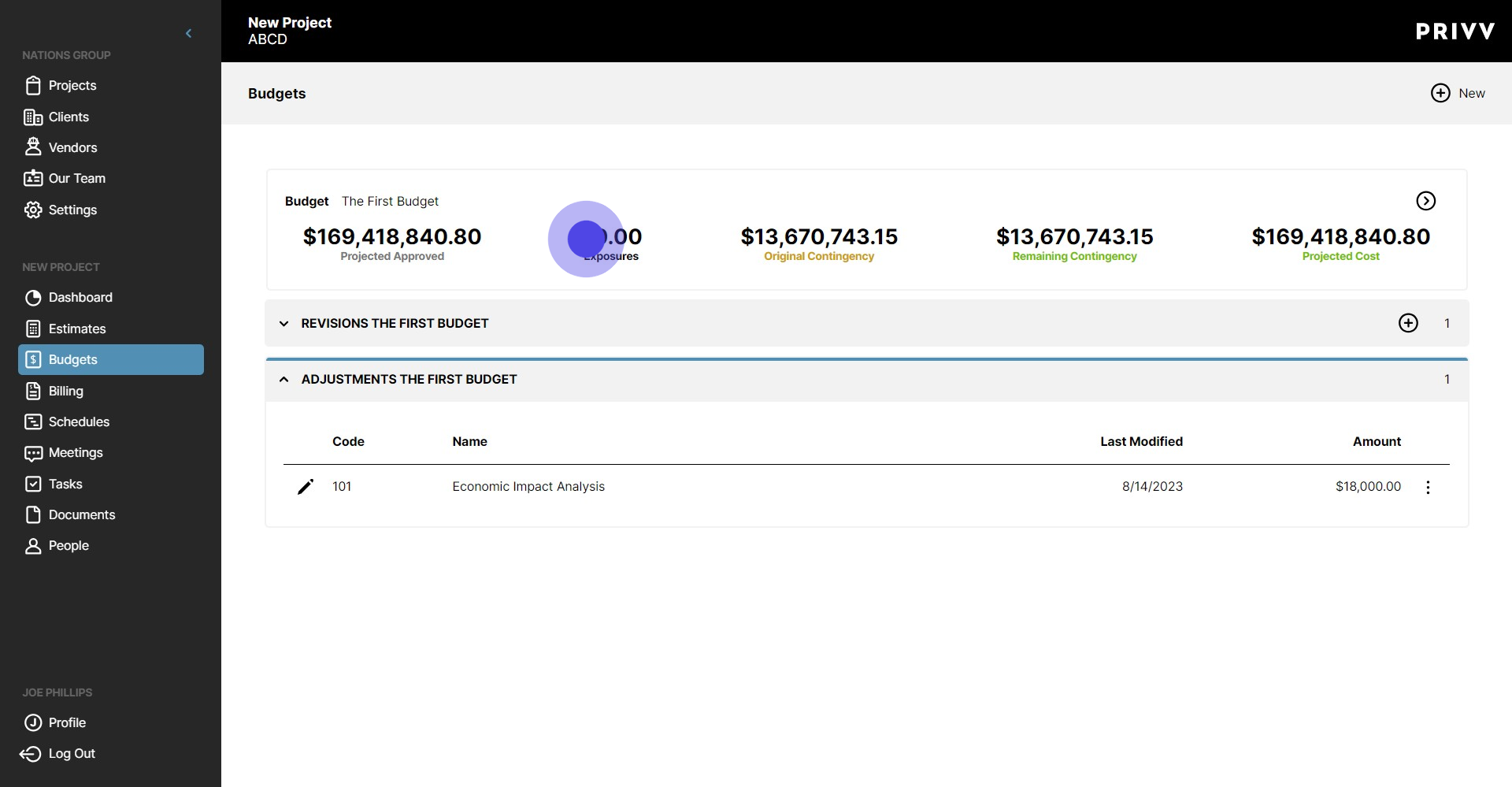
5. Click on the ellipsis next to the budget number you want to adjust. **If the option to create a new adjustment does not appear, you have not been assigned the Project Admin on this Project**
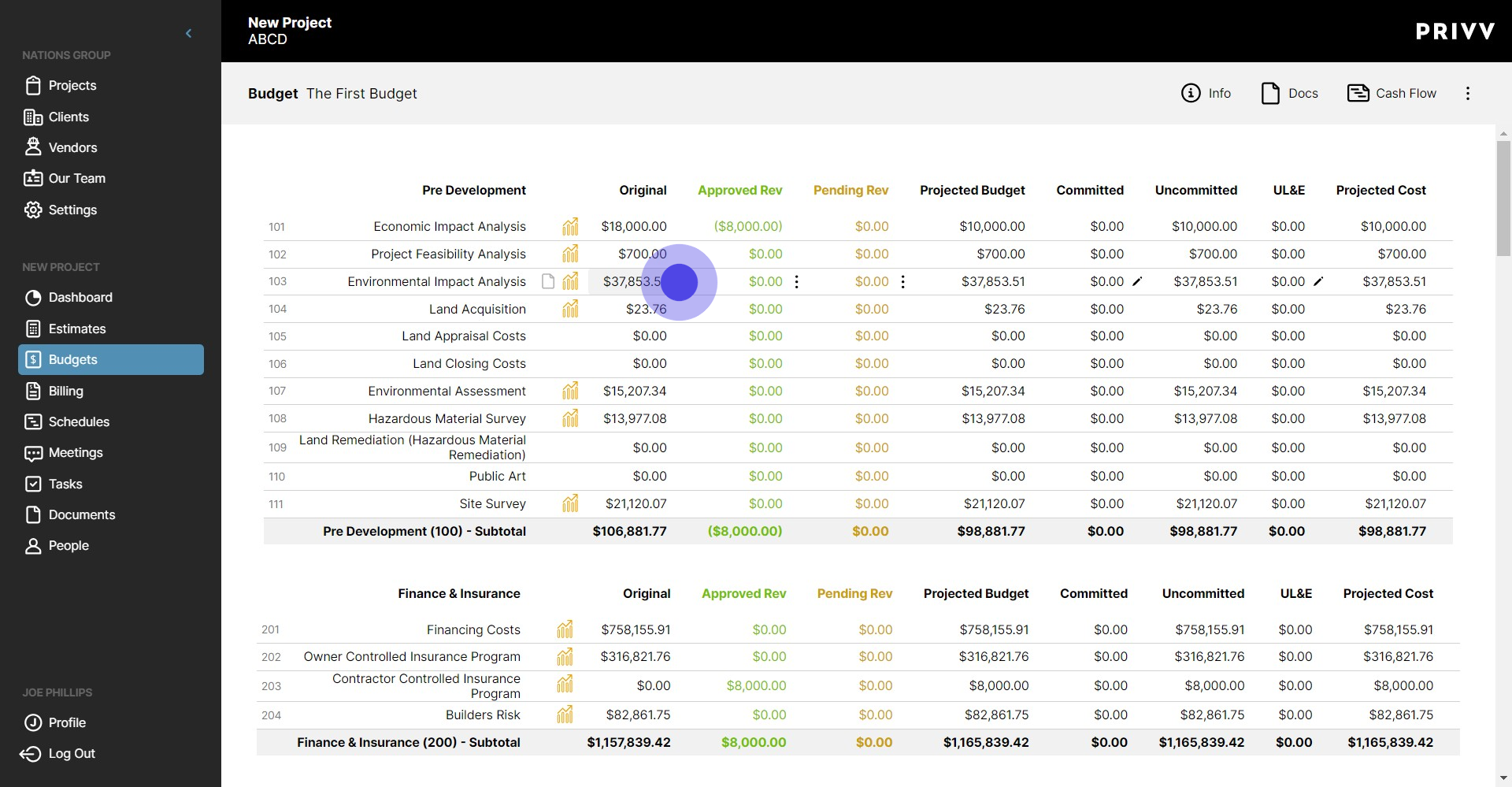
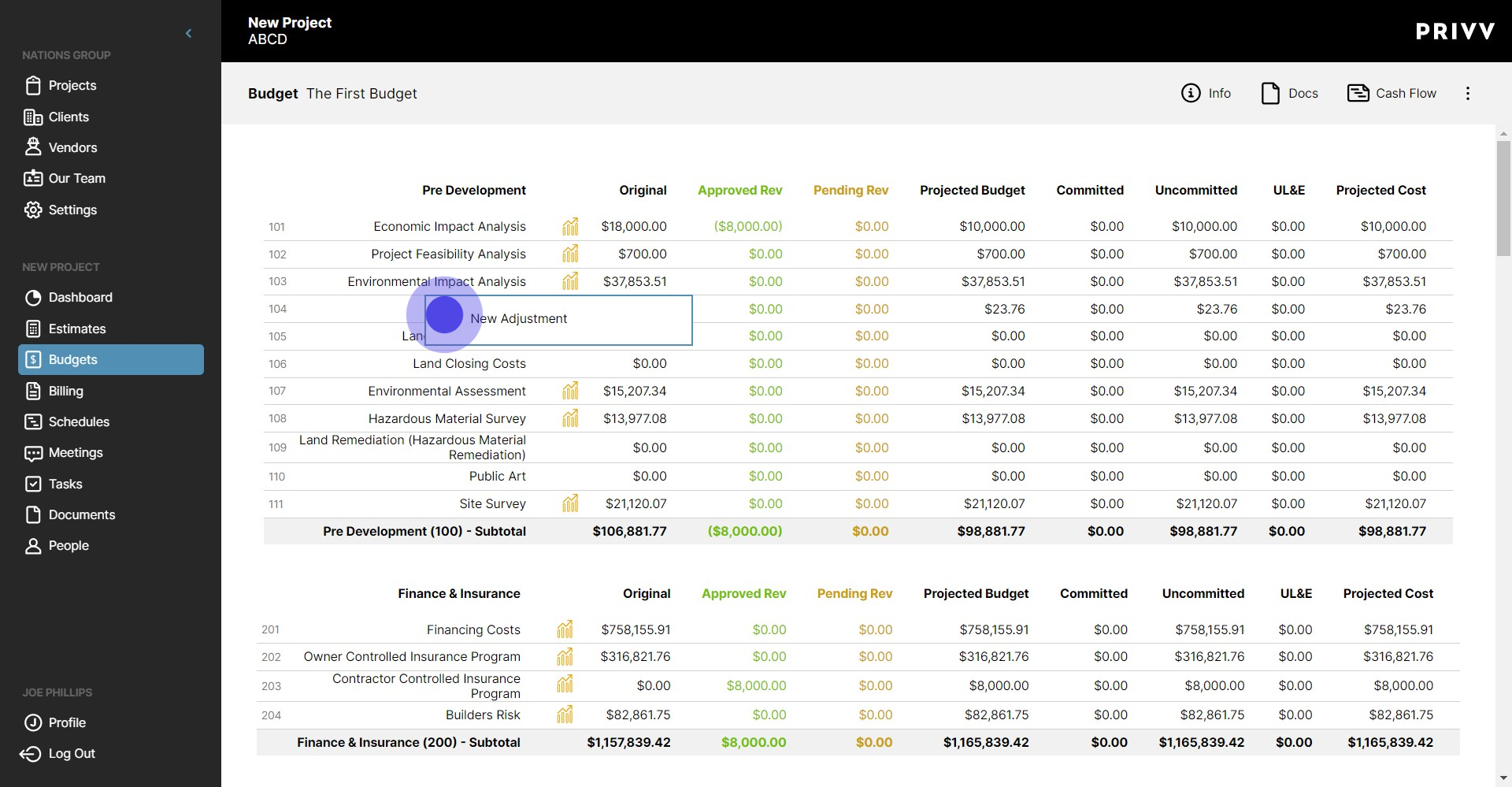
6. Click here to replace the existing Original Estimate cost with a new number
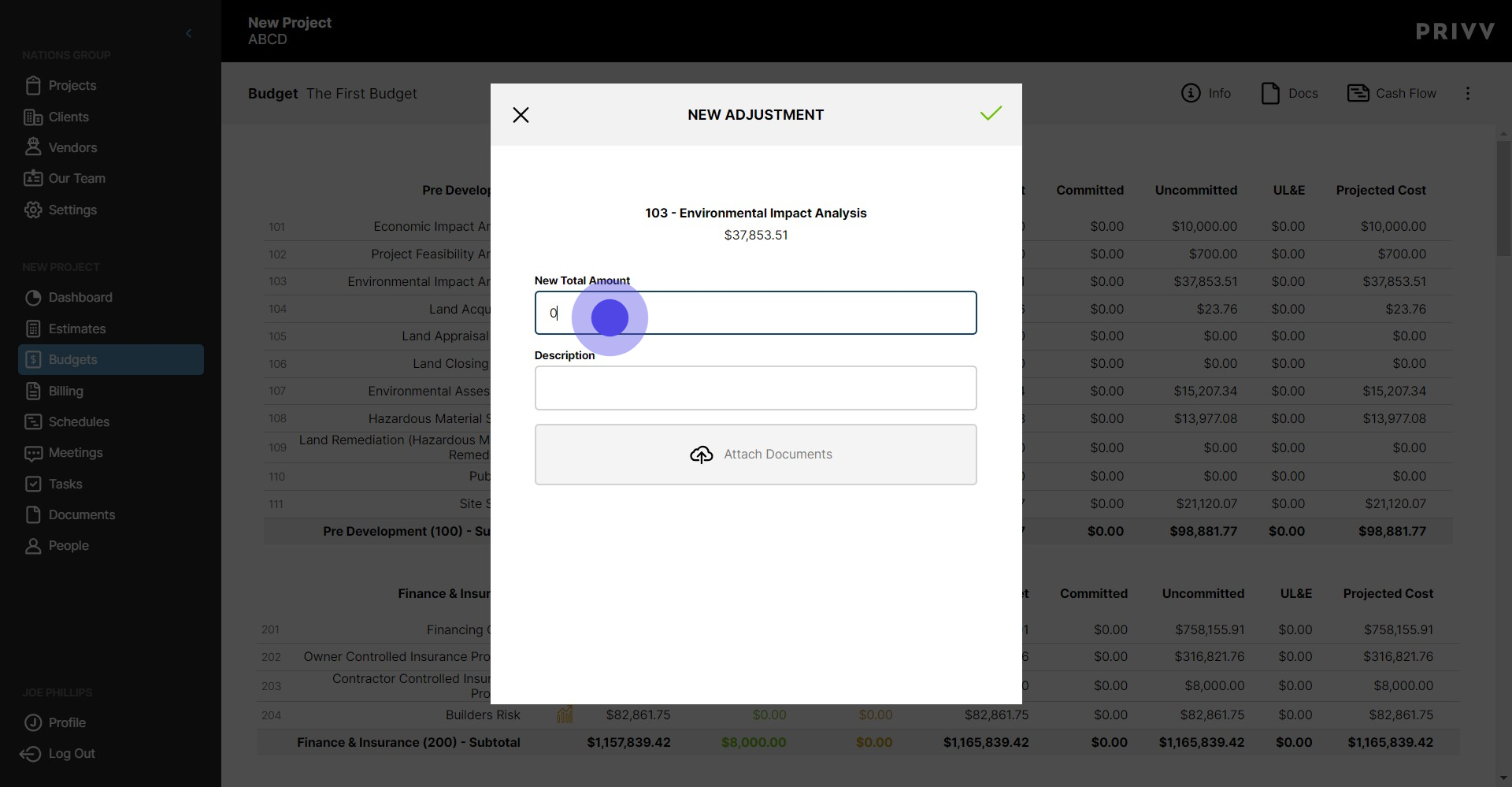
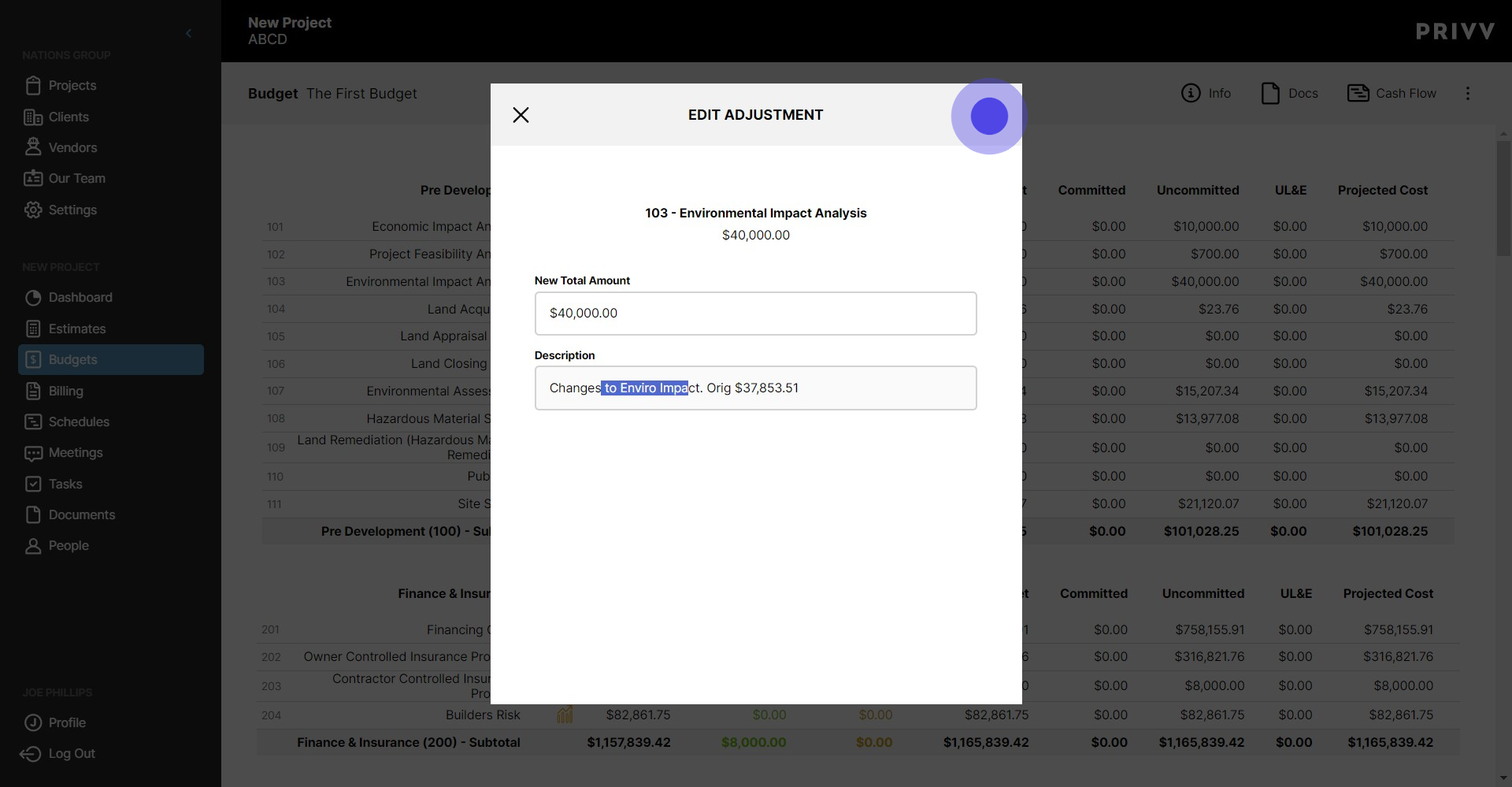
7. Enter in the New Total Amount in this input box. This number will replace the current number shown above
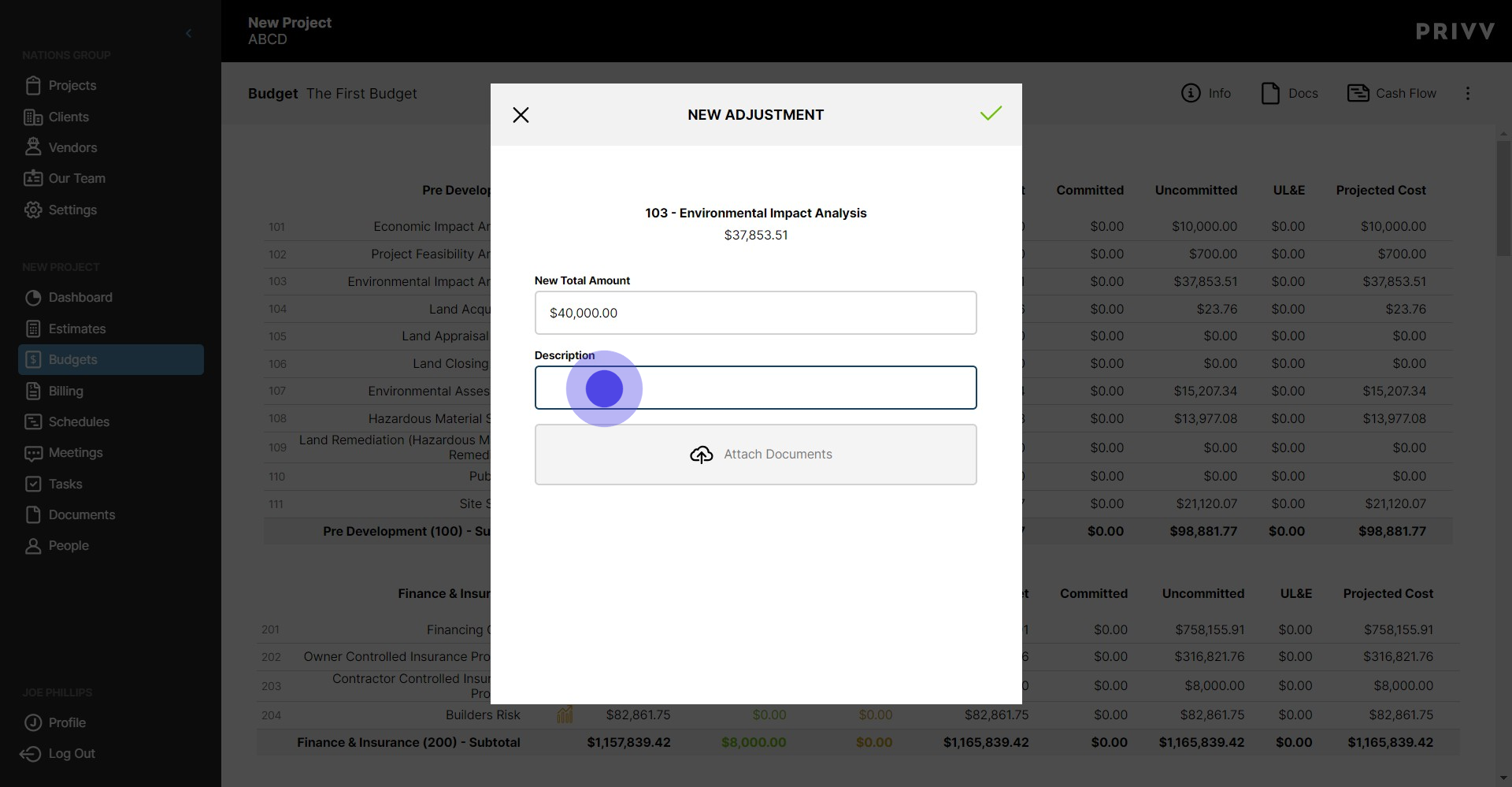
8. Enter the description or reason why the change is being made. Its also helpful to include the previous amount for historic purposes.
9. You can also attach supporting documents to your Budget Adjustment
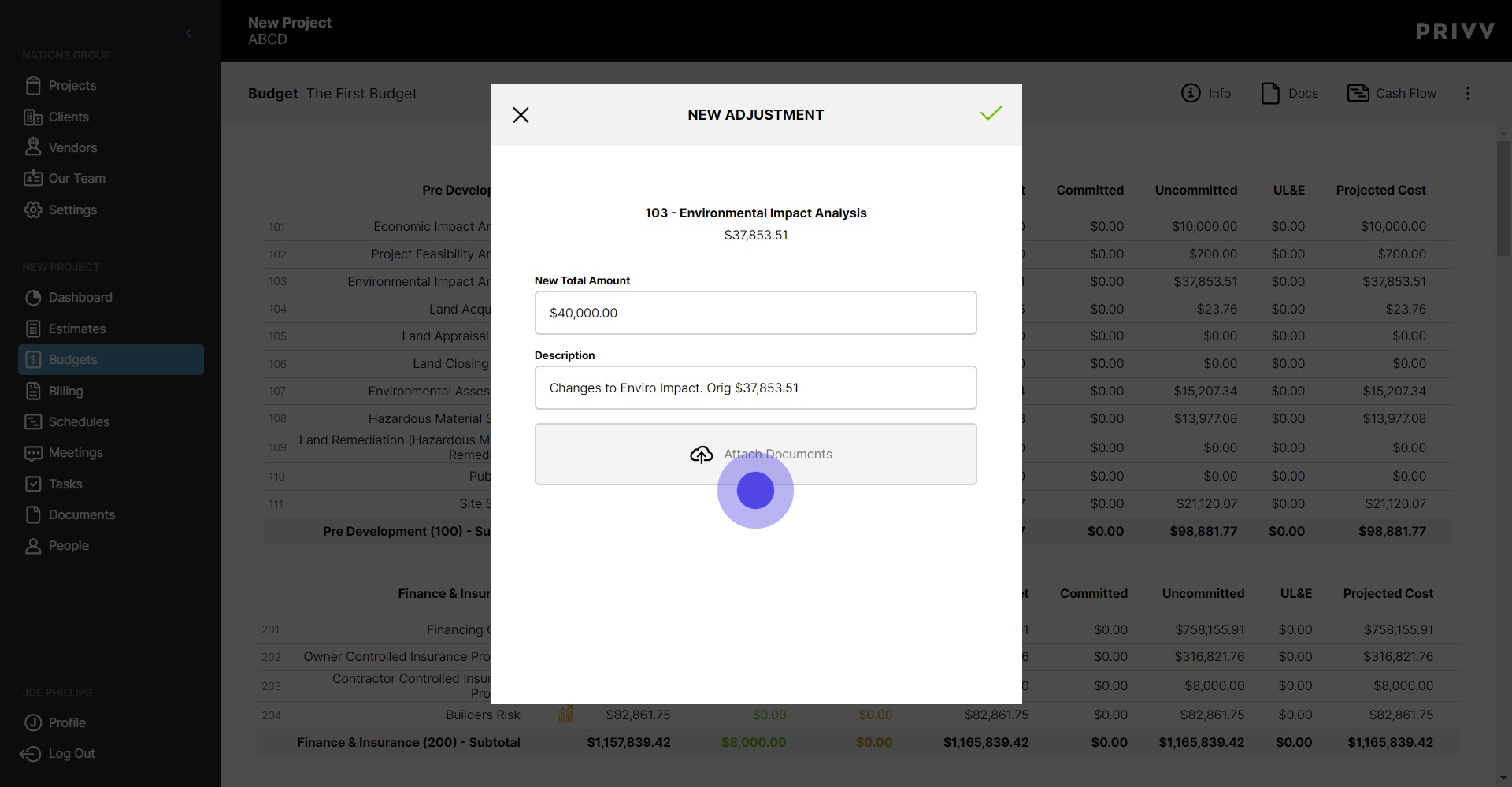
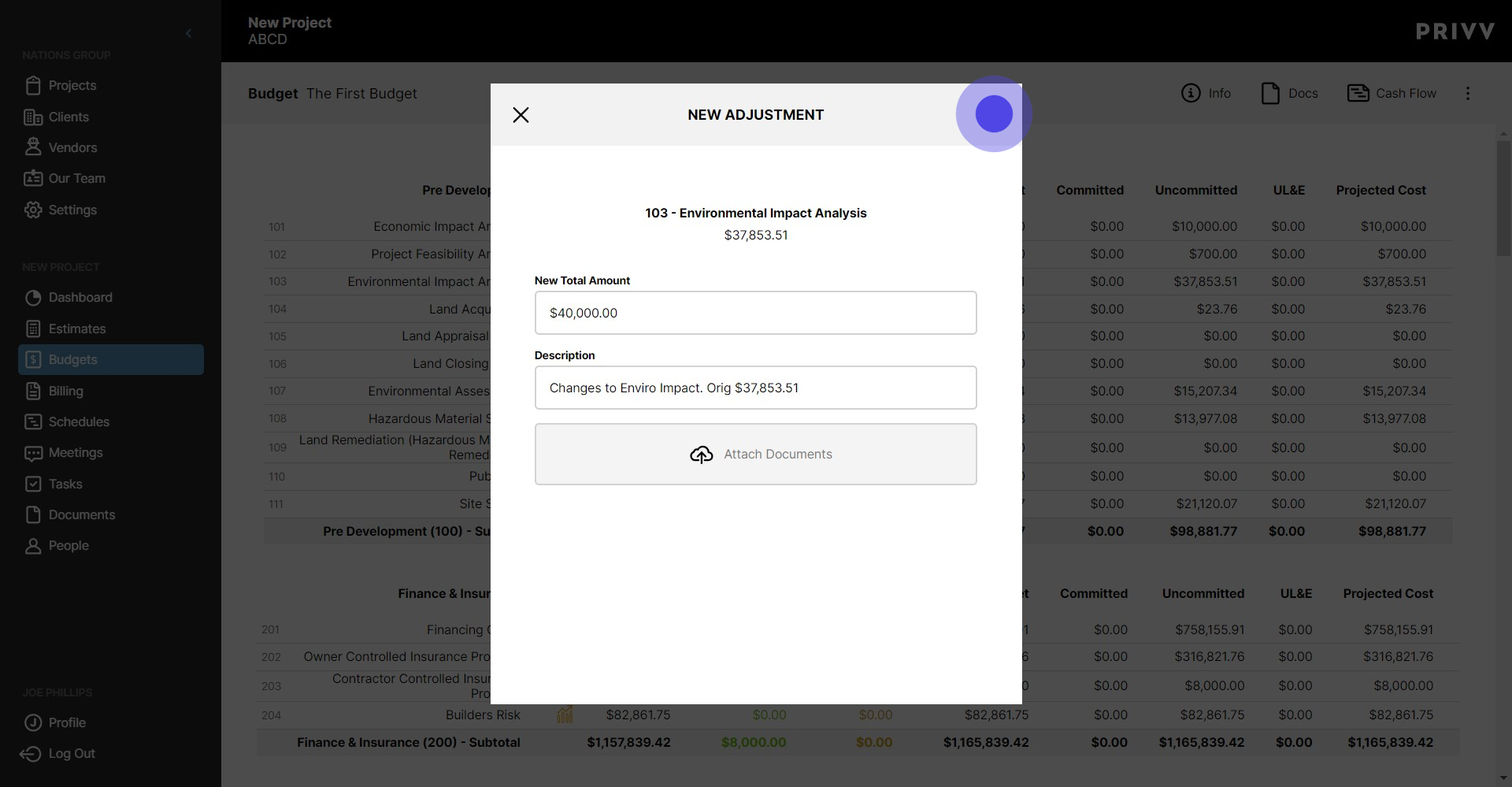
10. Click the green check mark when you are done. Please note, there is no approval process for Adjustments so please be sure you want this adjustment on record before proceeding.
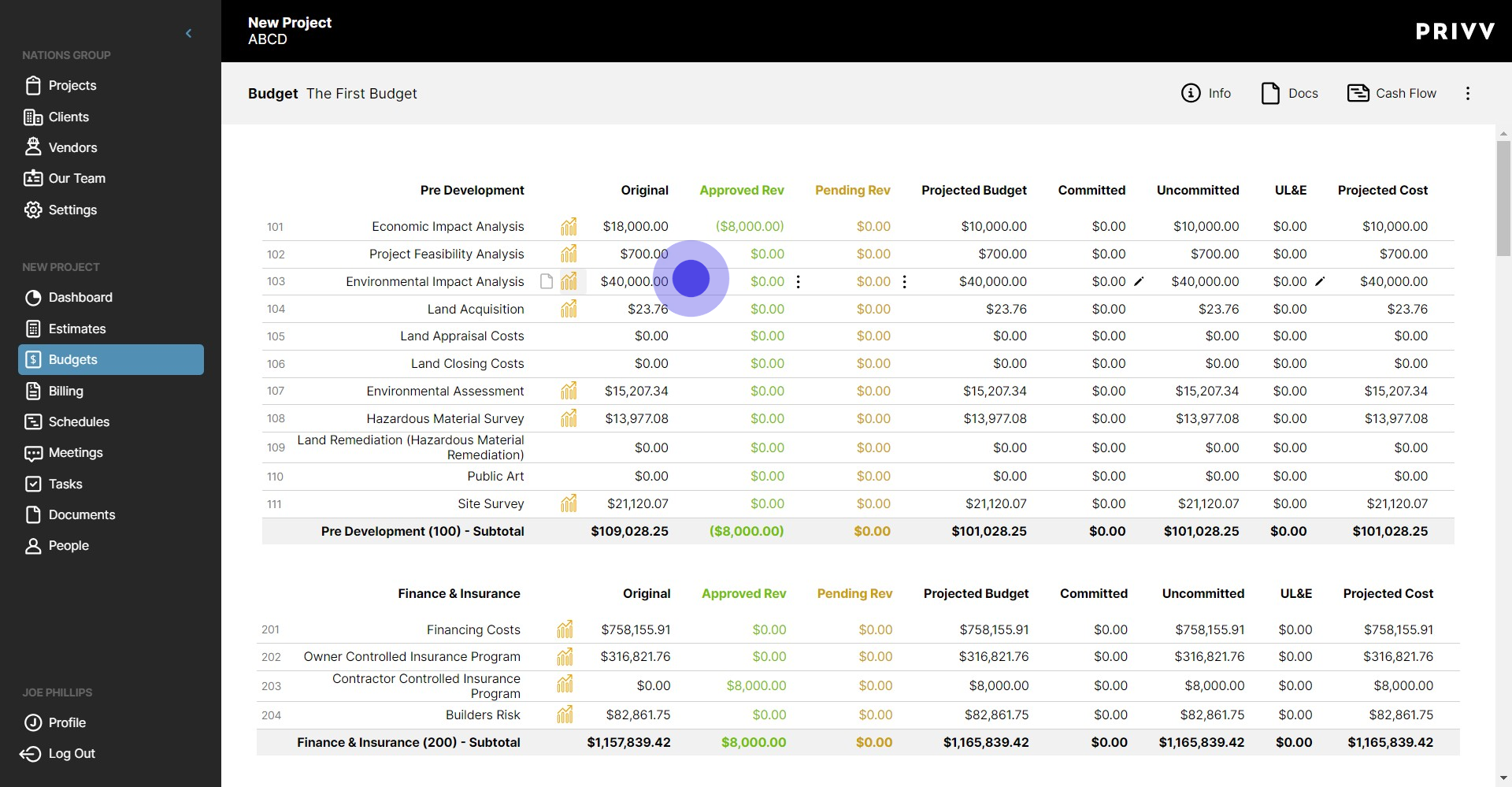
11. Now the line item total has changed to your new adjusted total!
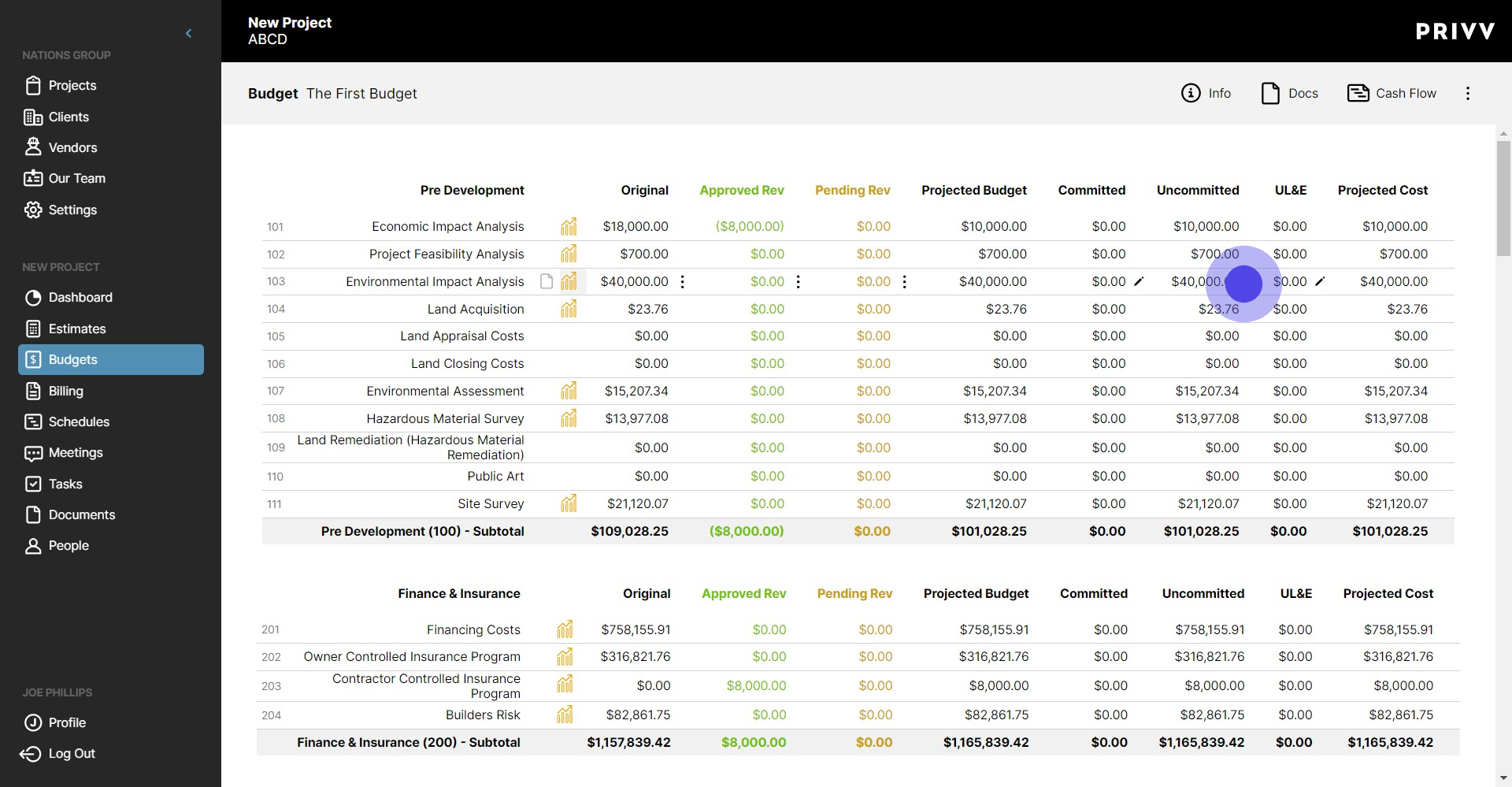
12. This change will be reflected in the projected costs and uncommitted costs. It will also readjust your cashflow if there is one set up for the line item.
13. Let's see it on the Budgets Main Page. Click here.
14. Now we can see the New Adjustment in the List
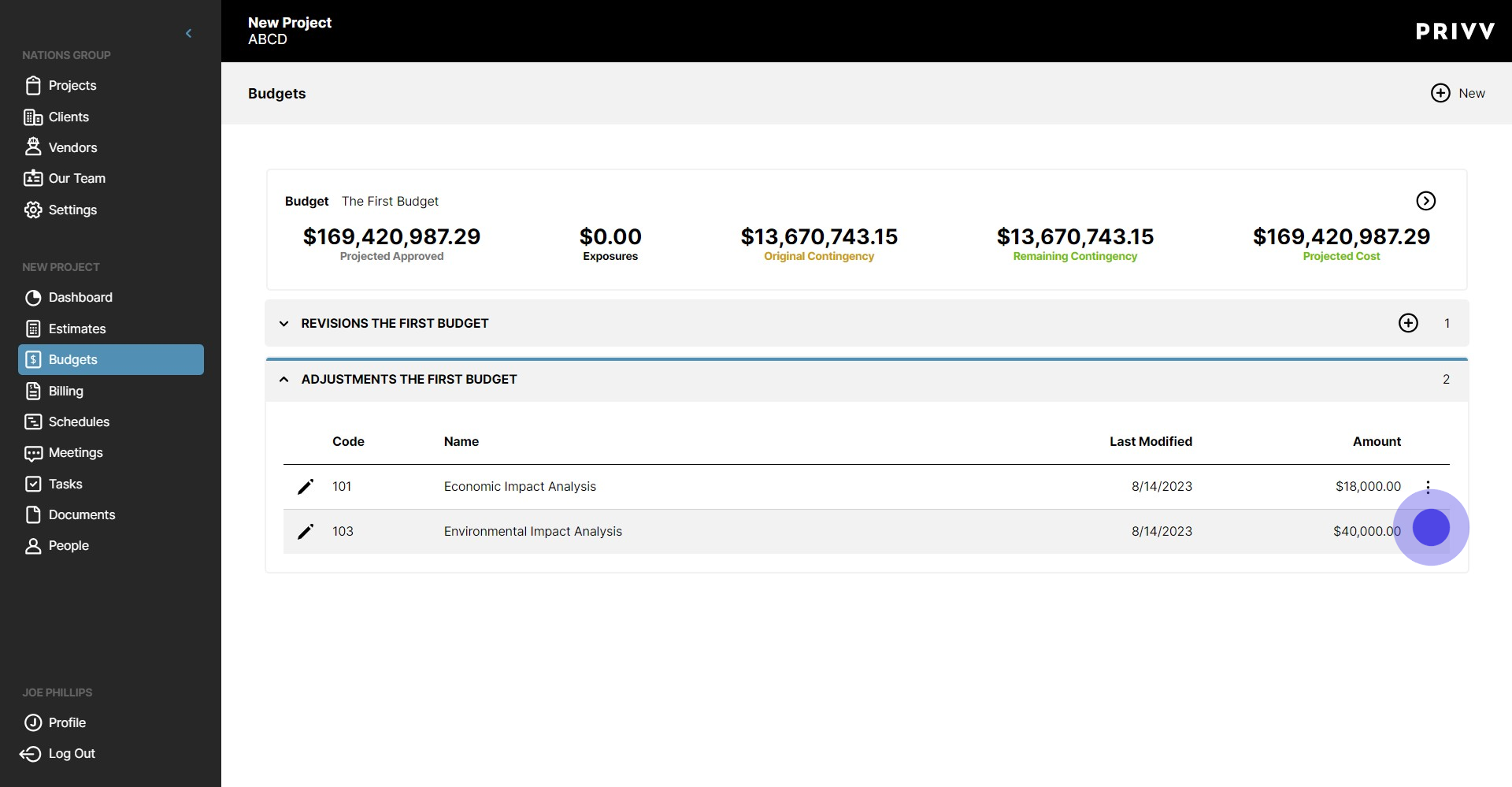
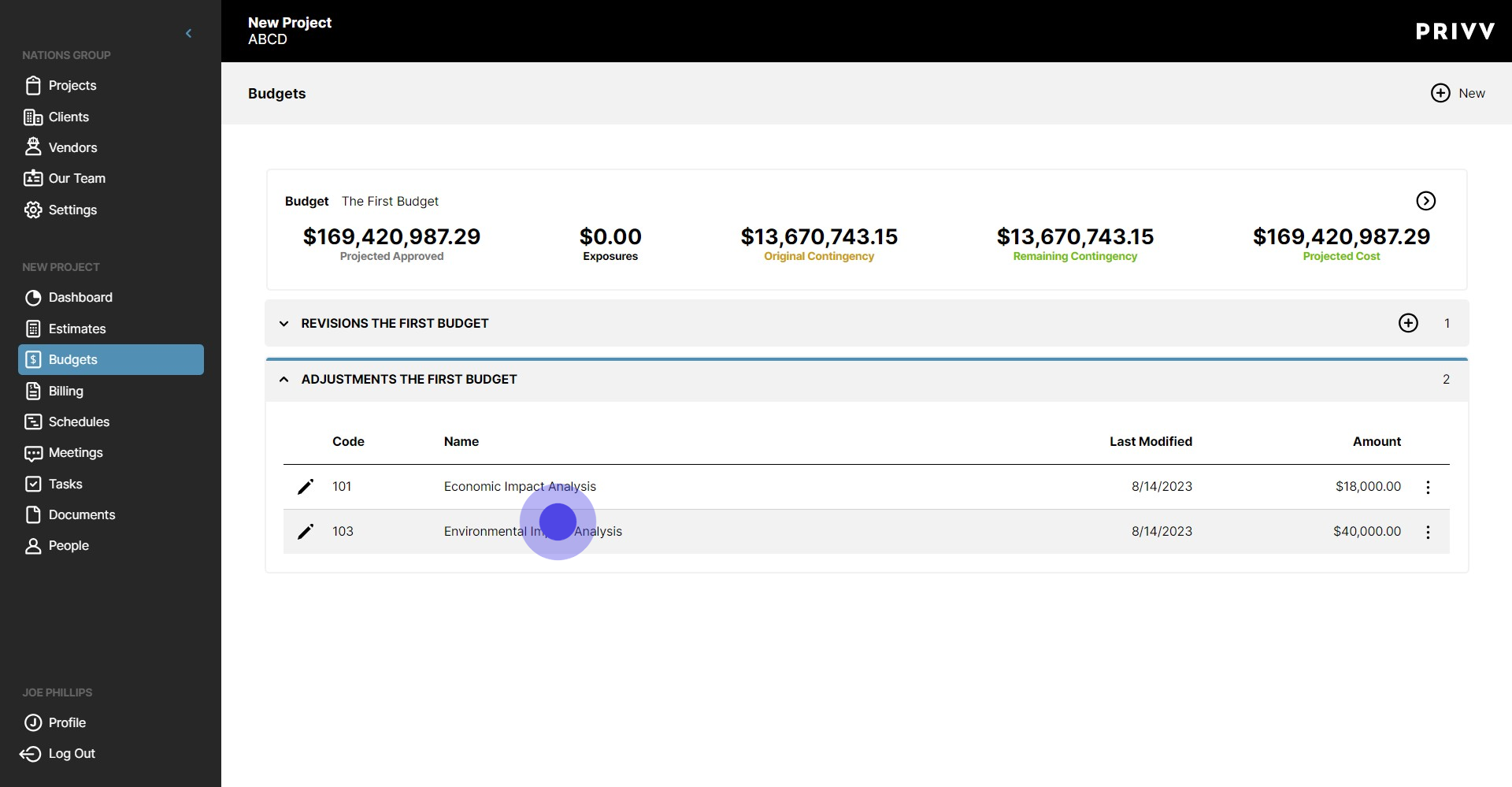
15. Privv tracks the Budget code, Date Modified, and the total Amount on this screen. You can print the list of adjustments from the 'Print/PDF' option on the Budget Detail screen. The report is called 'Adjustments'
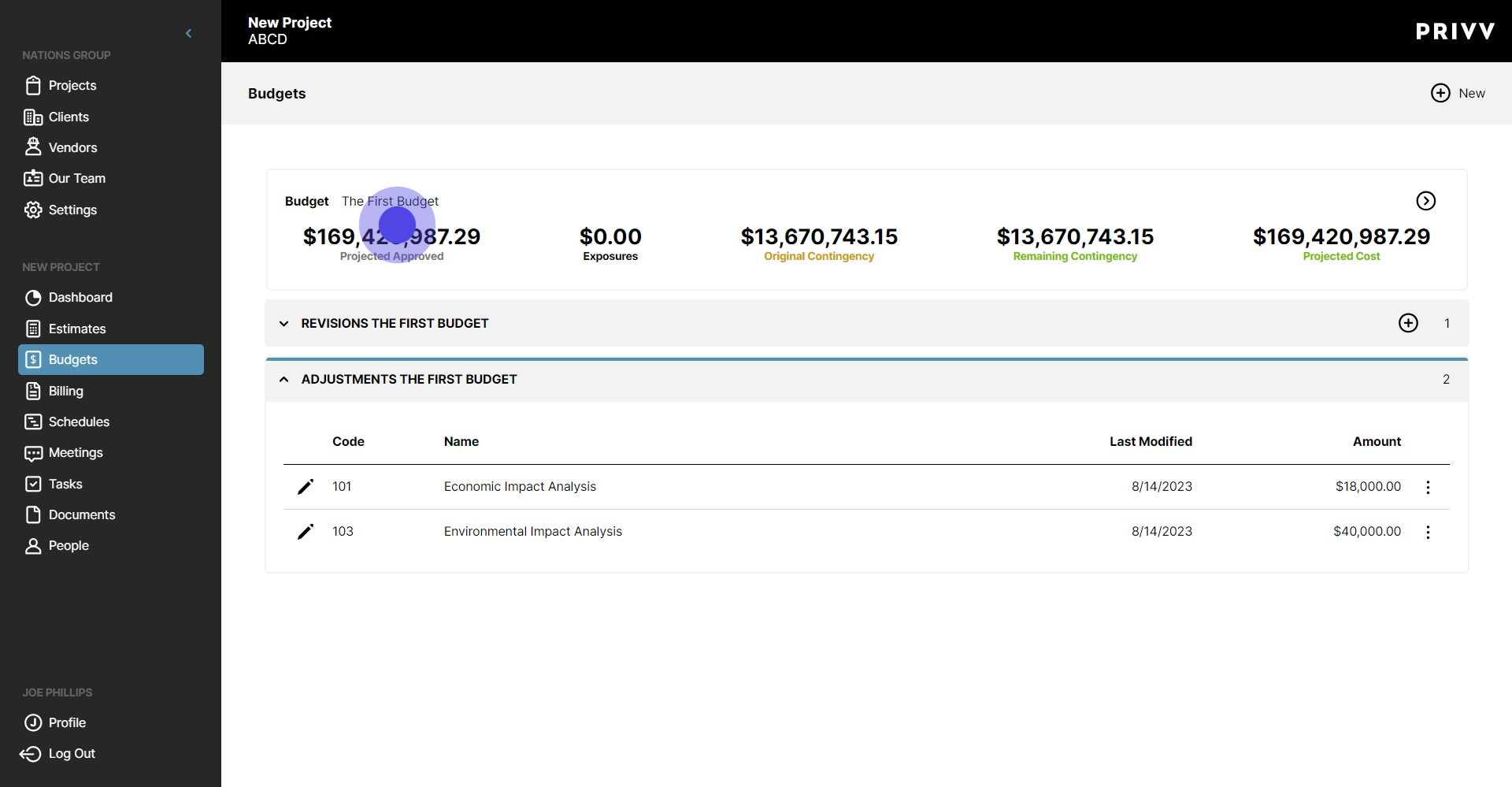
16. Click the budget to go back to the Budget Detail Screen
17. Clicking on the Ellipsis next to the Original cost column will allow you to see any adjustments that have been made to that line item, in the order it was modified.
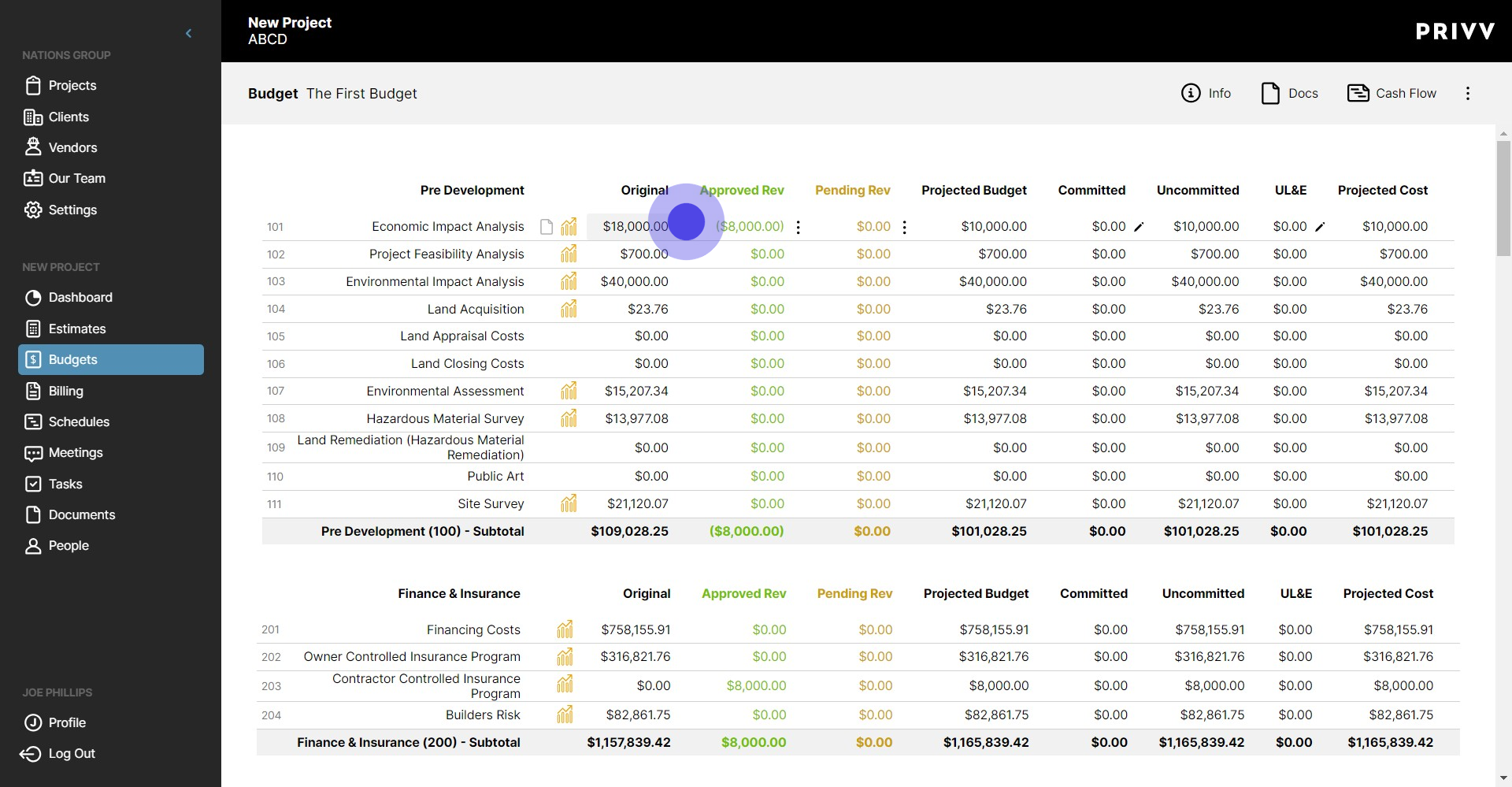
18. Click it again to close it.
19. Let's view the one we just created!
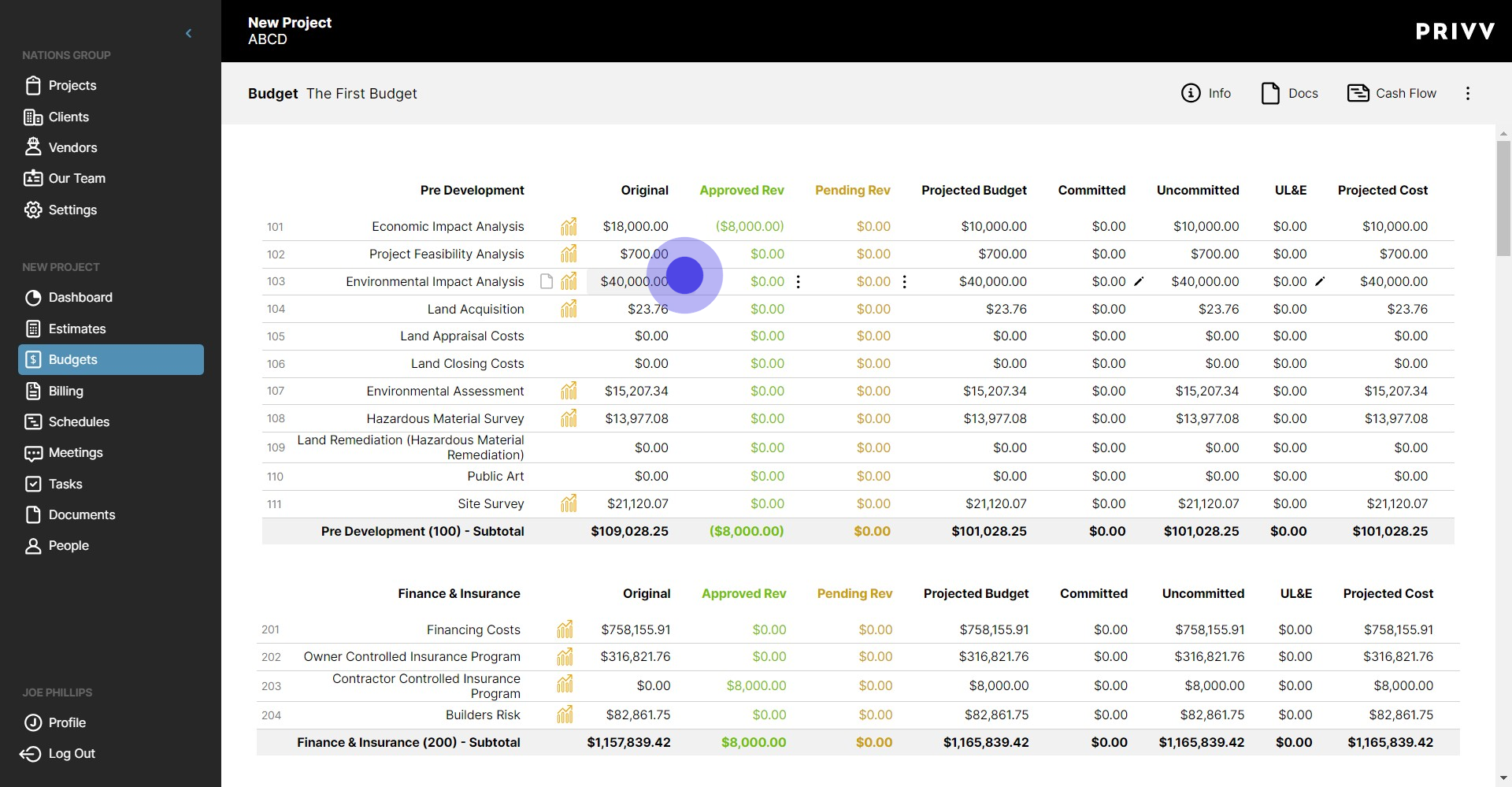
20. Click the icon next to the New Adjustment to view it.
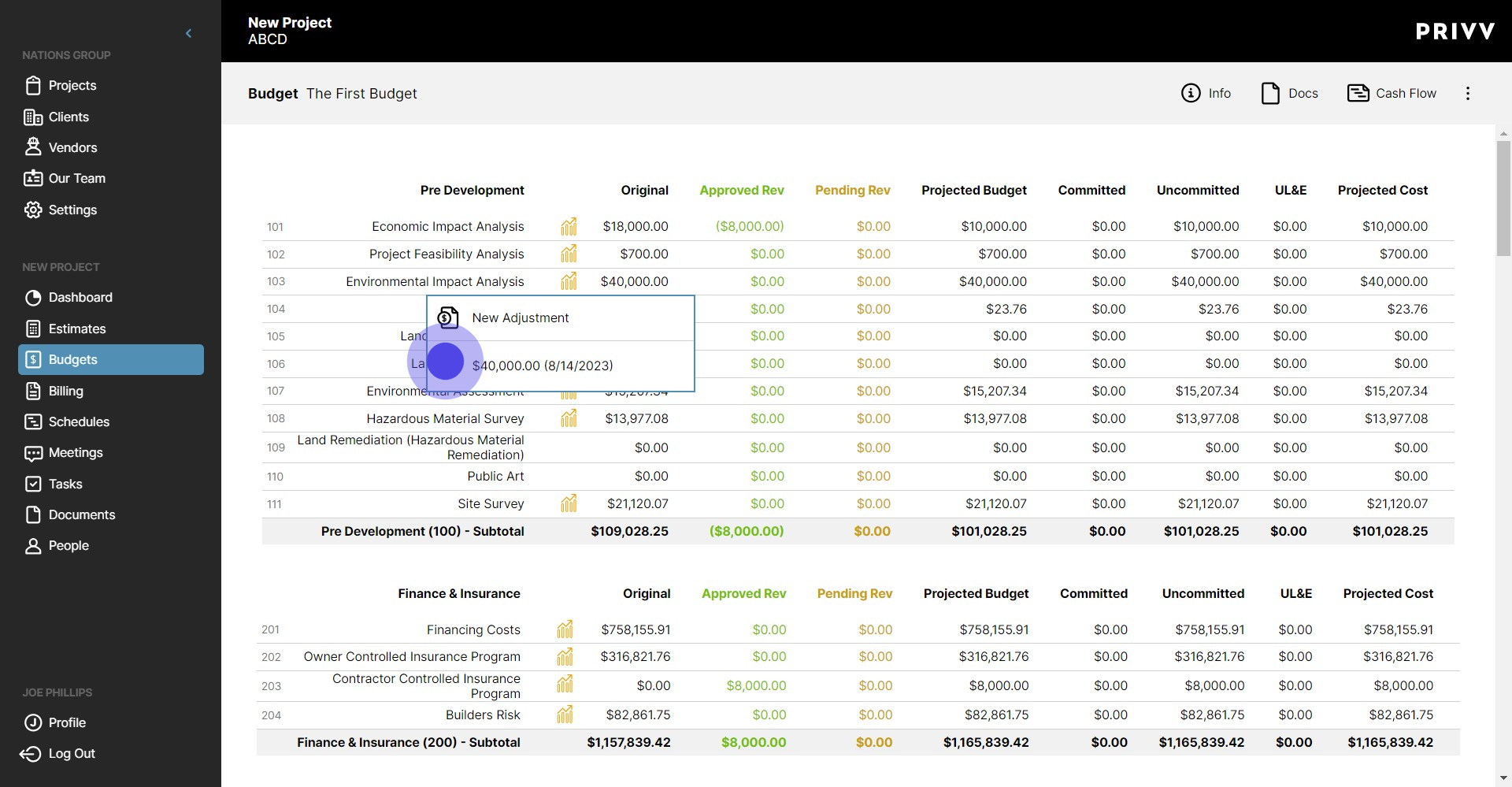
21. The adjustment is read-only now. To make adjustments to the newly adjusted cost, the user only needs to create a new adjustment for the line item.
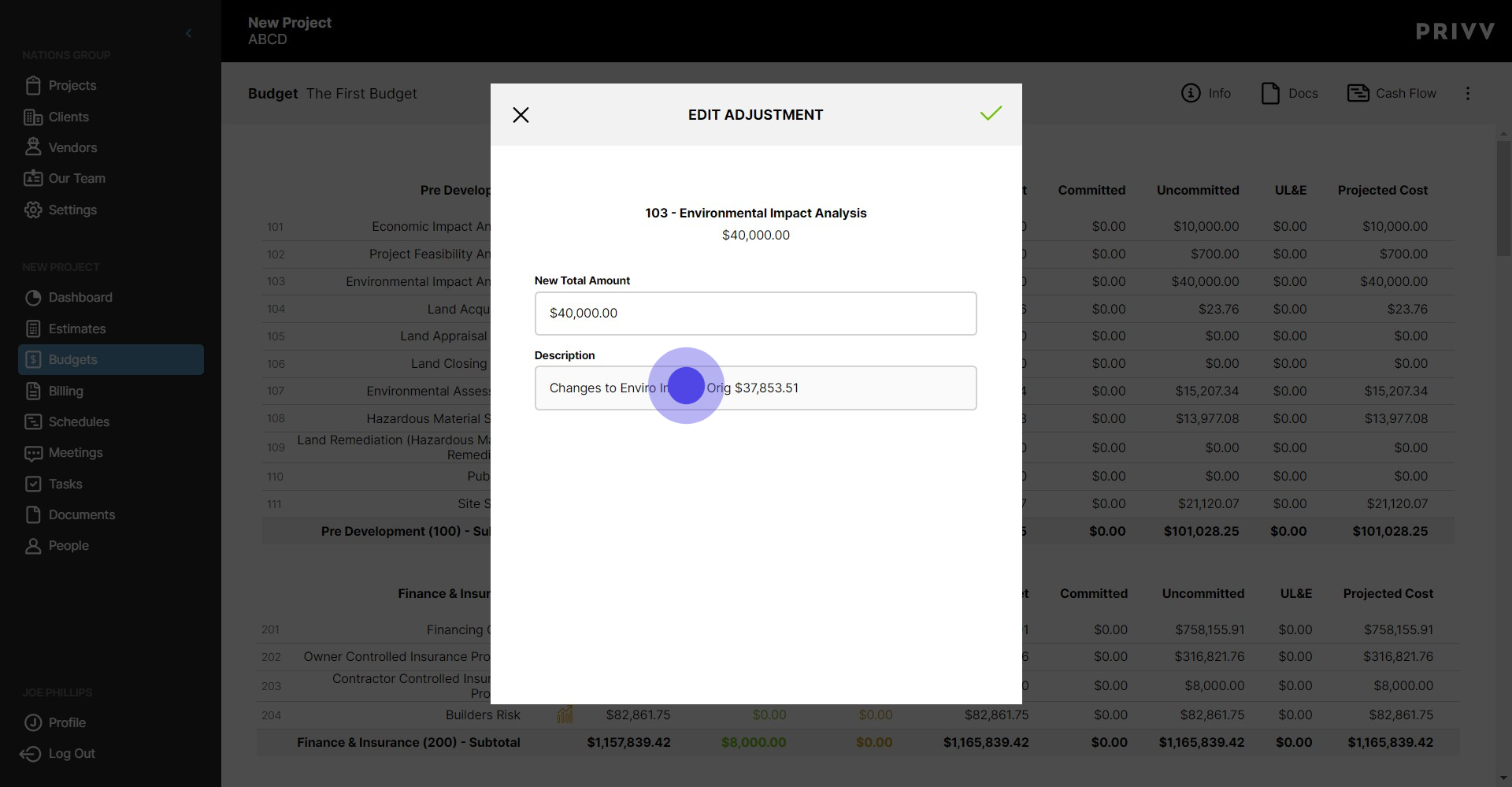
22. Now you know how to make a Budget Adjustment! Click the check mark to close out the window.
Was this article helpful?
That’s Great!
Thank you for your feedback
Sorry! We couldn't be helpful
Thank you for your feedback
Feedback sent
We appreciate your effort and will try to fix the article