Budget revisions refer to the process of reevaluating the costs allocated within a project budget. Whether its using contingency for a specific line item or reallocating costs to more accurately reflect new financial realities or priorities. In Privv, Budget revisions play a vital role in balancing a project. When running a capital project in Privv, the user may want to change the financial plan to account for unexpected costs, evolving priorities or change orders that arise during the course of the project.
Below is an interactive video displaying how Budget Revisions work in Privv.
Revisions vs. Adjustments
The Budget Revision tool in Privv allows the user to move uncommitted costs and/or inject new capital to any line item in the budget. The user may not, however, enter a negative amount in to a line item. The only way to reduce the contract total for any given line item is to use Budget Adjustments. To use Budget Adjustments tool, the user must be the Project Admin. See more information on Budget Adjustments here, Budget Adjustments.
Things to Remember
- Budget Adjustments are changes to the Original Cost | Budget Revisions are for reallocating costs.
- Always add documentation to your Revisions.
- While Revisions can be viewed in the Budget detail screen, Revisions can only be added from the main Budget Screen.
- The Revision cannot be 'Locked for Review' until it is balanced.
Budget Revisions: Step-by-step
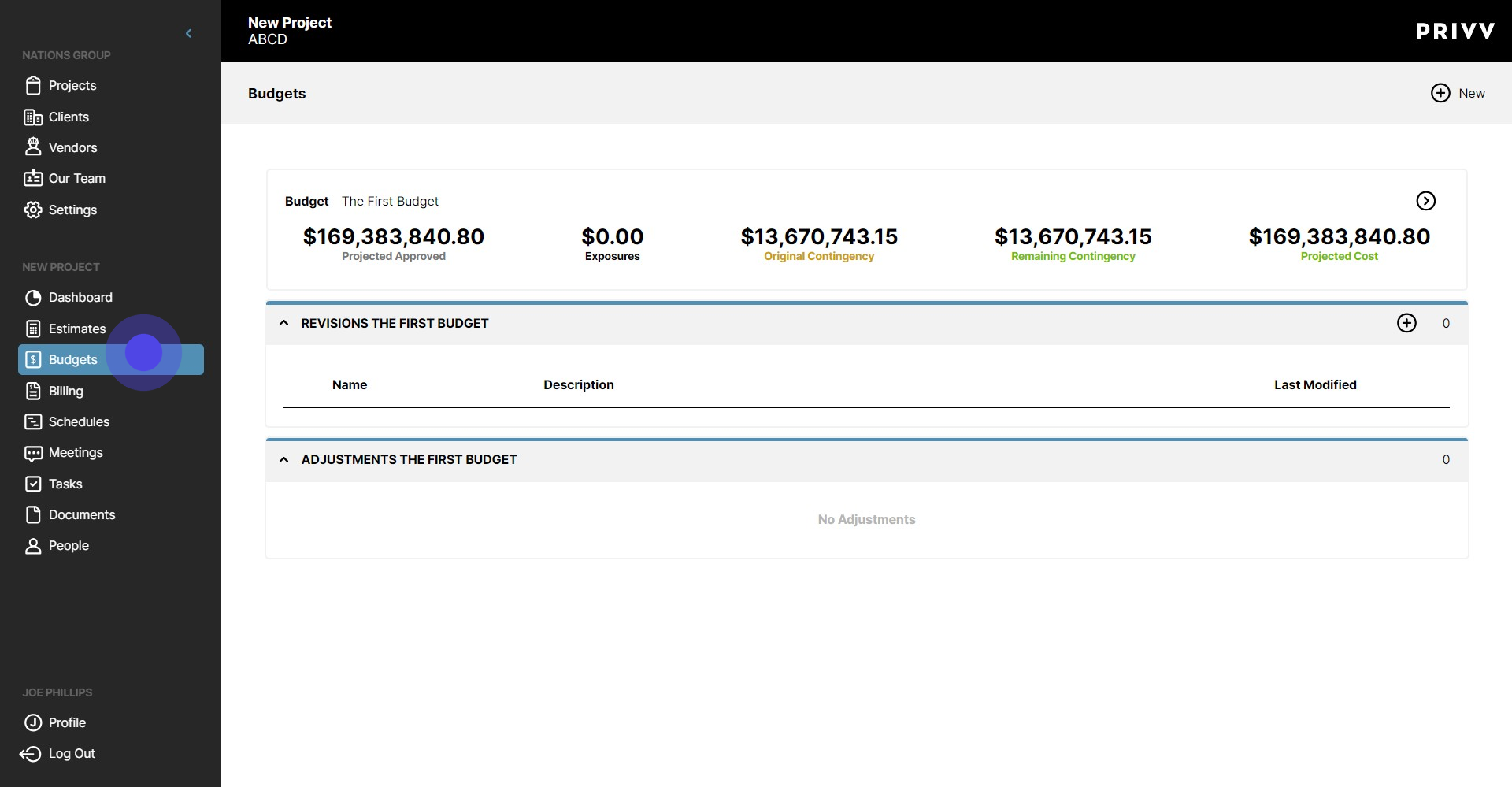
1. Click on "Budgets"
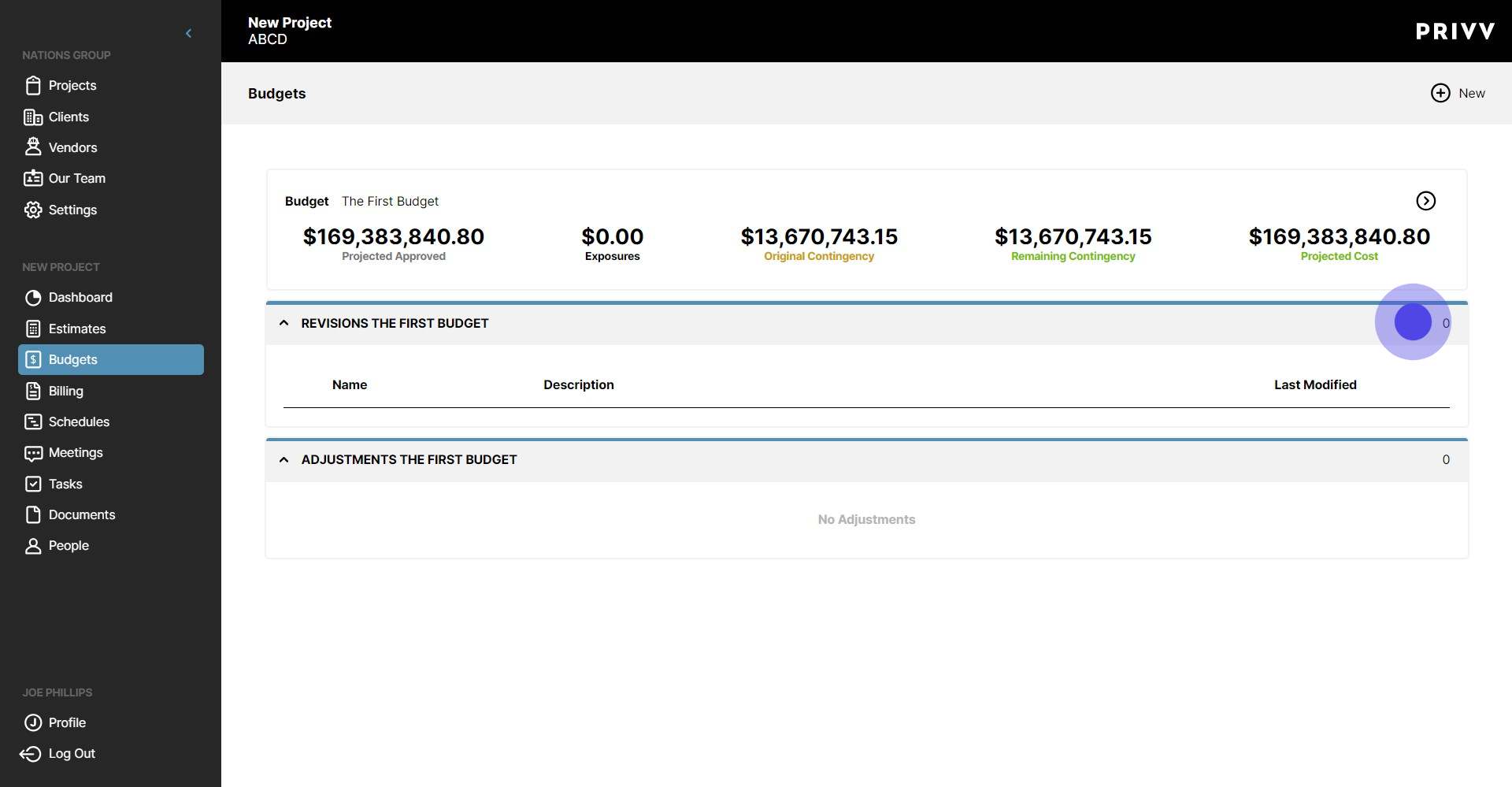
2. Click the + on the Revisions List Banner to add a New Revision
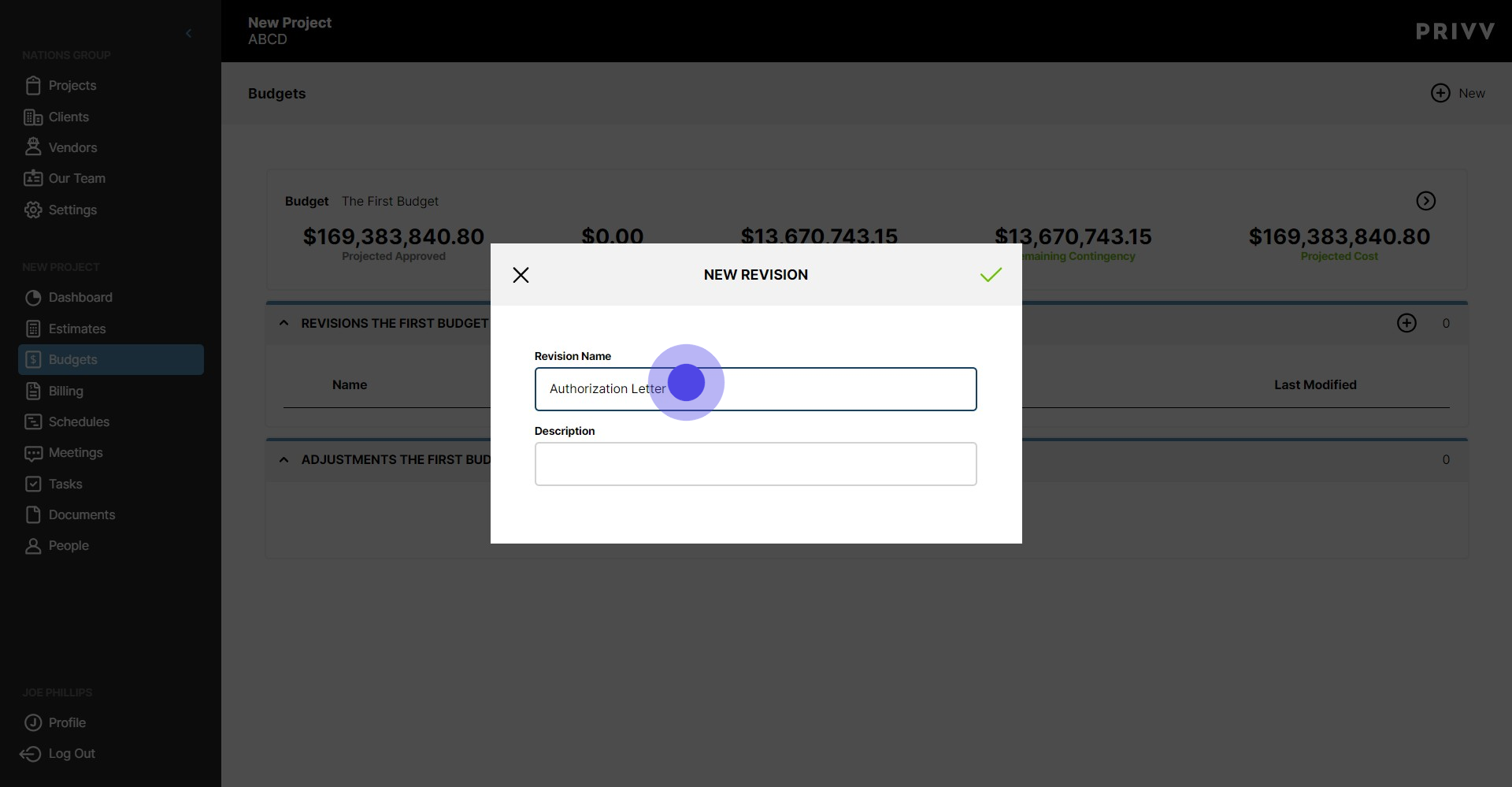
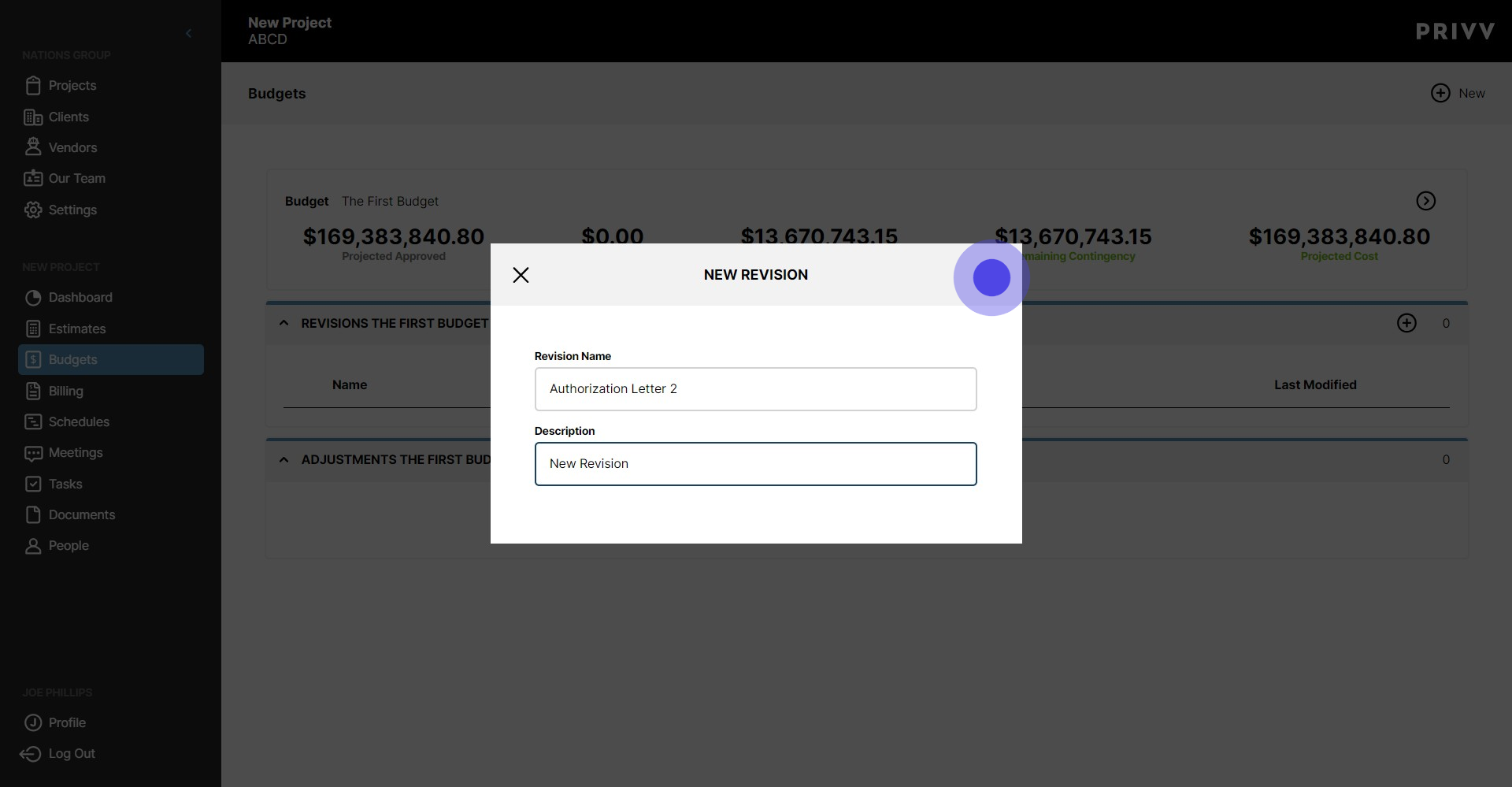
3. Enter the Revision Name
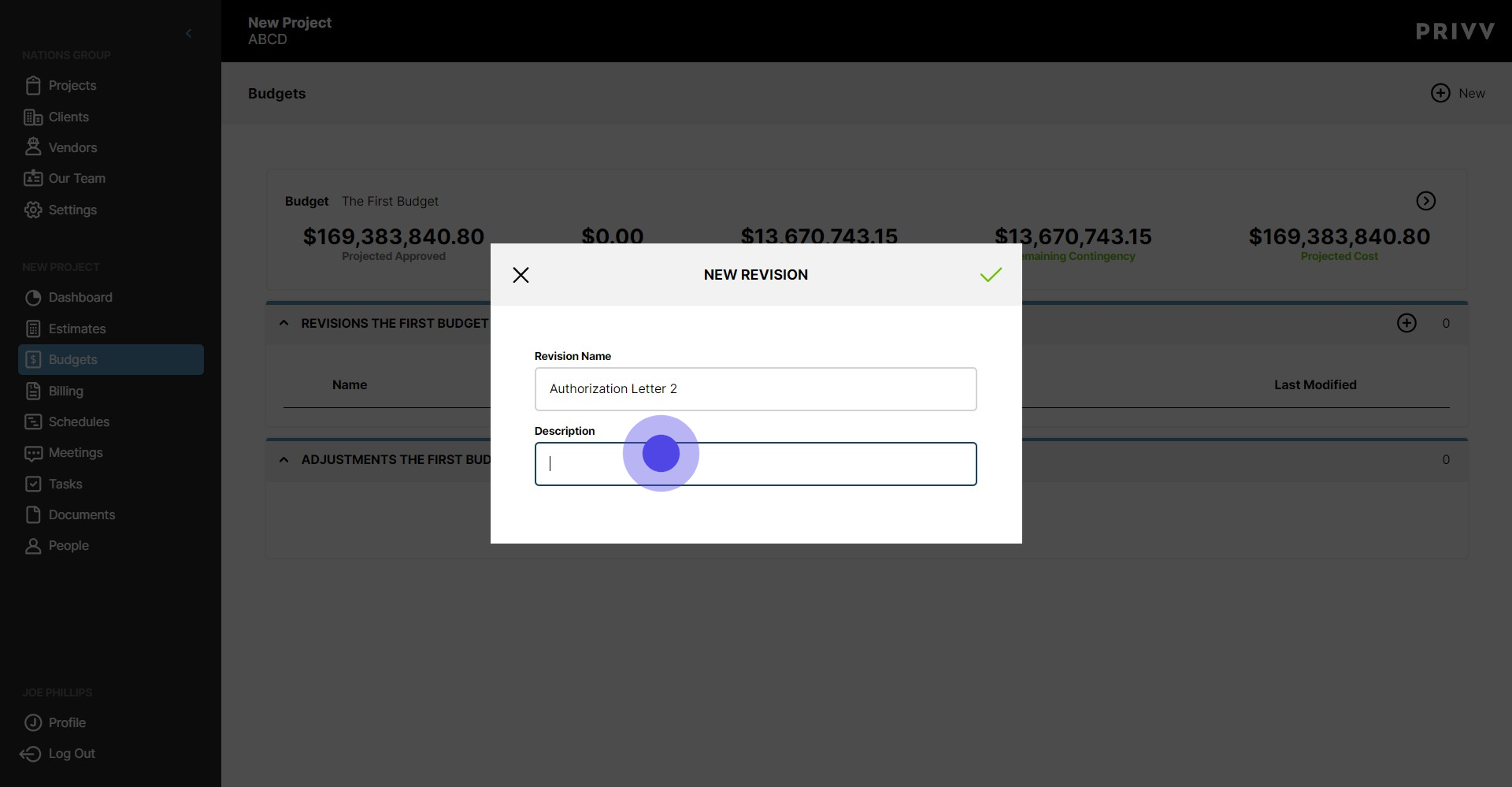
4. Enter the description or purpose of the revision
5. Click the green check mark to save & navigate to the revision screen
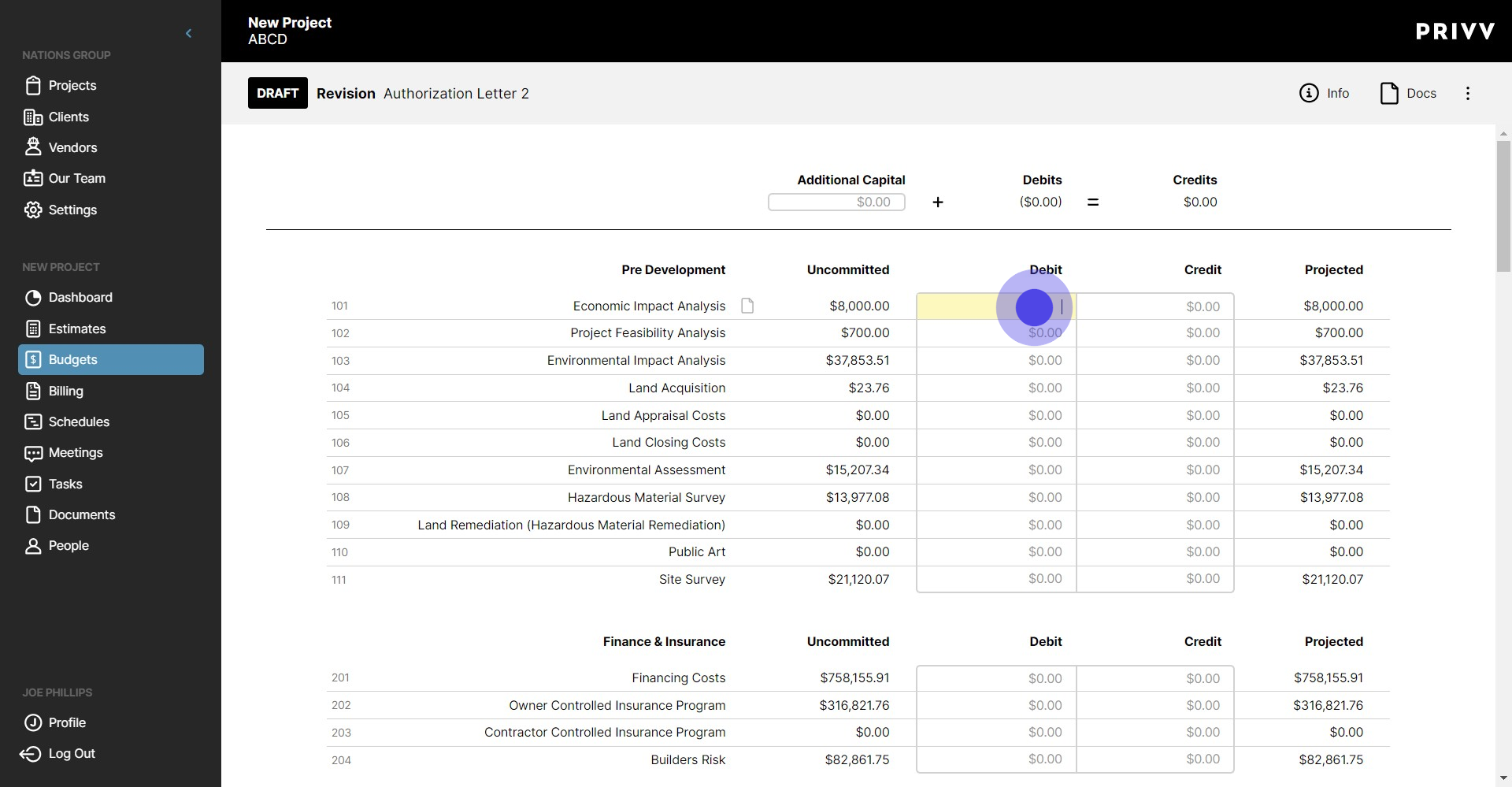
6. To Remove funds from a line item, enter the amount to remove in the debit column input box.
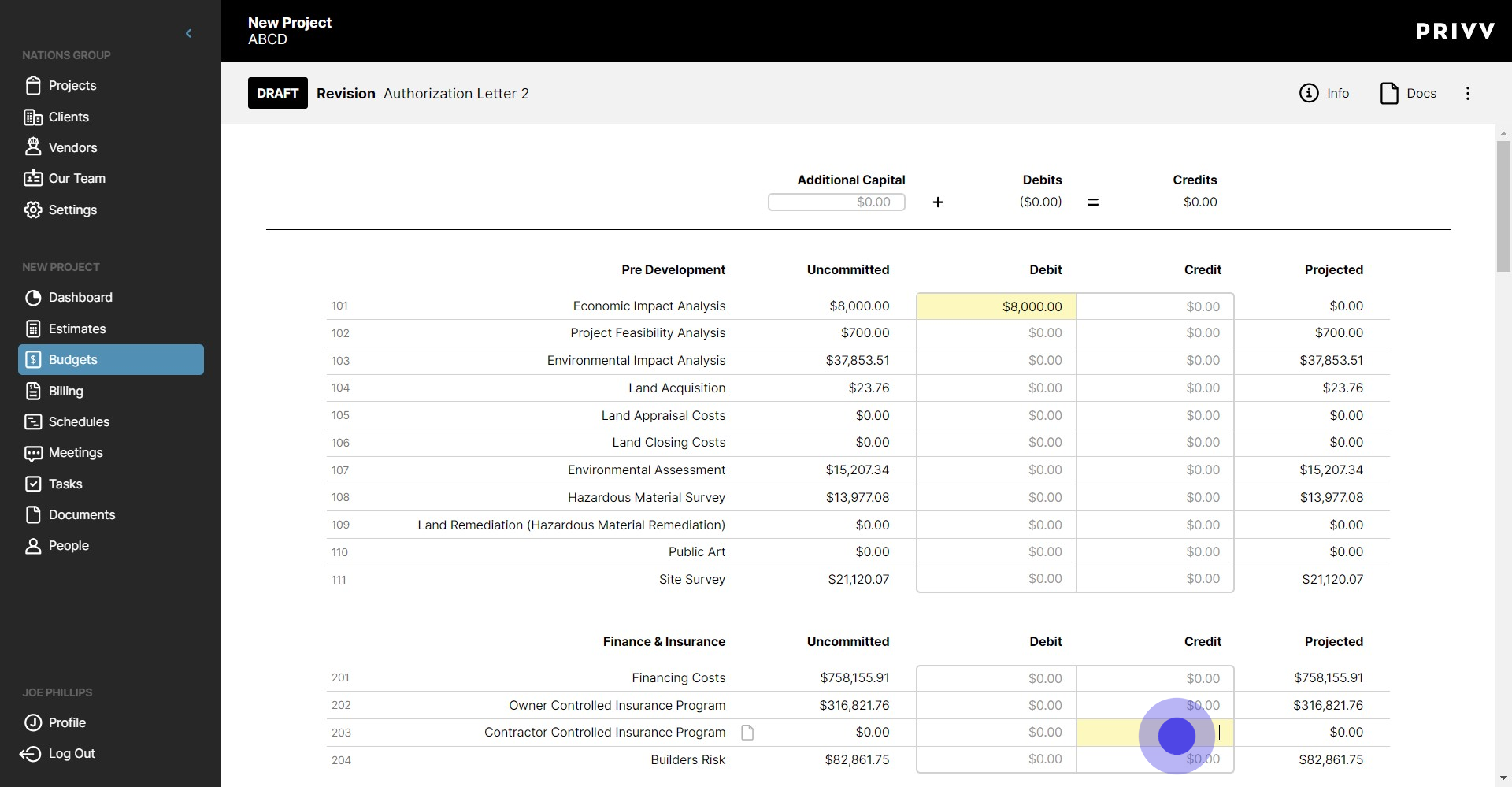
7. To add the previously debited funds to another line item, enter the amount in the credit column input box
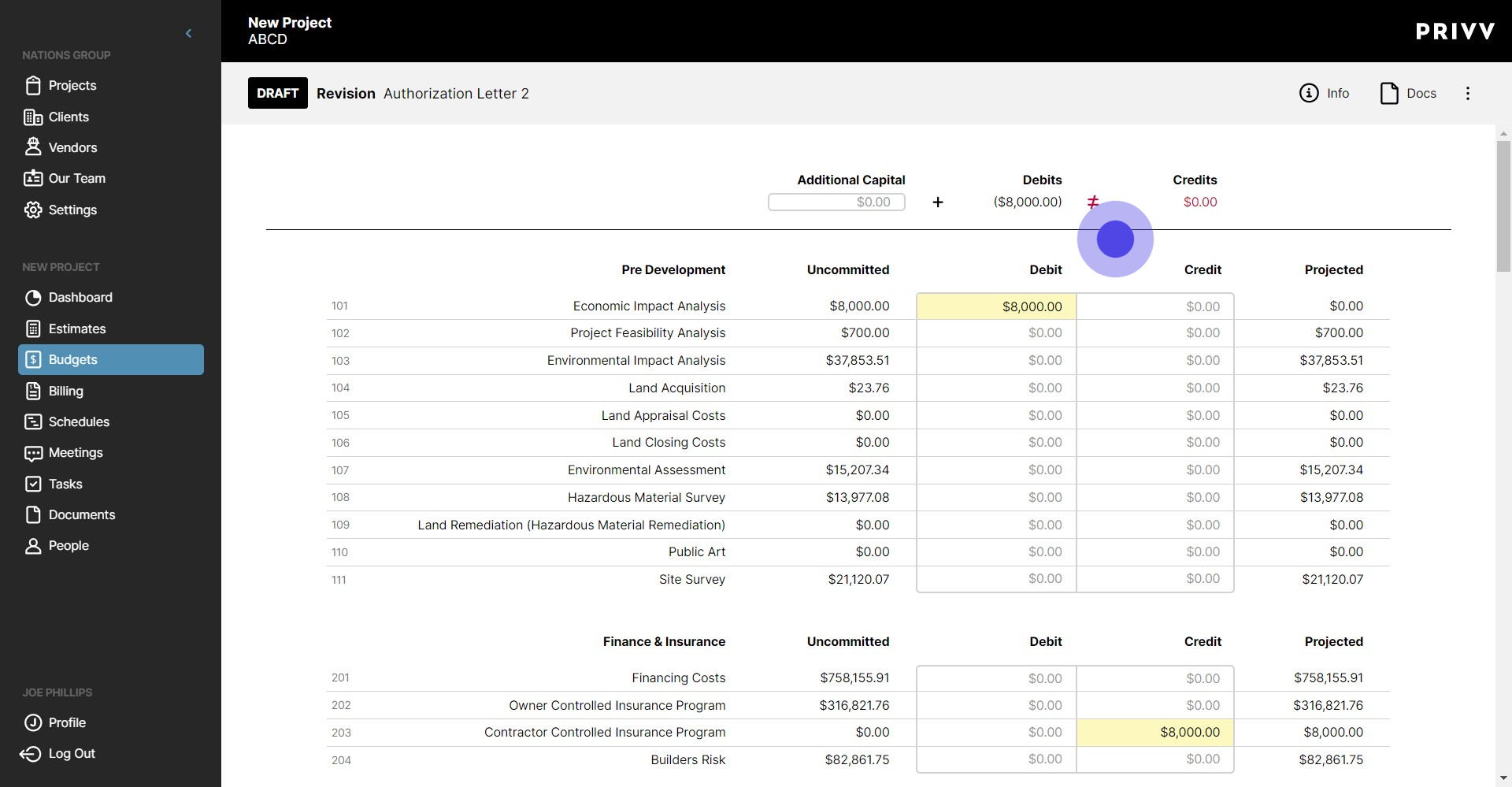
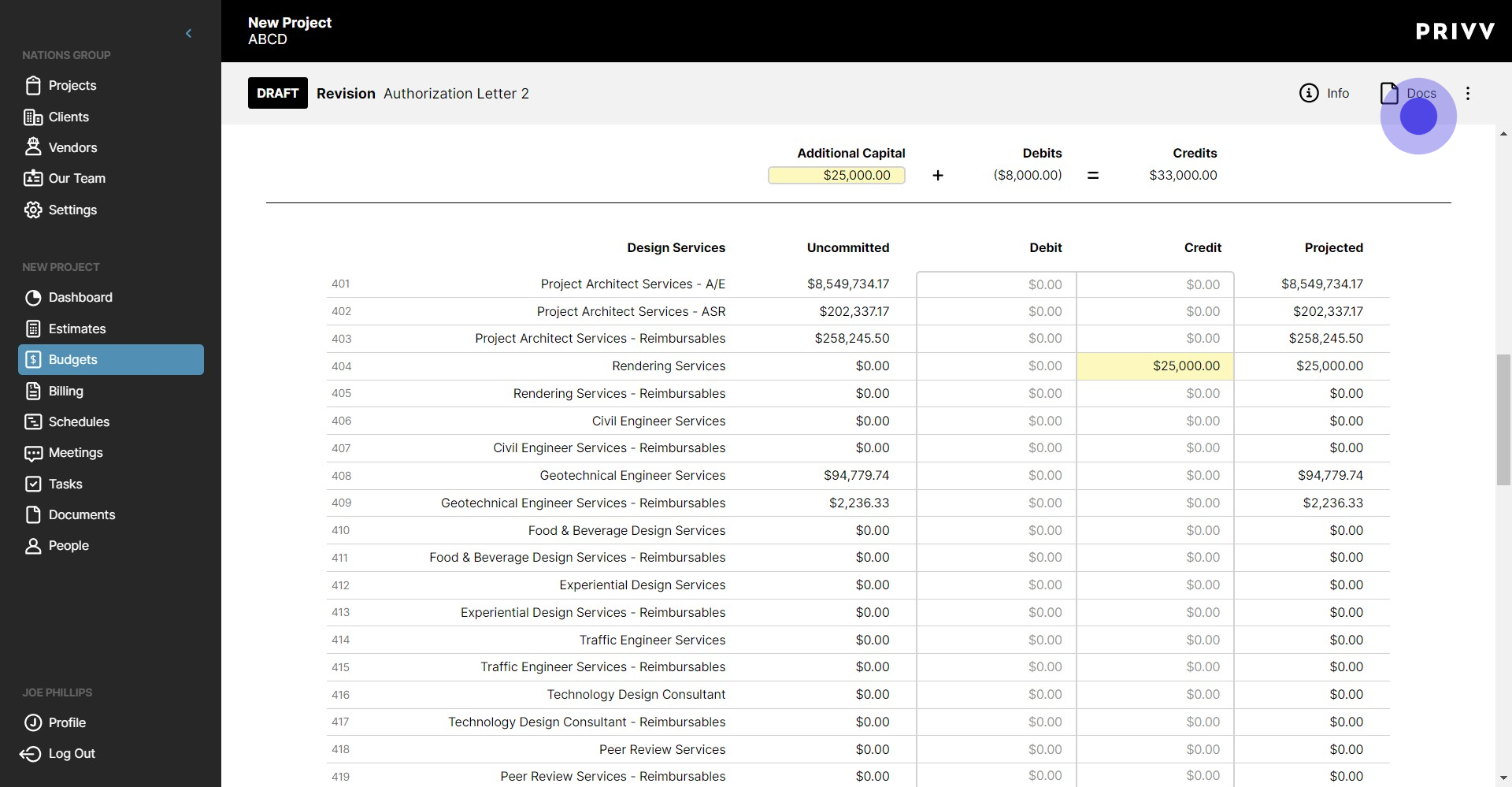
8. Once the funds have been reallocated properly, the balance at the top of the page will show that 'additional capital' + 'Debits' = Credits. If it does not, then your revision is out of balance.
9. To inject capital into your budget, enter the amount in the input marked 'Additional Capital'
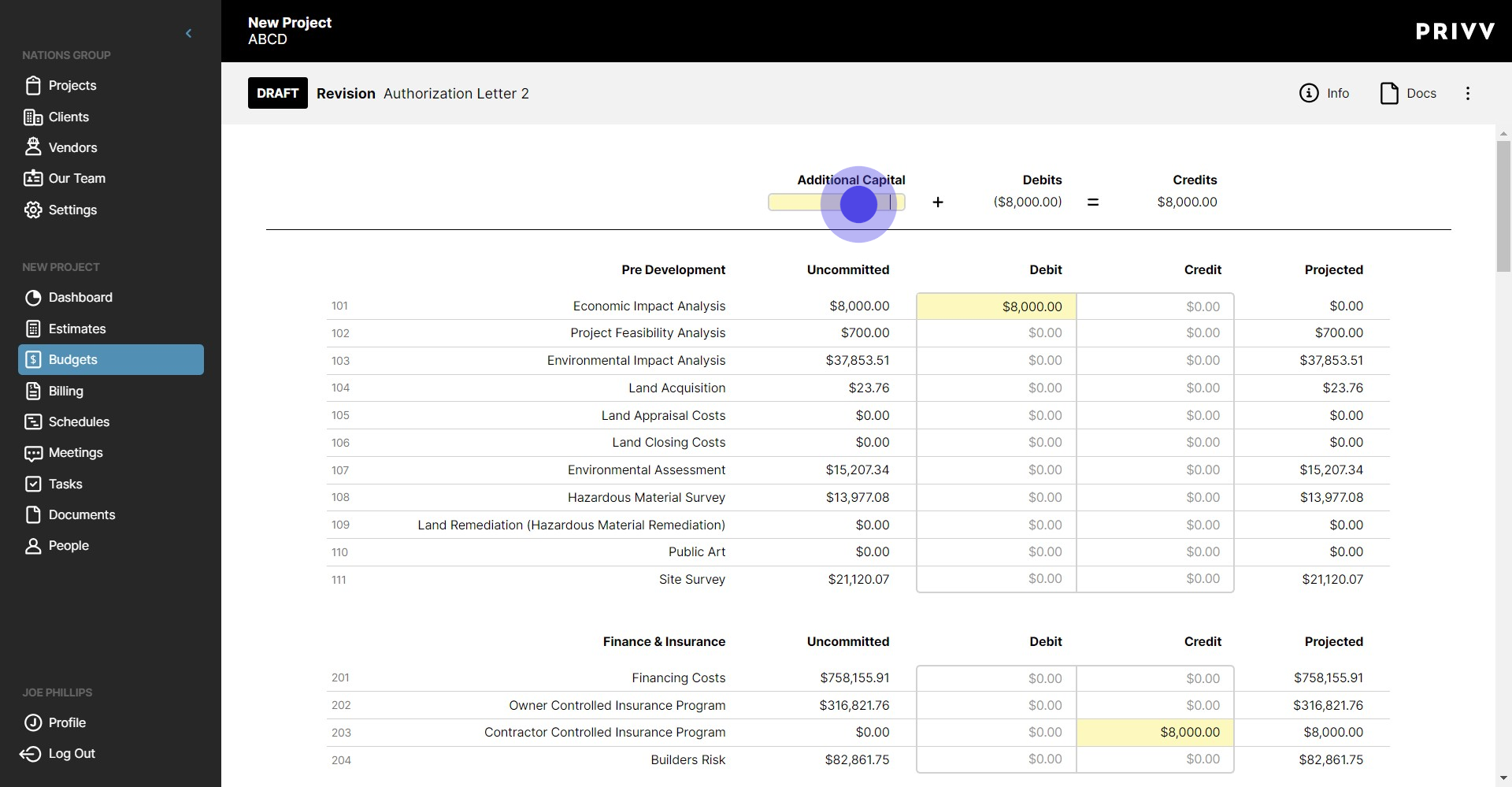
10. Now we can apply it to one or multiple line items in the budget, in the credit column
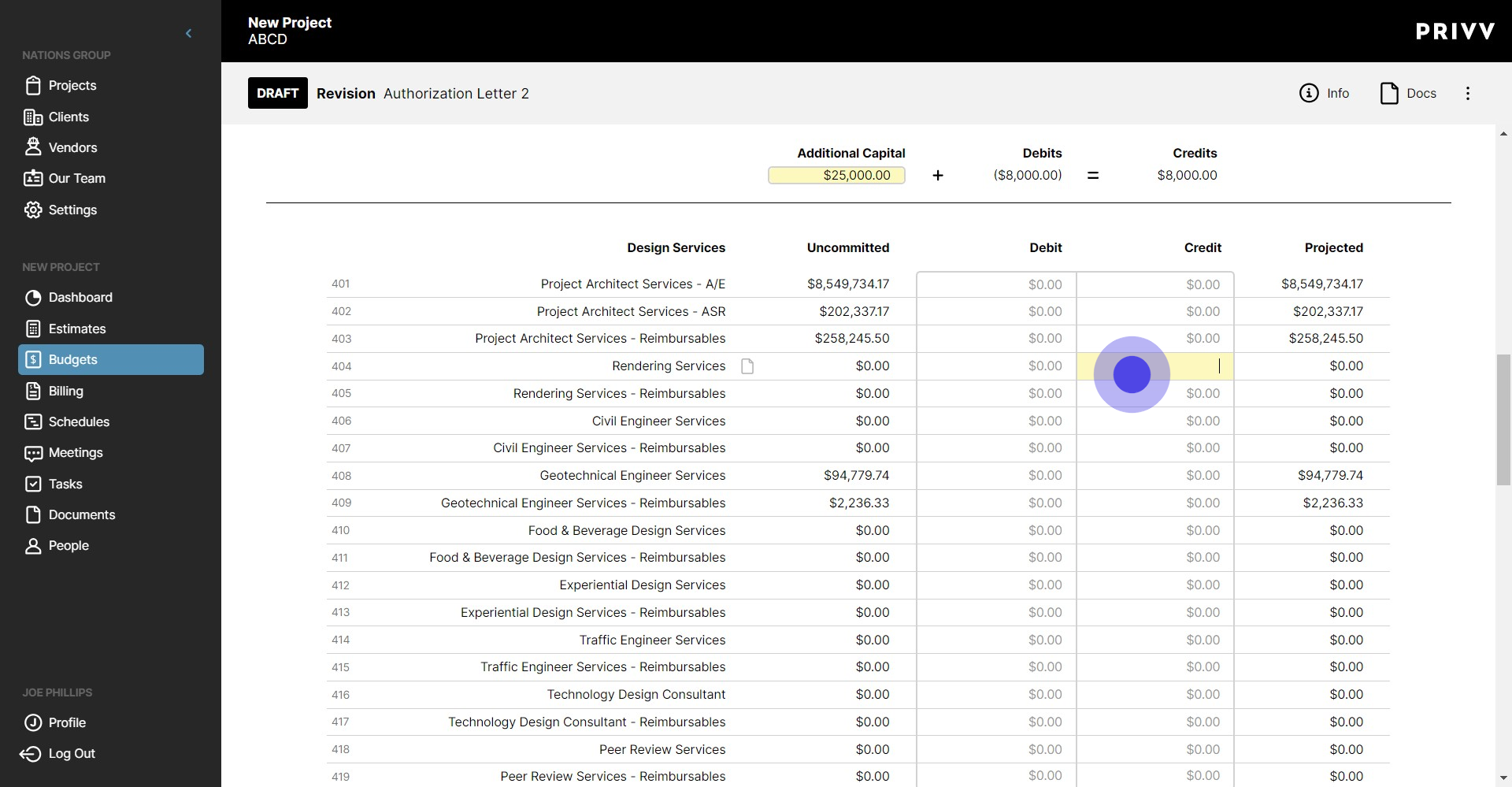
11. Click anywhere outside of the input box to confirm the amount credited
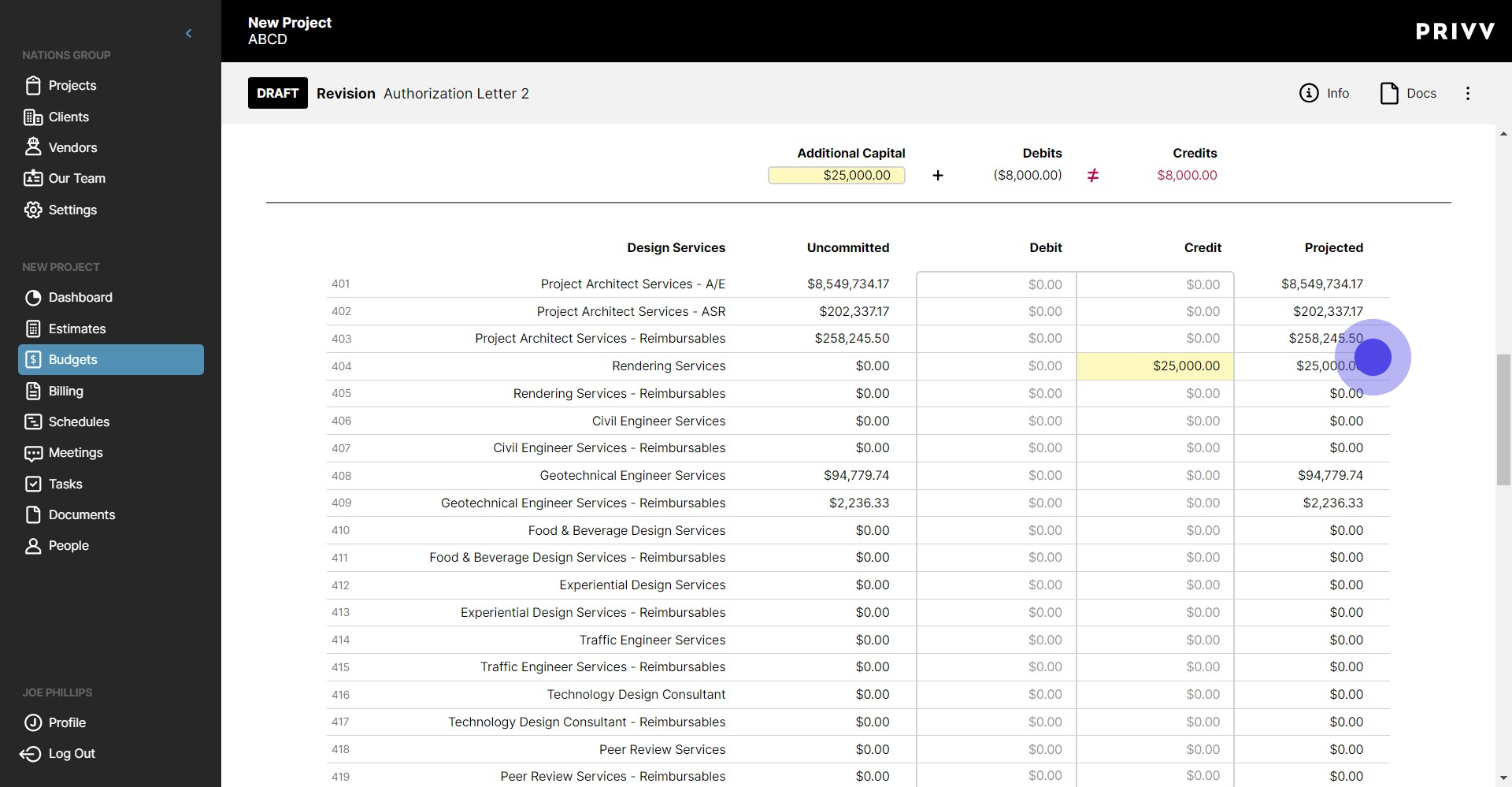
12. Click on "Docs" to add a supporting document to the Revision
13. Click to open file explorer and select your document
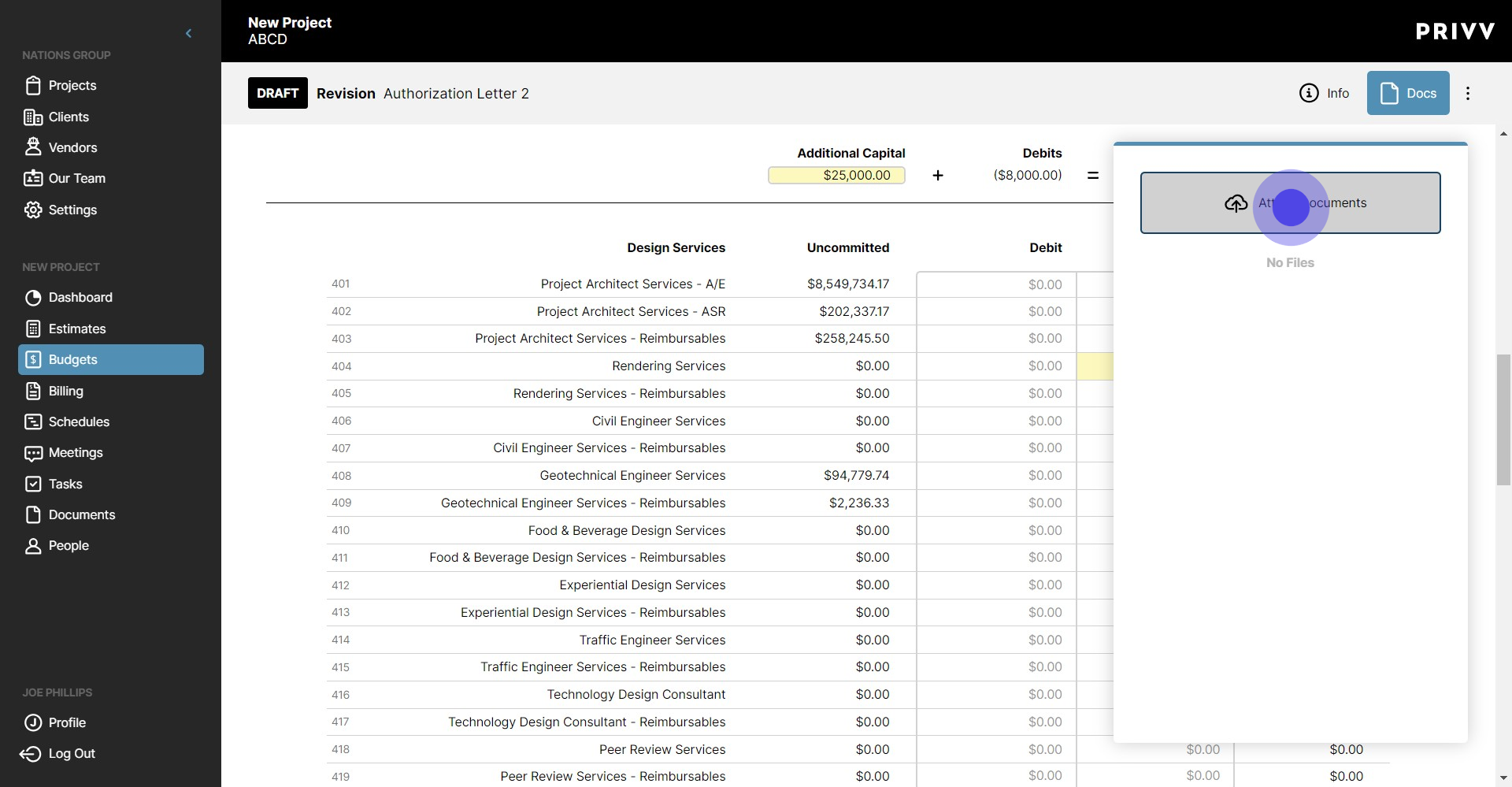
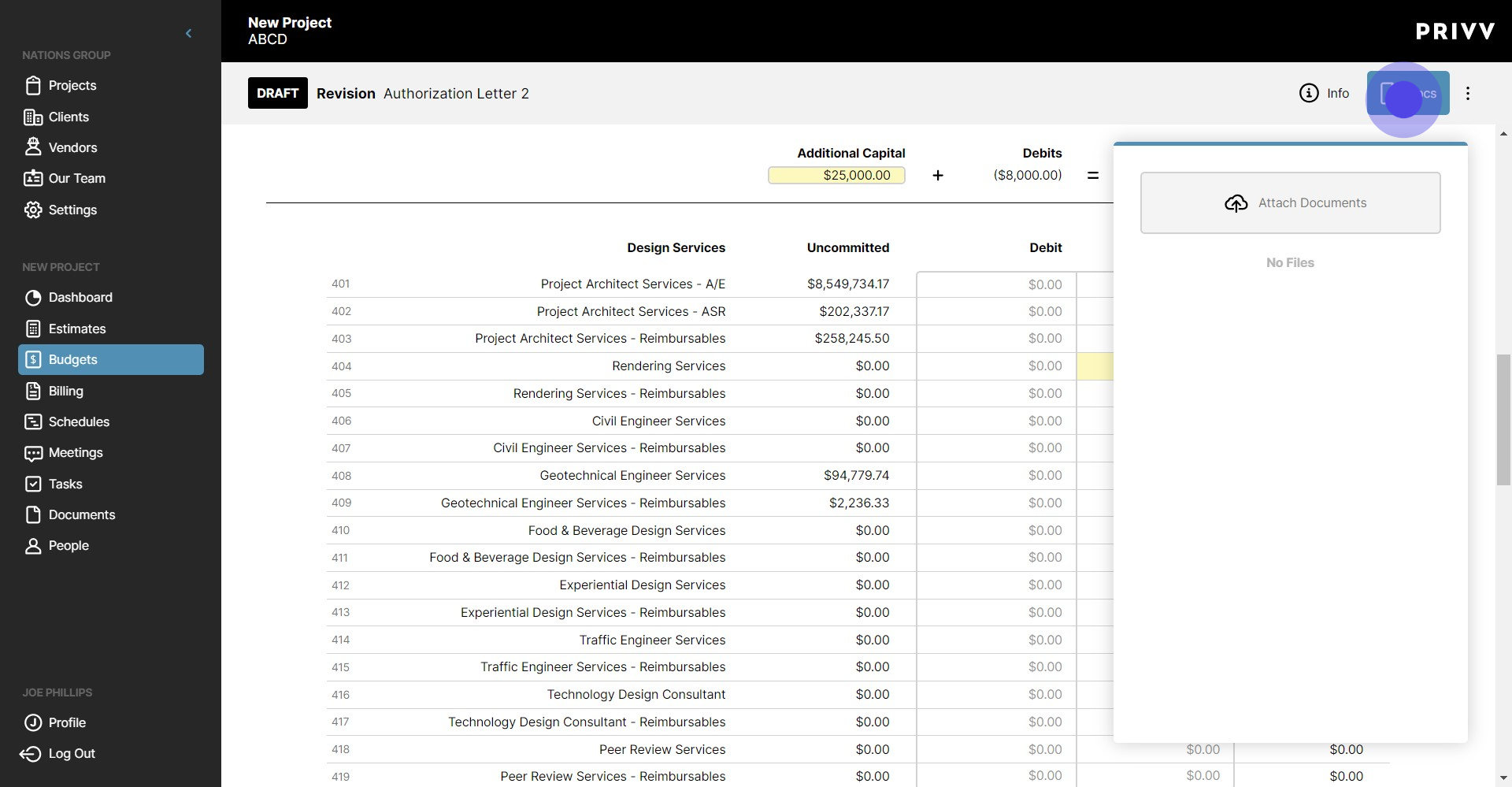
14. Once you have attached a document, click the 'Docs' icon again to close the window
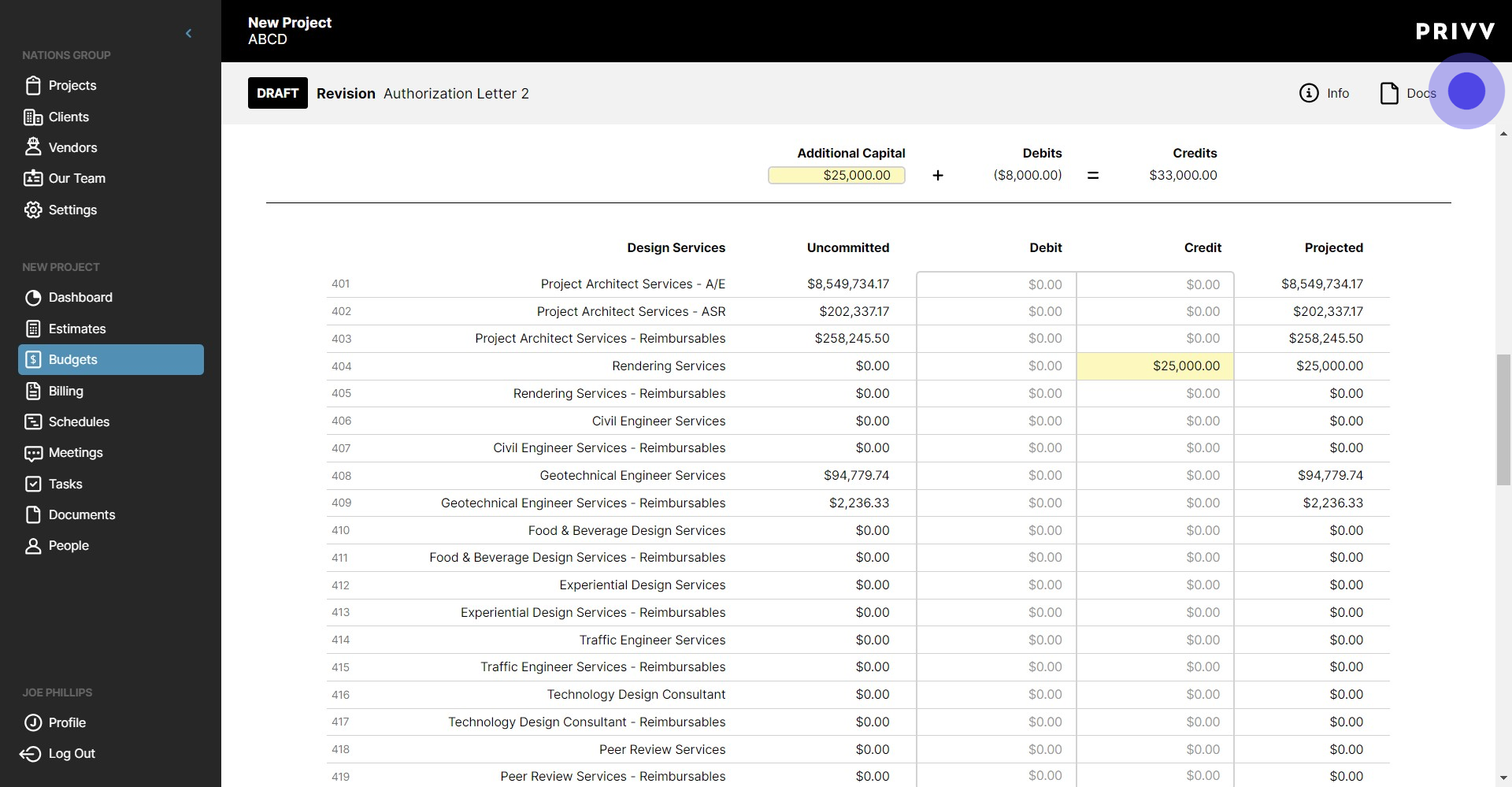
15. Click the Ellipsis in the top right corner of the screen
16. Click 'Lock for Review'
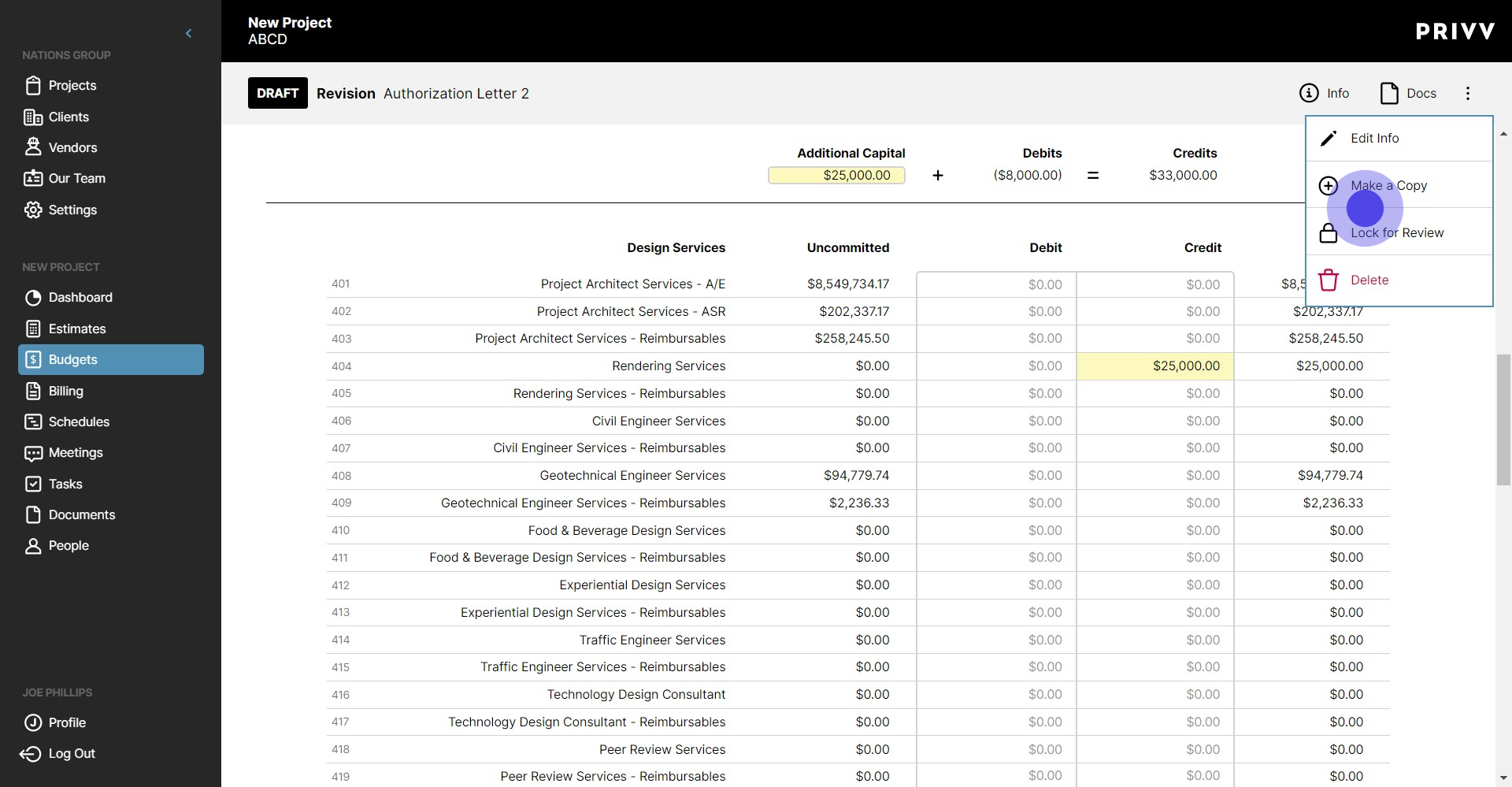
17. If you are sure your revision is complete, click 'Lock for Review' to put the revision in a pending status
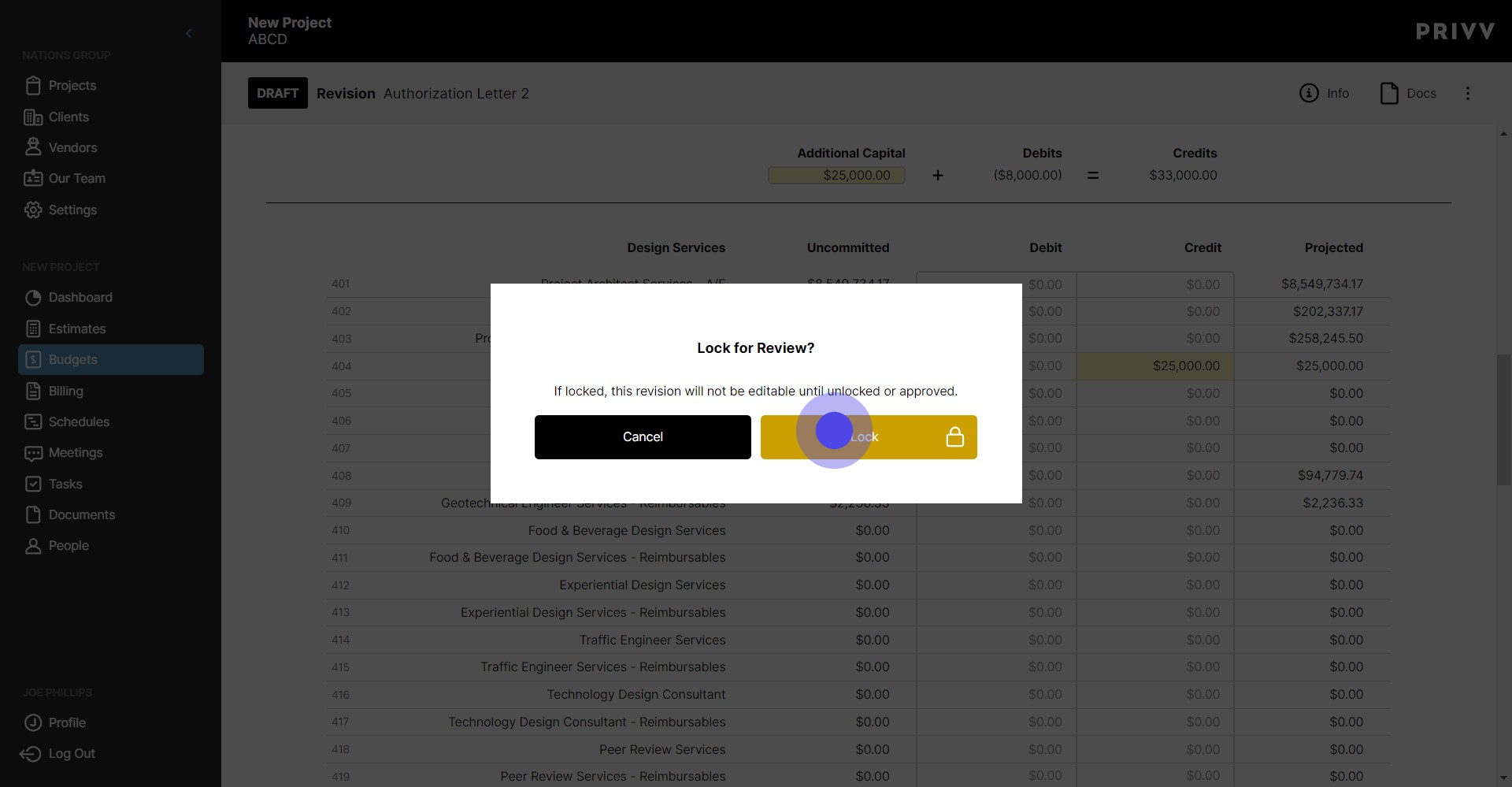
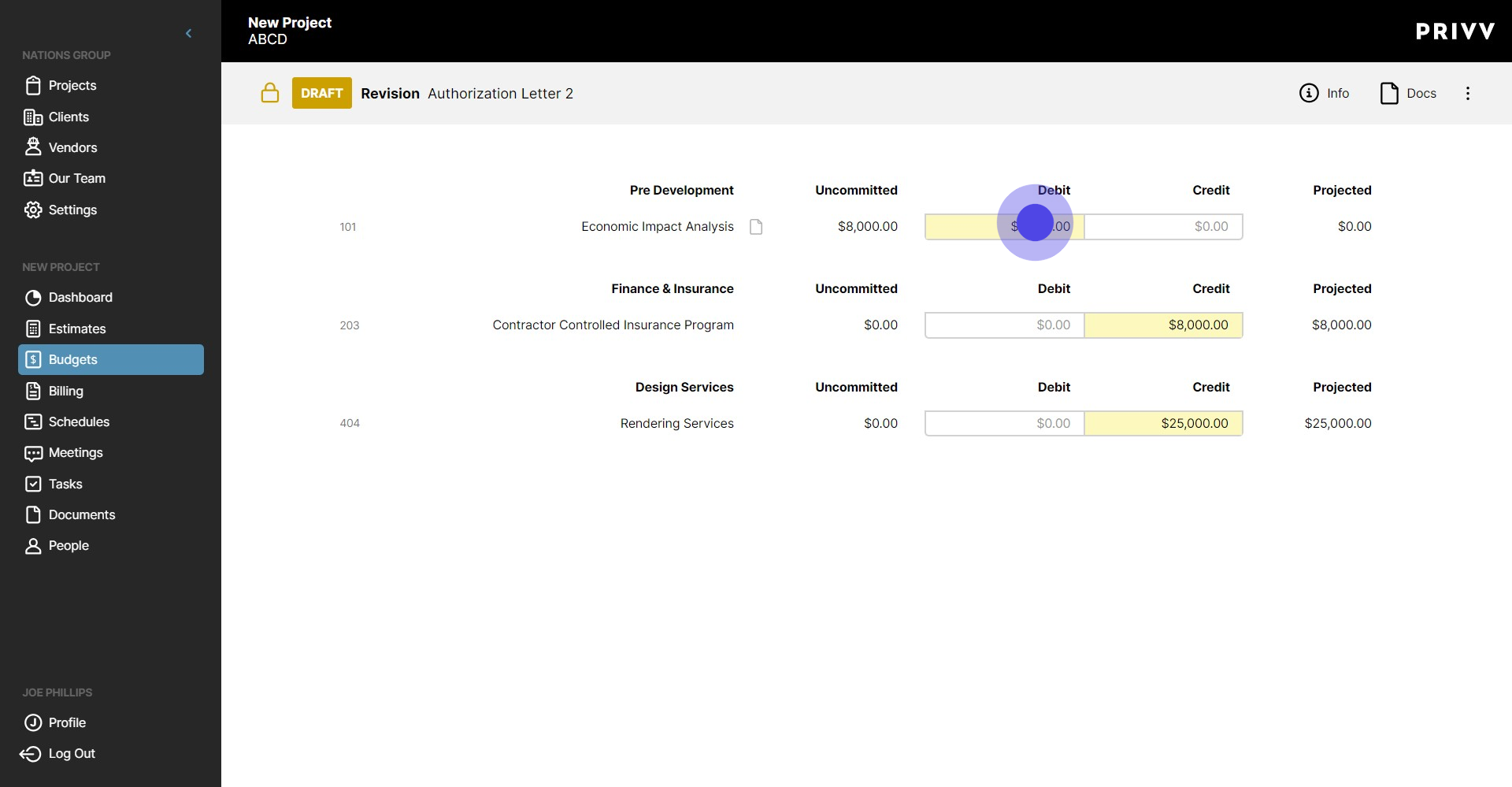
18. Now that it is locked, none of the input boxes can be edited
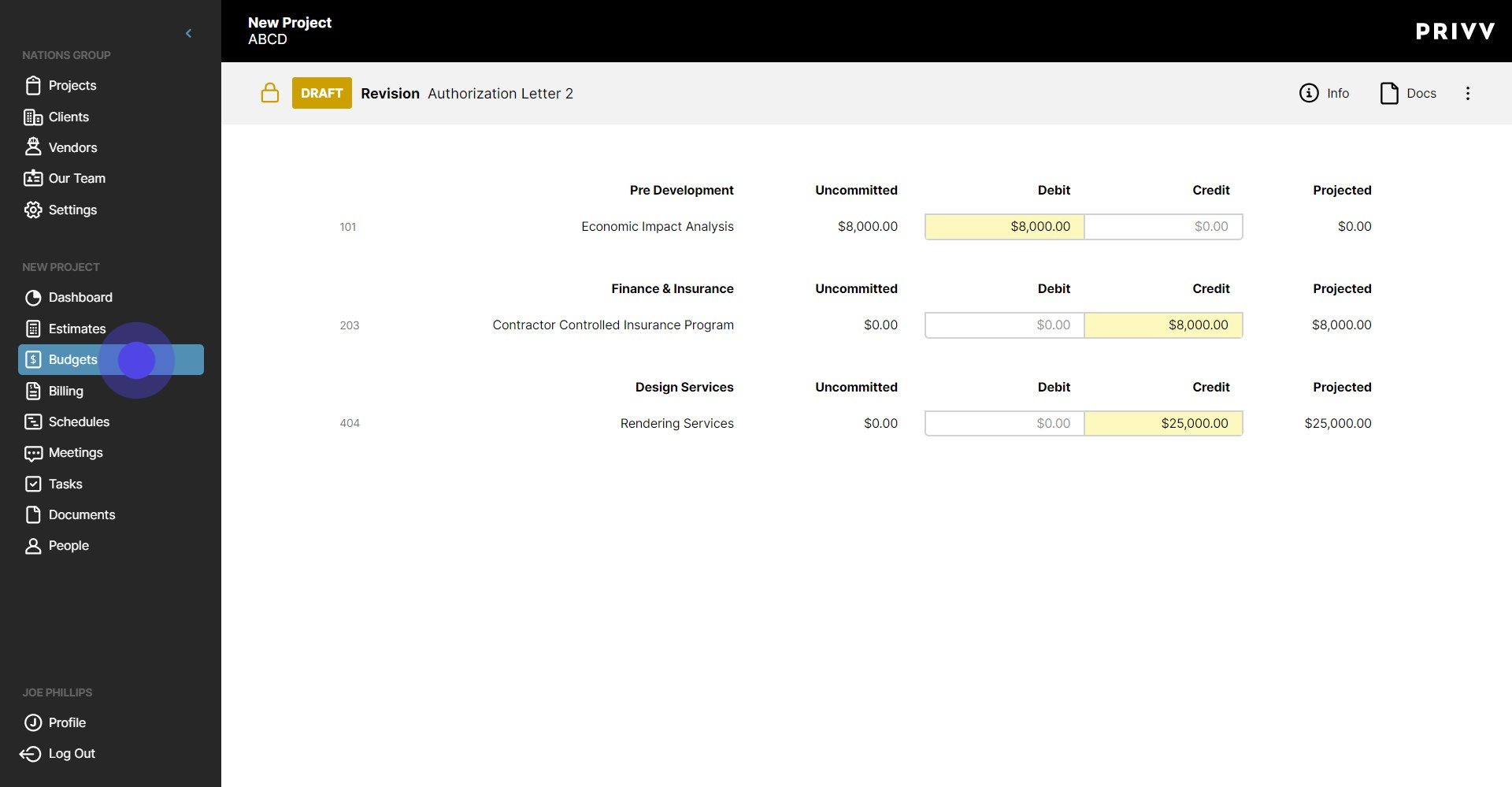
19. Lets view the Revision from the 'Budgets' screen
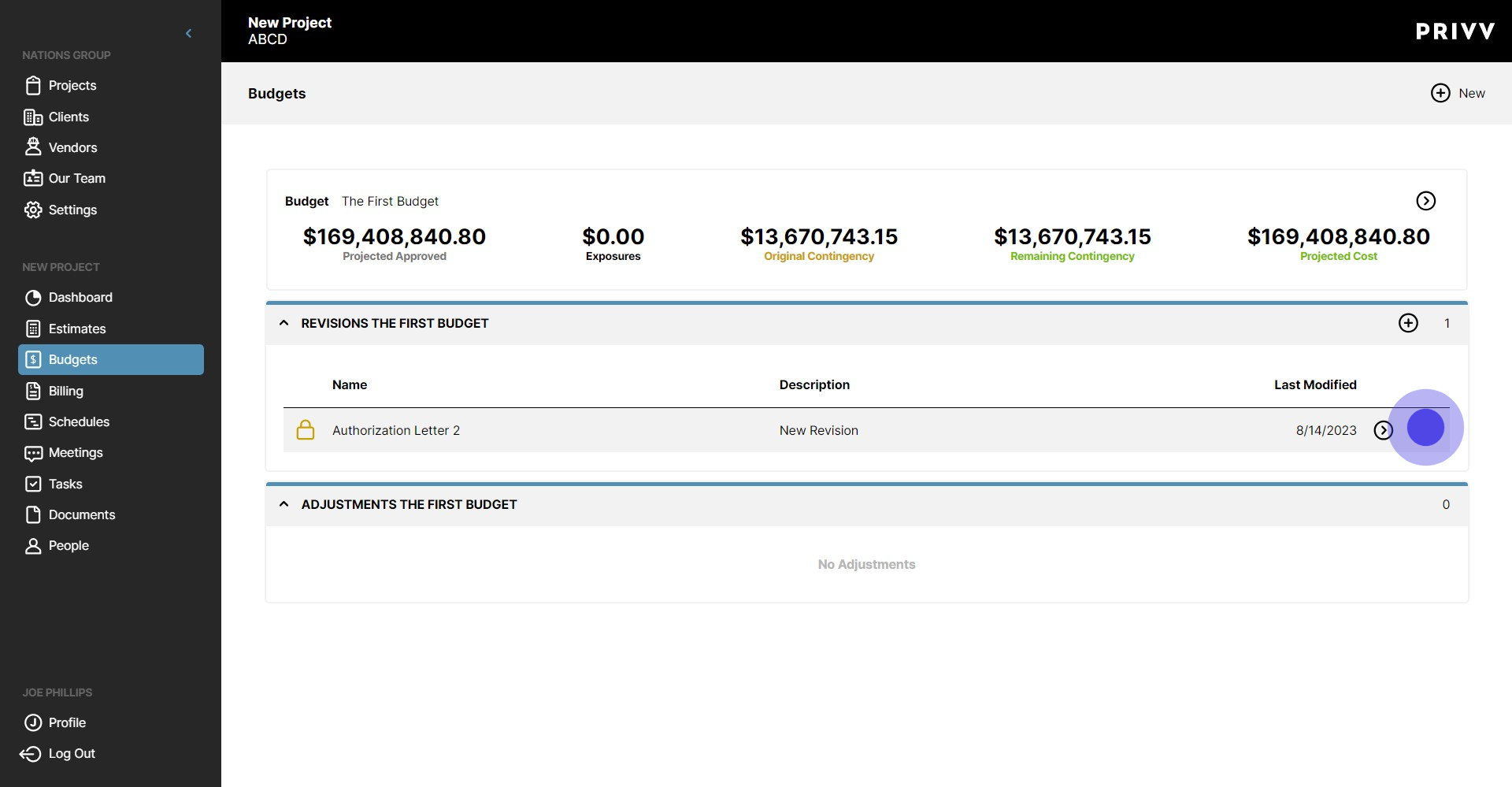
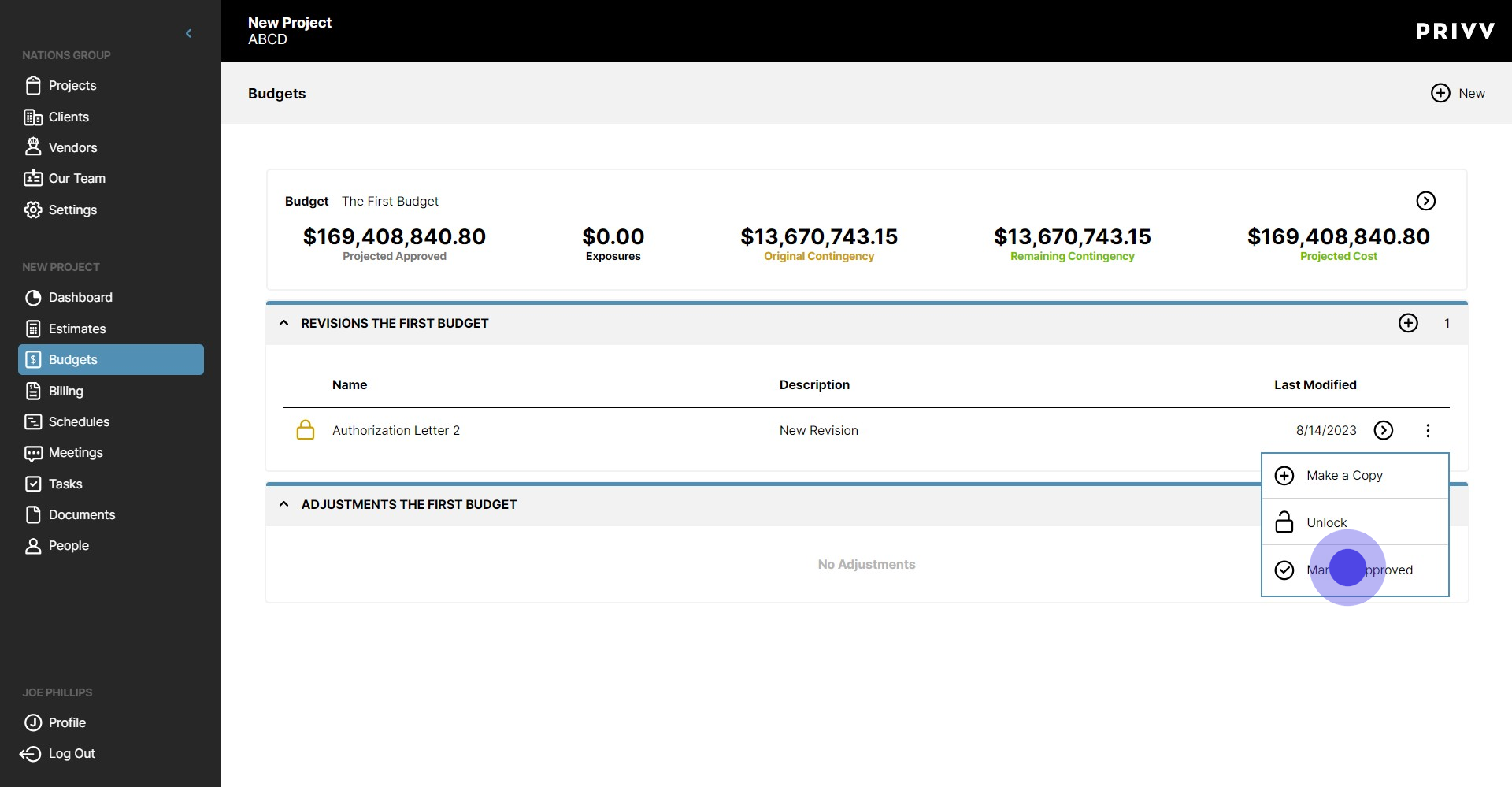
20. The approver can view, approve and make changes from many areas in privv. One is here at this ellipsis.
21. To mark the revision as Approved and have the changes applied to the Budget, Click 'Mark as Approved'
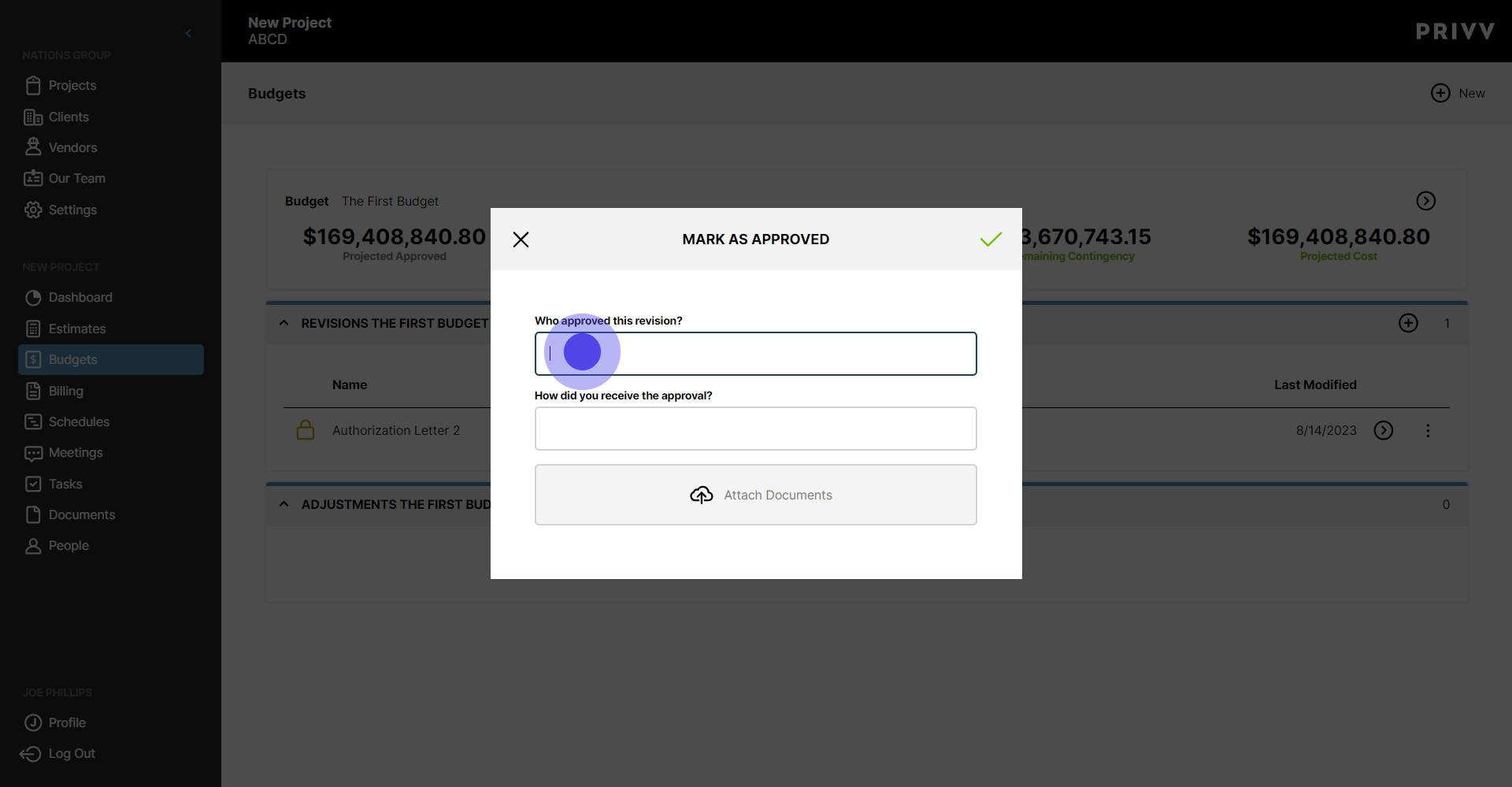
22. If you are the Approver, Enter your name here.
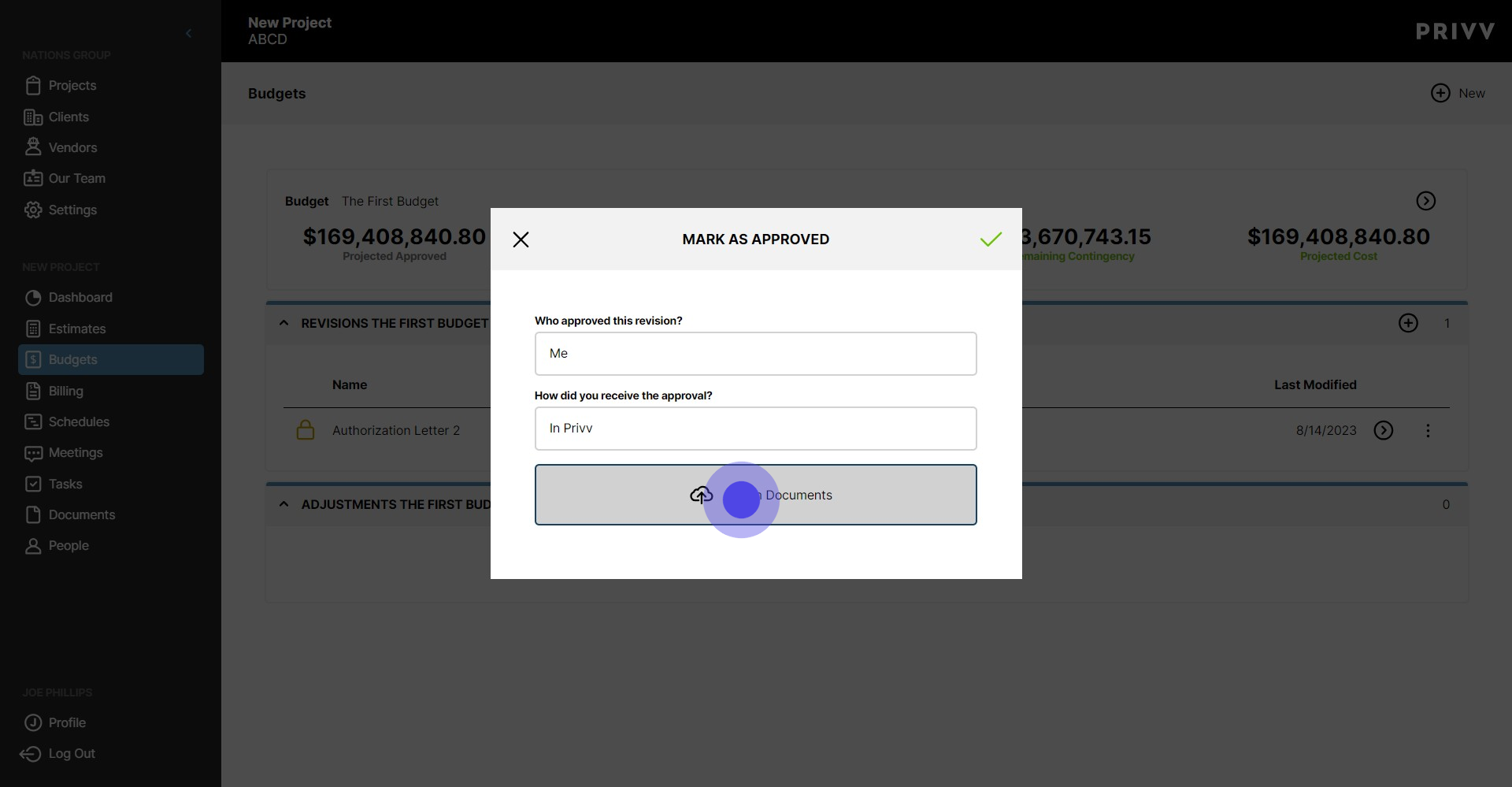
23. To attach any supporting documents, use the 'Attach Documents' button
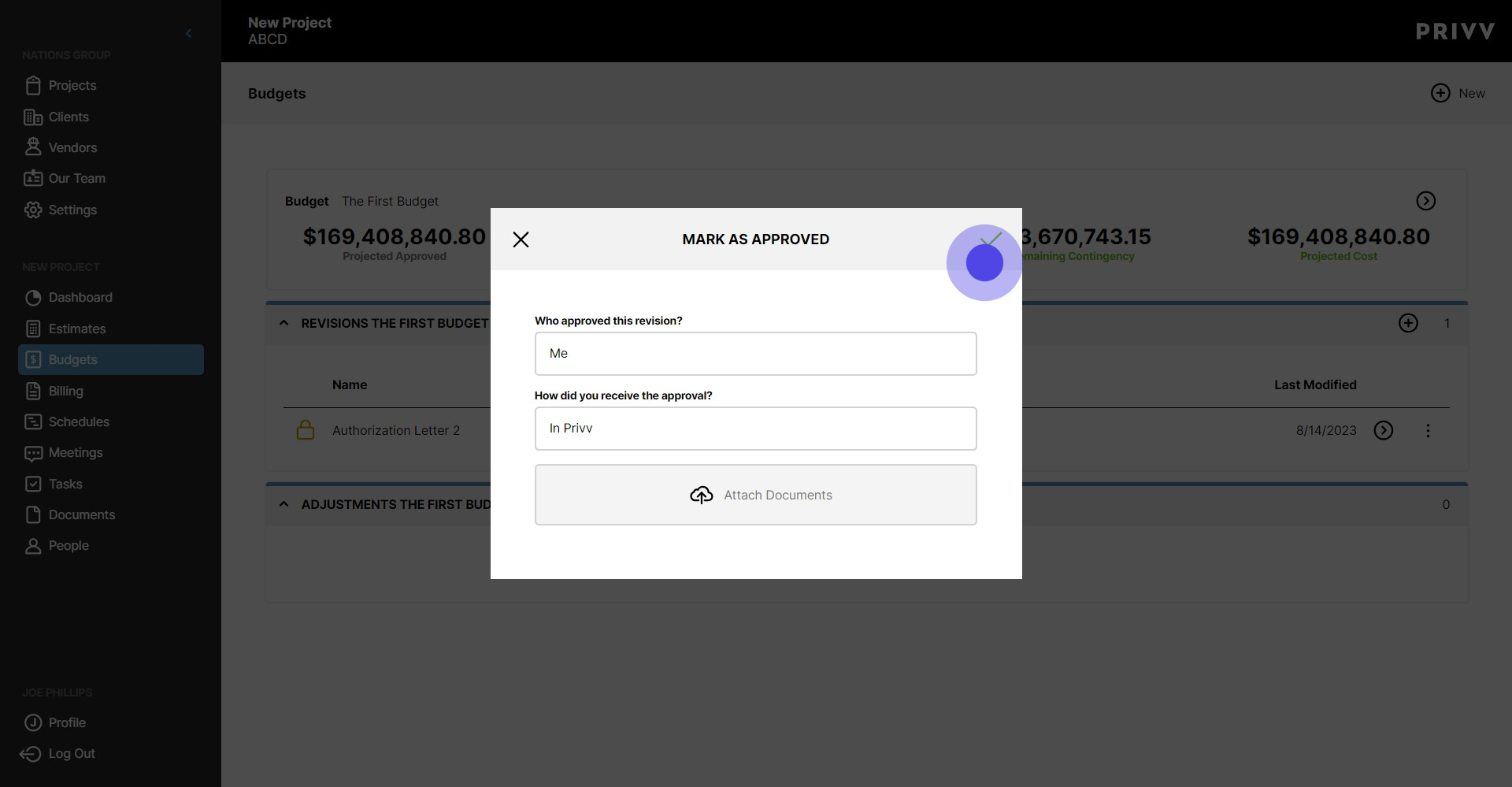
24. Please be sure the Revision is correct! Once Approved, the Revision is final and cannot be Un-Approved! Click the green check mark to approve the Revision
25. Now lets view the changes from the Budget Detail Screen. Click anywhere on the Budget
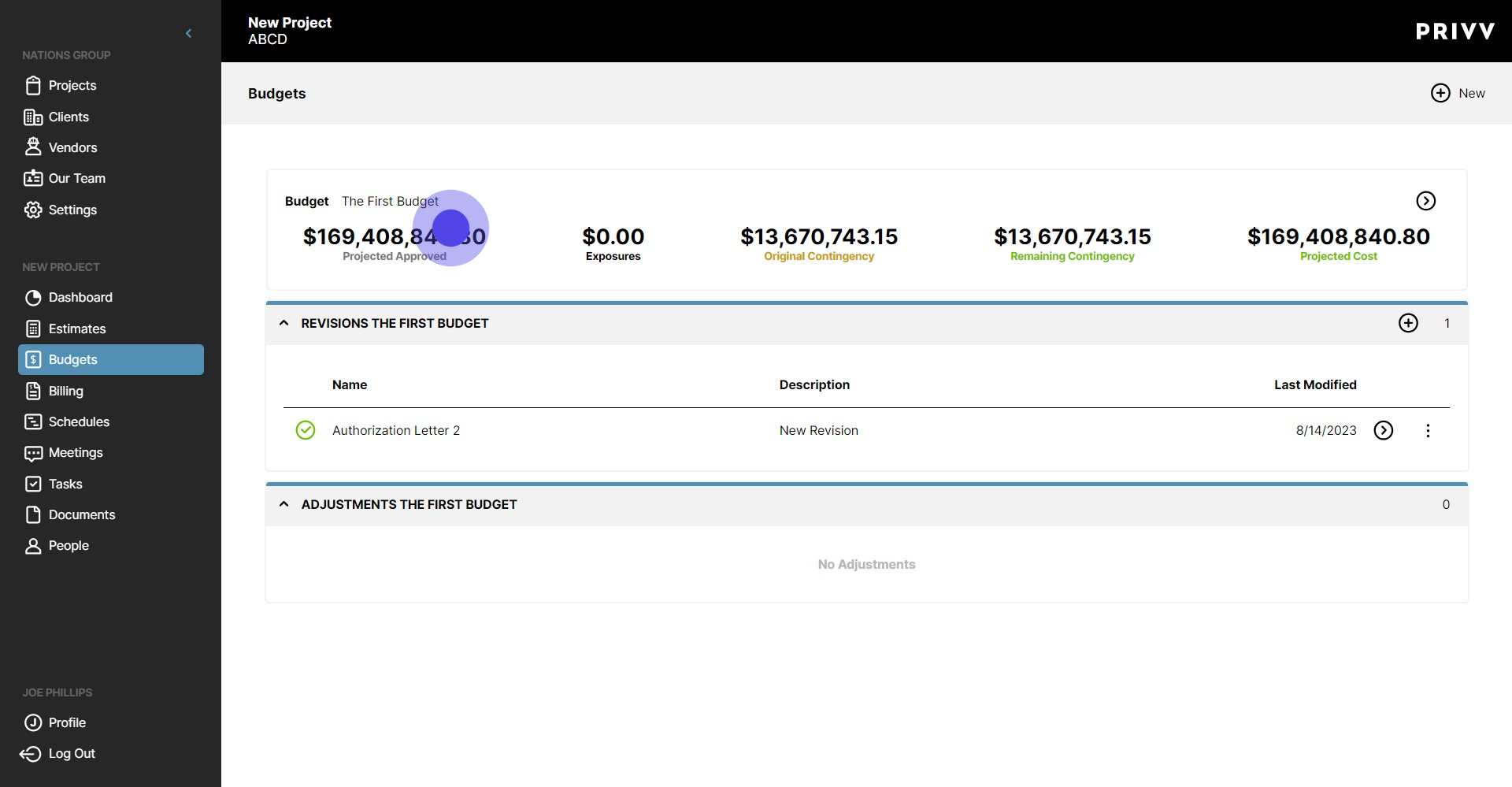
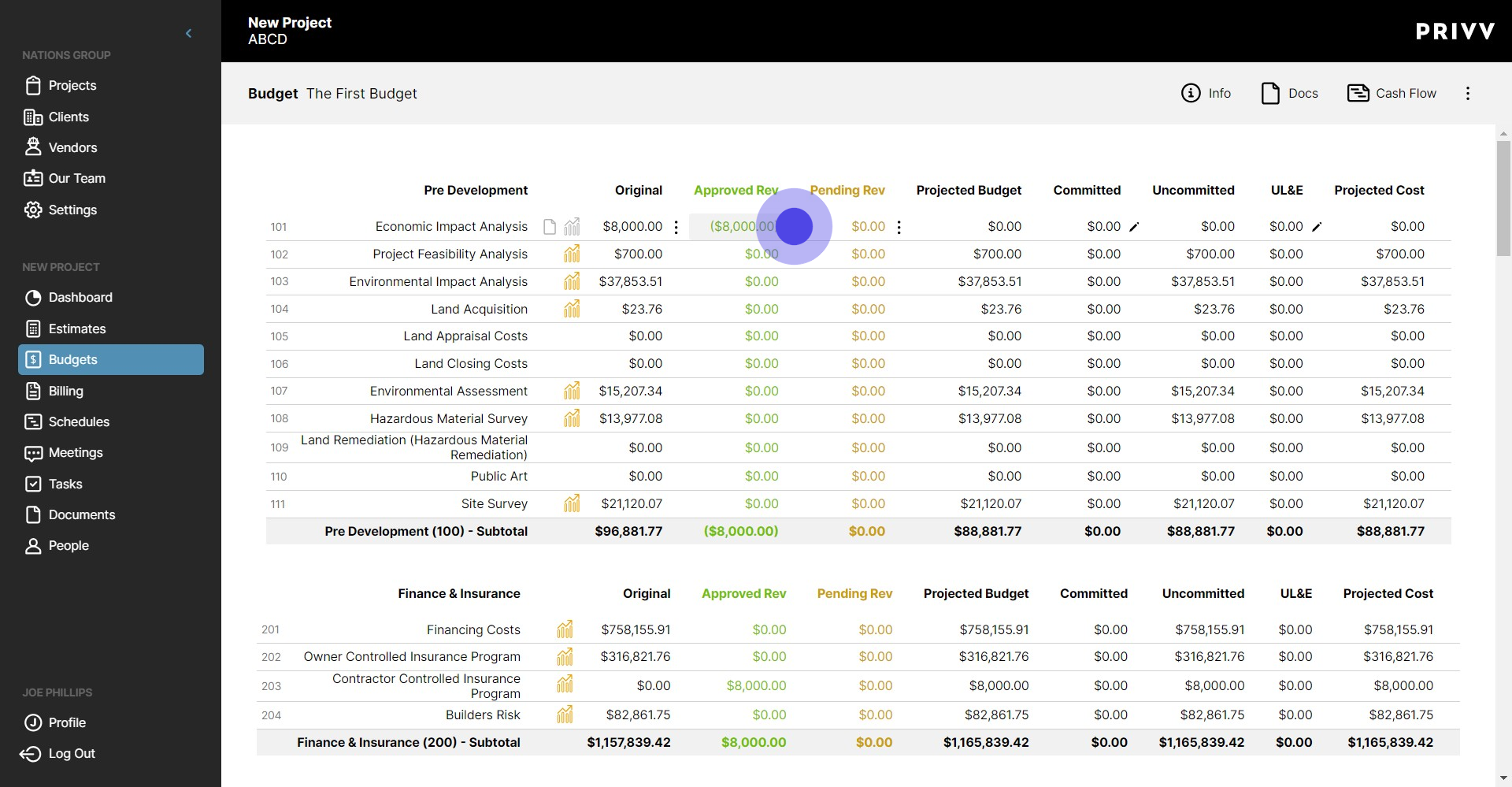
26. Here we can see one of the approved changes made to the Budget. Notice that the projected budget and cost for this line item is now $0.00 and the Approved Rev is -$8,000
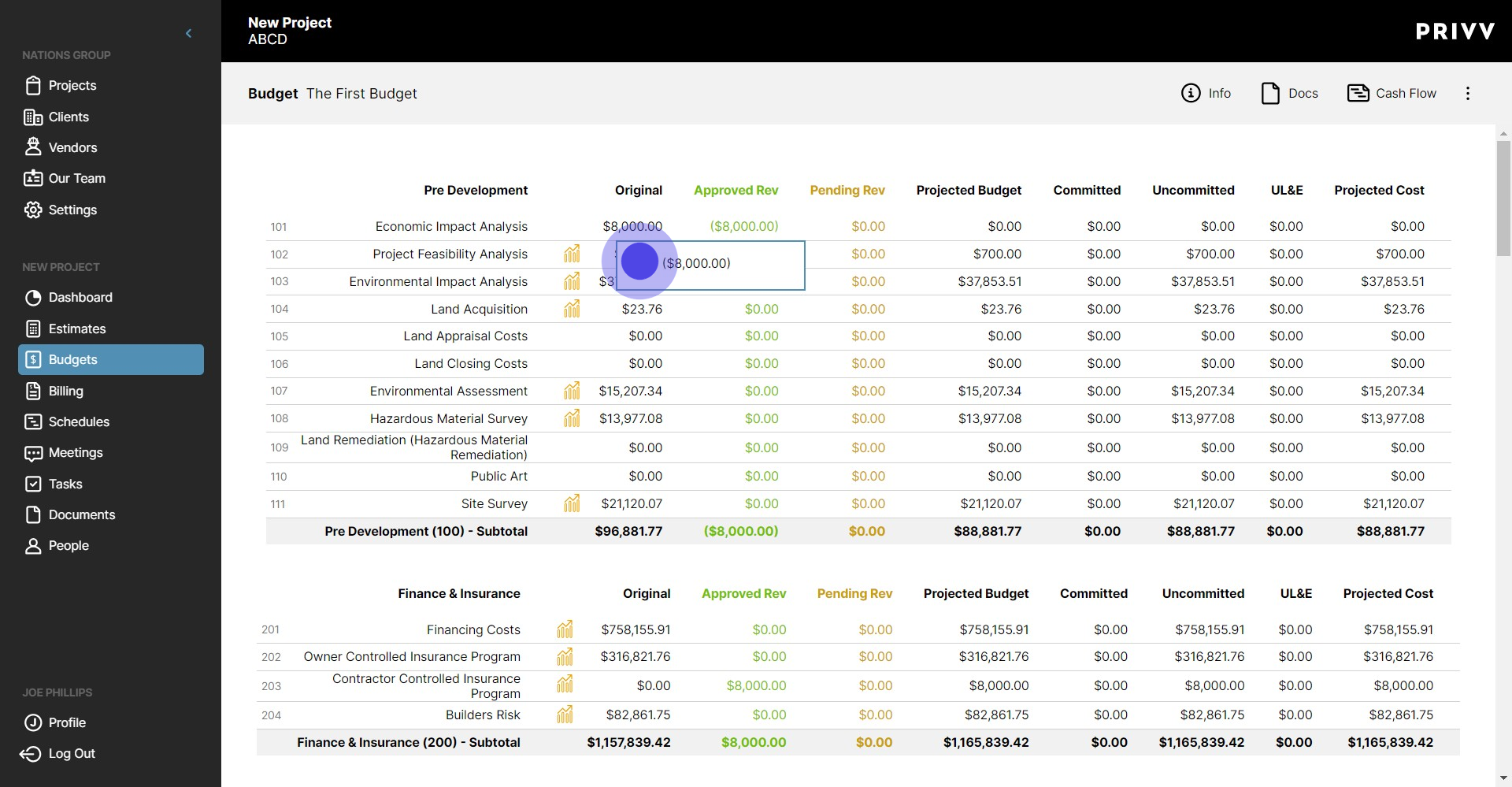
27. To see the Approved Revision in its entirety, the user can click on the revision and select the icon next to the designated revision
28. The entire Approved Revision is shown here
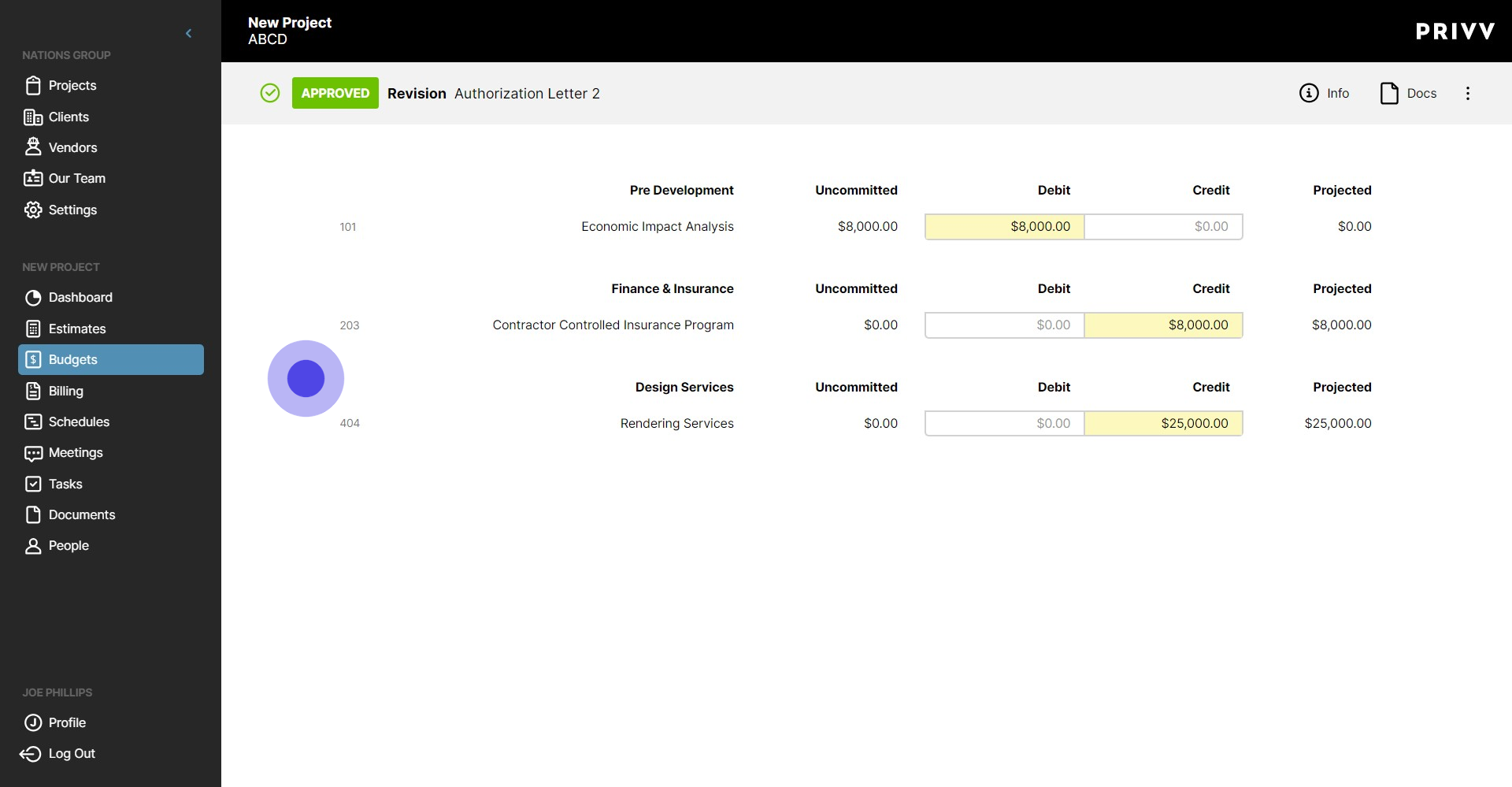
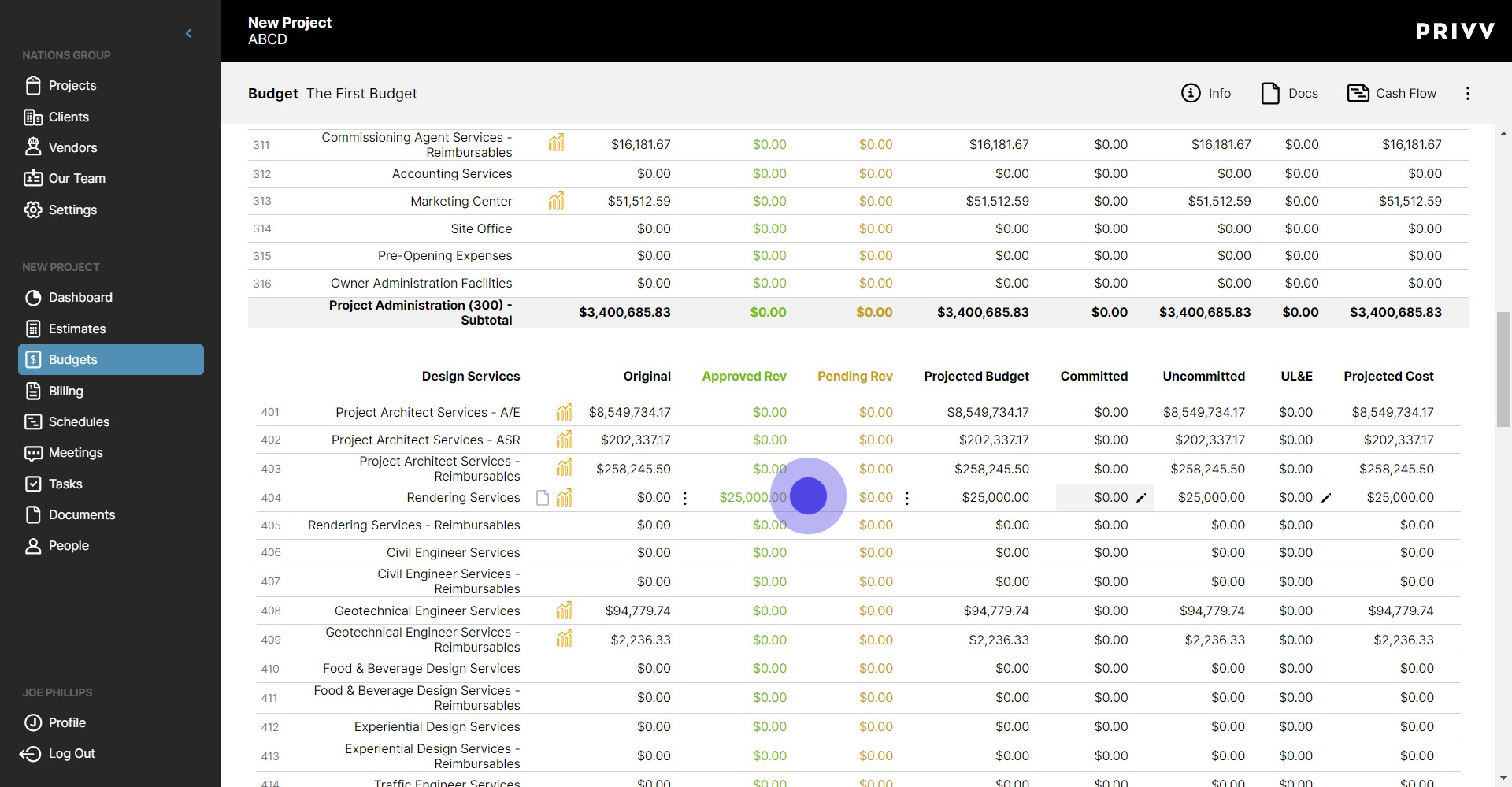
29. Now that capital has been injected to this line item, the user can apply committed costs to the newly funded line item
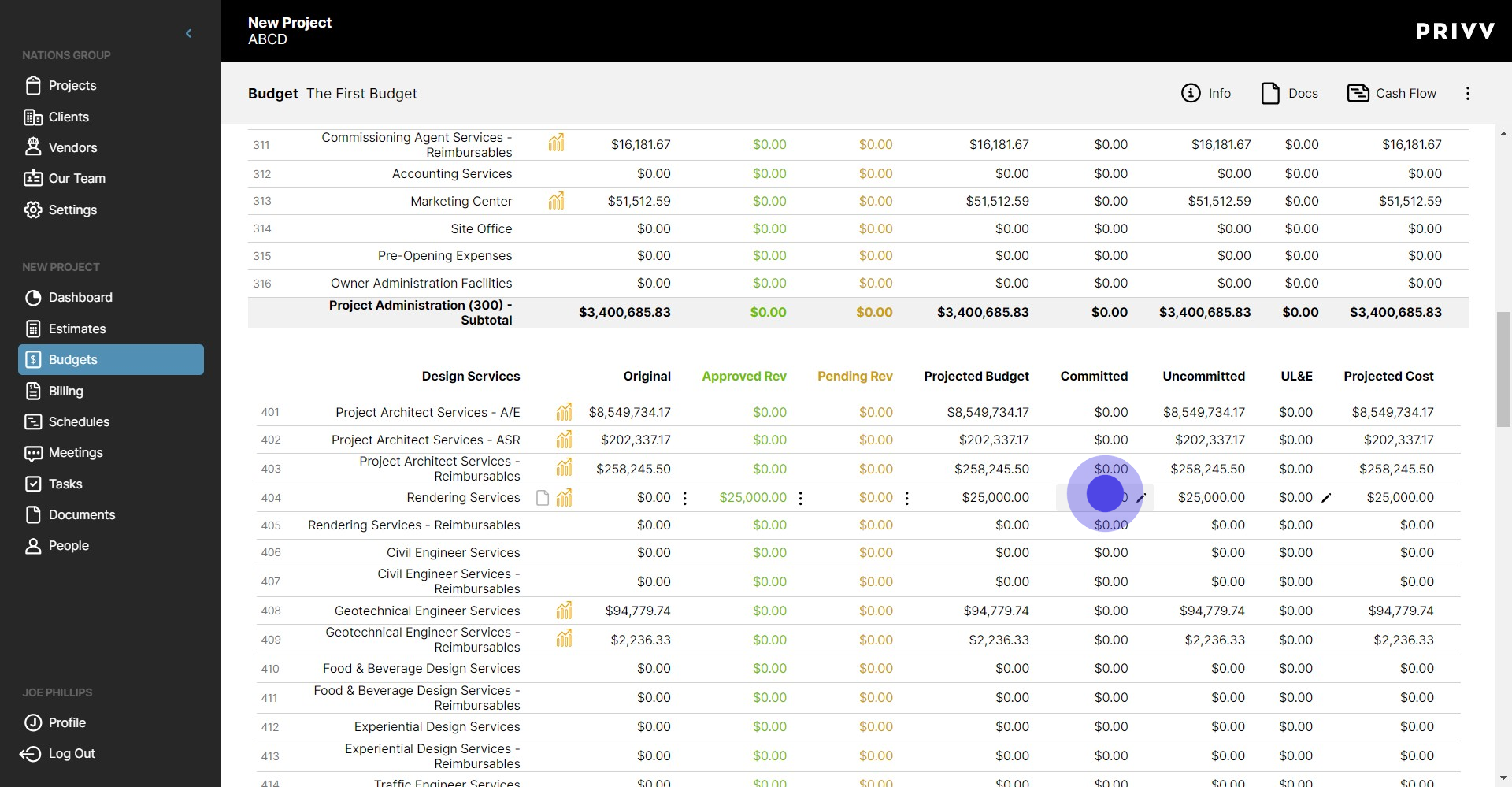
30. To see more on Committed costs, check out our Budget Walkthroughs!
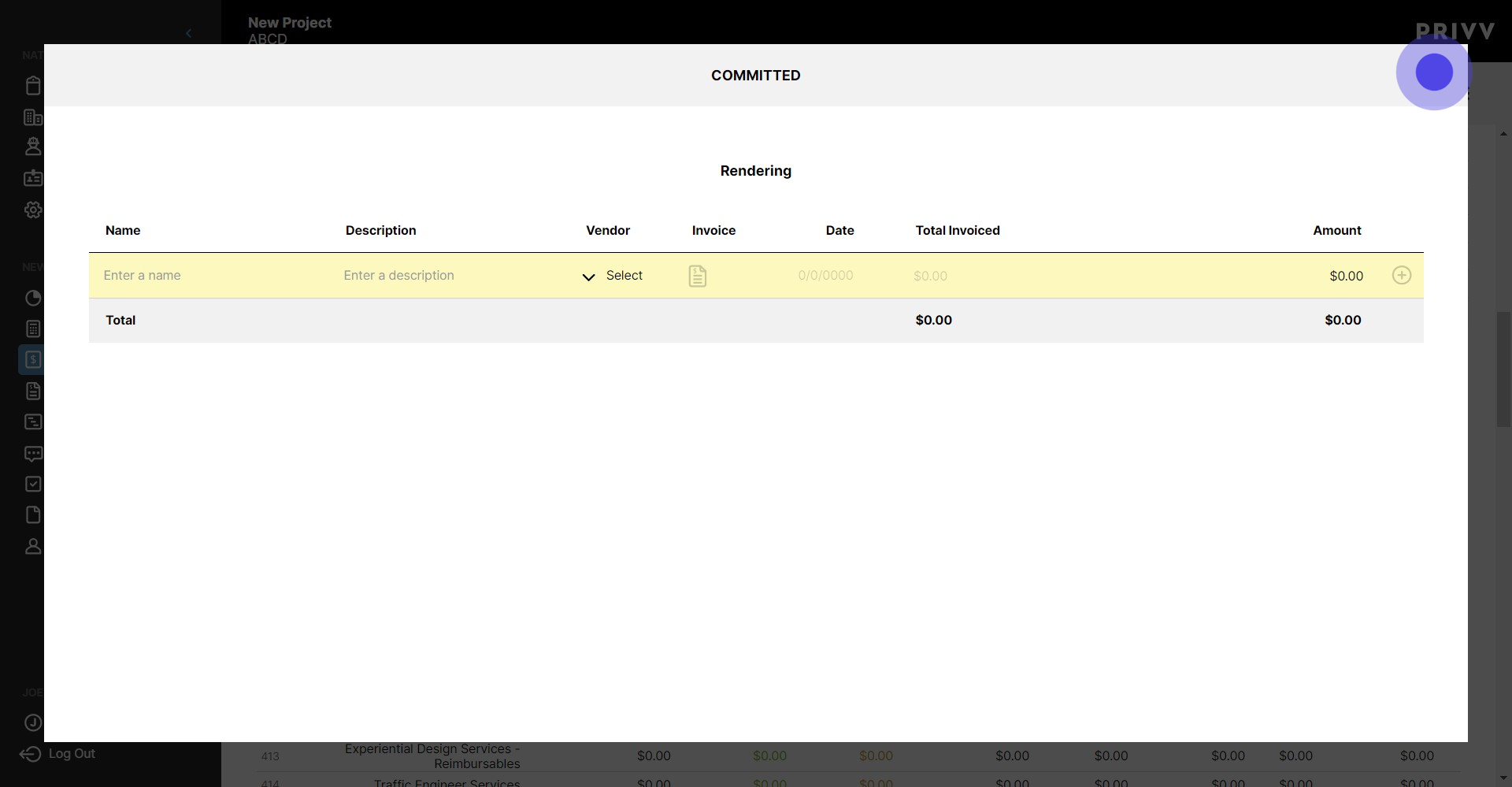
31. Congratulations you can now create your own project budget revisions in Privv!!
Was this article helpful?
That’s Great!
Thank you for your feedback
Sorry! We couldn't be helpful
Thank you for your feedback
Feedback sent
We appreciate your effort and will try to fix the article