Budget Commitments: Creating a New Contract Amendment
Author: Joseph Phillips
Steps: 15
1. To begin, click on "Budgets".
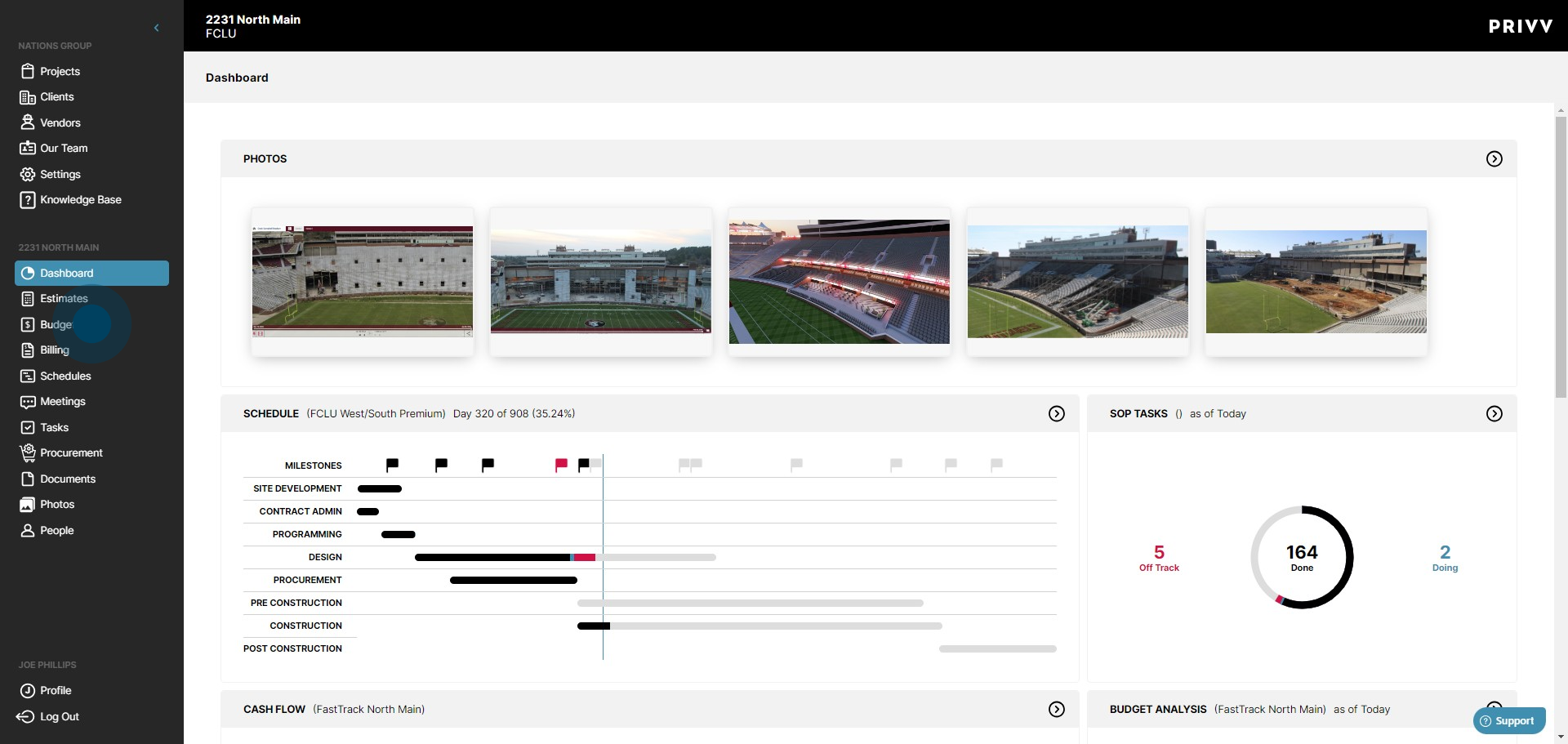
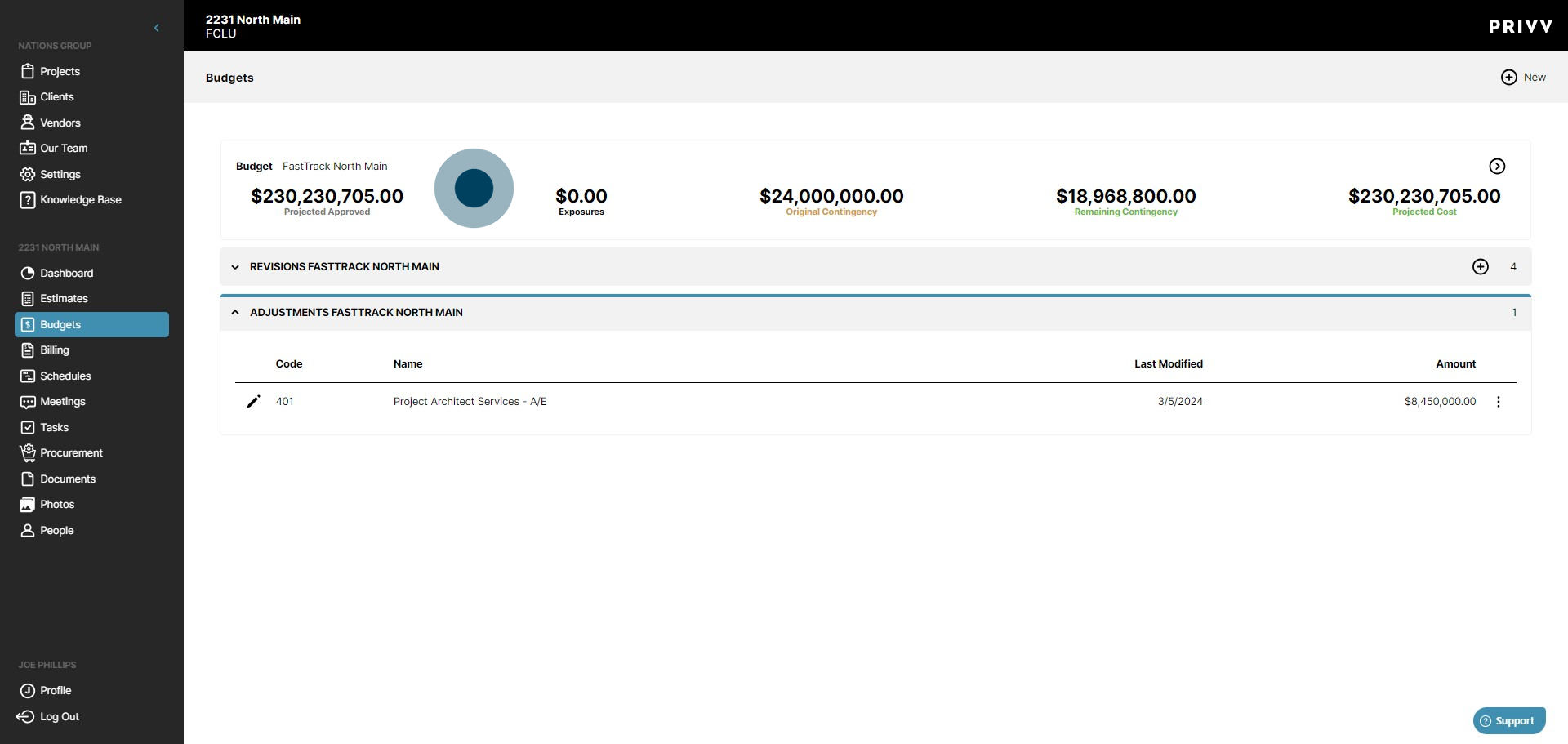
2. Click into the budget where you would like your contract amendment to take place.
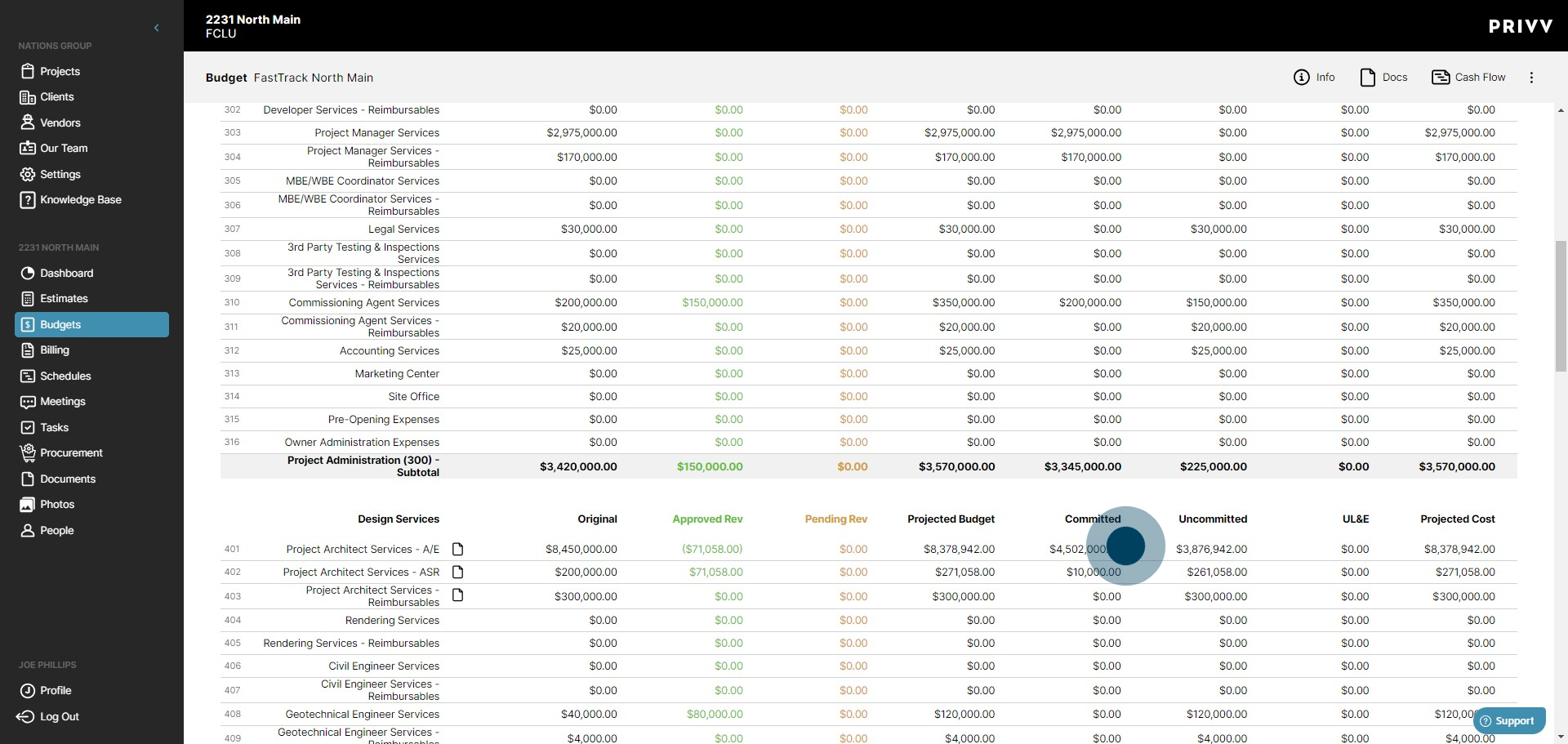
3. Find the budget code with the committed cost you want to amend. Click on the Committed cost
4. Find the Vendor contract line item and click on the amendments icon.
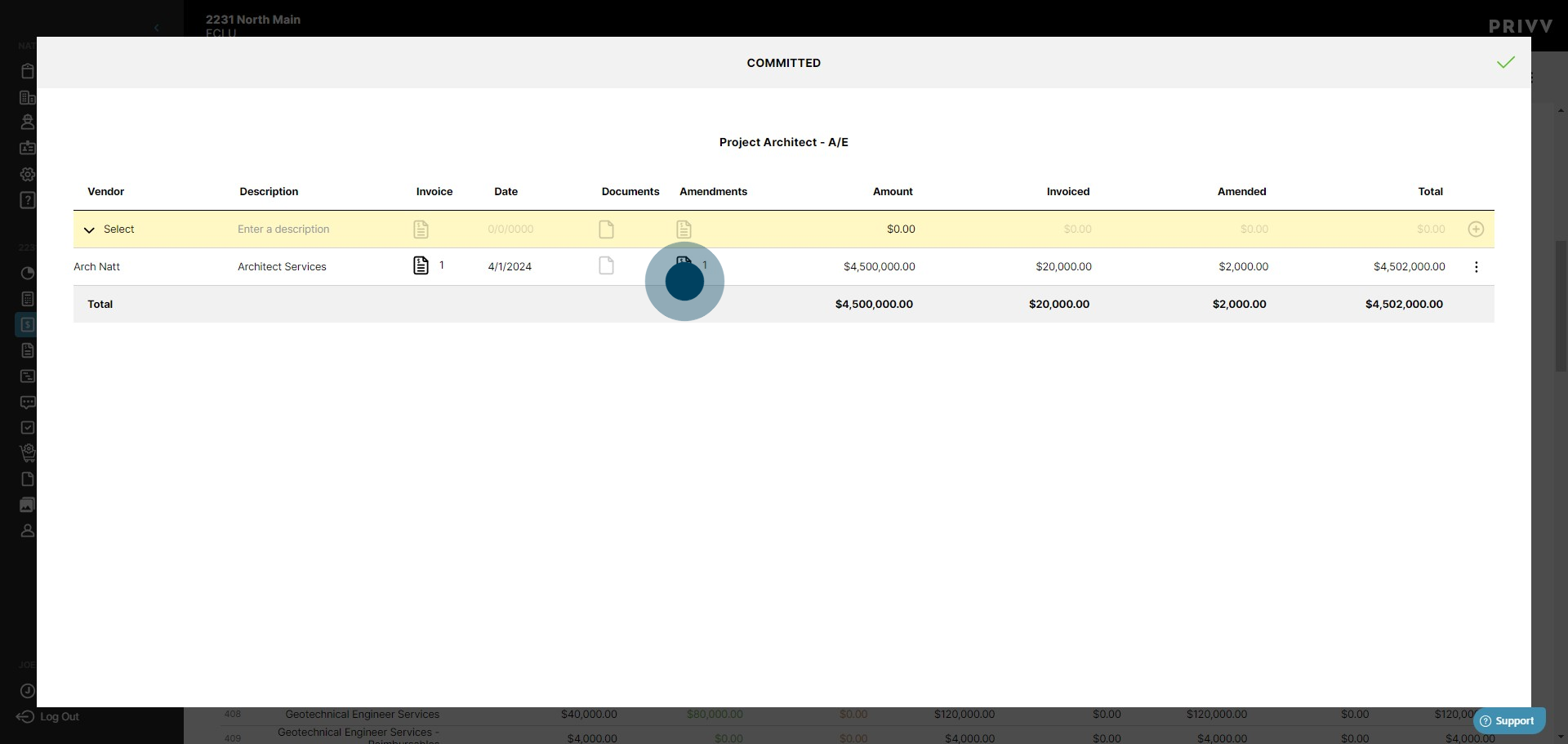
5. Here you can see the amount and date for any previous amendments to the committed contract.
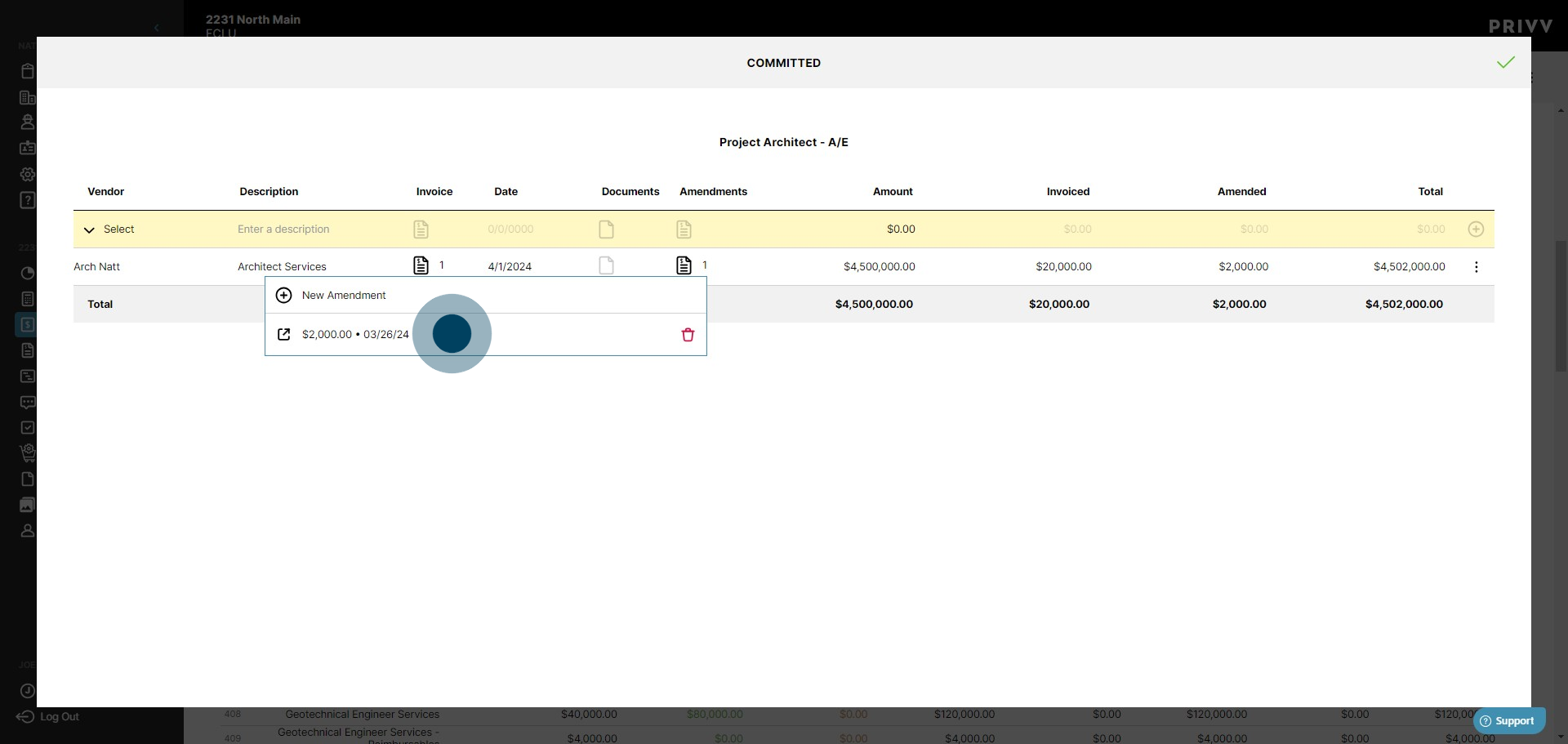
6. Click on "New Amendment" to start a new amendment to your committed contract.
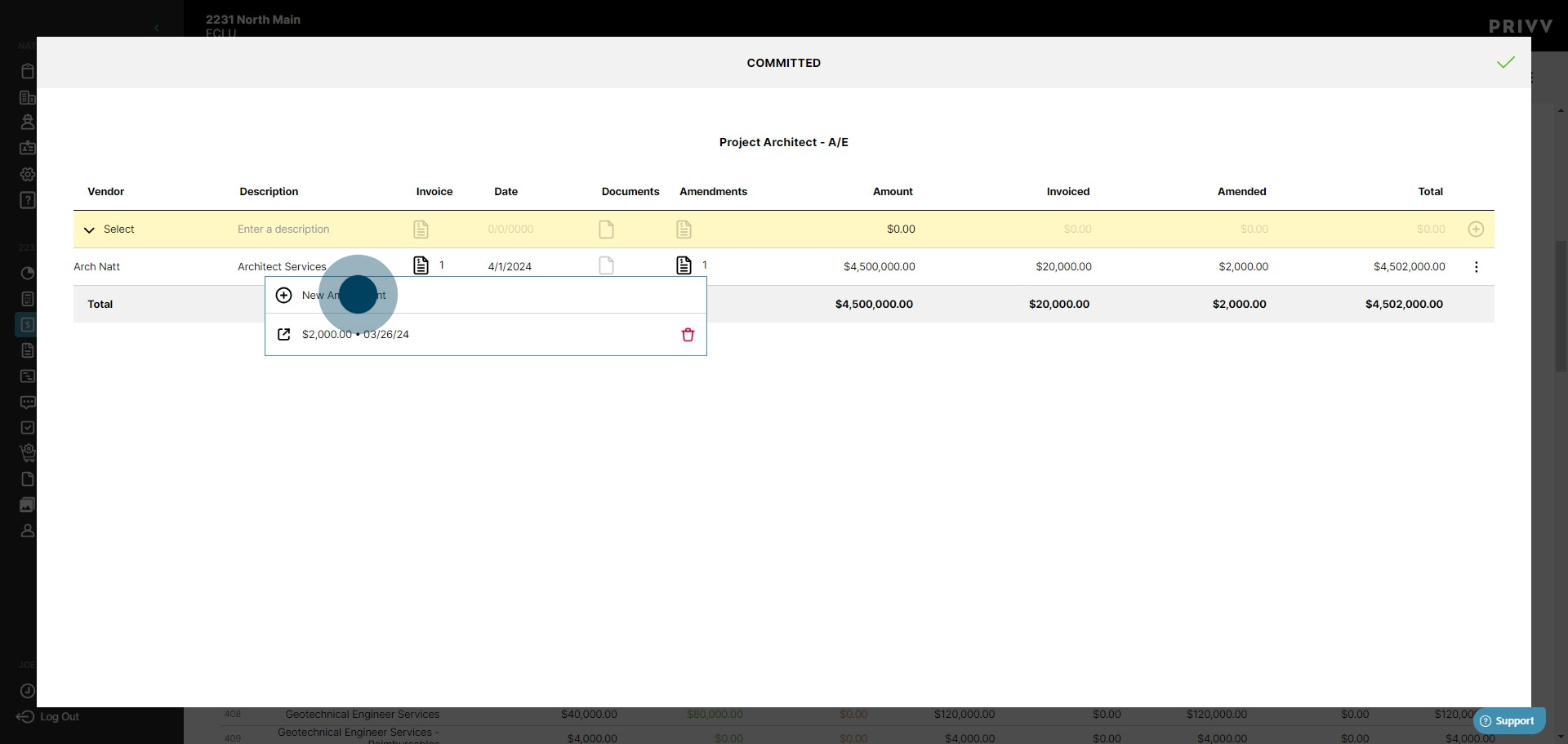
7. Enter the description that best describes this change.
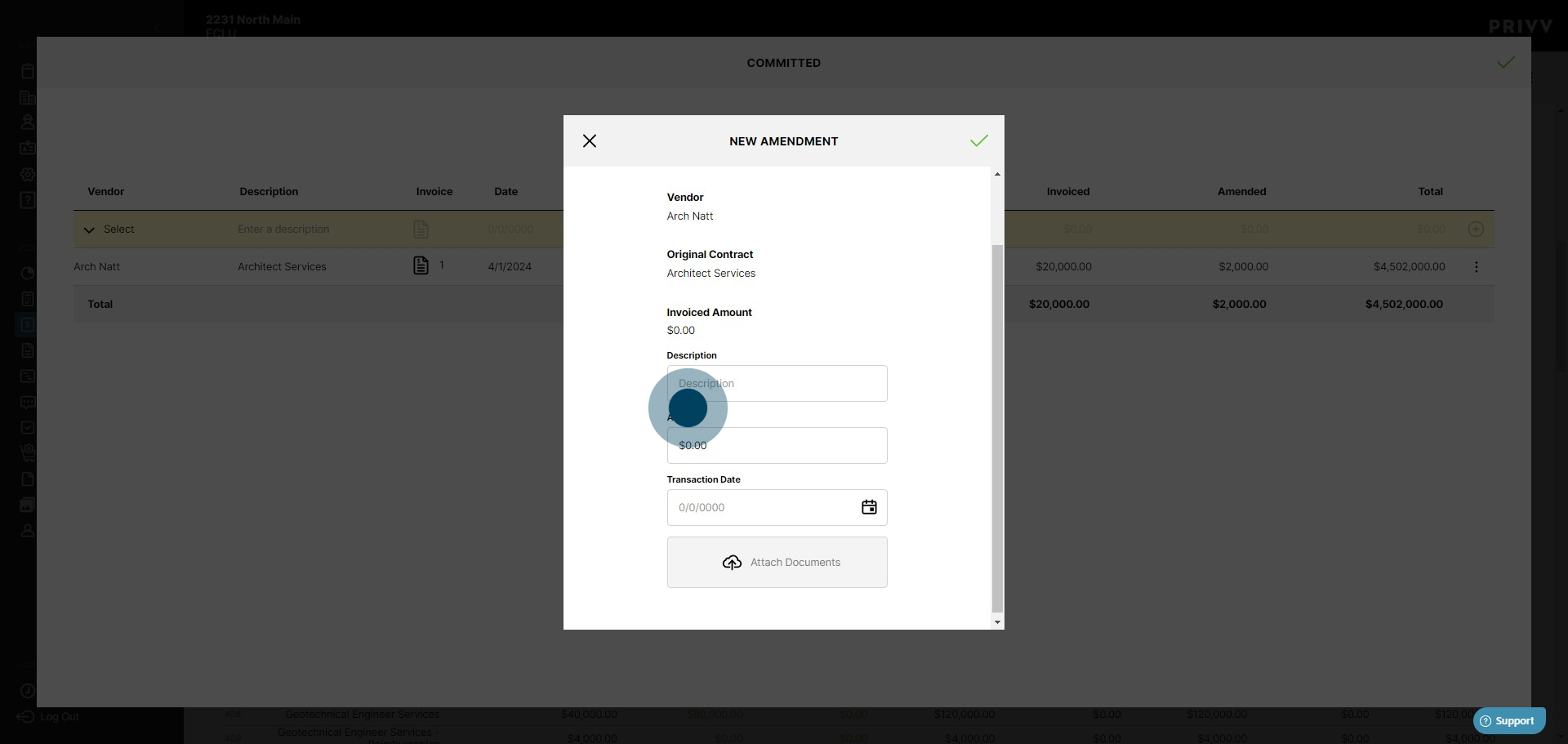
8. Now, enter the dollar amount of the amendment.
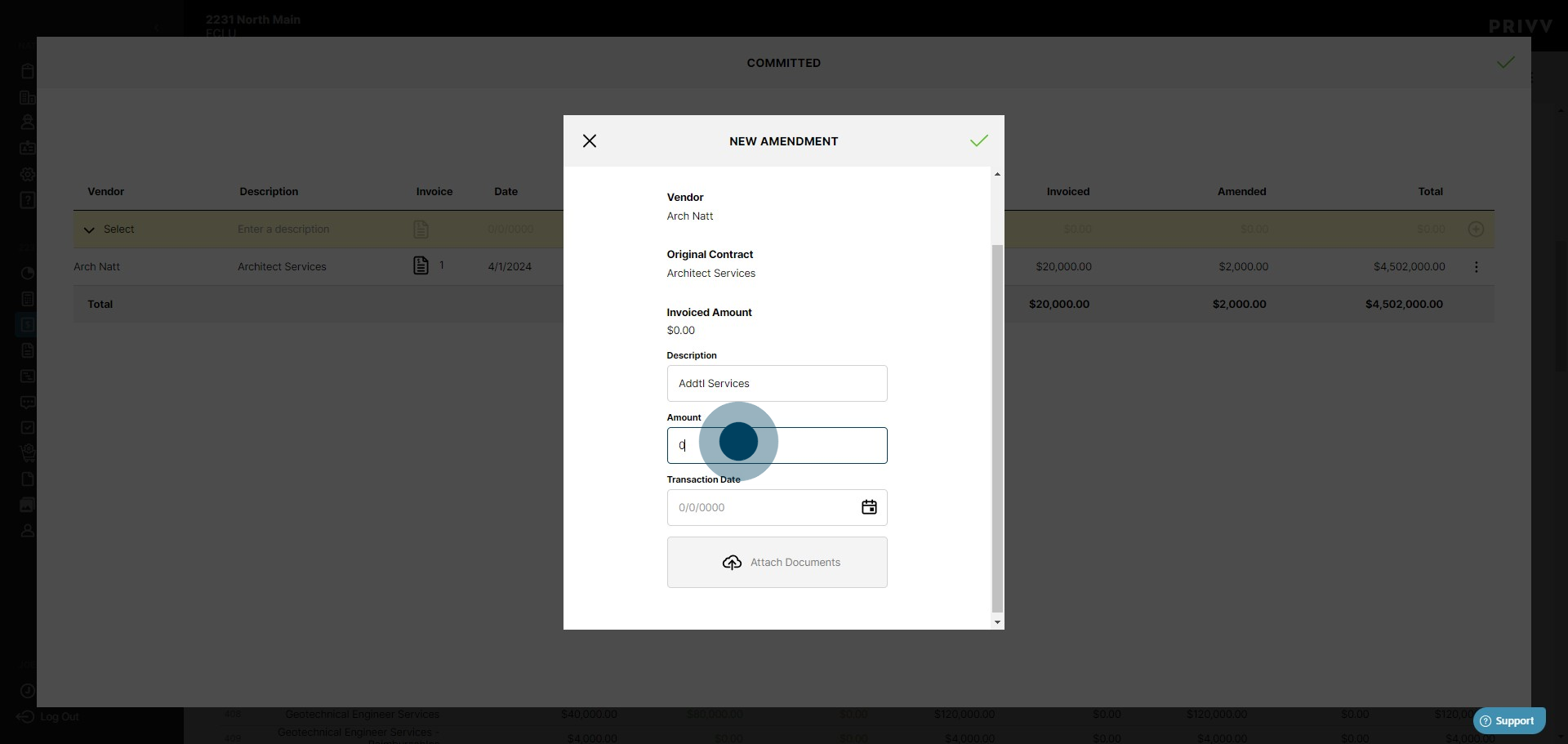
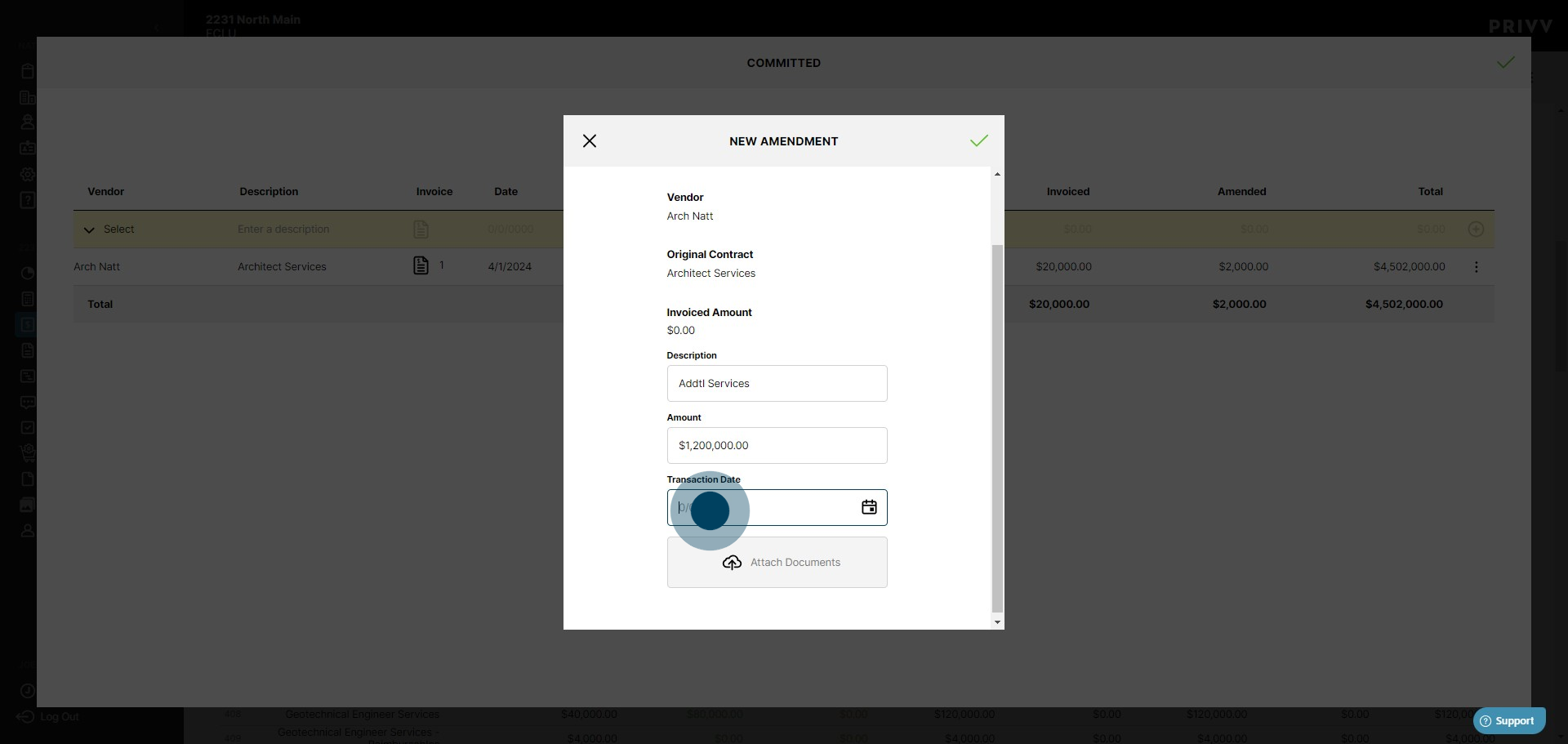
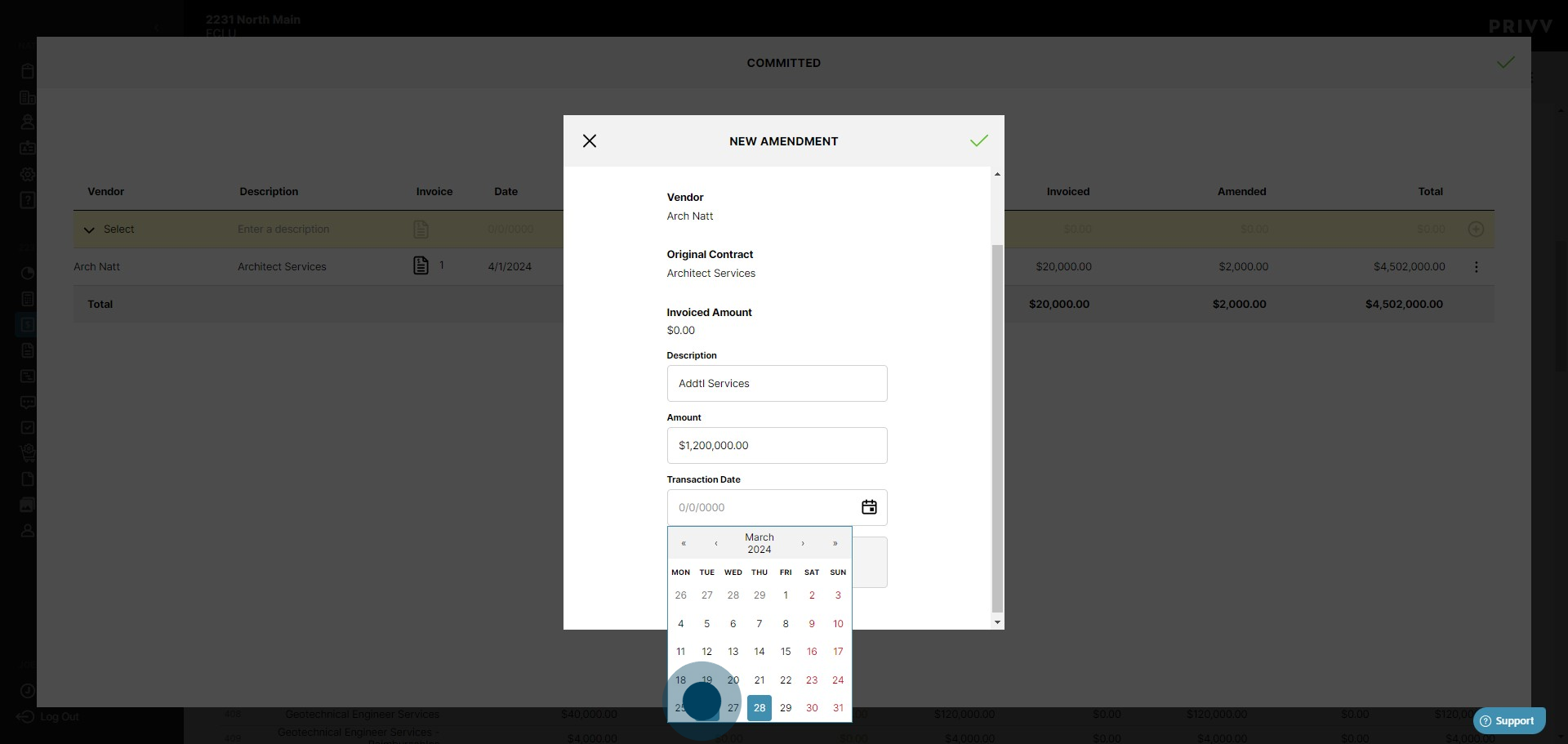
9. Choose the transaction date from the calendar window.
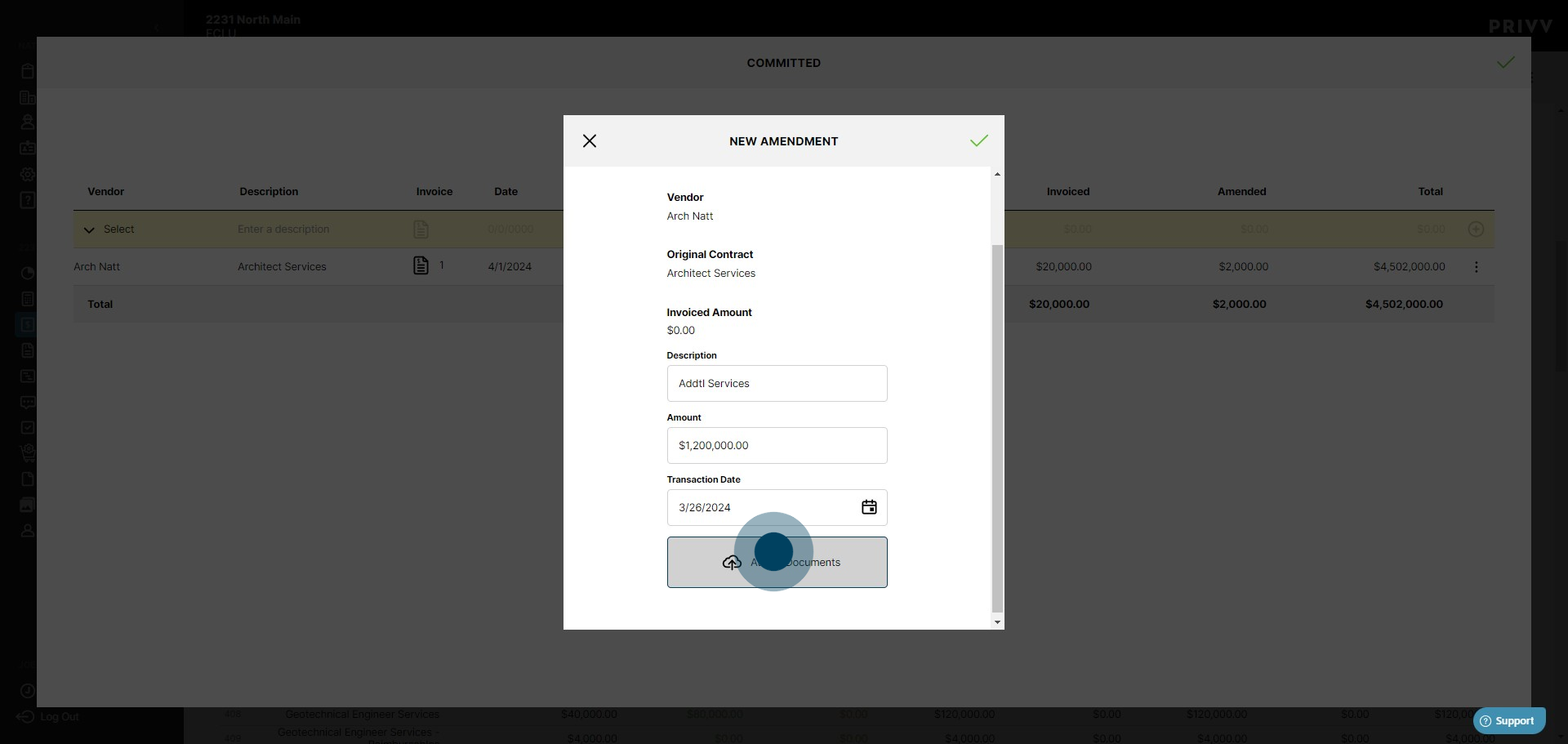
11. Upload a file by clicking here.
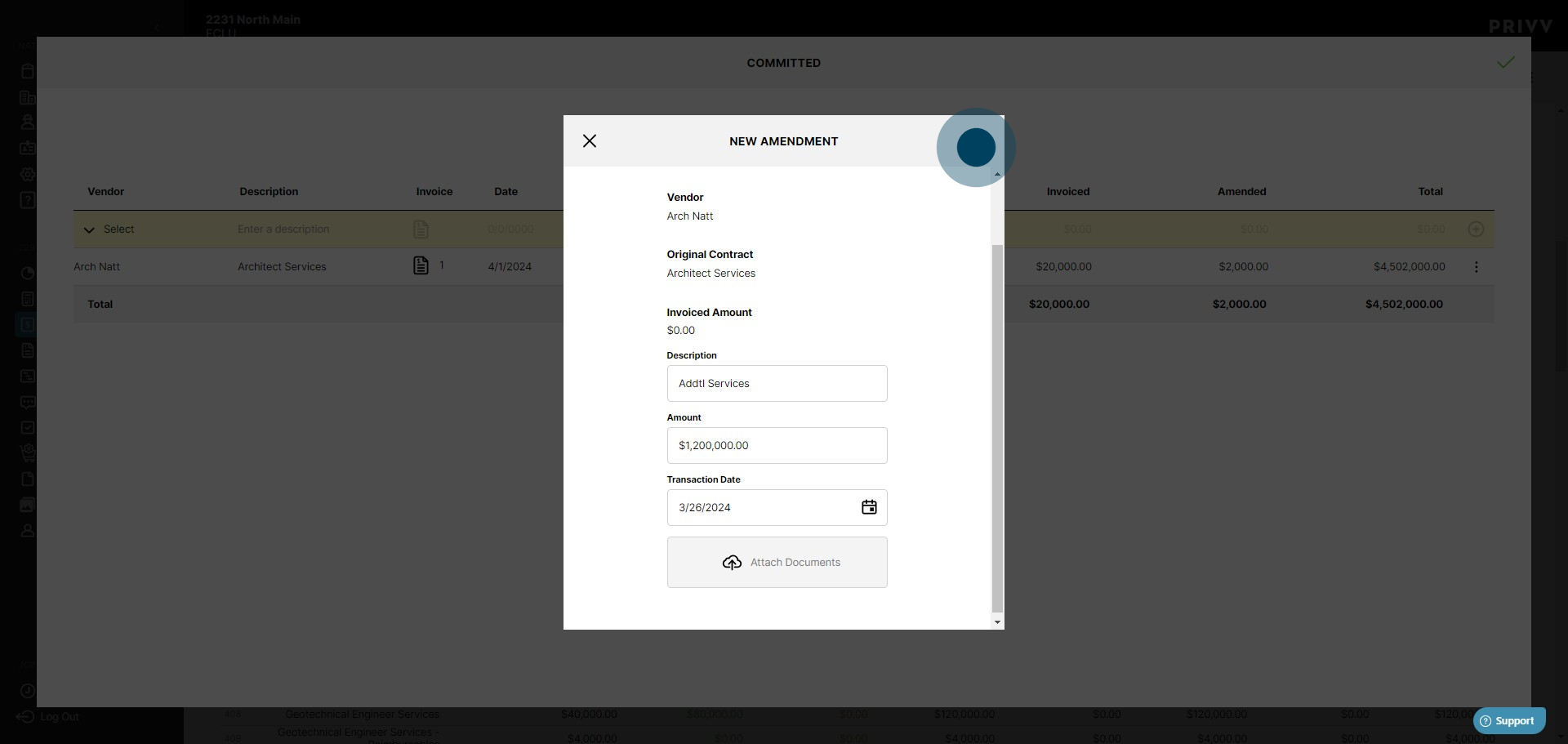
12. To confirm your amendment, click the green checkmark.
13. Clicking on the amendment icon, you should now see your new amendment to the contract.
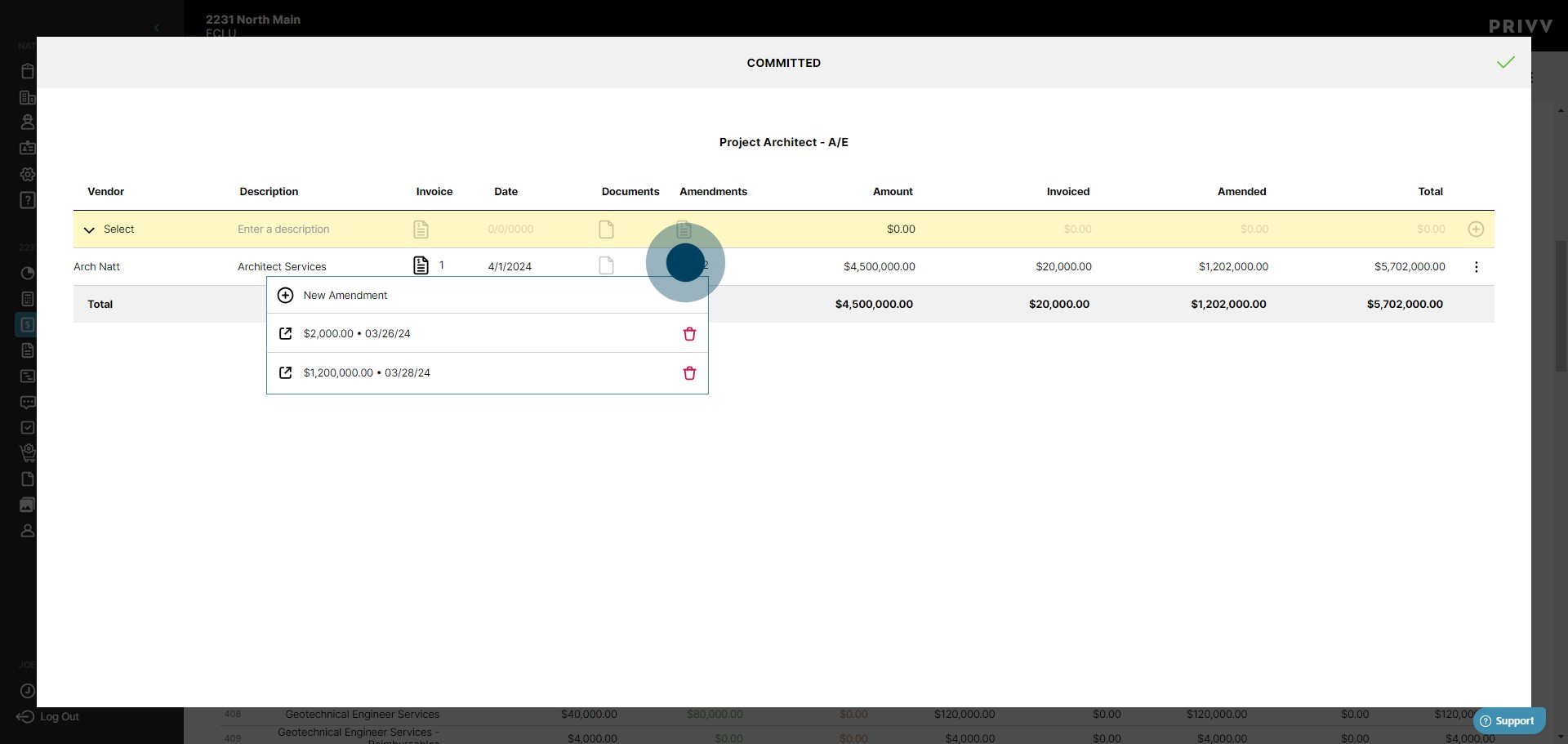
14. Your amendment will be added to the total for the vendor commitment.
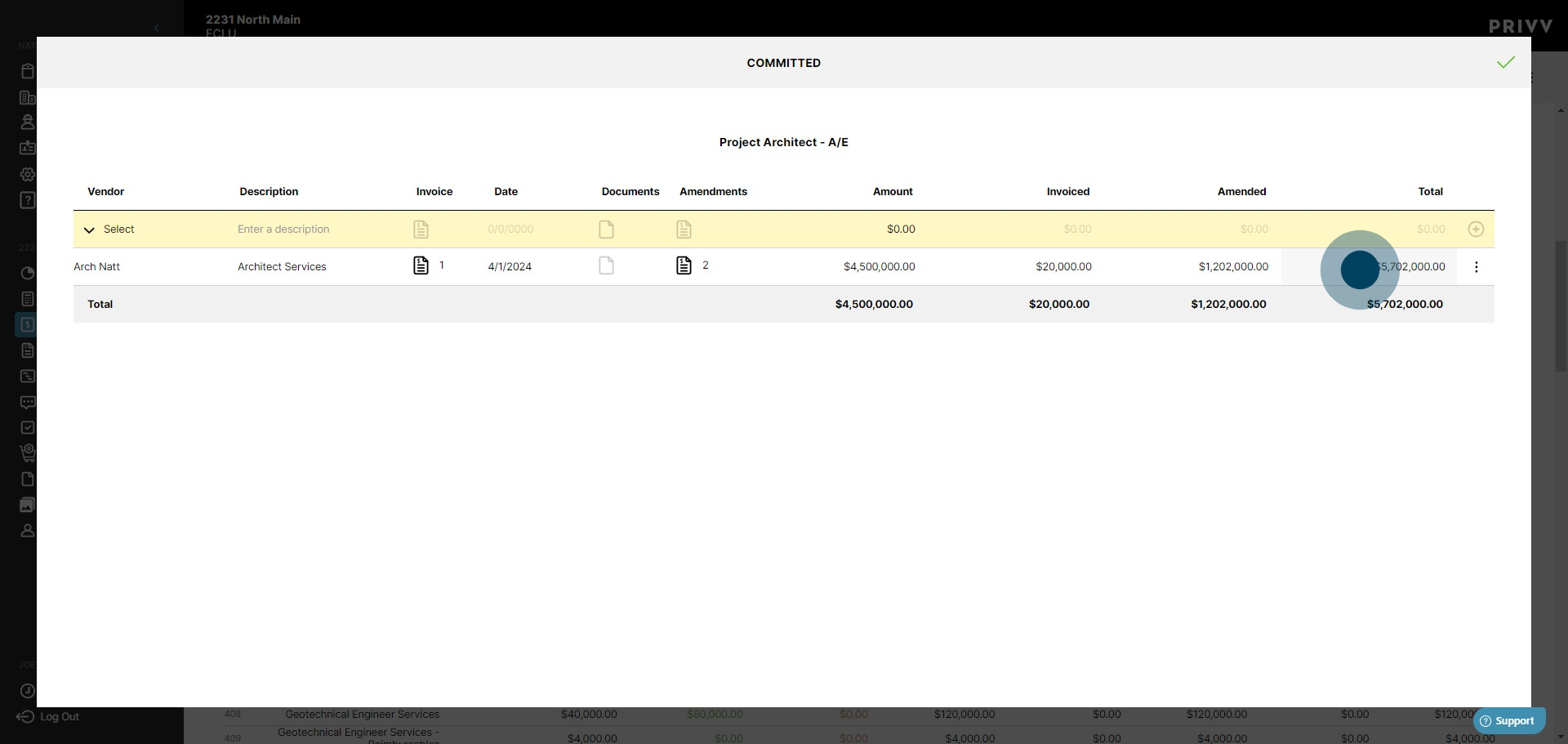
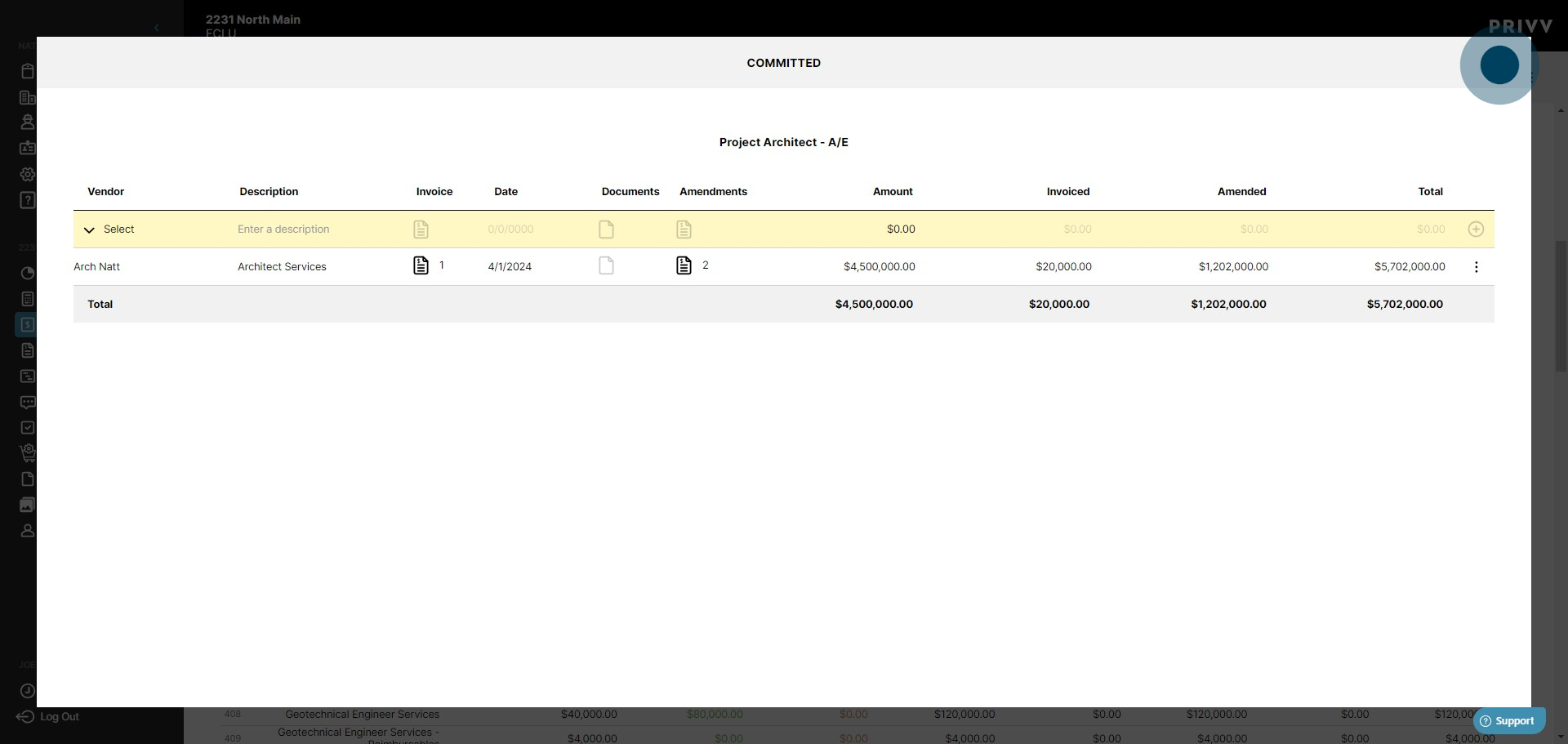
15. You have now Amended your committed costs. To close this window, click the green check mark.
Was this article helpful?
That’s Great!
Thank you for your feedback
Sorry! We couldn't be helpful
Thank you for your feedback
Feedback sent
We appreciate your effort and will try to fix the article